
How to Restore Data from Google Account

When files, photos, contacts, or phone settings disappear, many users search for restore data from Google Account and expect one simple button. However, Google does not restore every data type in the same place. Android backup, Google Drive, Google Photos, Gmail, and Google Contacts each use a different recovery path.
This guide explains how to restore data from Google Account step by step. You will learn which Google option to try first, why recovery may fail, and when Magic Data Recovery can help you recover data from a hard drive, USB drive, SD card, or synced local folder after Google recovery no longer works.
Supports Windows 7/8/10/11 and Windows Server
Table of Contents
How to Restore Data from Google Account: Quick Answer
You can restore data from Google Account when Google backed up, synced, or still keeps the missing item in Trash. For example, Android backup may bring back apps, settings, contacts, call history, and messages during phone setup. Also, Google Drive and Google Photos can restore deleted items from Trash during their available recovery window.
However, Google cannot recover every lost file. If backup was off, if you used the wrong account, or if the file never synced, Google’s tools may not help. Therefore, identify where the data originally lived before you choose a method.
Before You Restore Data from Google Account, Check the Data Type
Before you try to restore data from Google Account, confirm what you lost. This step matters because Google services do not share one universal recovery button.
You may need to recover Android phone backup data, Google Drive files, Google Photos, contacts, Gmail messages, Workspace Drive files, or local files from a PC, USB drive, SD card, or synced folder.
For example, if you lost app data after a factory reset, Android backup should come first. If you deleted a spreadsheet from Drive, start with Drive Trash. Meanwhile, if the file once synced to your computer, local recovery may offer a better solution.
Method 1: Restore Data from Google Account on Android
If you bought a new Android phone or reset your old one, Android setup gives you the best chance to restore data from Google Account. Depending on your phone and backup settings, Google may restore apps, app data, contacts, call history, messages, Wi-Fi settings, wallpaper, and device preferences.
First, turn on the Android phone and connect it to Wi-Fi. Next, sign in with the same Google Account. Then choose the available backup during setup. After that, select the apps and data you want to restore. Finally, keep the phone connected until the process finishes. You can then restore backup to Android phone.
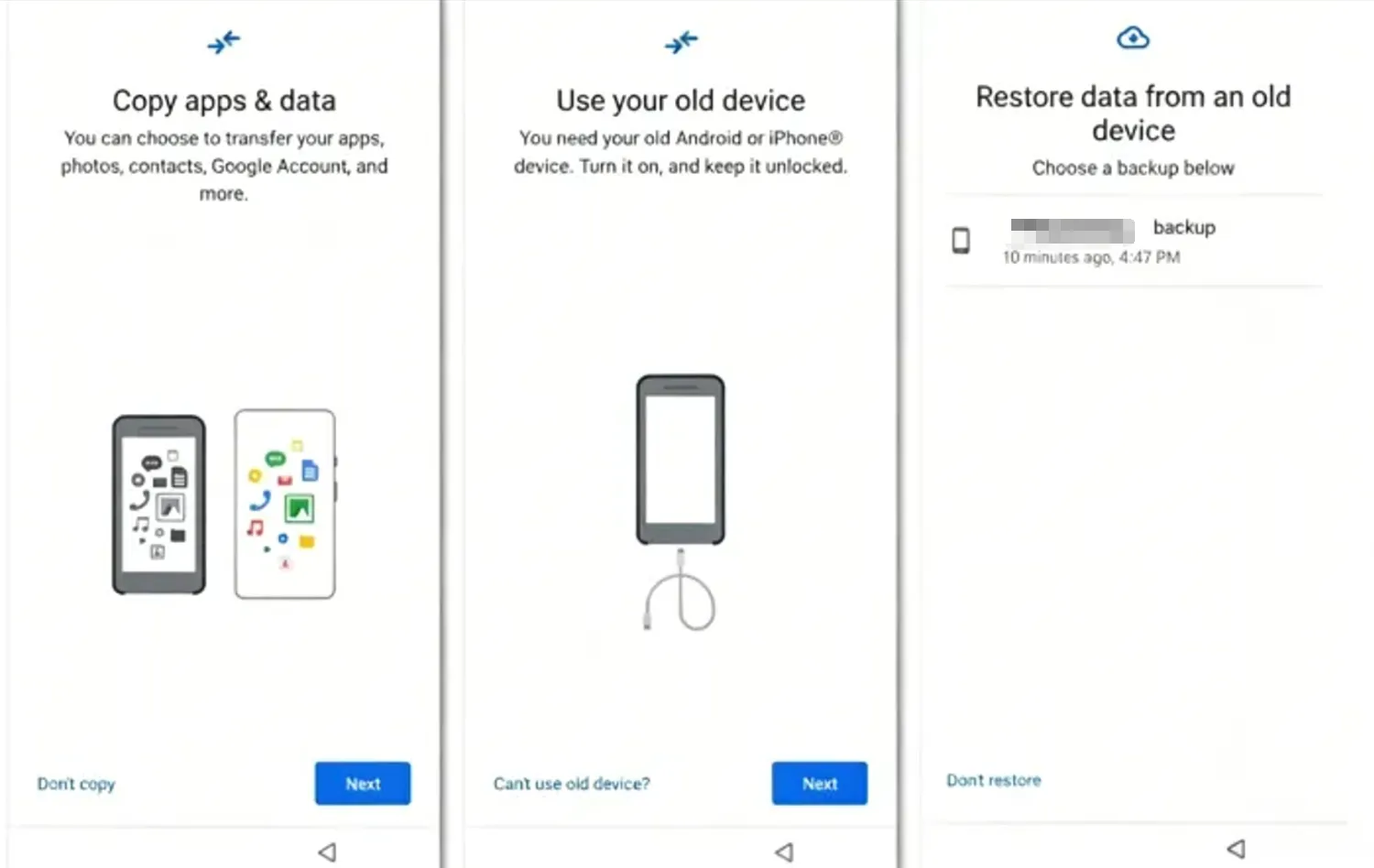
This method works best when you used the same Google Account on the old phone and enabled backup before data loss. Also, the new phone should run the same or a newer Android version. Otherwise, some apps or settings may not transfer correctly.
Method 2: Restore Data from Google Drive
Google Drive is a common place to restore data such as documents, PDFs, spreadsheets, videos, and shared files. If you deleted a file recently, check Trash first.
Open Google Drive and sign in with the correct account. Next, go to Trash. Then find the deleted file or folder, right-click it, and choose Restore. In most cases, Drive returns the item to its original location.
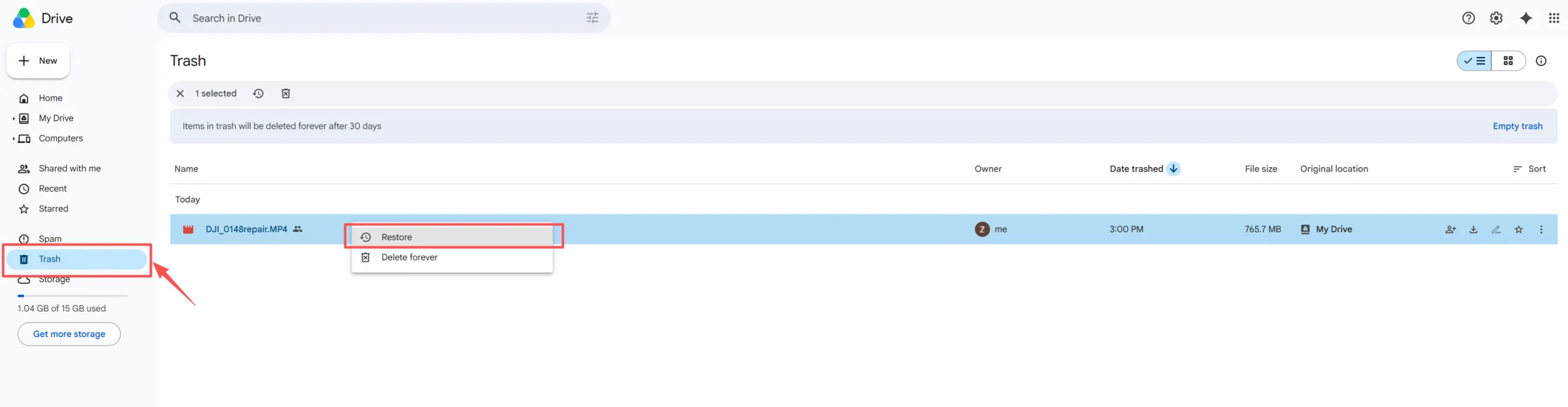
If you cannot see the file, search by name, owner, file type, or date. Also, check “Shared with me,” because another person may still own the file. In addition, review every Google Account you use. If Drive Trash does not show the item, check whether a local copy once existed on your computer, USB drive, or SD card.
Method 3: Restore Data from Google Photos
Photos often create urgent recovery cases. Fortunately, you can often restore data from Google Account through Google Photos if backup saved the images before deletion.
Open Google Photos and sign in with the correct account. Next, go to Trash. Then select the missing photo or video and tap Restore. Also, check Archive, Locked Folder, and other Google Accounts if the item does not appear in the main feed.
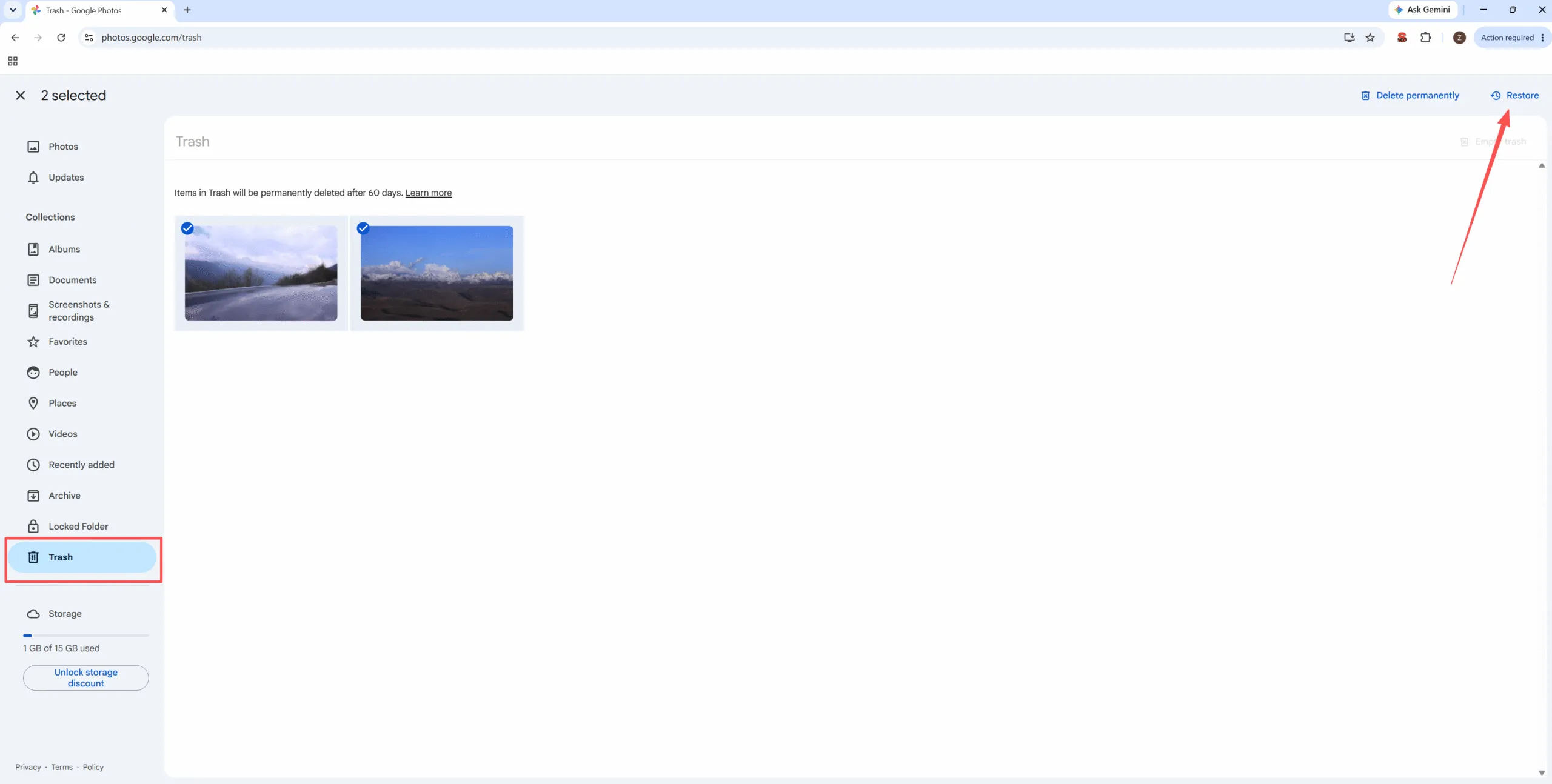
However, deleting a backed-up image from Google Photos may remove it across synced devices. Therefore, avoid deleting anything until you know whether you only removed a device copy or the cloud copy. If the picture once existed on an SD card, camera card, or computer, local recovery may still help.
Method 4: Restore Google Contacts and Gmail Data
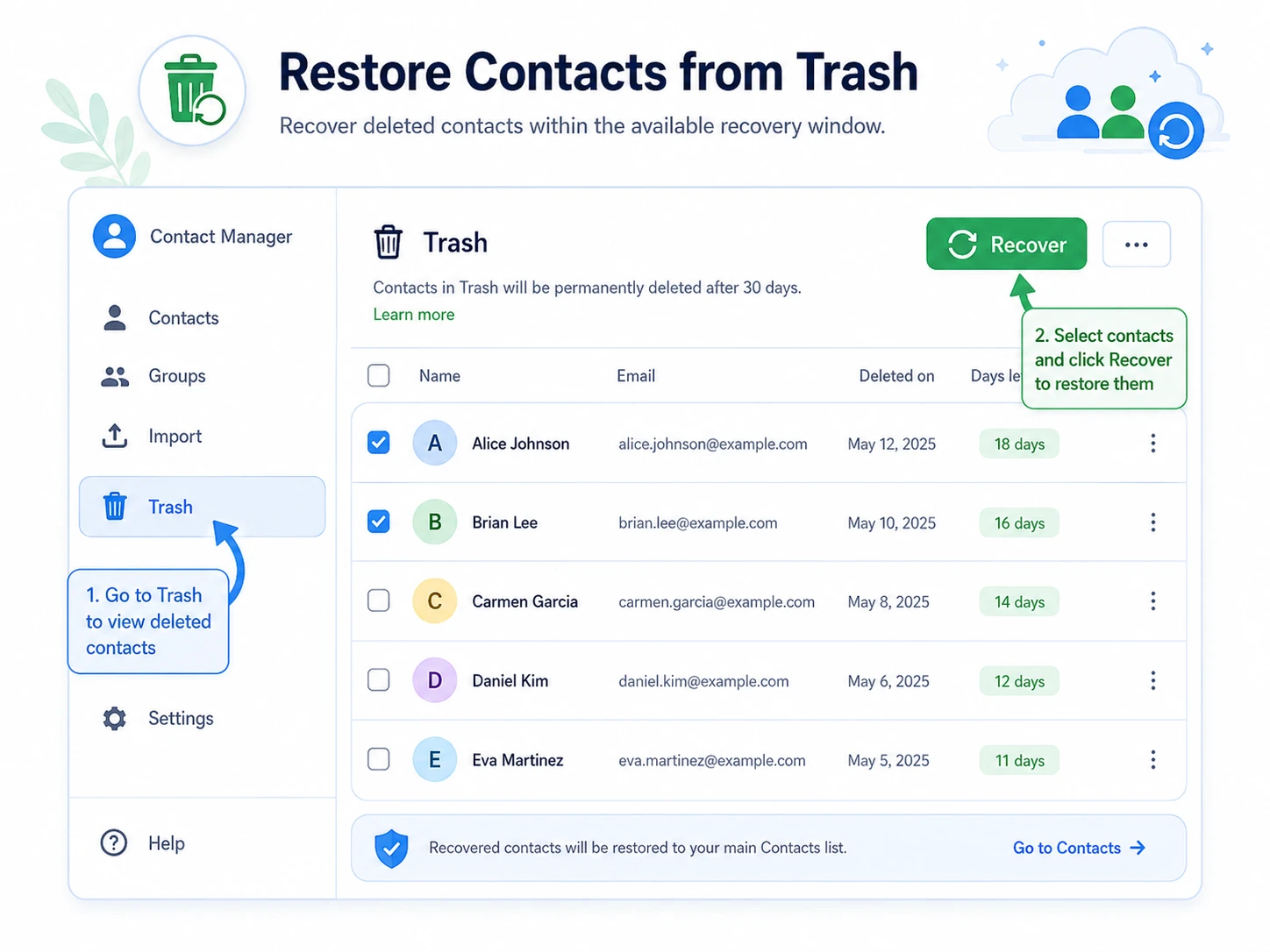
Contacts and emails use separate recovery paths. To restore data from Google Account for contacts, open Google Contacts, sign in, and check Trash. You can also use the undo changes option if your account still offers it.
For Gmail, open Trash first. Then move the deleted message back to Inbox or another label. If you cannot find it, check All Mail, Spam, Archive, and filters. Sometimes Gmail did not delete the message; a filter only archived it. Additionally, confirm that you used the right Google Account.
Method 5: Restore Data from Google Account for Workspace Users
Google Workspace users may have another option. If you use a business or school account, an administrator may help restore data from Google Account through the Admin console. This method usually applies to Drive data that a user deleted within a limited recovery period.
An admin can select the user, choose a date range, and restore Drive data. However, this option has restrictions. It may not restore individual files, and it may not work after the recovery period ends. Therefore, report missing business files as soon as possible.
Restore Data from Google Account vs Magic Data Recovery
Google tools and Magic Data Recovery solve different problems. As a result, the best choice depends on where the file existed before loss.
Situation | Best Solution |
Android backup exists | Google Account restore |
Drive file remains in Trash | Google Drive restore |
Photo remains in Photos Trash | Google Photos restore |
Contact synced to Google | Google Contacts restore |
Gmail message remains in Trash | Gmail restore |
Workspace Drive file was recently deleted | Admin restore |
File once existed on a PC, USB drive, or SD card | Magic Data Recovery |
Google cloud copy disappeared permanently | Try local recovery |
This comparison helps you avoid unrealistic expectations. Magic Data Recovery does not recover files directly from Google servers. Instead, it scans local storage where missing files may still leave recoverable traces.
How to Use Magic Data Recovery to Restore Data
If you cannot restore data from Google Account, but the lost files once existed on your computer, USB drive, SD card, or another local storage device, Magic Data Recovery can scan the original location and look for recoverable files. To improve the recovery chance, stop saving new files to the affected device before scanning.
Step 1: Download and Install Magic Data Recovery
First, download Magic Data Recovery from the official website and install it on a safe drive, not on the location where your files disappeared. This choice helps reduce the risk of overwriting deleted data before recovery.
Supports Windows 7/8/10/11 and Windows Server
Step 2: Select the Device or Partition to Scan
Open Magic Data Recovery. From the main interface, choose the drive, partition, USB drive, or SD card where the missing files originally existed. Then start the scan.

Step 3: Scan for Deleted or Lost Files
After the scan begins, Magic Data Recovery searches the selected location for deleted, lost, or inaccessible files. Meanwhile, you can view detected files as they appear, which helps you check whether the files you need may still be recoverable.

Step 4: Preview Files Before Recovery
Next, use the preview feature to check file names, formats, and content when available. This step helps you confirm which files you should recover instead of restoring unnecessary items.

Step 5: Recover Files to a Safe Location
Finally, select the files you want to recover and save them to a different safe location. Do not restore files back to the same place where they disappeared, because new data may overwrite recoverable file traces.

Why Magic Data Recovery Helps When You Cannot Restore Data from Google Account
Magic Data Recovery fills an important gap. Google Account restore works only when Google still has the backup, synced item, or Trash record. By contrast, Magic Data Recovery focuses on local storage. Therefore, it can help when a file once existed on your PC, USB drive, SD card, or synced Google Drive folder.
The tool supports common file types, including documents, photos, videos, audio files, archives, and more. In addition, it uses a simple workflow: select a location, scan, preview, and recover. This approach helps ordinary users avoid complicated manual recovery steps.
For example, you may delete a report from a Google Drive desktop folder and later lose access to the cloud copy. You may also reset a phone before photos finish uploading to Google Photos. In both cases, scanning the original local location gives you another practical way to restore data.
Common Reasons You Cannot Restore Data from Google Account
Several issues can block recovery. First, you may have signed in with the wrong Google Account. Next, backup may have been disabled before data loss. In addition, your phone may already have passed the first setup stage, which limits full Android restore options.
Permanent deletion also creates problems. Once Google removes an item from Trash or backup storage, normal user recovery tools may no longer show it. Moreover, some app developers do not back up all app data, so the restored phone may still miss certain items.
Because of these limits, always check Google’s built-in recovery tools first. Then, if the file once lived locally, use Magic Data Recovery before you add new data to the affected storage device.
Tips to Protect Data After You Restore Data from Google Account
After you restore data from Google Account, take a few preventive steps. Turn on Android backup, enable Google Photos backup, and check Google Drive sync settings regularly. Also, export important contacts and keep a local backup for critical files.
Furthermore, avoid emptying Trash too quickly. If you accidentally delete files from a local device, stop using that device immediately. New files may overwrite old data traces. Therefore, a fast response improves your chance to restore data successfully.
Conclusion
The best way to restore data from Google Account depends on the data type. Use Android backup for phone data, Google Drive Trash for documents, Google Photos Trash for images, Google Contacts for synced contacts, and Gmail Trash for deleted messages. For Workspace accounts, contact your admin quickly.
However, Google restore options have limits. They cannot help if backup was off, the wrong account was used, the file never synced, or the cloud copy disappeared permanently. That is why Magic Data Recovery deserves a place in your recovery plan. It does not replace Google’s official tools. Instead, it gives you a practical second option when you need to recover data from local hard drives, USB drives, SD cards, or synced folders after Google recovery fails.
Supports Windows 7/8/10/11 and Windows Server
FAQ About Restoring Data from Google Account
Can I restore data from Google Account after a factory reset?
Yes, you can often restore data from Google Account after a factory reset if Android backup was enabled before the reset. During setup, sign in with the same Google Account and choose the available backup. However, some apps may not restore all app data, especially when the developer does not support full backup.
Why is my Google backup not showing on my new phone?
Your backup may not appear because you signed in with the wrong account, used an older Android version, or disabled backup on the old device. Also, some backups may expire or change after long inactivity. Therefore, check every Google Account you used and confirm the Android version before trying again.
Can I restore Google Drive files after deleting them?
Yes, you can restore data from Google Drive if the file still appears in Trash. Open Drive, go to Trash, right-click the file, and choose Restore. However, if you permanently deleted the item or waited beyond the recovery window, personal account recovery options may become very limited.
When should I use Magic Data Recovery?
Use Magic Data Recovery after you check Google Drive, Google Photos, Gmail, Contacts, and Android backup but still cannot find the missing files. It works best when the files once existed on your computer, USB drive, SD card, or a local synced folder before deletion or data loss.
Is it safe to recover files to the same location?
No, you should avoid saving recovered files to the same location where they disappeared. New data may overwrite recoverable traces and reduce the chance of success. Instead, choose another safe drive or storage location. This simple habit protects the original device during recovery.
What is the best way to prevent future data loss?
The best solution combines cloud backup and local backup. Turn on Android backup, enable Google Photos backup, review Google Drive sync settings, and keep important files on a separate storage device. In addition, check Trash before emptying it and act quickly after accidental deletion.

Vasilii is a data recovery specialist with around 10 years of hands-on experience in the field. Throughout his career, he has successfully solved thousands of complex cases involving deleted files, formatted drives, lost partitions, and RAW file systems. His expertise covers both manual recovery methods using professional tools like hex editors and advanced automated solutions with recovery software. Vasilii's mission is to make reliable data recovery knowledge accessible to both IT professionals and everyday users, helping them safeguard their valuable digital assets.