
How to Recover AutoCAD Files Without Data Loss

When a DWG file disappears, every minute feels stressful. AutoCAD may crash before you save. A project folder may vanish after deletion. Also, a formatted drive may remove drawings that took hours to create. Many users search “AutoCAD recover files” because they need a clear hard drive recovery solution, not a technical lecture.
This guide explains how to recover AutoCAD files with Drawing Recovery Manager, AutoSave files, BAK backups, version history, repair commands, and Magic Data Recovery when a DWG or DXF file no longer appears in its original folder.
Supports Windows 7/8/10/11 and Windows Server
Table of Contents
How to Recover AutoCAD Files: Choose the Right Method First
Before you try random fixes, identify what happened to the drawing. As a result, you can save time and avoid overwriting recoverable data.
Situation | Best First Method | Next Step |
AutoCAD crashed | Drawing Recovery Manager | Check AutoSave files |
You forgot to save | .sv$ AutoSave file | Rename .sv$ to .dwg |
You saved over a drawing | .bak backup | Check version history |
DWG file was deleted | Recycle Bin | Scan with Magic Data Recovery |
Recycle Bin was emptied | Stop using the drive | Recover from the affected drive |
DWG file will not open | RECOVER command | Run AUDIT and PURGE |
Drive was formatted | Avoid new writes | Use data recovery software |
In short, use AutoCAD tools for recovery files and backups. However, use storage-level recovery when the file was deleted from the drive.
Before You Recover AutoCAD Files, Protect the Original Drive
Before you recover AutoCAD files, stop using the affected drive. Deleted files often remain recoverable until new data overwrites them. Therefore, do not save new drawings, install software, or copy files to the same location.
For example, if a drawing disappeared from a USB drive, do not add new files to that USB drive. Instead, scan it carefully and restore found files to another location. Also, copy any recovered DWG before opening it in AutoCAD.
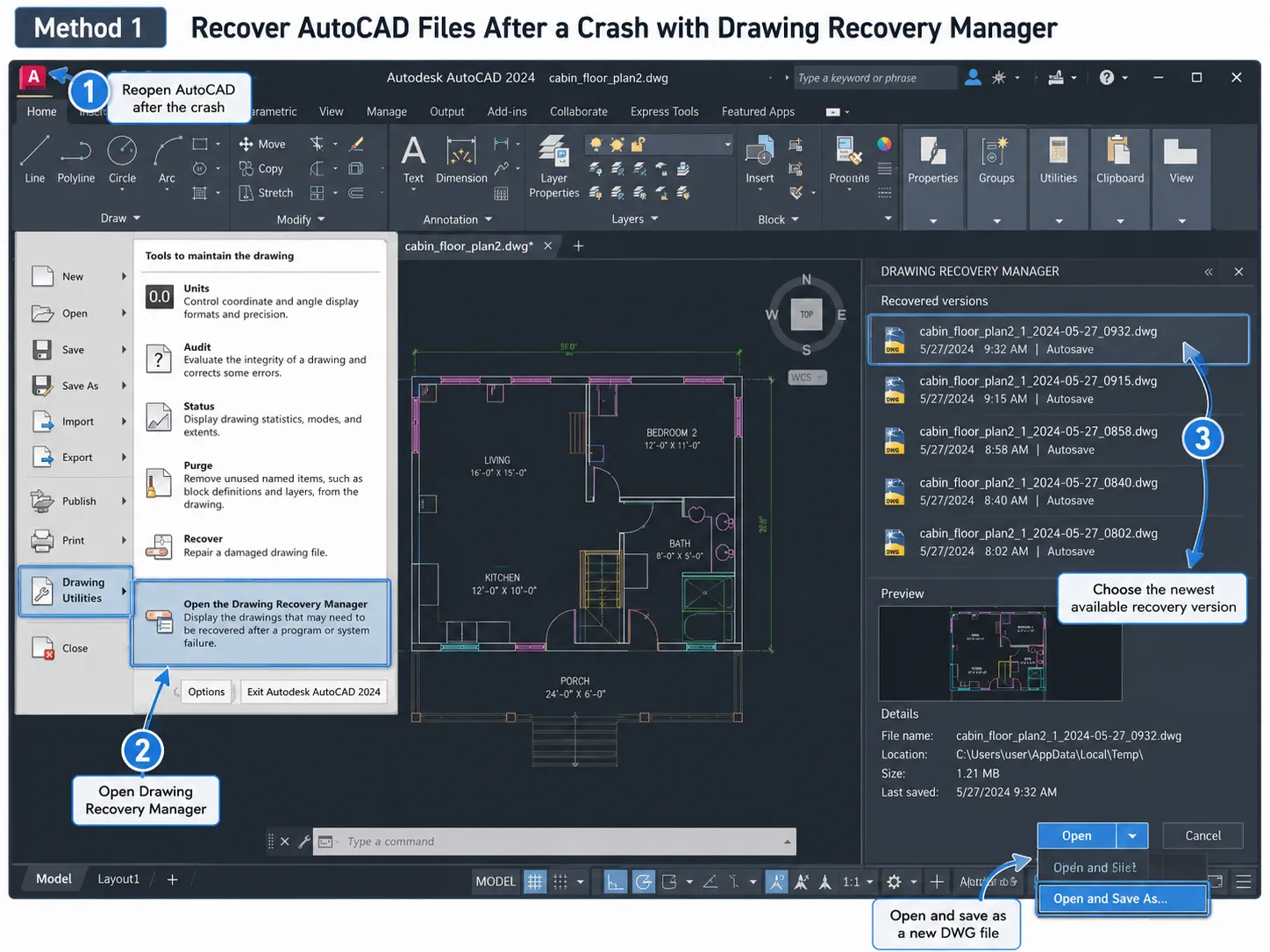
Method 1: Recover AutoCAD Files After a Crash with Drawing Recovery Manager
If AutoCAD closes unexpectedly, start with Drawing Recovery Manager. This tool often lists drawings that AutoCAD saved during the failed session.
Steps to use Drawing Recovery Manager
- Reopen AutoCAD after the crash.
- Open the Drawing Recovery Manager panel if it appears.
- Expand the drawing name in the list.
- Choose the newest available recovery version.
- Open the drawing and check the content.
- Save it immediately as a new DWG file.
This method helps when AutoCAD crashed while your drawing was open. However, it cannot restore a drawing that you permanently deleted. Also, save the recovered file with a clear name before editing.
Method 2: Recover AutoCAD Files from AutoSave and BAK Backups
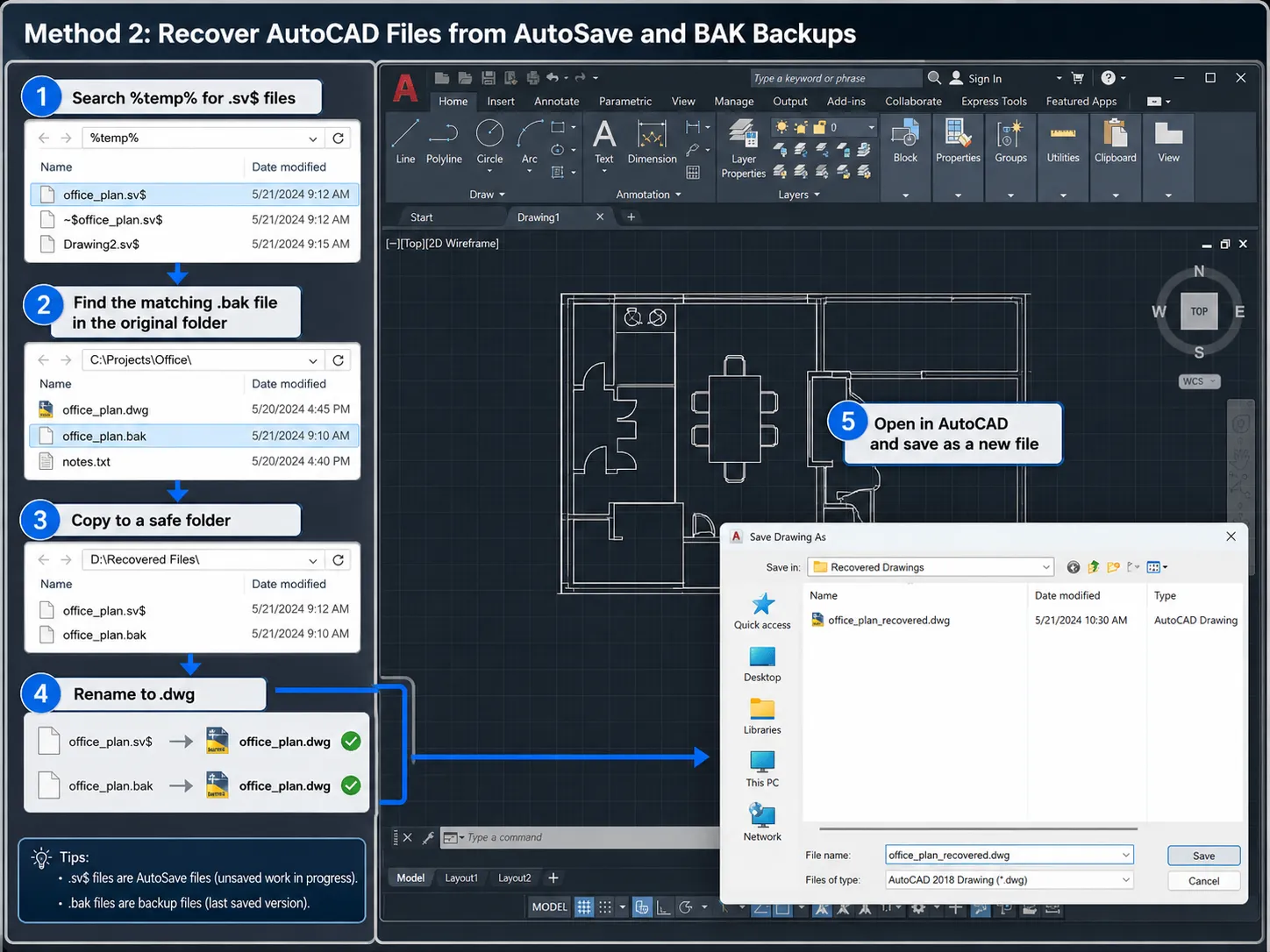
AutoCAD may create AutoSave files with the .sv$ extension and backup files with the .bak extension. Therefore, check both before you use advanced tools.
Recover unsaved drawings from .sv$ files
- Press
Win + R. - Type
%temp%. - Press Enter.
- Search for files ending in
.sv$. - Check the file name and modified time.
- Copy the likely file to another folder.
- Rename
.sv$to.dwg. - Open the file in AutoCAD.
- Save it as a new drawing.
For example, if office_plan.dwg disappeared after a crash, look for a recent AutoSave file with a similar name. Then rename it to office_plan_recovered.dwg.
Recover earlier versions from .bak files
Open the folder that stored the original DWG. Then find a file with the same name and a .bak extension. Copy the BAK file to a safe folder, rename .bak to .dwg, and open it in AutoCAD.
BAK recovery works well when you saved unwanted changes or need an older version. However, if both DWG and BAK files disappeared, move to data recovery.
Method 3: Recover Deleted AutoCAD Files from Recycle Bin or Version History
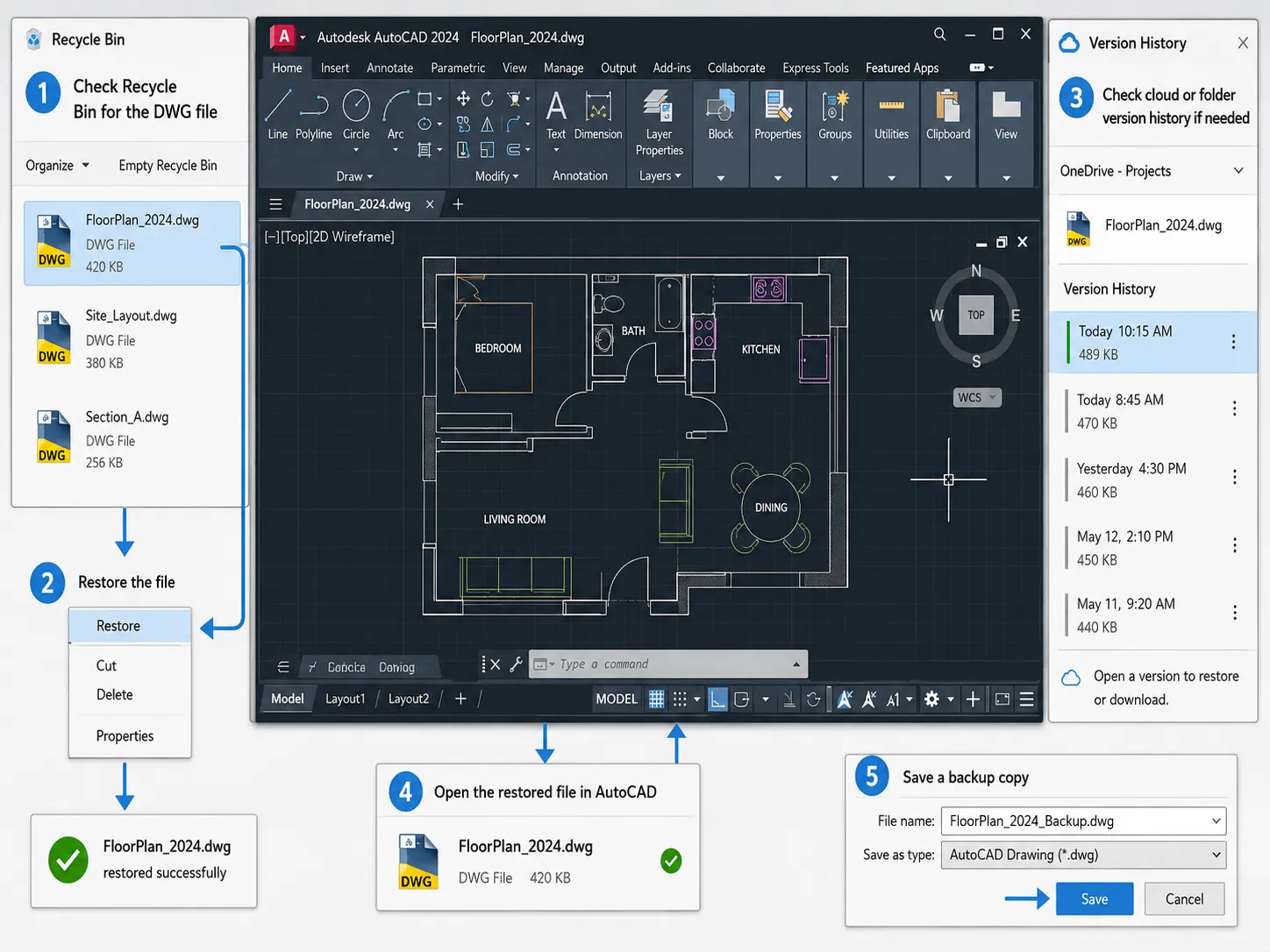
If you deleted a DWG file recently, check the Recycle Bin first. Search for the project name, .dwg, or .dxf, restore the file, and save a backup copy.
In addition, check cloud version history if you stored the drawing in OneDrive, Google Drive, Dropbox, or another sync folder. Windows users can also check Previous Versions if File History was active.
However, these options only work when a backup or deleted copy still exists. If they fail, Magic Data Recovery offers the next practical path.
Method 4: Recover AutoCAD Files with Magic Data Recovery
If your DWG or DXF file was permanently deleted, lost after formatting, or missing from the original folder, Magic Data Recovery can help scan the affected drive and find recoverable AutoCAD files. Unlike AutoCAD’s internal recovery tools, it looks for files at the storage level. Therefore, it helps when AutoSave, BAK backups, and the Recycle Bin cannot solve the issue.
Use Magic Data Recovery when you need to recover AutoCAD files after permanent deletion, accidental formatting, folder loss, or drive errors. It also helps when a USB drive, SSD, HDD, or SD card no longer shows the project file you need.
Step 1: Download and Install Magic Data Recovery
Download Magic Data Recovery and install it on a drive that is not the one where your AutoCAD files were lost. This step helps prevent accidental overwriting and protects deleted DWG or DXF files during recovery.
Supports Windows 7/8/10/11 and Windows Server
Step 2: Select the Affected Drive to Scan
Launch Magic Data Recovery. Then, from the main interface, choose the drive or partition where the AutoCAD files were originally stored. Start the scan to search for deleted or missing project files.

Step 3: Scan the Drive for Lost AutoCAD Files
Magic Data Recovery scans the selected drive and lists recoverable files as the process runs. Meanwhile, you can wait for the scan to finish or review results as they appear. To find drawings faster, search by file name or filter by DWG and DXF file types.

Step 4: Recover AutoCAD Files to a Safe Location
Finally, select the AutoCAD files you want to restore and save them to a different drive. Do not recover them back to the original location, because writing new data there may overwrite other lost files or cause recovery problems.

Magic Data Recovery does not replace AutoCAD’s repair commands. Instead, it restores missing files first. After that, open the recovered DWG in AutoCAD and run RECOVER, AUDIT, or PURGE if needed.
Repair DWG Errors After You Recover AutoCAD Files
Sometimes the file still exists, but AutoCAD cannot open it. In that case, you need repair tools rather than deletion recovery.
First, open AutoCAD and type RECOVER. Then select the damaged DWG file and let AutoCAD check the drawing. Save the repaired file with a new name. If the project uses external references, try RECOVERALL.
Next, run AUDIT to find and fix drawing database errors. After that, run PURGE to remove unused objects and reduce file clutter.
This workflow can fix many corrupted DWG issues. However, if the file is missing from the drive, recover it with Magic Data Recovery before you try repair commands.
Tips to Avoid Future AutoCAD File Loss
After you recover AutoCAD files, reduce future risk. Turn on AutoSave, keep BAK backups enabled, save new drawings with clear names, and create dated versions for important projects. Also, avoid working only from unstable USB drives or unreliable network locations.
Conclusion: The Best Way to Recover AutoCAD Files
The best way to recover AutoCAD files depends on the cause. If AutoCAD crashed, start with Drawing Recovery Manager and AutoSave files. If you need an older saved version, check BAK backups. If the drawing opens with errors, use RECOVER, AUDIT, and PURGE.
However, when the DWG or DXF file is deleted, missing, or lost after formatting, AutoCAD’s built-in tools may not reach it. In that case, Magic Data Recovery provides a practical HDD solution because it scans the affected drive directly and helps restore lost AutoCAD files before repair work begins.
If built-in methods fail, try Magic Data Recovery to recover AutoCAD files to a safe location and continue your project with less risk.
Supports Windows 7/8/10/11 and Windows Server
FAQ: How to Recover AutoCAD Files
Can I recover AutoCAD files after a crash?
Yes. First, reopen AutoCAD and check Drawing Recovery Manager. Then, search the temporary folder for .sv$ AutoSave files. If you find a matching file, copy it, rename it to .dwg, and save it as a new drawing. If the original file was deleted, use Magic Data Recovery.
Where can I find AutoCAD AutoSave files?
On Windows, press Win + R, type %temp%, and search for .sv$ files. Next, sort the results by modified time and look for a file that matches your project. Then, copy it to a safe folder, rename .sv$ to .dwg, and open it in AutoCAD.
How do I recover a deleted DWG file?
Start with the Recycle Bin. If the DWG file appears there, restore it and save another copy. Next, check cloud version history or Windows Previous Versions. However, if those options fail, scan the affected drive with Magic Data Recovery and recover the file to a different location.
Can Magic Data Recovery recover AutoCAD files?
Yes, Magic Data Recovery can help recover deleted or missing DWG and DXF files from storage devices. It works best when the file disappeared because of deletion, formatting, folder loss, or drive errors. However, if the recovered drawing has internal corruption, use AutoCAD repair commands after recovery.
What is the difference between SV$ and BAK files?
An .sv$ file is an AutoSave file that AutoCAD creates during a work session. A .bak file is a backup copy related to a saved drawing. Therefore, use .sv$ files for crash or unsaved-work cases, and use .bak files when you need an earlier saved version.
Why can’t I find any AutoCAD recovery files?
You may not find recovery files if AutoSave was off, the save interval was too long, or AutoCAD closed normally and removed temporary files. Also, the drawing may never have received a proper file name. If the DWG file was deleted from the drive, use file recovery software instead.
Should I recover files to the same drive?
No. Always recover files to a different drive or storage location. If you save recovered files back to the affected drive, new data may overwrite other lost files. As a result, later recovery attempts may fail. After recovery, open the DWG in AutoCAD and save a backup copy.

Vasilii is a data recovery specialist with around 10 years of hands-on experience in the field. Throughout his career, he has successfully solved thousands of complex cases involving deleted files, formatted drives, lost partitions, and RAW file systems. His expertise covers both manual recovery methods using professional tools like hex editors and advanced automated solutions with recovery software. Vasilii's mission is to make reliable data recovery knowledge accessible to both IT professionals and everyday users, helping them safeguard their valuable digital assets.