
How to Fix “Corrupt Master File Table CHKDSK Aborted” Error
Experiencing the “corrupt master file table chkdsk aborted” error can be frustrating, especially when you need to recover important files. The Master File Table (MFT) is vital for file system operations in NTFS. When MFT corruption occurs, CHKDSK is usually the first tool users turn to. However, sometimes CHKDSK fails and aborts the repair process, leaving users searching for solutions.
In this article, we will explain the causes of the “corrupt master file table chkdsk aborted” error, why CHKDSK might fail, and how to fix this issue. Additionally, we will introduce a powerful tool that can help you recover data when CHKDSK cannot fix MFT corruption.
Table of Contents
What is the Master File Table (MFT)?
The Master File Table (MFT) is a critical database in NTFS, which tracks every file and directory on your disk. It stores information such as file location, size, and attributes. If the MFT becomes corrupted, you may experience various issues like the “corrupt master file table chkdsk aborted” error.
Common causes of MFT corruption include:
- Bad sectors on your hard drive.
- Power loss or system crashes.
- Malware or software errors.
When the MFT is corrupted, files may become inaccessible, and CHKDSK may fail to repair it, resulting in the “corrupt master file table chkdsk aborted” error message.
How CHKDSK Works to Fix File System Errors
CHKDSK (Check Disk) is a built-in Windows tool designed to fix file system issues, including MFT corruption. CHKDSK works by scanning your disk for errors and attempting to repair them. It uses different commands to address specific issues:
- /f fixes errors found in the file system.
- /r scans for bad sectors and attempts recovery.
While CHKDSK is effective for many issues, it sometimes fails to fix corrupt master file table errors, especially if the corruption is severe or there are physical issues with the disk.
Why Does CHKDSK Fail with ‘Corrupt Master File Table’?
There are several reasons why CHKDSK may fail to repair the corrupt master file table:
- Severe MFT Corruption: If the MFT is extensively damaged, CHKDSK may not be able to fix it.
- Bad Sectors: Physical damage to the disk can prevent CHKDSK from accessing critical parts of the file system.
- File System Damage: In some cases, the file system may be too damaged for CHKDSK to handle, causing it to abort the repair process.
When CHKDSK fails, it’s essential to consider alternative solutions for fixing the “corrupt master file table chkdsk aborted” issue.
How to Fix a Corrupt Master File Table When CHKDSK Aborts
If you’ve encountered the “corrupt master file table chkdsk aborted” error and CHKDSK fails to fix the issue, here are the next steps you can try:
Step 1: Use Advanced CHKDSK Commands
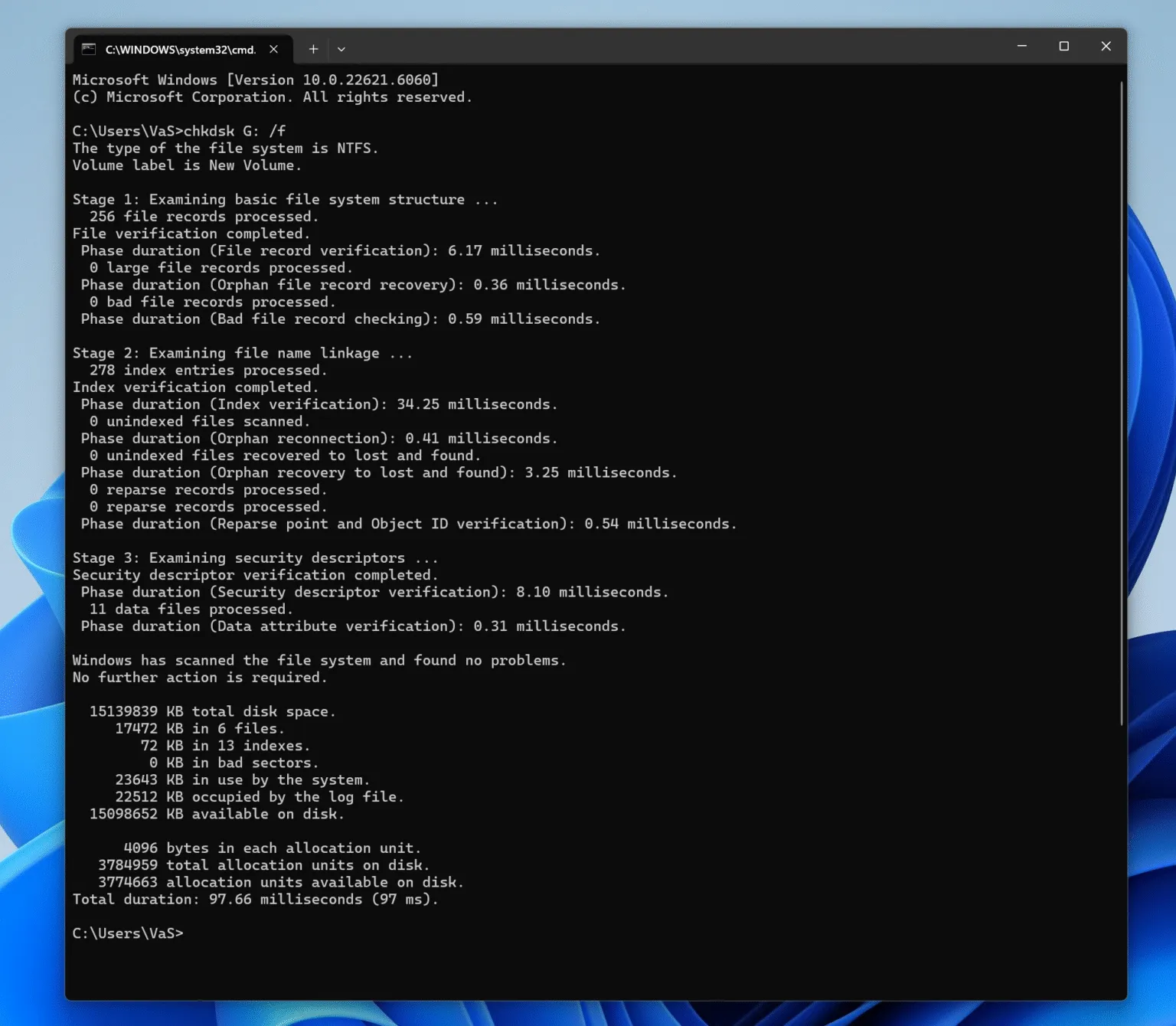
Sometimes, running CHKDSK with advanced commands can help resolve minor errors:
- Open Command Prompt as Administrator.
- Type
chkdsk X: /f(replace X with the affected drive letter). - Use
chkdsk X: /rto attempt to recover data from bad sectors.
These advanced commands instruct CHKDSK to scan the disk more thoroughly and fix issues that the standard scan might miss.
Step 2: Use Data Recovery Software
If CHKDSK fails to repair the corrupt master file table, data recovery software like Magic Data Recovery can help. This tool is designed to recover lost files from damaged file systems, including corrupted MFTs, and works even when CHKDSK is unable to resolve the problem.
Why Magic Data Recovery Is the Best Solution for MFT Issues
When dealing with a corrupt master file table, Magic Data Recovery is a powerful and reliable tool. Unlike CHKDSK, which focuses on repairing file system issues, Magic Data Recovery specializes in recovering data from corrupted systems. Here’s why it’s an excellent choice:
- Advanced Scanning Technology: Magic Data Recovery scans the entire disk, including the damaged MFT, and recovers lost files.
- File Preview: You can preview the recoverable files before restoring them.
- User-Friendly Interface: Magic Data Recovery is easy to use, even for those with limited technical expertise.
How Magic Data Recovery Helps You
If you encounter the “corrupt master file table chkdsk aborted” error, Magic Data Recovery can help you recover your files. It scans the affected drive, detects recoverable files, and allows you to restore them without having to format the disk. This makes it a reliable solution for users dealing with MFT corruption.

Conclusion
The “corrupt master file table chkdsk aborted” error is a common issue when the MFT is corrupted. While CHKDSK may work for some errors, it often fails when dealing with severe corruption. Magic Data Recovery is a better solution for recovering lost data from corrupted MFTs and damaged file systems. Download Magic Data Recovery today and restore your files without any hassle.
Supports Windows 7/8/10/11 and Windows Server
FAQ
What is a Master File Table (MFT)?
What does the "corrupt master file table chkdsk aborted" error mean?
Why does CHKDSK fail to fix a corrupt Master File Table?
How can I fix a corrupt Master File Table when CHKDSK fails?
Is Magic Data Recovery safe to use?

Vasilii is a data recovery specialist with around 10 years of hands-on experience in the field. Throughout his career, he has successfully solved thousands of complex cases involving deleted files, formatted drives, lost partitions, and RAW file systems. His expertise covers both manual recovery methods using professional tools like hex editors and advanced automated solutions with recovery software. Vasilii's mission is to make reliable data recovery knowledge accessible to both IT professionals and everyday users, helping them safeguard their valuable digital assets.