
Corrupt Master File Table Repair: Fix MFT Errors Safely
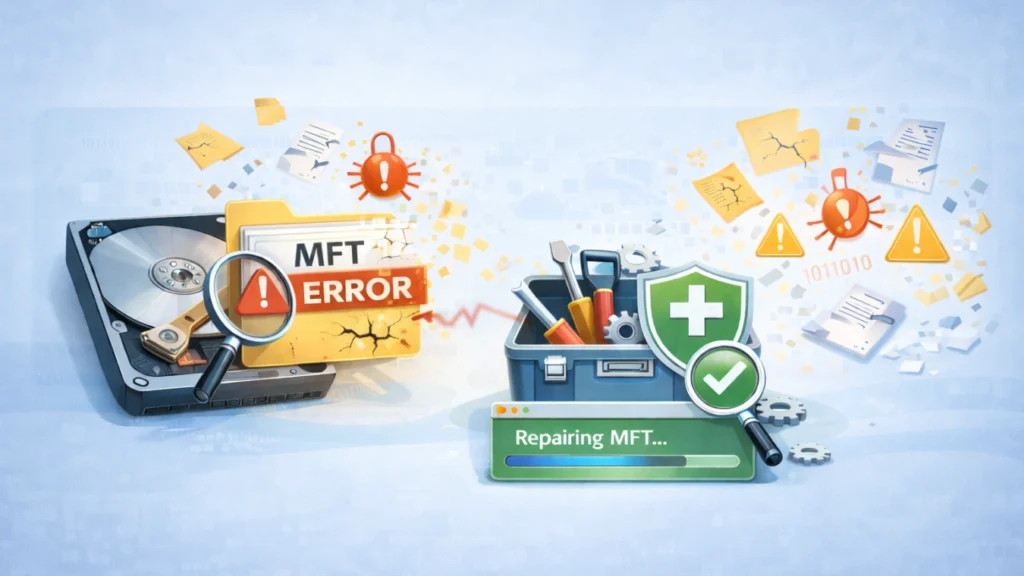
When you connect a hard drive, SSD, or external storage device to your Windows computer and suddenly find that the drive cannot be opened, the problem may be caused by a corrupt Master File Table (MFT). Many users encounter this issue after an unexpected shutdown, improper drive removal, file system errors, or storage device problems. Although Windows may report that the drive is damaged or inaccessible, the files stored on it are not always permanently lost. In many cases, the data remains on the drive, but Windows cannot correctly read the NTFS file system structure required to locate those files.
The Master File Table is one of the most important components of NTFS, as it records information about files and folders stored on a Windows partition. When the MFT becomes corrupted, Windows may fail to display files, recognize the partition correctly, or complete repair operations. This is why many users search for corrupt master file table repair solutions when facing inaccessible drives or MFT-related errors.
This guide explains what causes Master File Table corruption, how to repair MFT errors using Windows built-in tools, what to do when Windows cannot recover the master file table, and how to safely recover files before attempting complicated repairs. When standard repair methods cannot restore access to important data, tools such as Magic Data Recovery can help scan damaged or inaccessible drives and recover files from NTFS partitions, HDDs, SSDs, USB drives, and other storage devices before further repair attempts.
Table of Contents
What Is the Master File Table (MFT)?
The Master File Table (MFT) is a database used by NTFS (New Technology File System) to organize files stored on Windows drives.
Unlike older file systems that rely mainly on folder structures, NTFS records information about every file and directory inside the MFT.
Each file stored on an NTFS partition has a corresponding entry containing information such as:
MFT Information | Description |
File name | The name of the file |
File location | Where the data is stored on the disk |
File size | Size information |
File attributes | Read-only, hidden, system, etc. |
Security information | Access permissions |
When you open a folder in Windows Explorer, the operating system reads the MFT to find the location of your files.
If the MFT becomes corrupted, Windows may still detect the drive but cannot correctly display the stored files.
Common Corrupt Master File Table Error Messages
Different Windows versions may display slightly different messages when MFT corruption occurs.
Error Message | Meaning |
Corrupt master file table | NTFS metadata cannot be read correctly |
Windows cannot recover master file table | Automatic repair failed |
The file or directory is corrupted and unreadable | File system structure problem |
CHKDSK found errors in MFT | NTFS consistency issue detected |
Drive is not accessible | Partition information cannot be loaded |
Understanding the exact error helps determine whether you should repair the drive or focus on data recovery first.
How Does MFT Corruption Affect Your Drive?
A damaged Master File Table does not always mean your files are permanently deleted.
In many cases, the actual file data remains on the storage device, but Windows loses the information needed to access it.
Common symptoms include:
Symptom | Possible Cause |
Drive appears as RAW | NTFS structure cannot be read |
External hard drive asks to format | File system metadata is damaged |
Files disappear suddenly | MFT records cannot be accessed |
CHKDSK reports MFT errors | NTFS metadata corruption |
Windows cannot open partition | File system information is unavailable |
For example, you may connect an external HDD that worked normally yesterday. Windows detects the device, but when you open it, a message appears:
“You need to format the disk before you can use it.”
Formatting the drive may recreate the file system, but it can also make data recovery more difficult.
Before attempting major repairs, it is important to understand whether the problem is logical corruption or physical drive failure.
MFT vs MFT Mirror: How Windows Protects NTFS Data
NTFS includes a backup copy called MFT Mirror ($MFTMirr) to help protect important file system information. If the primary MFT has problems, Windows can sometimes use this backup information to repair the damaged structure.
The relationship is:
NTFS Volume

      ┌─────────────┐
      │   $MFT      │
      │ Main Table  │
      └─────────────┘
              │
              │ Backup
              ▼
      ┌─────────────┐
      │ $MFTMirr    │
      │ Mirror Copy │
      └─────────────┘
However, if both the MFT and its mirror copy are damaged, Windows built-in tools may not be able to fully repair the drive.
In this situation, recovering files before rebuilding the file system is usually safer.
Corrupt Master File Table Repair: Safe Fix Methods
Now let’s walk through the most reliable ways to fix MFT errors. These steps work for most Windows users and follow industry best practices.
Step 1: Stop Using the Affected Drive Immediately
Before starting any corrupt master file table repair, avoid writing new data to the drive.
For example:
- Do not copy new files onto it
- Do not install programs there
- Do not run unnecessary disk operations
New writes may overwrite recoverable file records, which makes repair and recovery harder.
Step 2: Run CHKDSK for Corrupt MFT Repair
CHKDSK is a built-in Windows tool designed to detect and fix file system errors.
How to Run CHKDSK
- Open Command Prompt as Administrator
- Type the command:
chkdsk X: /f /r
(Replace X with your drive letter.)
3. Press Enter
- /f fixes logical file system errors
- /r scans for bad sectors and recovers readable data
In many cases, CHKDSK resolves early-stage MFT corruption and completes the corrupt master file table repair successfully.

Step 3: Use Startup Repair for System Drive Issues
If the corrupted MFT belongs to your main system drive, Windows may fail to boot properly.
In that case:
- Restart your PC into Windows Recovery Environment
- Select Startup Repair
- Allow Windows to diagnose and fix boot-related file system problems
This method helps when corruption affects essential NTFS structures during startup.
Step 4: Check Disk Health Before Repeating Repairs
Sometimes MFT corruption signals that the drive itself is failing.
Therefore, checking disk health is a smart next step.
You can use tools like:
- CrystalDiskInfo
- Manufacturer diagnostic utilities
If the drive shows SMART warnings, limit repair attempts. Hardware failure can worsen quickly, and repeated scans may stress the disk further.
Step 5: Follow Best Practices for NTFS File System Repair
Professionals recommend a careful approach to corrupt master file table repair, especially when important data is involved.
Here are safe guidelines:
- Create a disk clone before advanced repair
- Avoid formatting the drive too early
- Do not run CHKDSK repeatedly on a failing disk
- Watch for recurring corruption after repairs
A structured process improves success rates and reduces unnecessary risk.
What If Corrupt Master File Table Cannot Repair?
Unfortunately, not all cases are repairable.
Sometimes:
- CHKDSK cannot finish
- The drive becomes RAW
- Windows still blocks access
- Files remain missing after repair
At this stage, repair tools may not rebuild the MFT enough to restore normal access.
That’s when data recovery becomes the more practical next step.
Recovering Files After Failed Corrupt MFT Repair
If corrupt master file table repair fails and you lose access to important files, a dedicated recovery tool may still help retrieve your data.
Why Magic Data Recovery Is Worth Considering

Magic Data Recovery is designed for situations where:
- NTFS structures are severely damaged
- The MFT cannot be rebuilt
- Partitions become inaccessible
- Files disappear after corruption
Key advantages include:
- Scans drives even when Windows cannot open them
- Supports recovery from corrupted NTFS partitions
- Simple interface for everyday users
- More reliable than risky manual fixes in severe cases
For example, if your external hard drive suddenly shows as RAW and repair tools fail, Magic Data Recovery can scan the disk directly and help recover documents, photos, and other critical files.
If you need a safer recovery-focused solution, Magic Data Recovery is a practical option to explore.
Conclusion
A corrupted Master File Table can prevent Windows from accessing an NTFS drive, but it does not always mean that your files are permanently lost. Performing corrupt master file table repair requires understanding the cause of the problem and choosing the right approach based on the condition of the drive.
Windows tools such as CHKDSK can repair certain file system errors, but they may not be able to restore access when the MFT structure is severely damaged or when Windows cannot recover the master file table. In these situations, repeatedly running repair commands or formatting the drive may increase the risk of losing important files.
Before making major changes to a damaged drive, it is safer to recover your data first. Magic Data Recovery can scan inaccessible NTFS partitions, corrupted drives, HDDs, SSDs, USB drives, and SD cards to help recover important files when normal Windows access is unavailable.
After your files are safely recovered, you can continue with advanced repair methods, replace failing hardware, or rebuild the file system with less risk. By combining proper MFT repair techniques with a careful data recovery strategy, you can restore access to your storage device while protecting valuable files.
Supports Windows 7/8/10/11 and Windows Server
FAQs
What does “Master File Table is corrupt” mean?
Can CHKDSK fix a corrupt master file table?
What causes MFT corruption most often?
Should I format my drive if the MFT is corrupt?
How do I know if my drive has physical damage?
Can MFT corruption make files disappear?
Is corrupt master file table repair safe for beginners?
What if corrupt master file table repair fails completely?

Jason is a data recovery and technical support specialist with over 15 years of hands-on experience. He has worked extensively with frontline users, troubleshooting difficult data loss cases and providing practical recovery solutions for accidental deletion, formatted drives, damaged file systems, lost partitions, system failures, and other recovery emergencies. His expertise also includes backup and restoration, file repair, and disaster recovery, with a strong emphasis on safe, reliable, and technically accurate guidance.