
SQL Database Recovery Guide: Restore & Fix Safely

Facing a sudden system crash or data corruption is every administrator’s nightmare. When critical information becomes inaccessible, the pressure to implement a database recovery strategy becomes immense. Whether it is a financial record or a customer portal, any downtime translates directly into revenue loss. This guide provides a professional roadmap to understand database restoring and offers actionable steps to restore database from backup effectively. Furthermore, we will explore advanced hard drive solutions like Magic Data Recovery for scenarios where native tools fail.
Supports Windows 7/8/10/11 and Windows Server
Table of Contents
Why Professional Database Recovery is Your Last Line of Defense
In the world of Structured Query Language, database recovery is the essential process of restoring a system to a consistent state after a failure. According to the ACID properties, a reliable system must ensure that once a transaction is committed, it remains permanent.
However, hardware malfunctions or human errors often compromise these properties. Therefore, having a robust recovery plan is not just an option; it is a necessity for business continuity. In addition to basic maintenance, professionals must understand how to handle emergency database restoring scenarios. This article bridges the gap between theoretical concepts and practical, real-world solutions.
Understanding the Primary Causes of Database Failure
Understanding why a system fails is the first step toward successful database recovery. Generally, failures fall into three specific categories:
- Transaction Failure: This happens when a specific task cannot complete due to logical errors.
- System Crash: A hardware failure causes the system to lose its volatile memory, interrupting all active database restoring processes.
- Media Failure: This is the most severe type, involving physical damage to the disk, making the SQL database recovery files themselves unreadable.
To mitigate these risks, modern systems rely heavily on the transaction log. Consequently, this log tracks every change to ensure no data is lost during a sudden shutdown.
Core Techniques Used in SQL Database Recovery
Professionals utilize several sophisticated techniques to ensure data integrity during sql database recovery.
Log-Based Recovery Mechanisms
Most modern databases use a “write-ahead logging” mechanism. When a failure occurs, the system analyzes the log to perform two essential actions. First, it performs an Undo to reverse incomplete transactions. Second, it performs a Redo to reapply changes from successfully committed transactions.
The Role of Checkpointing
Without checkpoints, the system would have to scan the entire log during database recovery, which is highly inefficient. Therefore, checkpoints act as “bookmarks.” They allow the engine to know that everything prior to that point is safely stored on the physical disk.
Shadow Paging Benefits
This technique involves maintaining two versions of the database pages. During an update, the system writes to a new page while keeping the “shadow” page intact. If the process fails, the system simply reverts to the shadow page, making database restoring almost instantaneous.
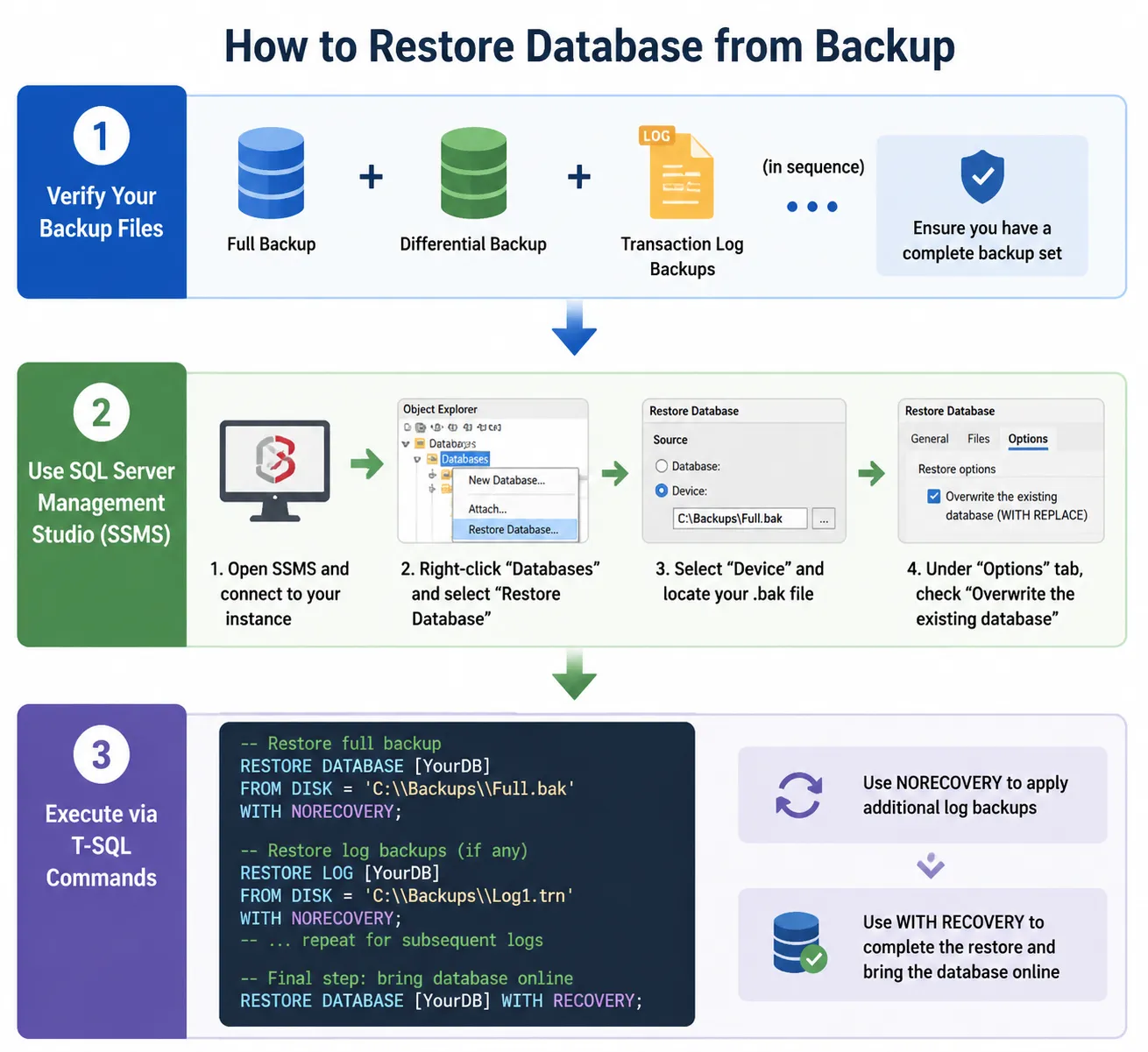
Practical Step-by-Step: How to Restore Database from Backup
When disaster strikes, the most common solution is to restore database from backup. Please follow these professional steps to ensure a smooth transition.
Step 1: Verify Your Backup Files
Before starting the SQL database recovery, you must ensure you have a complete set of backups. This set typically includes the last Full Backup, the most recent Differential Backup, and all subsequent Transaction Log backups.
Step 2: Use SQL Server Management Studio (SSMS)
For many users, the graphical interface is the safest way to handle database restoring.
- Initially, open SSMS and connect to your instance.
- Next, right-click “Databases” and select “Restore Database.”
- Subsequently, select “Device” and locate your .bak file.
- Finally, under the “Options” tab, ensure “Overwrite the existing database” is checked.
Step 3: Execute via T-SQL Commands
For more control over the database recovery process, many experts prefer scripts. For example, a typical command might look like this:
RESTORE DATABASE [YourDB] FROM DISK = ‘C:\Backups\Full.bak’ WITH NORECOVERY;
Using NORECOVERY allows you to apply additional logs before bringing the system online. Eventually, use WITH RECOVERY to complete the database restoring process.
What if Native SQL Database Recovery Fails?
Sometimes, the standard “How to restore database from backup” guides are not enough. You might encounter the dreaded “Suspect Mode” or find that your backup files themselves are corrupted.
In these catastrophic scenarios, internal DBMS repair tools might suggest risky options that could delete your valuable records. Furthermore, if the underlying file system is damaged, the database engine cannot even “see” the files to begin the SQL database recovery.
The Ultimate Solution for Database Recovery: Magic Data Recovery
If you find yourself in a situation where standard backups are missing, you need a professional-grade tool. We recommend Magic Data Recovery as a reliable alternative for complex data loss scenarios.
Solving the Core Pain Points
Traditional database recovery tools often rely on the database engine being functional. However, Magic Data Recovery operates at a deeper level. It can recover lost or deleted database files even from a lost partition or formatted drive.
Unique Advantages of Magic Data Recovery
- File System Expertise: It understands the mechanics of NTFS and exFAT, allowing it to reconstruct files that other software misses.
- Deep Scanning Technology: This tool performs a sector-by-sector scan to locate raw data after a partition error.
- Safe and Non-Destructive: It reads the data without modifying the original drive, ensuring that your sql database recovery attempts stay safe.
Real-World Use Case
Imagine an administrator who accidentally deleted a virtual machine containing a critical SQL instance. Since the host’s file system was overwritten, standard database restoring methods failed. By using Magic Data Recovery, the admin recovered the deleted files from the free space, saving months of work.

Conclusion: Final Thoughts on Database Restoring
Effective database recovery is built on a foundation of preparation and the right tools. While knowing how to restore database from backup is essential for daily operations, understanding the deeper mechanics of SQL database recovery prepares you for unexpected disasters.
Always remember to test your backups regularly. Furthermore, keep a copy of your backups in a cloud location. When the situation moves beyond the capabilities of native SQL commands, having a professional hard drive recovery tool like Magic Data Recovery in your toolkit provides the ultimate peace of mind. If you are looking for a more efficient and fail-safe hard drive solution, you should definitely try Magic Data Recovery.
Supports Windows 7/8/10/11 and Windows Server
FAQ
What is the most important part of database recovery?
The transaction log is undoubtedly the most critical component. It records every modification made to the data. Consequently, during a SQL database recovery process, the system uses this log to ensure all committed transactions are saved while uncommitted ones are rolled back, maintaining total data consistency and integrity throughout the operation.
How often should I attempt to restore database from backup for testing?
You should perform a test restore at least once a month. Regular testing ensures that your backup files are not corrupted and that your team knows the exact steps for database restoring. Furthermore, this practice helps you identify potential issues in your recovery script before a real emergency occurs in production.
Can I perform a sql database recovery without a transaction log?
It is possible but extremely difficult and risky. Without a log, you can only restore the data up to the point of your last full or differential backup. Therefore, any data created after that backup will likely be lost unless you use a specialized tool like Magic Data Recovery to find fragments.
What is the difference between simple and full recovery models?
The simple model automatically truncates the transaction log, which saves space but prevents point-in-time database recovery. In contrast, the full recovery model keeps all log records until you back them up. Consequently, the full model allows for much more granular database restoring options during a critical system failure.
Why does my database enter "Suspect Mode" during database restoring?
"Suspect Mode" usually indicates that the primary file group is damaged or the transaction log is missing. This often happens after a sudden power loss or hardware failure. In such cases, standard SQL database recovery commands might fail, requiring advanced software to extract the data from the corrupted storage media.
How can I speed up the process to restore database from backup?
To speed up the process, you should implement frequent checkpoints and use differential backups. Differential backups only store changes made since the last full backup. Consequently, this reduces the amount of data the system must process during database restoring, significantly lowering your Mean Time to Recovery (MTTR) during outages.

Vasilii is a data recovery specialist with around 10 years of hands-on experience in the field. Throughout his career, he has successfully solved thousands of complex cases involving deleted files, formatted drives, lost partitions, and RAW file systems. His expertise covers both manual recovery methods using professional tools like hex editors and advanced automated solutions with recovery software. Vasilii's mission is to make reliable data recovery knowledge accessible to both IT professionals and everyday users, helping them safeguard their valuable digital assets.