
Flash Drive Recovery: Recover Files from USB Safely
Have you ever plugged your thumb drive into a computer, only to be met with a heart-sinking message like “Disk needs to be formatted”? Perhaps you opened a folder and found it completely empty despite knowing your work was there. Because USB sticks are notoriously fragile, flash drive recovery is one of the most vital skills in the modern digital age.
However, you should not lose hope immediately. Although the files seem gone, the operating system usually just marks the storage space as “available” while the actual data remains on the memory chips. By utilizing professional USB flash drive data recovery techniques, you can effectively rebuild the links to your files. Consequently, the success of your flash drive data recovery depends largely on how quickly you act and the tools you choose.
In this comprehensive guide, we will explore the common causes of data loss and explain the science of memory storage. Furthermore, we will demonstrate how Magic Data Recovery simplifies the process so that you can recover files from USB drives without technical expertise.
Supports Windows 7/8/10/11 and Windows Server
Table of Contents
Common Scenarios for USB Flash Drive Data Recovery
Understanding why your data disappeared represents the first step toward a successful solution. Since USB drives utilize NAND flash memory, they behave differently than traditional hard drives. Below are the primary reasons why users seek flash drive recovery:
1. Accidental Deletion and Formatting
We have all experienced that moment of regret after clicking “Delete” on the wrong folder. Because files deleted from a USB stick usually bypass the Recycle Bin, immediate USB flash drive data recovery becomes a necessity.
2. File System Corruption (RAW Drive)
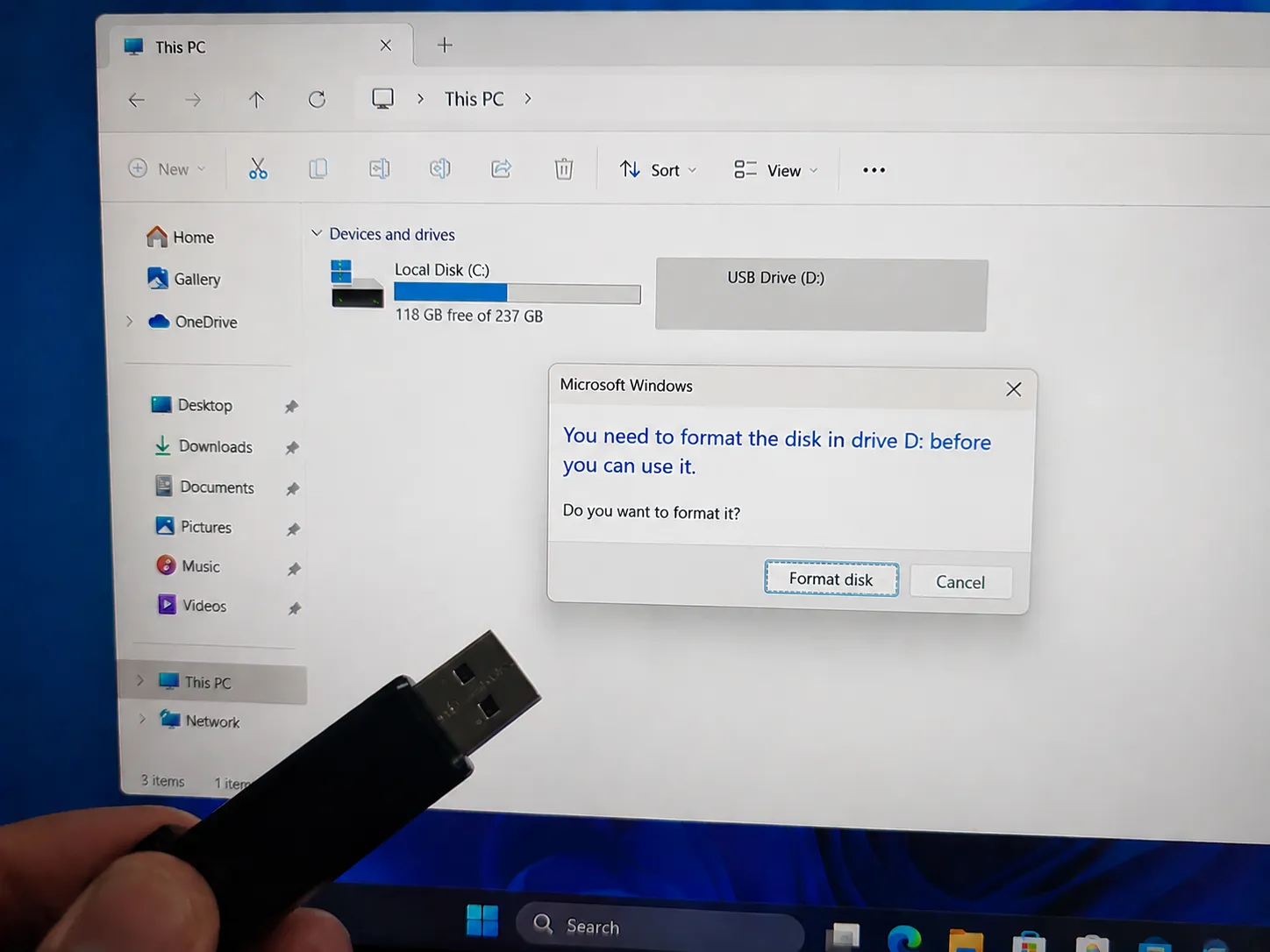
If your computer prompts you to format the disk before use, the file system has likely become corrupted. This often happens if you pull out the drive during a write operation. Therefore, you need a tool that can perform a deep flash drive recovery to bypass the damaged partition table.
3. “USB Device Not Recognized” Errors
This error typically points to a logical conflict or a driver issue. While it sounds terminal, specialized flash drive data recovery software can often still communicate with the hardware to extract data even when Windows Explorer fails to show the drive.
Manual Solutions: How to Fix USB Errors Without Software
Before turning to professional tools, you can try these built-in Windows features to resolve minor logical issues. These methods are effective for “Drive not accessible” or “File system error” scenarios.
Using CHKDSK to Repair File System Errors
The CHKDSK command is a powerful utility that can fix directory errors on your USB.
- Press
Win + Xand select Command Prompt (Admin). - Type
chkdsk X: /f /r(replace X with your USB drive letter) and press Enter. - Wait for the process to complete. If successful, your flash drive recovery might be finished without any extra software.

Updating USB Drivers in Device Manager
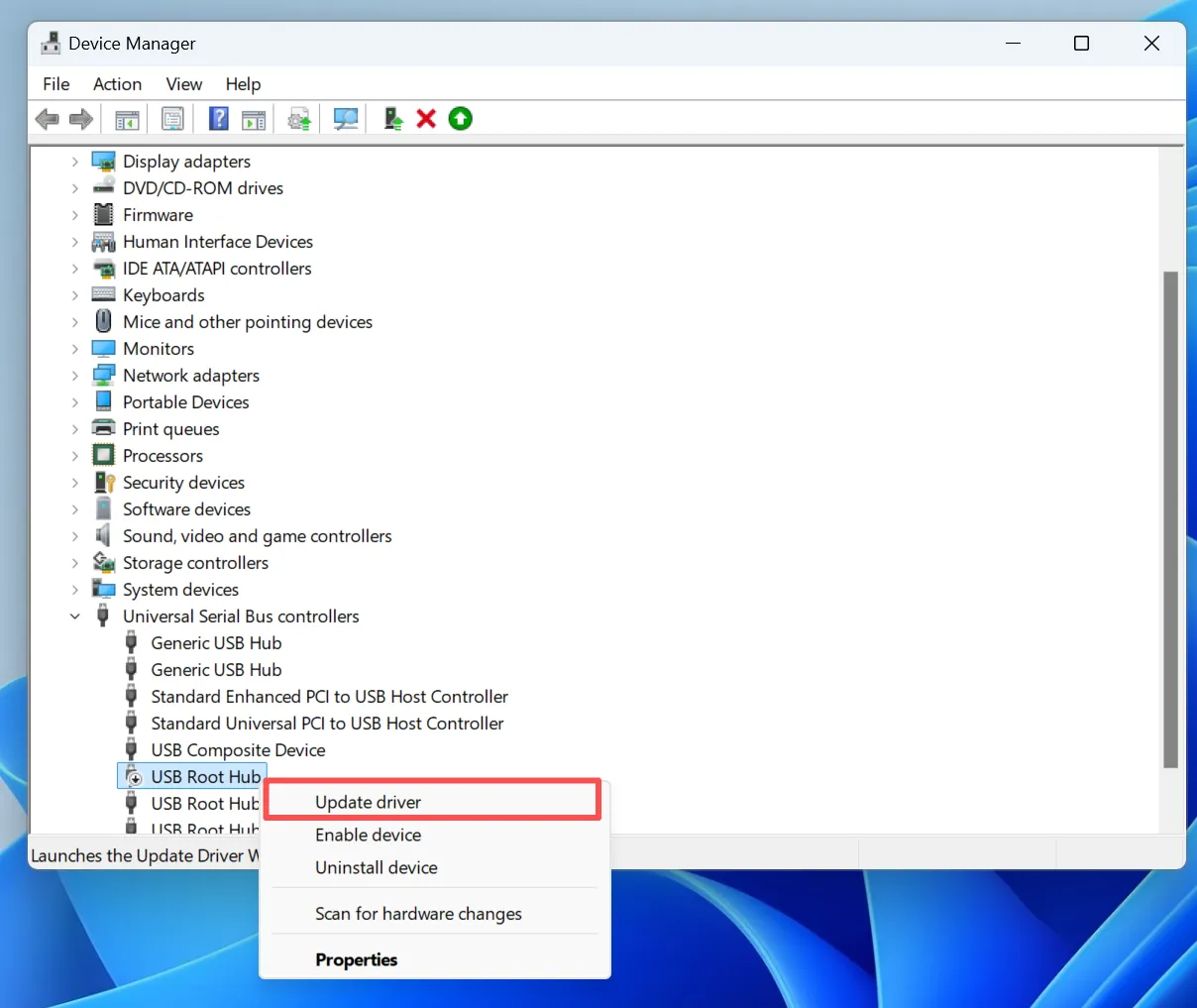
If your drive is not recognized, the problem might reside in the driver.
- Right-click the Start button and open Device Manager.
- Expand Disk drives, right-click your USB device, and select Update Driver or Uninstall device.
- Unplug the drive and plug it back in. Windows will automatically reinstall the driver, which often resolves the connection issue and aids in USB flash drive data recovery.
When Manual Fixes Fail: Why Use Magic Data Recovery?
While chkdsk is useful, it cannot recover files that have been deleted or formatted. In such cases, you need a dedicated tool that understands the complexities of flash memory. Magic Data Recovery acts as a professional bridge for these high-stakes scenarios.
Comparative Analysis
To help you make an informed decision, the following table compares flash drive recovery tools based on real-world performance and usability in 2026.
| Feature | Recuva | Disk Drill | PhotoRec | Magic Data Recovery |
| Recovery Depth | Surface/Basic | Deep Scan | Deep (Signature) | Advanced Full Analysis |
| Ease of Use | High | High | Very Low (CLI) | High |
| Folder Structure | Often Lost | Good | Totally Lost | Excellent Reconstruction |
| Corrupted/RAW | Limited | Strong | Strong | Exceptional |
| File Preview | Basic | Advanced | None | Visual & Functional |
While Recuva is lightweight, it often fails on corrupted drives. Similarly, while Disk Drill is powerful, it carries a high subscription cost. PhotoRec remains powerful but far too complex for average users. Consequently, Magic Data Recovery provides the best balance of professional scanning depth and intuitive operation.
Step-by-Step Guide to Successful Flash Drive Recovery
To ensure the best results, please follow these specific steps. The most important rule in flash drive recovery is to stop using the device immediately to prevent overwriting.
Step 1: Download and Install Magic Data Recovery
First, download Magic Data Recovery and install it on your computer’s internal hard drive. You must ensure you do not install it on the affected USB drive. This approach prevents accidental overwriting and protects your lost data.
Supports Windows 7/8/10/11 and Windows Server
Step 2: Select the USB Flash Drive to Scan
Launch the program. Then, from the main interface, identify and choose the USB drive where your files were lost. Once selected, click to start the scan.

Step 3: Scan the USB Drive for Lost Files
The software automatically performs an Advanced Scan to find every recoverable fragment. Meanwhile, it lists all found files in real-time as the scan progresses. Please wait for the process to finish for the most complete results.

Step 4: Preview Files Before Recovery
Next, use the built-in preview function to confirm the content of your photos or documents. This step ensures you recover only the files you actually need and verifies that the data is not corrupted.

Step 5: Recover Files to a Safe Location
Finally, select your target files and save them to a different drive or internal storage device. You should never restore data to the same USB drive, because doing so risks permanent data corruption.

Pro Tips to Increase Your Flash Drive Recovery Success Rate
Not all recovery attempts are equal. To act like a professional data recovery engineer, you should keep these industry best practices in mind during your USB flash drive data recovery:
- Avoid the “Format” Trap: If Windows asks you to format the drive, click “No.” Formatting creates a new file system which may destroy the metadata of your old files.
- Check Physical Connections: Sometimes a “dead” drive just needs a different port. Always try the rear USB ports on a PC for the most stable power supply during flash drive recovery.
- Immediate Action: Data on flash memory is volatile. Because of how NAND chips work, the sooner you start the USB flash drive data recovery, the higher your chances of a 100% success rate.
Conclusion: Take Action Before It's Too Late
Losing data is stressful, but technology has advanced to the point where flash drive recovery is highly successful if you follow the right steps. By avoiding further use of the drive and employing a professional tool like Magic Data Recovery, you give your files the best possible chance of survival.
We recommend this tool because of its powerful algorithms and its commitment to a safe, read-only recovery process. Whether you face a “Drive Not Formatted” error or an accidental deletion, the solution is often just a few clicks away.
If you are ready to reclaim your lost files, don’t wait. Every minute the drive remains active increases the risk of permanent loss. Start recovering files from your flash drive today and get your digital life back on track.
Supports Windows 7/8/10/11 and Windows Server
FAQs About Flash Drive Recovery
Can I perform flash drive recovery for free without any software?
While you can try using the Command Prompt (chkdsk), this utility primarily fixes file system errors rather than restoring deleted files. Free tools often impose strict limits on file sizes or fail to read RAW drives. For critical work documents or irreplaceable photos, a professional solution like Magic Data Recovery is much safer. It ensures you do not inadvertently damage the data further during the USB flash drive data recovery process.
How long does the USB flash drive data recovery process take usually?
The total time depends on the capacity of your drive and the chosen scanning mode. A simple "Fast Scan" usually finishes in seconds. On the other hand, a "Full Analysis" on a large 128GB drive might take an hour because the software must examine every individual sector for flash drive recovery. Be patient during this deep scan to ensure the highest quality results.
My files were recovered but they won't open. Why does this happen?
This situation typically occurs if new data partially overwrote the original files before you started the flash drive recovery attempt. Because of this, we always emphasize that users must stop writing to the drive immediately. If the data blocks are gone, even the best software cannot reconstruct the original file. This highlights the importance of immediate action when data loss occurs.
Is it truly possible to recover data from a formatted USB drive?
Yes, it is certainly possible in most scenarios. Unless you performed a "Low-Level Format," the data usually remains on the drive sectors. Magic Data Recovery specializes in this type of flash drive data recovery by searching for unique file signatures. It does not rely on the corrupted or deleted file system index, which is why it can find lost information that others miss.
Why does my computer suddenly say the USB drive is RAW?
A RAW status means the operating system no longer recognizes the file system structure. This often results from unsafe removal, power surges, or virus interference. Fortunately, professional flash drive recovery software can read the raw data sectors directly. This allows you to bypass the operating system's errors and successfully extract your important files without needing to fix the drive first.
Can I recover files if the USB drive is not recognized by Windows?
If the drive appears in "Disk Management" but not in "This PC," software can still perform USB flash drive data recovery. However, if the computer does not detect the hardware at all, the issue might be a physical hardware failure. We suggest you always try different USB ports and computers first before concluding that the device is completely dead and unrecoverable.

Vasilii is a data recovery specialist with around 10 years of hands-on experience in the field. Throughout his career, he has successfully solved thousands of complex cases involving deleted files, formatted drives, lost partitions, and RAW file systems. His expertise covers both manual recovery methods using professional tools like hex editors and advanced automated solutions with recovery software. Vasilii's mission is to make reliable data recovery knowledge accessible to both IT professionals and everyday users, helping them safeguard their valuable digital assets.