
Files Deleted Automatically When Clicked
Clicking a document should select or open it—not send it to the Recycle Bin. If you notice files getting deleted automatically when clicked, stop testing the problem on valuable data. A stuck Delete key, a mouse macro, a damaged input driver, security software, or malware may be issuing the unwanted command. This guide helps you identify the trigger, recover what disappeared, and prevent another loss. For a broader overview of recovery options, see our deleted file recovery guide.
Table of Contents
Why Are Files Getting Deleted Automatically When Clicked?
The timing tells you a great deal. If a file vanishes the instant you single-click it, Windows is probably receiving a Delete command at the same moment. By contrast, files that disappear minutes or days later point more often to antivirus quarantine, Storage Sense, a synchronization rule, or scheduled software.
Use this quick diagnosis before changing any settings:
What you observe | Most likely cause | First place to check |
Every file moves to the Recycle Bin as soon as you select it | Stuck Delete key or input-device macro | Keyboard, mouse, touchpad |
Files disappear without entering the Recycle Bin | Shift key stuck, security software, malware, or another program | Input devices and Protection History |
Only downloaded .exe, .dll, or script files vanish | Microsoft Defender or third-party antivirus | Windows Security > Protection history |
Old files disappear from Downloads or Recycle Bin | Storage Sense cleanup schedule | Settings > System > Storage |
Desktop or Documents files disappear on more than one device | Cloud sync deletion or account issue | OneDrive Recycle Bin and sync status |
The problem stops in a clean boot or another user account | Startup app, shell extension, or damaged profile | Clean boot and user profile |
In support cases involving files getting deleted automatically, Windows 11 users often assume the drive has failed. That can happen, but an immediate click-to-delete pattern usually starts with an input command. Test that possibility first; it is quick, reversible, and does not expose your data to more writes.
Do This Before Trying Any Fix
Protect the remaining files before troubleshooting:
- Stop clicking files in the affected folder.
- Disconnect the PC from the network if you also see renamed files, ransom notes, unknown programs, or rapid deletion across folders.
- Do not download utilities, install updates, or copy large files to the affected drive yet.
- If possible, use another computer to prepare a recovery drive or installer.
- Photograph any warning, deletion prompt, or Windows Security notification with your phone.
Deleting a file usually removes its file-system reference and marks its storage space as reusable. New writes can overwrite that space. On an SSD, TRIM may make recovery more difficult, so speed matters. However, do not mistake urgency for permission to install several tools on the same C: drive.
Recover Files That Were Deleted When Clicked
Recover important data before performing repairs that write heavily to the disk. Start with the least invasive method that fits what you observed.
1. Restore Files from the Recycle Bin
Open the Recycle Bin without selecting unrelated desktop files. Switch to a safer input device first if needed. Find the missing items, right-click them, and choose Restore. Windows returns each file to its original folder.
If the Recycle Bin opens but clicking an item tries to delete it permanently, disconnect the physical keyboard. A stuck Shift or Delete key may still be active. You can then use the touchpad, a replacement mouse, or the on-screen keyboard.
2. Check Windows Security Protection History
If only apps, downloads, DLLs, or scripts disappear, Windows Security may have quarantined them rather than deleted them. Open Windows Security > Virus & threat protection > Protection history and review the detection details.
Microsoft explains that Restore returns a quarantined file to its former location, while Allow on device prevents the same detection from immediately taking action again. Use either option only when you trust the publisher and have verified the file. Never create a broad exclusion for Downloads or an entire drive merely to stop a warning. See Microsoft’s Protection History guidance for the current behavior.
3. Check OneDrive and Previous Versions
When Desktop or Documents is backed up by OneDrive, a deletion can synchronize across devices. Sign in to OneDrive on the web, open its Recycle Bin, and restore the missing items. Also check that you are signed in to the expected Microsoft account and that the folder path has not changed.
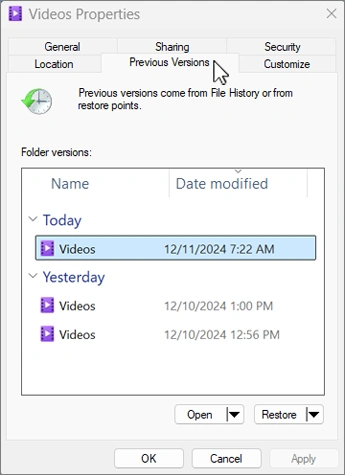
If File History was enabled before the loss, open File Explorer and browse to the folder that previously held the files. Right-click that folder, select Restore previous versions, open a suitable version, and restore or copy what you need. Microsoft’s File History instructions confirm that this feature depends on earlier backups; turning it on after deletion cannot recreate old copies.
4. Recover Permanently Deleted Files with Magic Data Recovery
The Recycle Bin, quarantine, and backup methods cannot help when no copy exists. In that situation, Magic Data Recovery can scan the storage device for recoverable records and file signatures. It supports lost data caused by deletion, formatting, file-system errors, and other common scenarios—not just this specific Windows 11 fault.

The software is useful when files get deleted automatically after a click in Windows 11 and bypass the Recycle Bin, or when you discover that an entire folder has vanished. Its practical advantages include:
- Quick and deep scanning for different loss conditions.
- Support for more than 5,000 file types, including documents, photos, videos, archives, and emails.
- Scanning of internal drives, external drives, USB flash drives, and memory cards recognized by Windows.
- Filters and previews that help you confirm a file before recovery.
- A visual workflow that avoids command-line recovery syntax.
Supports Windows 7/8/10/11 and Windows Server
Follow a safe recovery sequence:
- Install Magic Data Recovery on a different physical drive from the one that lost data. If the files disappeared from C:, use another disk where possible.
- Launch the program and select the affected partition or storage device.
- Start the scan. Let the deeper scan finish if the first results do not contain the missing folder.
- Filter by file type, path, size, or date, then preview important files when preview is available.
- Select the items you need and recover them to a different physical drive.
This approach is more dependable than repeatedly undoing actions or running repair commands first because it addresses the missing data before troubleshooting creates additional disk activity. Still, no recovery program can promise a usable result after overwriting or SSD TRIM. For more recovery choices, read our guide to restoring deleted files in Windows 11.
How to Stop Files Getting Deleted Automatically in Windows 11
Once the essential data is safe, work through the fixes below. Test with a newly created, disposable text file—not with a recovered original.
Fix 1. Disconnect and Inspect the Keyboard
A jammed Delete key is the most direct explanation for files getting deleted automatically when clicked. Unplug an external keyboard and select a disposable file with the mouse. On a laptop, connect another keyboard or open the on-screen keyboard with Windows + Ctrl + O to continue testing without the suspect device.
Press and release Delete, Shift, Ctrl, and Alt several times. Look for dirt, a damaged keycap, or liquid exposure. If deletion prompts appear even when you are not touching the keyboard, replace or professionally clean the device. When items bypass the Recycle Bin, pay special attention to Shift as well as Delete.
Fix 2. Check the Mouse, Touchpad, and Macro Software
Gaming mice and programmable touchpads can bind a button to a multi-key action. A faulty profile might send Select + Delete on a normal click. Disconnect the mouse, use another model, and close its configuration software. Also remove any macro that contains Delete, Shift + Delete, or a scripted file action.
If changing the mouse stops files from getting deleted automatically when clicked in Windows 11, reset its onboard profile before reconnecting it. Testing the device on another computer can confirm whether the fault follows the hardware.
Fix 3. Reinstall Input-Device Drivers
Windows normally reinstalls standard input drivers after a restart:
- Right-click Start and open Device Manager.
- Expand Keyboards and Mice and other pointing devices.
- Right-click the suspect device and select Uninstall device.
- Restart the PC.
- Visit the laptop, keyboard, or mouse manufacturer’s site if the device needs a dedicated driver or firmware update.
Avoid downloading generic “driver updater” packages from unknown websites. Device Manager and the manufacturer’s support page are safer sources.
Fix 4. Review Antivirus Actions—Do Not Disable Protection Blindly
When a particular file type vanishes only after opening it, inspect Protection History and the logs of any third-party security suite. Confirm the detection name, affected path, time, and publisher.
If the file is legitimate, update the security definitions and submit a false-positive report to the vendor. Add a narrow file or folder exclusion only after verification. If you are uncertain, leave the file quarantined. Disabling real-time protection can turn a confusing deletion problem into a genuine infection.
Fix 5. Configure Storage Sense
Storage Sense does not normally delete an arbitrary document the instant you click it. Nevertheless, it can explain files getting deleted automatically in Windows 11 from the Recycle Bin, temporary folders, or Downloads on a schedule.
Open Settings > System > Storage > Storage Sense. Review how often it runs and the retention settings for the Recycle Bin and Downloads. Select Never for Downloads cleanup if that folder holds working files, or turn Storage Sense off while diagnosing. Microsoft notes that Storage Sense can automatically remove temporary files and Recycle Bin items to free space in its Windows storage guidance.
Fix 6. Scan for Malware
Unexpected deletion across several folders, disabled security settings, unknown processes, or changed extensions deserves a malware check. In Windows Security, open Virus & threat protection > Scan options. Run a Full scan. If suspicious behavior continues, choose Microsoft Defender Offline scan, which Microsoft confirms restarts the computer and scans in the Windows Recovery Environment.
Keep the computer offline until the scan finishes if you suspect active malware. After cleanup, change important passwords from a known-clean device, especially if the infection may have captured credentials.
Fix 7. Test a Clean Boot or a New User Account
A clean boot starts Windows with essential services and startup programs, which helps isolate third-party shell extensions, automation utilities, and background apps. Follow Microsoft’s clean-boot procedure, taking care to hide Microsoft services before disabling third-party services. If the fault disappears, re-enable services in groups until it returns. That process identifies the conflict more reliably than uninstalling random programs.
Next, create a local test user and reproduce the issue with a disposable file. If the same mouse and keyboard work normally there, the original Windows profile or its per-user software may be damaged. Move personal data only after it is recovered and scanned.
Fix 8. Repair Windows Components with DISM and SFC
Use system repair when the issue persists with known-good input devices and in a clean boot. Open Terminal (Admin) or Command Prompt (Admin) and run:
- DISM.exe /Online /Cleanup-Image /RestoreHealth
- sfc /scannow
Run DISM first. Microsoft states that DISM supplies files needed to repair corruption before System File Checker verifies protected Windows files. These tools repair system components; they do not recover deleted personal documents. Consult Microsoft’s DISM and SFC procedure if either command reports an error.
Fix 9. Use System Restore or Reset Only as a Last Resort
If files getting deleted automatically when clicked began after a driver, utility, or Windows configuration change, System Restore may return system settings to an earlier restore point. It does not restore deleted personal files. Back up recovered data before proceeding.
Resetting Windows causes much more disk activity and may remove applications or settings. Use it only after recovery, malware checks, clean-boot testing, and system repair fail. Read every reset option carefully and keep a verified backup on an external drive.
How to Confirm the Problem Is Fixed
Create a folder named Click-Test and place three disposable text files inside it. Single-click, double-click, right-click, drag, and rename each file. Restart Windows and repeat the test. Then check Protection History, the Recycle Bin, and your sync client for unexpected actions.
Finally, keep File History or another versioned backup active. A backup should live on another drive or trusted backup destination, not merely in a second folder on the same disk. If the cause was a macro or security rule, document the setting you changed so the issue is easier to diagnose if it returns.
Conclusion
When you see files getting deleted automatically when clicked, begin with the physical keyboard, mouse, and macro settings because they best match an immediate click-to-delete symptom. Check Protection History for selective app-file removal, and inspect Storage Sense only when files disappear from cleanup locations on a schedule. Malware scans, clean-boot testing, DISM, and SFC cover the less obvious causes without risky registry edits.
For missing data, use the Recycle Bin, quarantine, OneDrive, or File History first. If no backup copy remains, Magic Data Recovery is worth considering because it scans for deleted data, handles formatted and file-system-error cases, supports more than 5,000 file types, and lets you preview results before saving them elsewhere. You can also return to the deleted file recovery guide for additional recovery methods and prevention advice.
Supports Windows 7/8/10/11 and Windows Server
FAQs
Why are my files getting deleted automatically when I click them?
A stuck Delete key, a mouse macro, or a faulty input driver may send a delete command whenever you select a file. If only downloads or executable files disappear, check antivirus quarantine instead. Scheduled losses from Downloads or the Recycle Bin may come from Storage Sense.
How do I stop files getting deleted automatically when clicked in Windows 11?
Disconnect the keyboard and mouse, then test a disposable file with known-good input devices. Remove any Delete macro and reinstall the relevant drivers. Next, review Protection History, scan for malware, and use a clean boot to isolate background software.
Can Windows Defender delete a file when I open it?
Microsoft Defender can quarantine a file after detecting it during download, access, or execution. Review Windows Security > Virus & threat protection > Protection history. Restore or allow a file only after confirming that its source and publisher are trustworthy.
Does Storage Sense delete files automatically in Windows 11?
Yes. Depending on its configuration, Storage Sense can remove temporary content and older items from the Recycle Bin or Downloads folder. It does not usually explain an ordinary document disappearing the instant you click it, so match the fix to the timing.
Why do clicked files bypass the Recycle Bin?
A stuck Shift key combined with Delete can cause permanent deletion. Large files, removable-drive files, network files, or items deleted by some programs may also bypass the Recycle Bin. Check input devices, security history, sync activity, and backups before running recovery software.
Can permanently deleted files be recovered on Windows 11?
Recovery may be possible until new data overwrites the deleted content. Stop using the affected drive, check backups, and scan it from a safe location. SSD TRIM can reduce the chance of recovery, so act promptly and save recovered files to another drive.
Will SFC or DISM bring back my deleted personal files?
No. DISM and SFC repair Windows components and protected system files; they do not restore personal photos, documents, or videos. Use the Recycle Bin, File History, OneDrive, or data recovery software for personal files, then repair Windows after the data is safe.
Is it safe to exclude a folder from Microsoft Defender?
An exclusion reduces scanning for that location and therefore lowers protection. Add one only when you have verified the file and trust its source. Prefer a narrow exclusion over excluding Downloads, an entire user profile, or a complete drive.

Jason is a data recovery and technical support specialist with over 15 years of hands-on experience. He has worked extensively with frontline users, troubleshooting difficult data loss cases and providing practical recovery solutions for accidental deletion, formatted drives, damaged file systems, lost partitions, system failures, and other recovery emergencies. His expertise also includes backup and restoration, file repair, and disaster recovery, with a strong emphasis on safe, reliable, and technically accurate guidance.