
RAW File System: Why a Volume Becomes RAW
A RAW file system status means Windows cannot recognize a usable file system on a volume. It is not a separate format and does not prove file loss. Boot damage, metadata errors, partition mistakes, or read failures may block access.
Table of Contents
What Does RAW File System Mean in Windows?
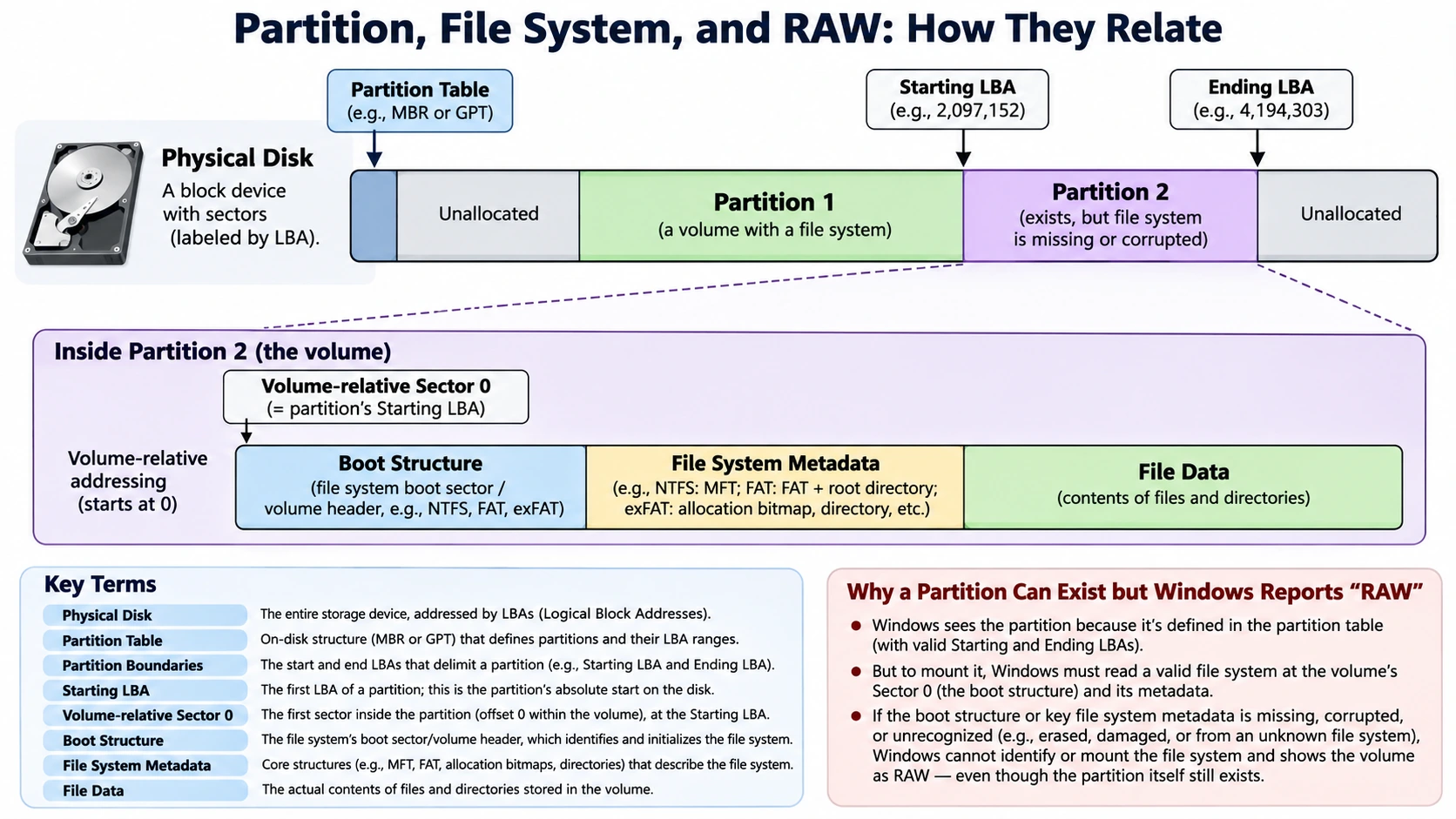
RAW is not a file system format like NTFS, FAT32, or exFAT. Windows may display it when it cannot identify a supported file system. Disk Management may show RAW, or File Explorer may ask you to format the drive.
However, this does not prove that Windows erased the files. A RAW file system label does not identify the damaged structure. The volume may still contain readable data. In practice, a RAW file system label describes Windows’ recognition result, not the condition of every file. Microsoft documents recognition for valid but unrecognized formats.
RAW vs. Unallocated
RAW means a volume exists, but Windows cannot recognize its file system. Unallocated means the area does not belong to a recognized partition. By contrast, NTFS, FAT32, or exFAT means Windows recognizes it.
An unformatted partition may appear as RAW. An existing volume may also become RAW after corruption. Therefore, the label alone cannot identify the cause.
Why Does a Volume Become RAW?
Windows may fail to recognize a volume because of:
- Boot damage that makes key parameters unreadable.
- Metadata corruption in file records, allocation tables, or directories.
- Partition errors that point to incorrect boundaries.
- Interrupted writes that leave metadata updates incomplete.
- Read errors from bad sectors or unstable connections.
- Unsupported formats without a suitable Windows driver.
These issues affect different storage layers. For example, a GPT entry may point to the wrong location while file system structures remain intact. Treat a RAW file system status as an observation, not a diagnosis.
NTFS RAW File System: Boot Sector and MFT Corruption
An NTFS RAW file system condition may occur when Windows cannot interpret essential NTFS structures. Two important components are the NTFS Boot Sector and the Master File Table ($MFT).
The Boot Sector describes the volume layout. Meanwhile, the MFT stores file records and information about file content.
Important NTFS Boot Sector Fields
Field | Byte offset | Purpose |
Bytes per sector | 0x0B | Logical sector size |
Sectors per cluster | 0x0D | Cluster size in sectors |
Total sectors | 0x28 | Volume length |
$MFT LCN | 0x30 | MFT starting cluster |
$MFTMirr LCN | 0x38 | MFT mirror location |
Clusters per MFT record | 0x40 | Encoded file record size |
The field at 0x40 stores a signed value. A negative value represents a record size as a power of two. For example, 0xF6 means -10, or 1,024 bytes.
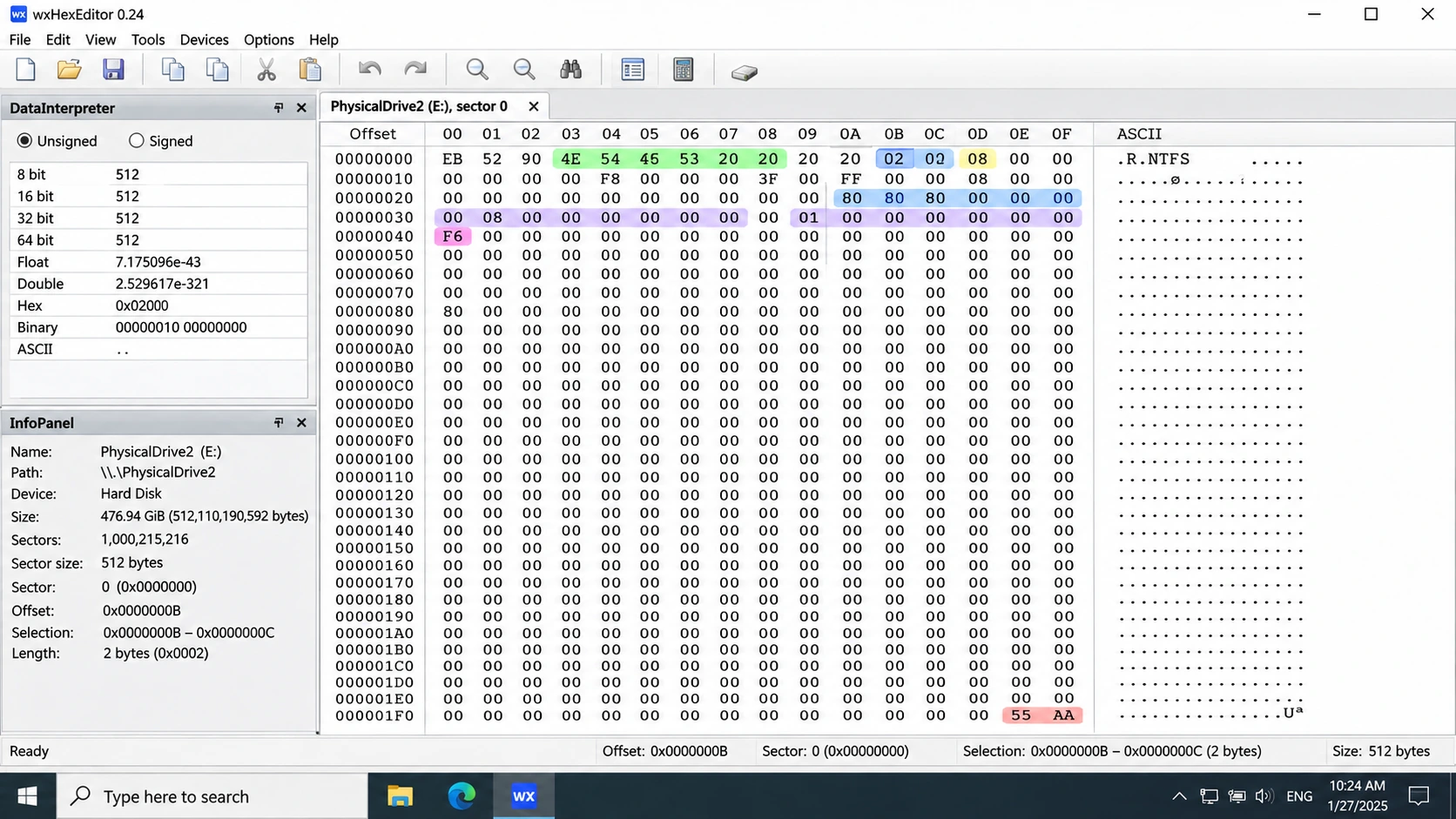
The Linux kernel’s NTFS on-disk layout definitions document these offsets. With 512-byte sectors and 8 sectors per cluster, an MFT LCN of 8,192 corresponds to a volume-relative byte offset of 33,554,432 (8,192 × 8 × 512).
Even so, a RAW file system can have a valid MFT location while its records remain unreadable. $MFTMirr mirrors only a limited number of important MFT records. Modern NTFS volumes also commonly keep a separate backup boot sector at the volume’s end.
NTFS file system corruption can affect the boot sector, MFT records, or other metadata. NTFS boot sector corruption may block access to essential parameters. However, one damaged MFT record does not necessarily make the volume RAW.
NTFS Volume Becomes RAW: What to Check
When an NTFS volume becomes RAW, check the partition boundary and primary boot sector. Next, compare the backup boot sector and verify the MFT location. For more detail, see Amagicsoft’s Corrupt Master File Table guide.
FAT32 RAW File System: BPB and FAT Corruption
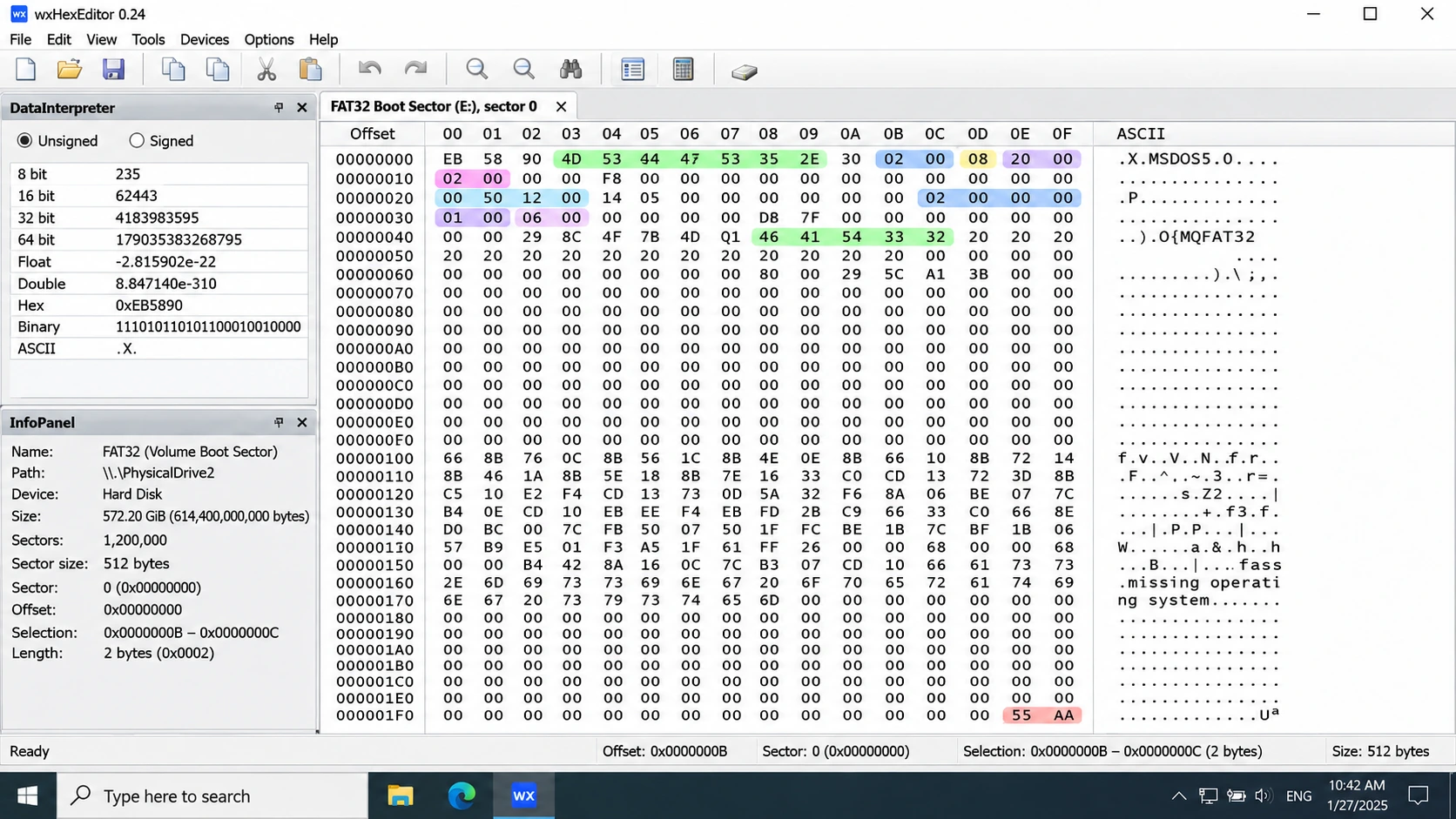
A FAT32 RAW file system condition may occur when Windows cannot interpret its BPB or allocation structures. The BPB describes the volume; the File Allocation Table (FAT) links file and directory clusters.
Important FAT32 BPB Fields
Field | Byte offset | Purpose |
BPB_BytsPerSec | 0x0B | Bytes per sector |
BPB_SecPerClus | 0x0D | Sectors per cluster |
BPB_RsvdSecCnt | 0x0E | Reserved sector count |
BPB_NumFATs | 0x10 | Number of FAT copies |
BPB_FATSz32 | 0x24 | Sectors occupied by each FAT |
BPB_FSInfo | 0x30 | FSInfo sector location |
BPB_BkBootSec | 0x32 | Backup boot record location |
How FAT32 Calculates Its Data Region
The BPB determines where the FAT and data regions begin:
For FAT32, RootDirSectors equals zero. For example, 32 reserved sectors and two FATs containing 1,300 sectors each produce a FirstDataSector value of 2,632.
Also, the FAT must contain enough entries for the data clusters. Calculate the cluster count from the remaining sectors, then compare FAT capacity with the cluster count plus two reserved entries.
FAT32 Boot Sector Damaged: What to Check
If the FAT32 boot sector is damaged, compare its BPB with the backup. BPB_BkBootSec commonly points to volume-relative sector 6; verify the field on the actual volume.
The three-sector backup boot record includes boot information and an FSInfo copy. Both boot records point to the FSInfo sector named by BPB_FSInfo; only that copy stays current. FSInfo stores advisory free-cluster and next-cluster values. The FAT describes cluster chains. FAT32 file system corruption can also damage chains while Windows still recognizes the volume.
FAT32 Volume Becomes RAW: What to Check
When a FAT32 volume becomes RAW, check the partition boundary, BPB, backup boot record, FAT copies, and device read status.
See Microsoft’s FAT32 File System Specification for field and backup-structure definitions.
exFAT RAW File System: Main and Backup Boot Regions
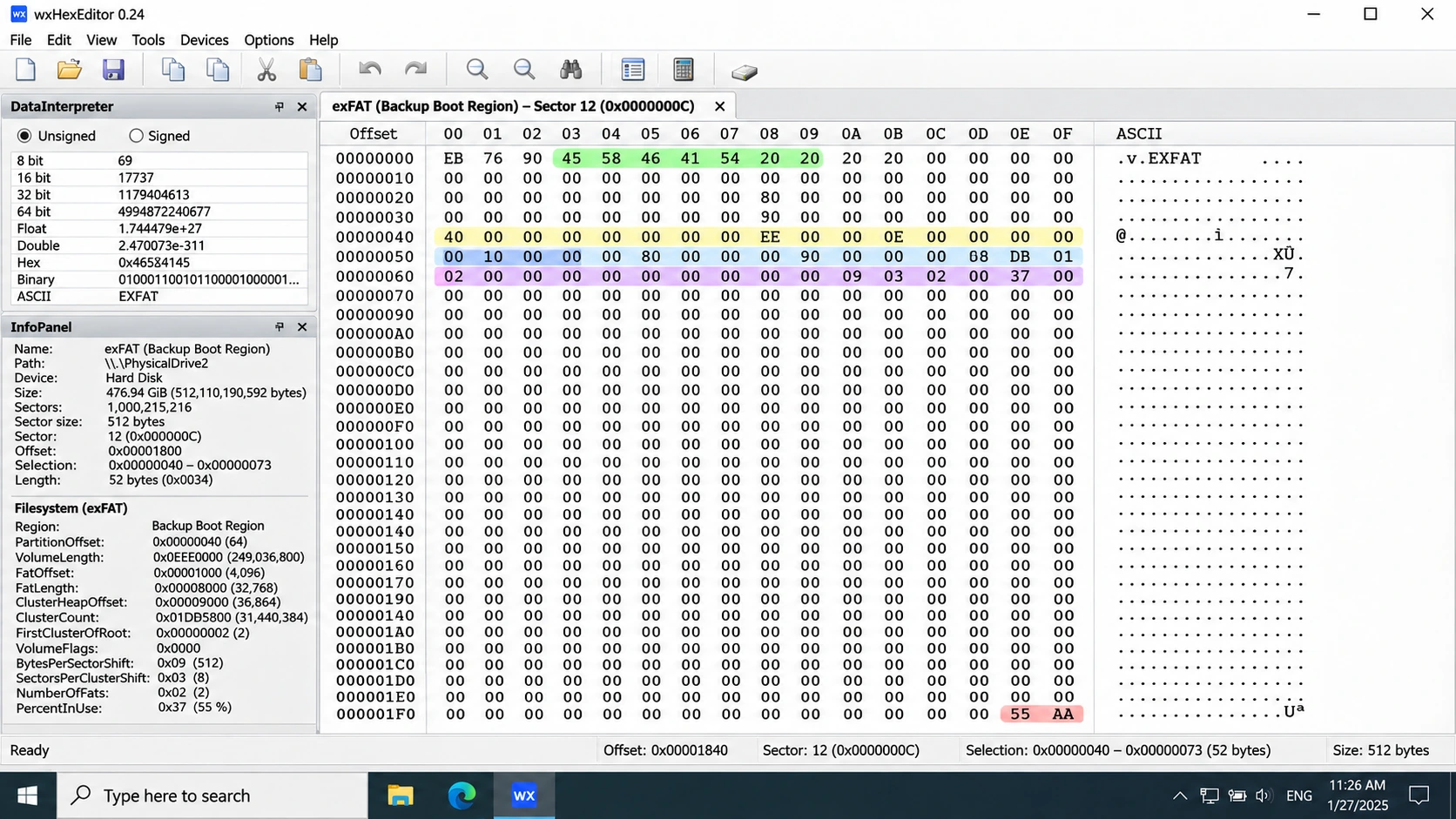
An exFAT RAW file system condition may occur when Windows cannot validate essential structures. Unlike FAT32, exFAT uses two 12-sector Boot Regions:
Structure | Volume-relative sectors |
Main Boot Region | 0–11 |
Backup Boot Region | 12–23 |
Main Boot Checksum | 11 |
Backup Boot Checksum | 23 |
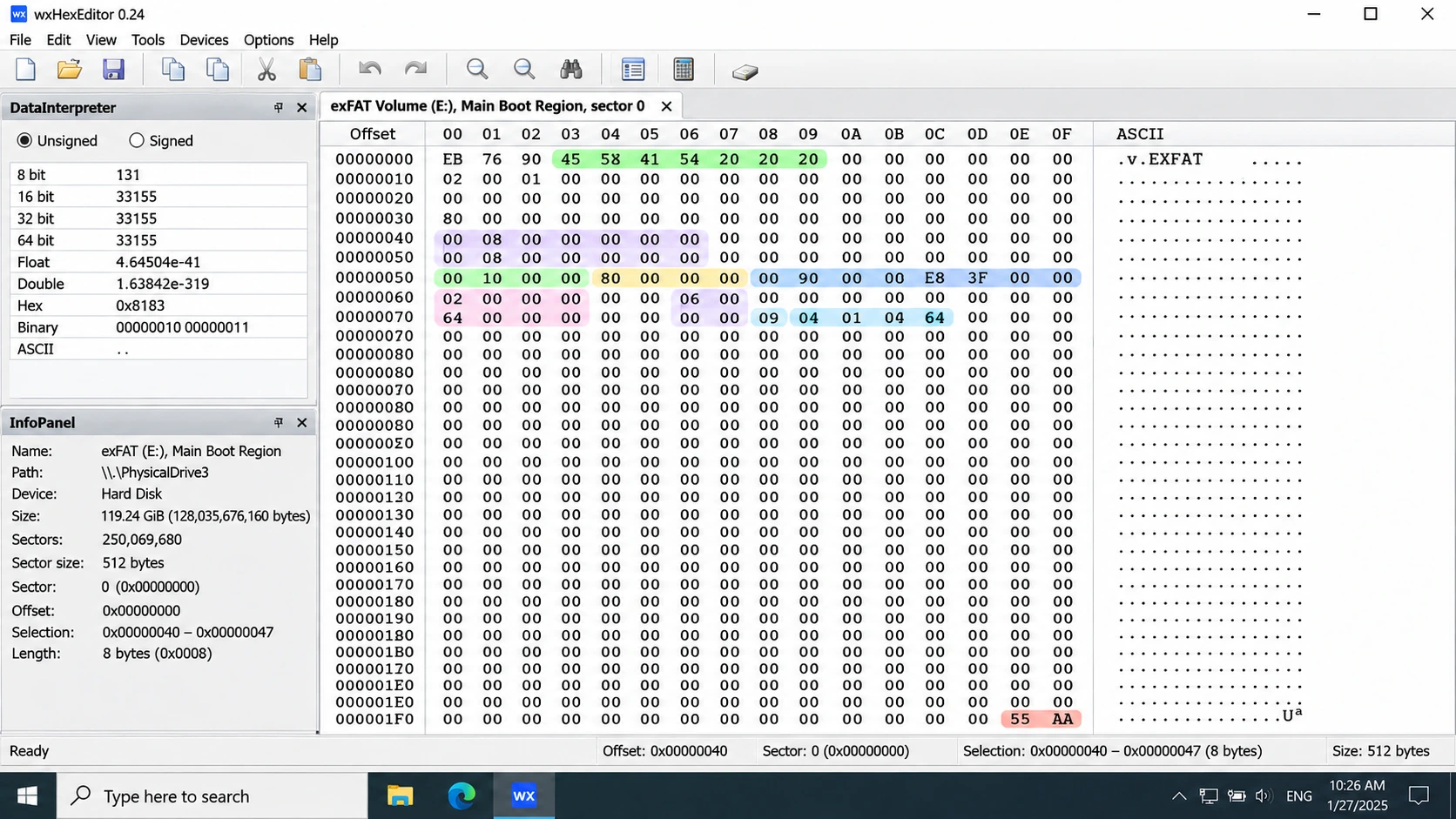
Meanwhile, the Main Boot Region identifies exFAT and locates its structures. The Backup Boot Region provides an alternative if the Main Boot Region becomes inconsistent.
exFAT Boot Region Corruption: How the Checksum Works
Each Boot Region has its own checksum over its first 11 sectors. The calculation excludes Boot Sector byte offsets 106, 107, and 112, which contain VolumeFlags and PercentInUse.
The algorithm rotates a 32-bit checksum right by one bit, then adds each included byte. It repeats the result throughout the checksum sector. A matching checksum validates only those Boot Region bytes. It does not validate the FAT, Allocation Bitmap, directory entries, or file contents.
exFAT file system corruption can also affect allocation metadata. Therefore, a valid Boot Checksum does not prove that the whole volume is healthy.
exFAT Volume Becomes RAW: What to Check
When an exFAT volume becomes RAW, validate both Boot Regions independently. Check signatures, field ranges, and checksums. Then inspect the FAT, Allocation Bitmap, and directory metadata.
Microsoft’s exFAT File System Specification defines these regions and the checksum algorithm. Amagicsoft’s Volume Boot Record guide compares boot structures in more detail.
NTFS vs. FAT32 vs. exFAT: Key Diagnostic Differences
The same RAW file system status can reflect different failures. Check each format’s structures.
File system | First structures to examine | Important limitation |
NTFS | Boot Sector, $MFT, $MFTMirr | A valid MFT pointer does not prove record integrity. |
FAT32 | BPB, FAT copies, backup boot record | Valid FSInfo does not prove correct cluster chains. |
exFAT | Main and Backup Boot Regions, Boot Checksum | A valid checksum does not validate the Allocation Bitmap or file data. |
RAW File System Diagnostic Explorer
Choose a file system and inspect what a structural check can—and cannot—tell you.
NTFS boot sector → $MFT
How to interpret the evidence
| Evidence | Can establish | Cannot establish alone |
|---|
For example, NTFS checks focus on MFT location, FAT32 checks on FAT layout, and exFAT checks on Boot Region checksums.
How to Examine a RAW Volume Without Modifying It
Before repairs, protect the original data:
- Check device capacity and watch for disconnections, read errors, or unusual noises.
- Confirm that the partition exists and its boundaries look reasonable.
- Inspect file system structures with read-only tools.
- Do not format or modify the source before securing important files.
For this reason, CHKDSK is not a universal RAW repair method. It may not run on a RAW volume. Formatting creates new structures and may overwrite recovery information.
Does a RAW File System Mean Files Are Unrecoverable?
No. In practice, recovery depends on surviving metadata and file content. NTFS uses MFT records, FAT32 uses directory entries and cluster chains, and exFAT uses directory entry sets and allocation information.
However, surviving metadata cannot guarantee that original bytes remain intact. An NTFS record may point to overwritten clusters. A FAT32 directory entry may survive after its cluster chain becomes incomplete.
For this reason, file system metadata recovery needs both metadata and content. See Amagicsoft’s metadata recovery guide. SSD TRIM adds another limit: a RAW status alone cannot show whether deleted data remains readable.
Conclusion
A RAW file system status means Windows cannot recognize a usable file system. It does not prove that files have been erased. Diagnose a RAW file system by checking partition boundaries and file system structures before considering repair.
NTFS, FAT32, and exFAT use different metadata. Therefore, each needs a different investigation. Protect the original data before making changes.
FAQ
Is RAW a real file system format?
Why does an NTFS volume become RAW?
Can a FAT32 volume become RAW because of FSInfo corruption?
Can the exFAT Backup Boot Region help recover a RAW volume?
Is it safe to format a RAW drive?
Does a valid boot sector prove that all files are intact?

Vasilii is a data recovery specialist with around 10 years of hands-on experience in the field. Throughout his career, he has successfully solved thousands of complex cases involving deleted files, formatted drives, lost partitions, and RAW file systems. His expertise covers both manual recovery methods using professional tools like hex editors and advanced automated solutions with recovery software. Vasilii's mission is to make reliable data recovery knowledge accessible to both IT professionals and everyday users, helping them safeguard their valuable digital assets.