
RAW SD Card Recovery Free: Best Freeware
Inserting an SD card only to see a “disk not formatted” error is a common nightmare. When the file system suddenly turns RAW and shows 0 bytes, you might feel your photos are lost forever. However, you can still perform free raw sd card recovery to restore your trapped data. By using a professional raw sd card recovery freeware, you can bypass these errors and safely rescue your files before clicking “Format.”
A RAW state simply means the operating system no longer recognizes the card’s file structure due to logical corruption. Most importantly, you must stop using the card immediately to avoid overwriting. In this guide, we will explore effective methods for free raw sd card recovery and introduce Magic Data Recovery as your ultimate SD card recovery solution.
Supports Windows 7/8/10/11 and Windows Server
Table of Contents
Understanding the RAW SD Card Issue
To solve this problem effectively, we must first understand its nature. A “RAW” SD card does not represent a standard file system like NTFS or FAT32. Instead, it indicates a state where the partition table suffers damage or the file system type remains unknown to Windows.
Why Does an SD Card Become RAW?
Several factors typically trigger this frustrating error:
- Improper Ejection: Users often pull the card out while data is still being written.
- Power Failure: A sudden shut-off occurs during a critical file transfer.
- Virus or Malware: Malicious software specifically attacks the boot sector.
- Physical Wear: SD cards possess a limited lifespan, and bad sectors eventually lead to logical corruption.
While Windows might suggest formatting the card to “fix” it, doing so will erase your file directory. Consequently, you should focus on free raw sd card recovery techniques to extract your files first. Above all, keeping the card intact increases the chances of a full recovery.
Can You Fix a RAW SD Card Without Software?
Many users hope to find a built-in Windows solution for free raw sd card recovery. Although command-line tools exist, they often come with significant limitations when dealing with unreadable partitions.
The CHKDSK Tool
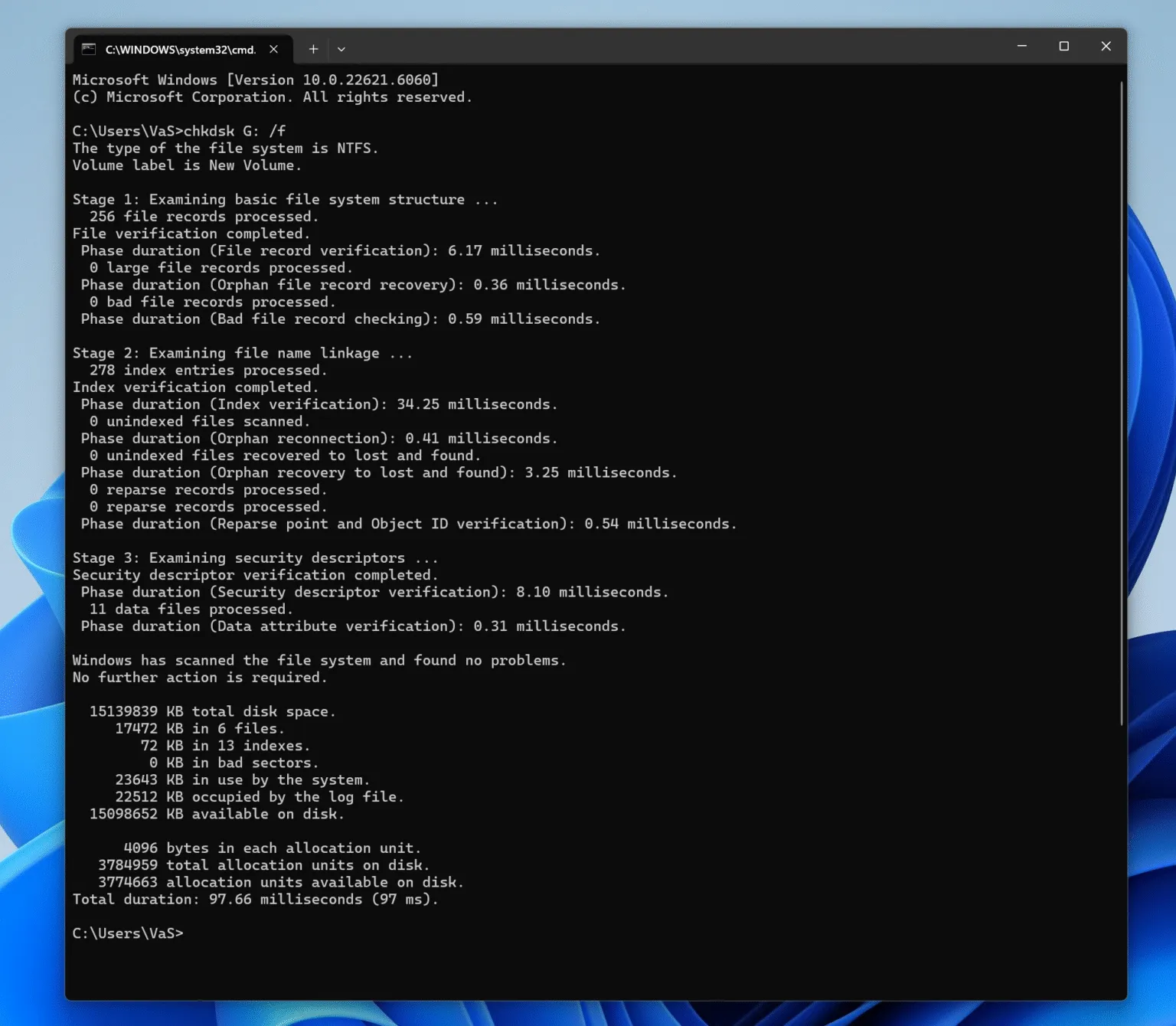
You might see tutorials suggesting the command chkdsk /f. However, when you try this on a RAW drive, Windows usually returns an error message: “CHKDSK is not available for RAW drives.” This happens because CHKDSK requires a recognized file system to function. Therefore, it cannot rebuild missing or destroyed file directories.
Assigning a New Drive Letter
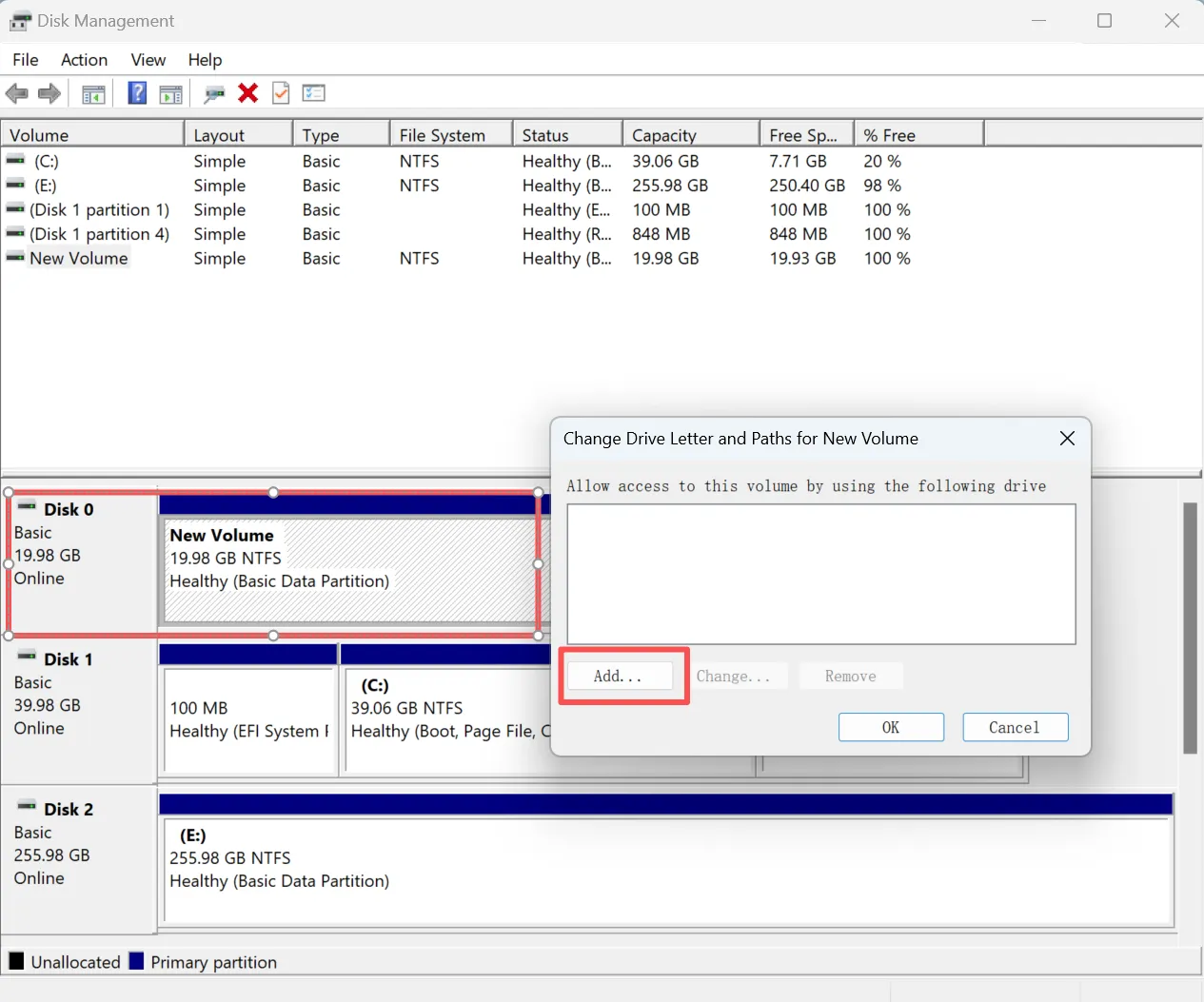
Sometimes, a simple path conflict causes the RAW error. Specifically, you can try changing the drive letter in Disk Management:
- Right-click “This PC” and select Manage > Disk Management.
- Find your SD card, right-click it, and select Change Drive Letter and Paths.
- Assign a new letter (e.g., from E: to M:).
- Restart your computer and check if the card becomes accessible.
If these basic steps fail, it is time to turn to professional raw sd card recovery freeware.
Why Choose Magic Data Recovery for RAW Issues?
When manual fixes fall short, you need a tool specifically engineered to handle logical volume corruption. This is where Magic Data Recovery stands out from the competition. Unlike generic tools that often struggle with unrecognized partitions, this software effectively bypasses the “RAW” barrier to reconstruct the file directory.
Key Benefits of This Raw SD Card Recovery Freeware
As a specialized raw sd card recovery freeware, Magic Data Recovery offers several unique advantages:
- Deep Partition Analysis: The software scans the entire surface of the SD card to find file “signatures” (like .JPG or .MOV).
- Read-Only Operations: Most importantly, the software never writes to your corrupted SD card during the scan. This ensures that your data remains safe from further damage.
- Universal Compatibility: It supports all major brands, including SanDisk and Samsung, across all versions of Windows.
Solving the “0 Bytes” Problem Effectively
For many users, the biggest frustration involves seeing “0 bytes” of available space. Magic Data Recovery solves this by ignoring the Windows logical report. Instead, it reads the raw sectors directly to identify hidden data. Consequently, this capability makes it one of the most reliable free raw sd card recovery options for complex corruption cases.
Step-by-Step Guide: How to Perform Free Raw SD Card Recovery
Recovering files with professional tools is simpler than you might think. If you follow this systematic approach, you can safely extract your data without any technical expertise.
Step 1: Download and Install Magic Data Recovery
First, download Magic Data Recovery and install it on your local computer disk. You must ensure that you do not install the raw sd card recovery freeware on the affected SD card itself. This approach prevents accidental overwriting and protects your lost data.
Supports Windows 7/8/10/11 and Windows Server
Step 2: Select the RAW SD Card to Scan
Launch the program to view the main interface. Next, locate and choose the external drive or SD card identified as RAW where your files were stored, and then start searching lost files.

Step 3: Scan the SD Card for Recoverable Data
The software will automatically initiate an Advanced Scan designed for corrupted file systems. Meanwhile, it lists all recoverable files in real-time. Please wait for the process to complete to ensure the software finds every fragment.

Step 4: Preview Files Before Final Recovery
Next, take advantage of the built-in preview function. This allows you to verify the integrity of your photos or documents before committing to the recovery. Specifically, this step ensures you spend time only on the files you truly need.

Step 5: Recover Files to a Safe Location
Finally, select the target files and click “Recover.” You must save them to a different drive or storage device. Never restore data back to the same RAW SD card, because doing so risks overwriting lost data.

Comparing Leading Raw SD Card Recovery Freeware
When searching for free raw sd card recovery solutions, you might encounter other names. Here is how Magic Data Recovery compares to other popular options:
Feature | Magic Data Recovery | Recuva (Free) | PhotoRec (Open Source) |
Ease of Use | Very High (Wizard-based) | High | Low (Command-line) |
RAW Support | Excellent | Limited | Good |
Preview Feature | Yes (Real-time) | Yes | No |
Success Rate | Very High | Moderate | High |
Expert Tips to Avoid RAW Errors in the Future
Recovering data brings relief, but prevention remains even better. Therefore, follow these industry best practices:
- Always Eject Safely: You should never pull the card out while the device is still accessing it.
- Avoid Multiple Devices: Using the same card on different camera brands can lead to partition errors.
- Replace Aging Cards: If your card starts showing “Slow Write” errors, it is likely reaching its end of life.
- Use High-Quality Readers: Cheap card readers often cause voltage spikes that corrupt the card’s firmware.
Conclusion
A RAW SD card is not a death sentence for your memories. By using the right SD card recovery methods, you can get your files back safely. In this situation, Magic Data Recovery is the recommended raw sd card recovery freeware because it bridges the gap between complex forensic tools and home user needs. It offers specialized algorithms needed to navigate corrupted partitions while keeping the process intuitive.
If you are currently staring at a “Disk Not Formatted” error, do not wait. Download Magic Data Recovery now and start your scan immediately to secure your data.
Supports Windows 7/8/10/11 and Windows Server
FAQs About Free RAW SD Card Recovery
Can I really perform raw sd card recovery free of charge?
Why does Windows say I need to format the card?
How long does a RAW scan take?
Can I recover videos as well as photos?
What if my SD card is physically cracked?
Does this software work on Windows 11?

Vasilii is a data recovery specialist with around 10 years of hands-on experience in the field. Throughout his career, he has successfully solved thousands of complex cases involving deleted files, formatted drives, lost partitions, and RAW file systems. His expertise covers both manual recovery methods using professional tools like hex editors and advanced automated solutions with recovery software. Vasilii's mission is to make reliable data recovery knowledge accessible to both IT professionals and everyday users, helping them safeguard their valuable digital assets.