
SanDisk Corrupted SD Card Recovery on Windows
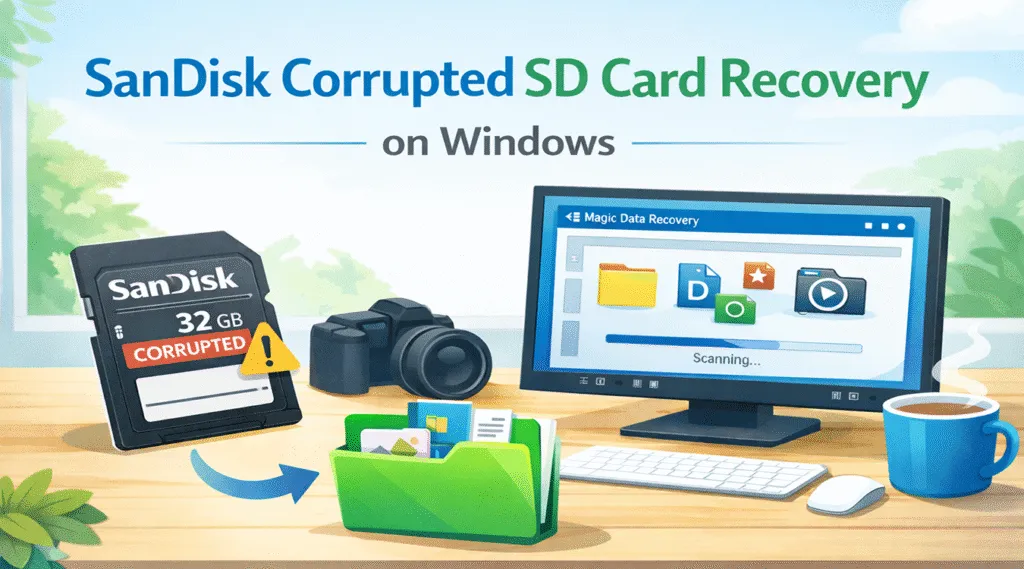
When dealing with SanDisk corrupted SD card recovery on a Windows computer, many users experience sudden stress and uncertainty. Important photos, videos, or documents disappear without warning, and Windows may display messages saying the SD card must be formatted or cannot be opened. At this stage, a rushed decision often leads to permanent data loss.
This guide focuses on helping Windows users handle SanDisk corrupted SD card recovery safely and effectively. Instead of guessing or relying on risky system fixes, you will learn how SD card corruption happens, what actions to avoid, and how to recover files step by step. More importantly, this article introduces Magic Data Recovery as a practical SD card recovery solution, explained from a real problem-solving perspective rather than marketing claims.
Supports Windows 7/8/10/11 and Windows Server
Table of Contents
What Is SanDisk Corrupted SD Card Recovery on Windows
SanDisk corrupted SD card recovery refers to the process of retrieving files from a SanDisk SD card that Windows can no longer read correctly. In most cases, the SD card still works physically, but the file system structure becomes damaged or unreadable.
As a result, Windows may fail to locate files even though they still exist on the card. Fortunately, logical corruption often allows successful recovery if users act carefully and avoid overwriting data.
Common signs include file system errors, missing folders, access denied messages, or Windows asking to format the SD card. These symptoms usually indicate file system damage rather than immediate hardware failure.
Why SanDisk SD Cards Get Corrupted
Understanding the cause of corruption helps users choose the right recovery method and prevent the same issue in the future.
Improper removal during file transfer is one of the most frequent causes. When users remove an SD card while Windows is still writing data, the file system process stops abruptly. As a result, file tables become incomplete or damaged.
Power loss or system crashes create similar risks. In addition, switching an SD card between different devices, such as cameras and Windows PCs, may lead to compatibility issues. Over time, aging memory cells and bad sectors also reduce SD card reliability.
In some situations, malware infections hide or damage files stored on removable media. All these factors commonly appear in real-world SanDisk corrupted SD card recovery cases.
What to Do Before Recovering a Corrupted SanDisk SD Card
Before attempting any fix, users should slow down and protect the existing data. First, stop using the SD card immediately. Continuing to write new files may overwrite recoverable data blocks.
Next, avoid formatting the SD card even if Windows suggests it. Formatting rewrites file system structures and reduces the chances of successful recover corrupted SanDisk SD card operations.
Finally, avoid running repair tools too early. While some Windows utilities fix file system errors, they may also remove damaged file entries permanently. Therefore, recovery should always come before repair.
Best Tool for SanDisk Corrupted SD Card Recovery on Windows
When Windows cannot access a corrupted SD card, dedicated recovery software provides the safest approach. A reliable tool scans the card at a low level and reconstructs lost file structures without modifying the original data.
Why Magic Data Recovery Works for Corrupted SanDisk SD Cards
Magic Data Recovery handles common Windows data loss scenarios, including corrupted, RAW, and inaccessible SD cards. Instead of relying on aggressive repair operations, it focuses on safe scanning and file reconstruction.
This tool supports SanDisk SD cards used in cameras, phones, and other removable storage devices. In addition, it allows users to preview files before recovery, which helps verify data integrity during SanDisk corrupted SD card recovery.
Magic Data Recovery also stands out because of its simple interface. Even users without technical experience can complete recovery steps with confidence.
How to Perform SanDisk Corrupted SD Card Recovery Step by Step
To achieve the best SanDisk corrupted SD card recovery results, you should follow a safe process that prevents file overwriting. In most cases, the key is simple: scan first, recover second, and avoid writing anything new to the SD card until recovery is complete.
Step 1: Download and Install Magic Data Recovery
First, download Magic Data Recovery and install it on your Windows PC. Make sure you install the program on a drive other than the corrupted SanDisk SD card. This reduces the risk of overwriting lost data and keeps the recovery process safer.
Supports Windows 7/8/10/11 and Windows Server
Step 2: Select the SanDisk SD Card to Scan
Next, connect your corrupted SanDisk SD card to the computer using an SD card reader. Launch Magic Data Recovery, then choose the SD card from the drive list in the main interface. After that, start scanning to begin the SanDisk corrupted SD card recovery process.

Step 3: Scan the SanDisk SD Card for Lost Files
Once the scan starts, the software will automatically perform an advanced scan mode. During this stage, Magic Data Recovery searches for deleted files, corrupted partitions, and recoverable data fragments. Meanwhile, you can watch the file list update in real time as more results appear.

Step 4: Preview Files Before Recovery
After scanning, use the preview feature to check whether the files are still intact. This step helps confirm which photos, videos, and documents are worth restoring. In addition, previewing allows you to avoid recovering unnecessary files, saving time and storage space.

Step 5: Recover Files to a Safe Location
Finally, select the files you want to restore and save them to a safe location on your computer or another storage device. Do not recover files back onto the same corrupted SanDisk SD card. Otherwise, the recovered data may overwrite other lost files and reduce overall recovery success.

Common SanDisk Corrupted SD Card Recovery Scenarios
In real use, SD card corruption often follows predictable patterns.
Camera users frequently encounter corrupted file system issue after photo sessions. Although Windows cannot open the card, recovery software often retrieves images successfully.
Another common scenario occurs when Windows asks users to format the SD card. However, recovery software can often extract files before formatting causes further damage.
Sometimes files disappear after interrupted transfers. In these cases, file references break, but the actual data remains intact. SanDisk corrupted SD card recovery tools can locate these files using file signatures.
Fix a Corrupted SanDisk SD Card After Recovery
After recovering important files, users may attempt to restore the SD card for future use.
Run CHKDSK to Repair File System Errors
CHKDSK checks disk integrity and fixes minor file system issues. It may help after recovery, but it should not be used beforehand because it can reduce recovery success.
Format the SD Card Using Disk Management
Formatting rebuilds the file system and often restores usability. However, formatting does not recover data. Therefore, only format the card after completing SanDisk corrupted SD card recovery.
How to Prevent SanDisk SD Card Corruption
Although recovery is possible, prevention always saves time and stress. Safely removing hardware in Windows, avoiding sudden power interruptions, and keeping regular backups reduce corruption risks.
Using high-quality SD cards and replacing aging cards also improves long-term reliability. These habits protect valuable data and reduce the need for future recovery.
Conclusion
When SD card corruption occurs, the safest strategy remains simple: recover data first and repair later. This approach prevents unnecessary loss and follows professional recovery practices.
Magic Data Recovery provides a balanced and reliable solution for SanDisk corrupted SD card recovery. Its ability to scan RAW cards, preview files, and recover data without complex operations makes it suitable for real-world SD card recovery situations. If your SanDisk SD card becomes corrupted and your data matters, starting with the right recovery tool can make all the difference.
Supports Windows 7/8/10/11 and Windows Server
FAQ
Can I recover data if Windows asks me to format my SanDisk SD card?
Why does my SanDisk SD card show RAW in Windows?
Should I run CHKDSK before recovering files?
What is the best SanDisk SD card recovery software for Windows?
Can I recover files from a formatted SanDisk SD card?
How long does SanDisk corrupted SD card recovery take?
Why are recovered files missing original names or folders?

Vasilii is a data recovery specialist with around 10 years of hands-on experience in the field. Throughout his career, he has successfully solved thousands of complex cases involving deleted files, formatted drives, lost partitions, and RAW file systems. His expertise covers both manual recovery methods using professional tools like hex editors and advanced automated solutions with recovery software. Vasilii's mission is to make reliable data recovery knowledge accessible to both IT professionals and everyday users, helping them safeguard their valuable digital assets.