
How to Perform Raw Format Hard Drive Recovery
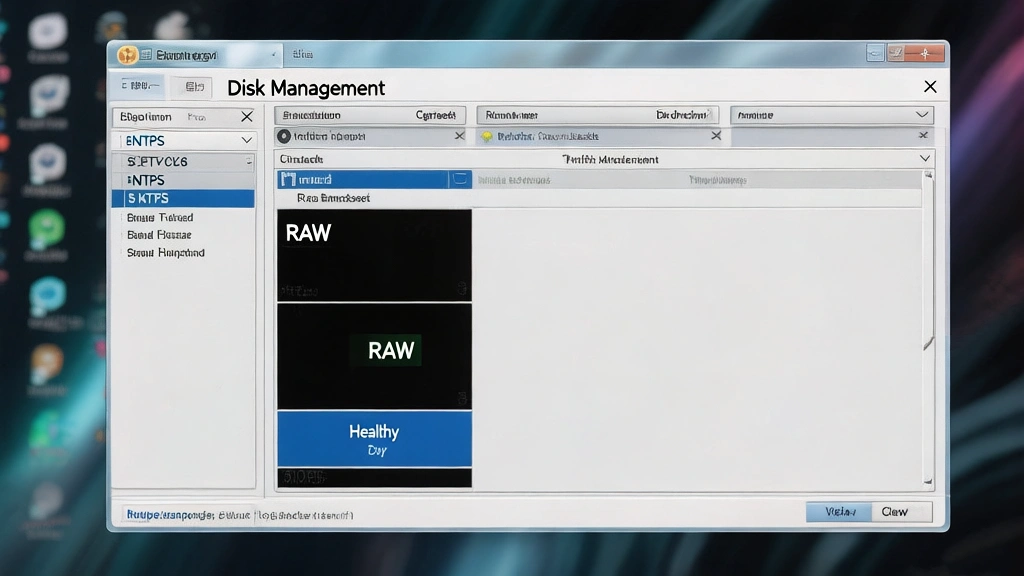
When your operating system fails to recognize the file system (such as NTFS or FAT32), it marks the partition as RAW. Consequently, you cannot open the files, but the data still exists on the platters or flash cells. If you act quickly and use the right hard drive recovery methods, performing a raw format hard drive recovery is not only possible but highly successful.
In this comprehensive guide, we will explore the most effective techniques for data recovery from raw drive and introduce you to the best raw drive recovery software Magic Data Recovery to regain your digital life without losing a single byte.
Supports Windows 7/8/10/11 and Windows Server
Table of Contents
What Exactly is a RAW Drive?
Connecting your external hard drive only to be greeted by an error message saying, “You need to format the disk in drive X: before you can use it,” is a nightmare scenario. Suddenly, your valuable photos, work documents, and archives are inaccessible. This situation usually indicates that your storage device has become a “RAW” drive.
Before diving into the recovery process, it is essential to understand what happened to your hardware. A RAW drive is a storage device that a computer cannot read because the file system is corrupted, missing, or unrecognized. Essentially, the “map” that tells Windows where each file is located has been destroyed.
Several factors typically cause this issue:
- Sudden Power Failure: If your system shuts down while writing data, the file system table may become corrupted.
- Unsafe Disconnection: Pulling out a USB drive without clicking “Safely Remove Hardware” is a frequent culprit.
- Virus or Malware Attacks: Malicious software often targets the Master Boot Record (MBR) or Partition Table.
- Physical Bad Sectors: Aging hardware may develop clusters that the OS can no longer read.
Regardless of the cause, the most important rule is: Do not format the drive yet. Formatting might create a new file system, but it can also overwrite the very data you are trying to save.
Identifying the Symptoms of a RAW Partition
Recognizing the signs early can save you from further data loss. If you encounter any of the following, you are likely dealing with a RAW file system:
- File System Displayed as “RAW”: In Windows Disk Management, the drive status shows “RAW” instead of NTFS or FAT32.
- Invalid Media Type Errors: When trying to access the drive via Command Prompt, you see “The type of the file system is RAW.”
- Sector Not Found: Attempts to read data result in “Sector not found” notifications.
- Zero Bytes Used: The drive properties show 0 bytes of used and free space.
Why You Need the Best RAW Drive Recovery Software
When a drive becomes RAW, the Windows operating system loses its ability to interact with the files. Standard copy-and-paste methods will not work. Therefore, you need a specialized tool that can bypass the OS limitations and scan the storage surface directly.
Choosing the best raw drive recovery software is crucial because low-quality tools might cause further damage or fail to reconstruct fragmented files. A professional-grade solution must offer a “Deep Scan” feature that identifies files based on their unique binary signatures rather than relying on a broken file system table.
Introducing Magic Data Recovery
Among the various options available, Magic Data Recovery stands out as a robust and user-friendly solution designed specifically for complex data loss scenarios. Whether you are dealing with a formatted partition, an accidental deletion, or a severe file system error, this software provides a streamlined path to recovery.
Magic Data Recovery is engineered to handle data recovery from raw drive by utilizing advanced heuristic analysis. Instead of just looking for the file directory, it searches for file headers, allowing it to recover hundreds of file types even when the drive structure is completely demolished.
Step-by-Step Guide for Data Recovery from RAW Drive
Supports Windows 7/8/10/11 and Windows Server
Step 1: Initialize the Recovery Process
Initially, download and install the software on a healthy drive. Launch the program and select the RAW partition from the list of available storage devices.

Step 2: Click the “Search for lost data” to Scan
For a raw format hard drive recovery, please select the RAW drive then click the scan button to scan, the Deep Scan is necessary to reconstruct files from an unrecognized RAW file system, so please wait until the quick and deep scan are finished. This mode takes longer but yields significantly better results.

Step 3: Preview and Locate Your Files
One of the standout features of Magic Data Recovery is the built-in previewer. As the scan progresses, you can browse through folders and view images, documents, and videos. This ensures that the files are intact before you proceed to the final step.

Step 4: Securely Save Your Data
Finally, select the files you wish to restore and click “Recover.” Always save the recovered files to a different physical drive (such as a separate external disk or cloud storage). Once you have verified that your data is safe, you can proceed to format the original RAW drive to make it usable again.

Why Magic Data Recovery Outperforms Other Solutions
Many users wonder why they should choose a specific tool over free alternatives. While free tools exist, they often lack the sophisticated algorithms required for a successful raw format hard drive recovery.
- Exceptional Versatility: Magic Data Recovery supports all major file systems, including NTFS, ReFS, FAT, and exFAT. It handles everything from SD cards to enterprise-level SSDs.
- Superior Accuracy: Unlike basic tools that might recover corrupted versions of files, this software uses content-aware analysis to ensure the integrity of your photos and videos.
- User-Centric Design: You do not need to be a data scientist to use it. The wizard-driven interface guides you through every click.
- Safety First: The software operates in a “read-only” mode. It never writes to your damaged drive, preventing any risk of permanent data destruction.
If you are looking for a reliable way to handle data recovery from raw drive, this tool offers the perfect balance of professional power and simplicity.
Alternative Manual Fixes (And Why They Are Risky)
Some tech-savvy users might suggest using the CHKDSK command in Windows to fix a RAW drive. However, you should exercise extreme caution.
If you type chkdsk G: /f into a command prompt for a RAW drive, you will likely receive an error stating “CHKDSK is not available for RAW drives.” In some cases, if the system does attempt a repair, it may permanently delete “orphan” files that it cannot categorize. Consequently, we always advise performing a recovery with the best raw drive recovery software before attempting any system-level repairs.
Final Thoughts on RAW Drive Recovery
Experiencing a drive failure is stressful, but it doesn’t have to be a permanent loss. By prioritizing data recovery from raw drive before attempting to “fix” the hardware, you significantly increase your chances of success.
Magic Data Recovery provides the essential tools needed to navigate the complexities of hard drive recovery. Its ability to see past corrupted file systems and find your original data makes it a top contender for the best raw drive recovery software on the market today.
If you are currently staring at an inaccessible disk, do not panic and do not format. If you are looking for a more efficient and reliable solution, we recommend trying Magic Data Recovery today. Reclaiming your lost files is only a few clicks away.
Supports Windows 7/8/10/11 and Windows Server
FAQs
Can you recover data from a raw hard drive?
How to fix a raw hard drive?
What is a raw drive format?
What are raw files in data recovery?
How do professionals recover data from a hard drive?
How to extract data from a raw file?
How to fix a corrupted raw drive?
Why is my hard drive raw?
Can I fix a corrupted HDD?

Jason is a data recovery and technical support specialist with over 15 years of hands-on experience. He has worked extensively with frontline users, troubleshooting difficult data loss cases and providing practical recovery solutions for accidental deletion, formatted drives, damaged file systems, lost partitions, system failures, and other recovery emergencies. His expertise also includes backup and restoration, file repair, and disaster recovery, with a strong emphasis on safe, reliable, and technically accurate guidance.