
A Safe Guide to Corrupted Flash Drive Recovery
A USB flash drive can stop working without warning. One moment your files are accessible, and the next, the drive shows errors, asks for formatting, or appears empty. In these situations, corrupted flash drive recovery becomes the primary concern. Many users panic and take actions that permanently reduce the chances of USB data recovery.
This guide explains how flash drive corruption happens, what you should and should not do, and which recovery methods are actually safe. More importantly, it shows how professional tools such as Magic Data Recovery can help recover files from a corrupted USB drive without unnecessary risk.
Supports Windows 7/8/10/11 and Windows Server
Wondering if your files can be recovered? Find out in seconds with our quick check below.
Data Recovery Assessment
Answer 3 quick questions to estimate your recovery chances
Table of Contents
What Causes a Flash Drive to Become Corrupted?
Understanding the cause of corruption is essential before attempting corrupted flash drive recovery. In most cases, the problem is logical rather than physical.
Common causes include:
- Improper ejection while files are being written
- Sudden power interruption during file transfer
- File system damage (FAT32, exFAT, or NTFS)
- Virus or malware infection
- Interrupted formatting or partitioning
- Aging flash memory with unstable sectors
In many scenarios, the data still exists on the drive, but the file system can no longer index it correctly. This is why corruption does not mean data loss.
Can You Recover Data from a Corrupted Flash Drive?
Yes, in most logical corruption cases, corrupted flash drive recovery is possible. If the USB drive is still detected by the operating system, recovery chances remain high.
Typical recoverable situations include:
- The drive appears as RAW
- Files are missing but capacity is still shown
- The drive asks formatting
- Access is denied or drive cannot be opened
However, recovery becomes far less likely if the device is not recognized at all in Device Manager or shows clear signs of physical failure.
What Not to Do Before Corrupted Flash Drive Recovery
Many users unknowingly damage their own recovery chances. Before starting any corrupted flash drive recovery, avoid the following mistakes:
- Do not format the flash drive, even if prompted
- Do not copy new files to the device
- Do not run repeated repair commands without understanding the risks
These actions may overwrite recoverable data and significantly reduce success rates.
Corrupted Flash Drive Recovery Methods
Method 1: Check the Drive on Another USB Port or Computer
Sometimes the issue is not corruption but unstable connectivity. Testing another port or system helps rule out hardware-related misunderstandings.
Method 2: Use Built-in Repair Tools (With Caution)
Operating systems offer basic repair tools, such as CHKDSK. While these tools can fix minor errors, they may also modify file structures. Here are the steps:
1. Connect the USB drive.
2. Open Command Prompt as administrator.
3. Enter:
chkdsk X: /f
Replace X with the USB drive letter.
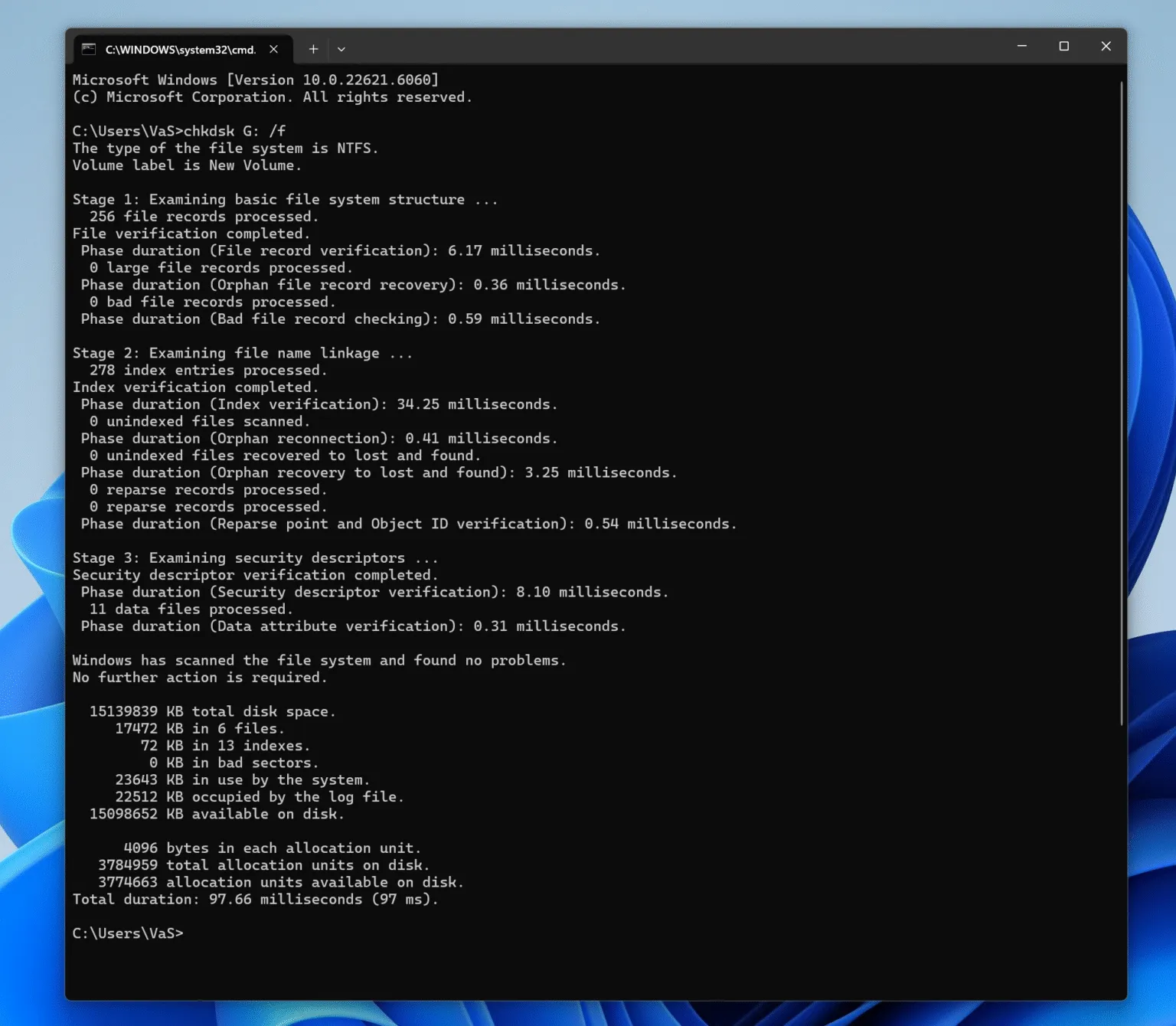
Note: Built-in repairs modify the drive and may cause data loss. It is recommended that you use this method only after data recovery, not before.
Method 3: Recover Data Using Professional Recovery Software
When files are inaccessible or the file system is damaged, specialized recovery software is the safest option. A dedicated solution scans the drive in read-only mode and reconstructs files without altering original data. This is where Magic Data Recovery becomes particularly useful.
How to Perform Corrupted Flash Drive Recovery with Magic Data Recovery
Magic Data Recovery is designed for scenarios involving file system corruption, RAW drives, and unreadable USB devices. Here is the step-by-step guide:
1. Download and Install Magic Data Recovery
Supports Windows 7/8/10/11 and Windows Server
2. Select the USB drive from the device list
When you run the software, it lists all the drives connected to the computer. Select the corrupted flash drive and start searching.

3. Wait till the scan completes.
It runs Advanced Scan automatically. When the scan completes, it will display all the found files.

4. Preview files
This feature helps you confirm integrity and locate the data you need before recovery.

5. Recover selected data to a different storage device
After you select the data you need, you can recover the files to another drive.

The software focuses on controlled scanning and minimizes the risk of further damage during recovery.
Why Magic Data Recovery Is Effective for Corrupted Flash Drive Recovery
When evaluating tools for corrupted flash drive recovery, reliability matters more than aggressive repair claims.
Magic Data Recovery offers several practical advantages:
- Supports corrupted and RAW file systems
- Read-only scanning protects original data
- Clear file preview before recovery
- Simple workflow suitable for non-technical users
- Effective for common USB corruption scenarios
Instead of attempting to repair the drive immediately, the tool prioritizes data extraction, which aligns with industry best practices.
When a USB Flash Drive Cannot Be Repaired
Not all cases are recoverable. Corrupted flash drive recovery may fail if:
- The controller chip is damaged
- The device is not detected by any system
- There is severe physical damage
In such cases, sending the drive to a local hardware recovery service may be the only option, and costs can be significantly higher.
Conclusion
Corrupted flash drive recovery is most successful when approached carefully and logically. Understanding the cause of corruption, avoiding risky actions, and choosing the right USB recovery method all play critical roles.
For users seeking a reliable, controlled solution, Magic Data Recovery offers a practical balance between ease of use and professional-grade recovery capabilities. If you are looking for a safer way to recover files from a corrupted flash drive, this tool is a dependable option worth considering.
Supports Windows 7/8/10/11 and Windows Server
FAQs About Corrupted Flash Drive Recovery
How to fix a flash drive corrupted?
Can I recover data from a corrupted flash drive?
What is the best tool to repair a USB drive?
Why do flash drives get corrupted?
Can a USB flash drive be repaired?
How can I fix a corrupted flash drive without losing data for free?

Vasilii is a data recovery specialist with around 10 years of hands-on experience in the field. Throughout his career, he has successfully solved thousands of complex cases involving deleted files, formatted drives, lost partitions, and RAW file systems. His expertise covers both manual recovery methods using professional tools like hex editors and advanced automated solutions with recovery software. Vasilii's mission is to make reliable data recovery knowledge accessible to both IT professionals and everyday users, helping them safeguard their valuable digital assets.