
Excel Document Recovery Keeps Popping Up? Fix It Fast (2026 Guide)
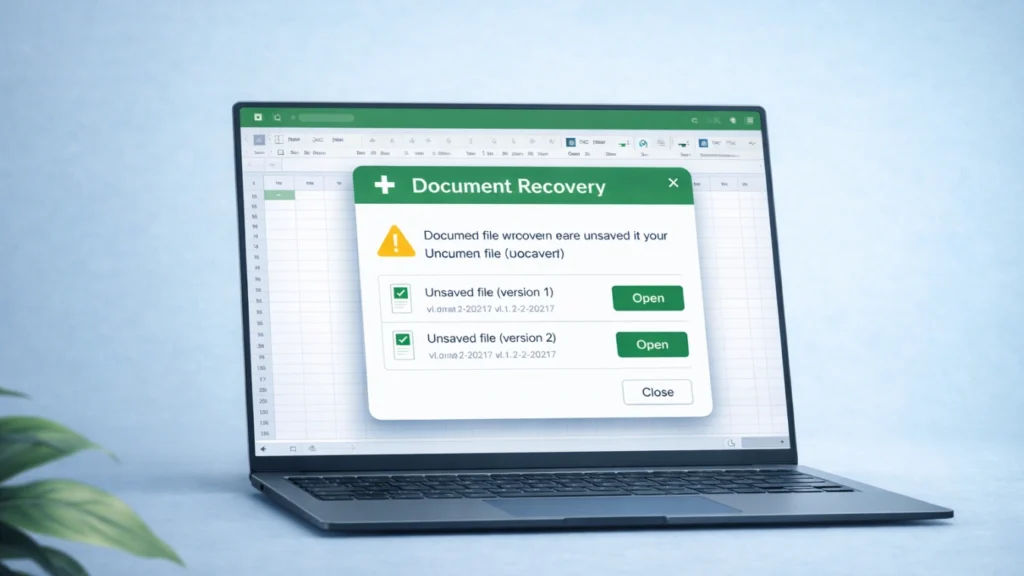
Seeing the Document Recovery pane appear repeatedly when launching Excel can quickly become frustrating. Many users experience this issue after a crash, forced shutdown, or incomplete save operation. Instead of opening normally, Excel displays the recovery window again and again.
When excel document recovery keeps popping up, it usually indicates unresolved recovery files, corrupted temporary data, or unfinished AutoRecover sessions. While the feature exists to protect unsaved work, it may occasionally malfunction and create a recovery loop.
The situation becomes even more stressful if the recovered document cannot be found in Excel History, the AutoRecover folder, or temporary files. In such cases, users may believe their Excel file has completely disappeared.
Fortunately, this problem can often be fixed with several targeted solutions. And when Excel cannot restore the document at all, professional data recovery tools can help retrieve lost spreadsheets with document recovery solution.
Supports Windows 7/8/10/11 and Windows Server
Table of Contents
Quick Answer: Why Does Excel Document Recovery Keep Popping Up?
If excel document recovery keeps popping up, the most common reasons include:
- Excel did not close properly after a crash
- Corrupted AutoRecover (.asd) files
- Stuck temporary Excel files in the TEMP folder
- Incomplete recovery sessions
- Problematic Excel add-ins or plugins
Removing corrupted recovery files and clearing temporary data usually stops the recovery window from appearing repeatedly.
Why Excel Document Recovery Keeps Popping Up
Understanding the cause helps you choose the right fix. Most cases fall into the following categories.
1. Unexpected System Shutdown
Excel activates the Document Recovery pane whenever the program closes unexpectedly.
Typical causes include:
- Computer power loss
- System crash or blue screen
- Excel freezing during saving
- Forced shutdown via Task Manager
When Excel restarts, it attempts to restore unsaved files from AutoRecover checkpoints. If recovery files remain incomplete, the recovery panel may appear every time Excel launches.
2. Corrupted AutoRecover Files
Excel automatically saves temporary versions of open workbooks using the AutoRecover feature.
These files usually have extensions like:
- .asd
- .xlsb
- .tmp
If these files become corrupted, Excel repeatedly attempts to recover them, causing the excel document recovery keeps popping up problem.
3. Temporary Excel Files Not Cleared
Excel creates multiple temporary files while editing spreadsheets.
These files remain in the TEMP directory and may trigger false recovery sessions if they are not deleted after a crash.
4. Problematic Excel Add-ins
Certain add-ins may interfere with Excel’s startup process.
Testing Excel in Safe Mode helps identify whether an add-in is responsible for the issue.
How to Fix Excel Document Recovery Keeps Popping Up
The following methods resolve the issue in most cases.
Start with the simplest fixes first.
Method 1: Finish the Recovery Session
Sometimes Excel continues displaying the recovery pane because the recovery process never completed.
Steps:
- Open Excel
- Wait for the Document Recovery panel
- Open each recovered file
- Save or close the files
- Click Close on the recovery pane
- Restart Excel
This often stops the recovery loop.
Method 2: Delete Corrupted AutoRecover Files
Removing damaged recovery files is one of the most effective solutions.
Steps:
- Open Excel
- Go to File → Options → Save
- Copy the AutoRecover file location
- Open that folder in File Explorer
- Delete corrupted .asd files
- Restart Excel
After removing the files, Excel will stop attempting recovery.
Method 3: Clear Excel Temporary Files
Temporary files may cause Excel to believe unfinished documents still exist.
Steps:
- Press Windows + R
- Type:
%temp%
- Delete Excel-related temporary files
- Restart your computer
This clears stuck recovery sessions.
Method 4: Disable Excel Add-ins
Add-ins occasionally conflict with Excel recovery processes.
Steps:
- Open Excel
- Go to File → Options → Add-ins
- Choose COM Add-ins
- Click Go
- Disable suspicious add-ins
- Restart Excel
If the issue disappears, enable add-ins one by one to identify the problematic extension.
When Excel Recovery Cannot Restore Your File
Some users face a worse situation:
- The recovery window appears
- The file is missing
- Excel History shows nothing
- AutoRecover folder is empty
This usually happens when:
- Temporary files were deleted
- The Excel file was overwritten
- The system crashed before AutoRecover triggered
- Storage sectors became corrupted
At this stage, Excel’s built-in recovery system cannot retrieve the document.
Best Solution When Excel Files Are Completely Lost
If excel document recovery keeps popping up but the file cannot be restored, a dedicated data recovery tool may help recover the lost Excel document.
One effective option is Magic Data Recovery.
What Problem Does It Solve?
Magic Data Recovery helps retrieve Excel files that:
- disappeared after a crash
- were deleted accidentally
- cannot be restored through AutoRecover
- are missing from Excel History
- were removed from external drives
This is particularly useful when Excel recovery fails completely.
Key Advantages
Deep File Scanning
The tool scans storage sectors directly to locate Excel files including:
- .xlsx
- .xls
- .xlsm
Even files that Windows no longer lists can often be found.
Multiple Device Support
Magic Data Recovery can restore files from:
- hard drives
- SSDs
- USB drives
- memory cards
- external storage devices
This makes it suitable for both personal and professional data recovery.
Smart File Reconstruction
Advanced recovery algorithms help rebuild partially damaged Excel documents.
This increases the probability of recovering usable spreadsheets.
Simple Recovery Process
Typical workflow:
1. Download and Install Magic Data Recovery
Supports Windows 7/8/10/11 and Windows Server
2. Select the drive containing the lost Excel file

3. Click the Search for lost data button to search for your lost files.

4. Preview and recover your files to safe drive.

If you need a reliable solution when Excel recovery fails, Magic Data Recovery can provide a practical and efficient option.
Tips to Prevent Excel Recovery Problems
To avoid the excel document recovery keeps popping up issue in the future, it’s important to reduce the chances of Excel crashes, corrupted recovery files, or unfinished AutoRecover sessions. The following practices can help keep your Excel files safe and prevent recovery loops.
Enable AutoRecover
AutoRecover allows Excel to automatically save temporary versions of your workbook at regular intervals. If Excel crashes or the system shuts down unexpectedly, you can restore your recent work.
To enable or adjust it:
- Open Excel
- Go to File → Options → Save
- Check Save AutoRecover information every
- Set the interval to 5 minutes or less
A shorter interval reduces the amount of work you could lose after a crash.
Save Important Files Regularly
Although AutoRecover helps restore unsaved work, it does not replace manual saving. Regularly saving your workbook ensures that the latest version is stored properly and prevents Excel from relying entirely on recovery files.
A simple habit—such as pressing Ctrl + S frequently—can significantly reduce the risk of data loss.
Avoid Forced Shutdowns
Closing Excel abruptly can interrupt the saving process and create corrupted recovery files. These damaged files are a common reason why excel document recovery keeps popping up.
Whenever possible:
- Close Excel normally before shutting down your computer
- Avoid ending Excel processes through Task Manager
- Wait until Excel finishes saving large files before exiting
Keep Microsoft Office Updated
Microsoft regularly releases updates that fix stability issues, bugs, and recovery errors in Excel. Running an outdated version of Office may increase the likelihood of recovery problems.
To update Excel:
- Open Excel
- Go to File → Account
- Click Update Options → Update Now
Keeping Excel updated helps ensure the AutoRecover and Document Recovery features work correctly.
Conclusion
When excel document recovery keeps popping up, the issue usually results from corrupted AutoRecover files, temporary Excel files, or incomplete recovery sessions.
Most users can resolve the problem by clearing temporary files, removing damaged recovery data, or disabling problematic add-ins.
However, if Excel cannot restore the file and the document seems completely lost, relying on a professional recovery tool becomes the most reliable option.
In such cases, Magic Data Recovery offers a practical solution by scanning storage devices directly and reconstructing missing Excel files—even when Excel’s built-in recovery tools fail.
Supports Windows 7/8/10/11 and Windows Server
FAQs
Why does Excel document recovery keep popping up every time I open Excel?
This usually happens when Excel detects unfinished recovery files from a previous crash. Temporary files or corrupted AutoRecover data may cause Excel to repeatedly display the recovery pane. Clearing temporary files or deleting damaged AutoRecover files often resolves the issue.
How do I stop the Excel recovery window from appearing?
To stop the recovery pane, complete the recovery session and remove corrupted recovery files. You can also delete .asd files in the AutoRecover folder and clear temporary files in the Windows TEMP directory. Restarting Excel afterward usually prevents the recovery window from returning.
Where are Excel AutoRecover files stored?
Excel AutoRecover files are usually stored in the AutoRecover folder specified in Excel settings. You can find this path under File → Options → Save → AutoRecover file location. These files help restore unsaved work after crashes.
Can I recover an Excel file that is not in Document Recovery?
Yes. If the file does not appear in Document Recovery, you can check temporary folders, the Recycle Bin, or the Unsaved Files directory. If these methods fail, specialized recovery software may still locate the lost file on the storage device.
Why is my Excel file missing after a crash?
A file may disappear if the crash occurs before AutoRecover saves a temporary version. In some cases, temporary files are deleted automatically, making it difficult to retrieve the document using built-in Excel recovery tools.
Is it possible to recover permanently deleted Excel files?
Yes. If the storage sectors containing the file have not been overwritten, recovery software can scan the disk and reconstruct the file. Acting quickly increases the chance of successful recovery.
Is Magic Data Recovery reliable for recovering Excel files?
Magic Data Recovery scans storage devices directly and identifies recoverable file signatures. It allows users to preview files before restoring them, which helps ensure the recovered Excel document is usable.
How can I prevent losing Excel documents in the future?
Enable AutoRecover, save files frequently, and maintain regular backups. Using cloud storage or version history features also provides additional protection against data loss caused by crashes or accidental deletions.

Jason is a data recovery and technical support specialist with over 15 years of hands-on experience. He has worked extensively with frontline users, troubleshooting difficult data loss cases and providing practical recovery solutions for accidental deletion, formatted drives, damaged file systems, lost partitions, system failures, and other recovery emergencies. His expertise also includes backup and restoration, file repair, and disaster recovery, with a strong emphasis on safe, reliable, and technically accurate guidance.