
Rebuild File Allocation Table Safely
When a drive becomes inaccessible, many users try to rebuild file structures immediately. However, this decision often causes further damage. In most cases, files still exist on the disk, yet the system cannot locate them. Therefore, instead of rushing into repair, you should follow a safer process. First, understand the issue. Next, recover your data. Finally, repair the structure. This guide explains how to rebuild file allocation table safely, including practical insights for NTFS systems.
Table of Contents
What It Means to Rebuild File Allocation Table
To rebuild file allocation table, you must understand how file systems organize data. A file allocation table stores links between clusters, allowing the system to locate file content.
However, when this structure breaks, file paths disappear. As a result, files seem lost even though they remain on disk.
Meanwhile, NTFS uses a Master File Table. Although more advanced, it serves a similar role. Therefore, repairing NTFS requires a different approach.
Common Causes of File Structure Corruption
Before attempting any repair, you should identify what caused the problem.
Typical Causes
- Sudden power failure
- Unsafe device removal
- Disk bad sectors
- Malware interference
In addition, repeated system crashes gradually weaken file system integrity. Therefore, preventing these issues reduces future risk.
Signs That Indicate File Table Damage
You should confirm the symptoms before taking action. Otherwise, unnecessary repair may worsen the situation.
Key Signs
- Drive appears as RAW
- Files suddenly disappear
- System prompts formatting
- Partition cannot be opened
However, these symptoms usually indicate structure damage, not actual data loss.
Rebuild File Allocation Table NTFS vs FAT Differences
When comparing systems, different repair strategies apply.
Feature | FAT | NTFS |
Structure | Simple table | MFT |
Stability | Lower | Higher |
Repair Complexity | Moderate | High |
Therefore, rebuild file allocation table ntfs requires more caution. Otherwise, metadata damage may become permanent.
Why You Should Not Rebuild Immediately
Many users run repair tools right away. However, this approach carries risks.
Key Risks
- Repair tools remove corrupted entries
- File references get overwritten
- Data becomes unrecoverable
On the other hand, the actual file data often remains intact.
Safer Strategy
- Recover data first
- Repair afterward
Therefore, this method significantly improves success rates.
Recover Data Before Repairing File Structure
Before attempting to fix the file system, you should extract your data safely. Magic Data Recovery offers a reliable solution. It scans raw disk sectors instead of relying on file system metadata. As a result, it can recover files even when structures are damaged.

Rebuild File Allocation Table Methods After Recovery
Once your data is secure, you can proceed to repair the file system. However, you should follow structured steps to avoid further damage.
Method 1: Rebuild File Allocation Table Using CHKDSK
CHKDSK is the most direct way to rebuild file allocation table on Windows. However, you must run it correctly.
Steps (Windows 11 / Windows 10)
1. Press Win + S, then type Command Prompt
2. Right-click Command Prompt, then select Run as administrator
3. Type the following command:chkdsk X: /f /r
4. Replace X: with your affected drive letter
5. Press Enter and wait for the scan to complete

What Happens Next
- The system scans for file system errors
- Then, it attempts to repair damaged entries
- Finally, it reconnects valid file structures
However, CHKDSK may delete corrupted file records. Therefore, you should only use it after recovering your data.
Method 2: Rebuild File Allocation Table Using TestDisk (Advanced but Effective)
If CHKDSK fails, you need a tool that can actually rewrite file system structures. In this case, TestDisk is a reliable option.
Unlike most GUI tools, TestDisk works at a lower level. Therefore, it can rebuild partition structures and repair FAT or NTFS metadata more directly.
Steps to Rebuild File Allocation Table Using TestDisk
1. Download and install TestDisk
2. Launch the program as administrator
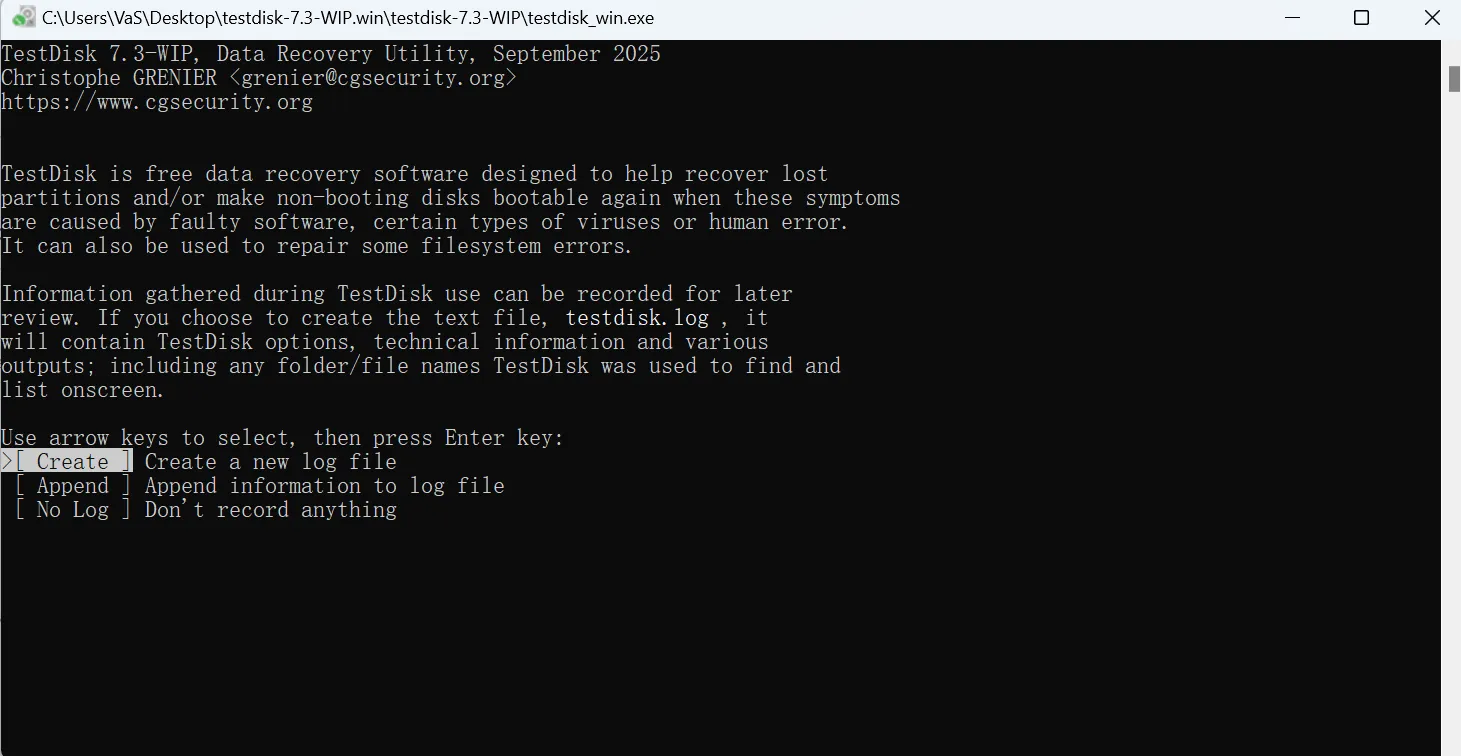
3. Select Create to generate a log file
4. Choose the affected disk
5. Select the correct partition table type (usually Intel/EFI)
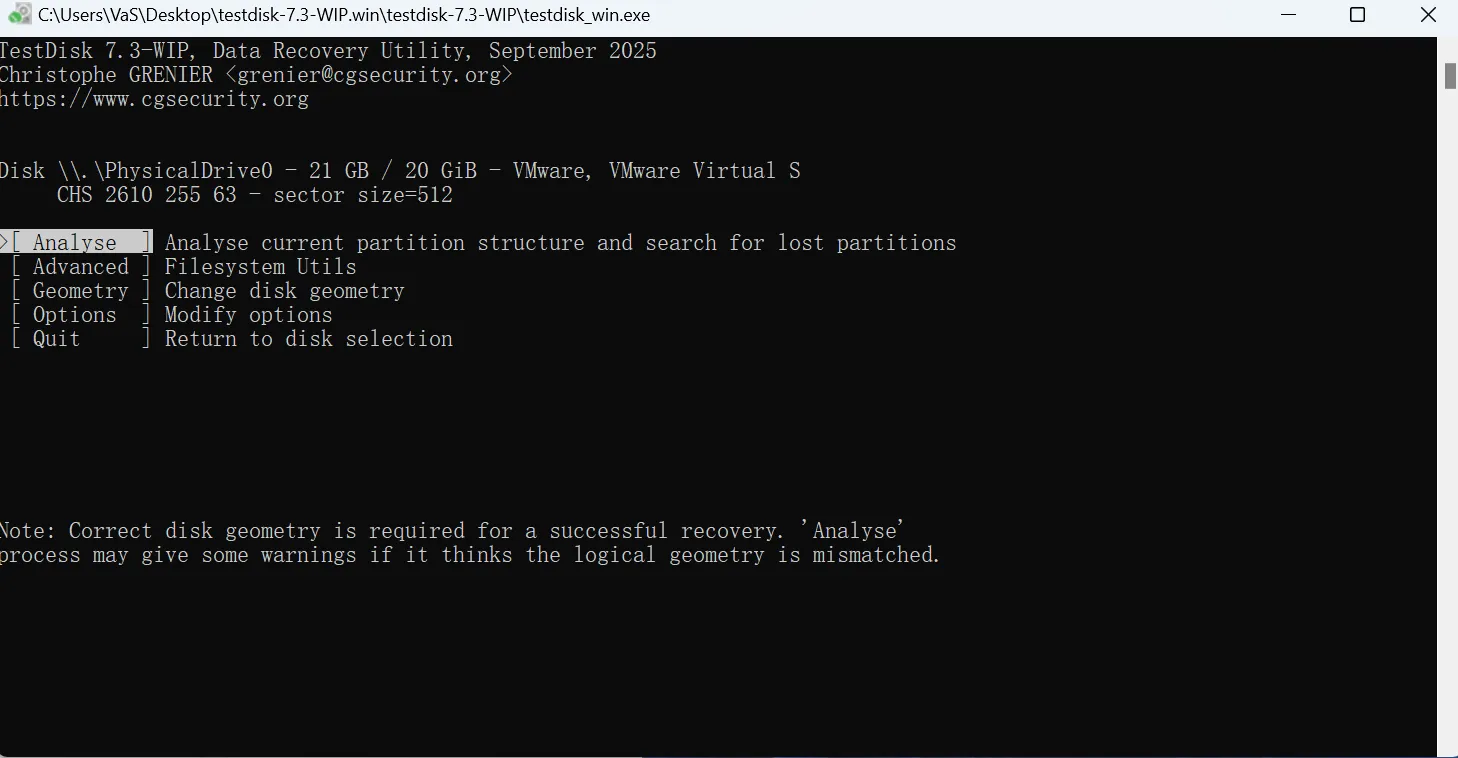
6. Click Analyse to scan the disk
7. Select Quick Search to find lost partitions
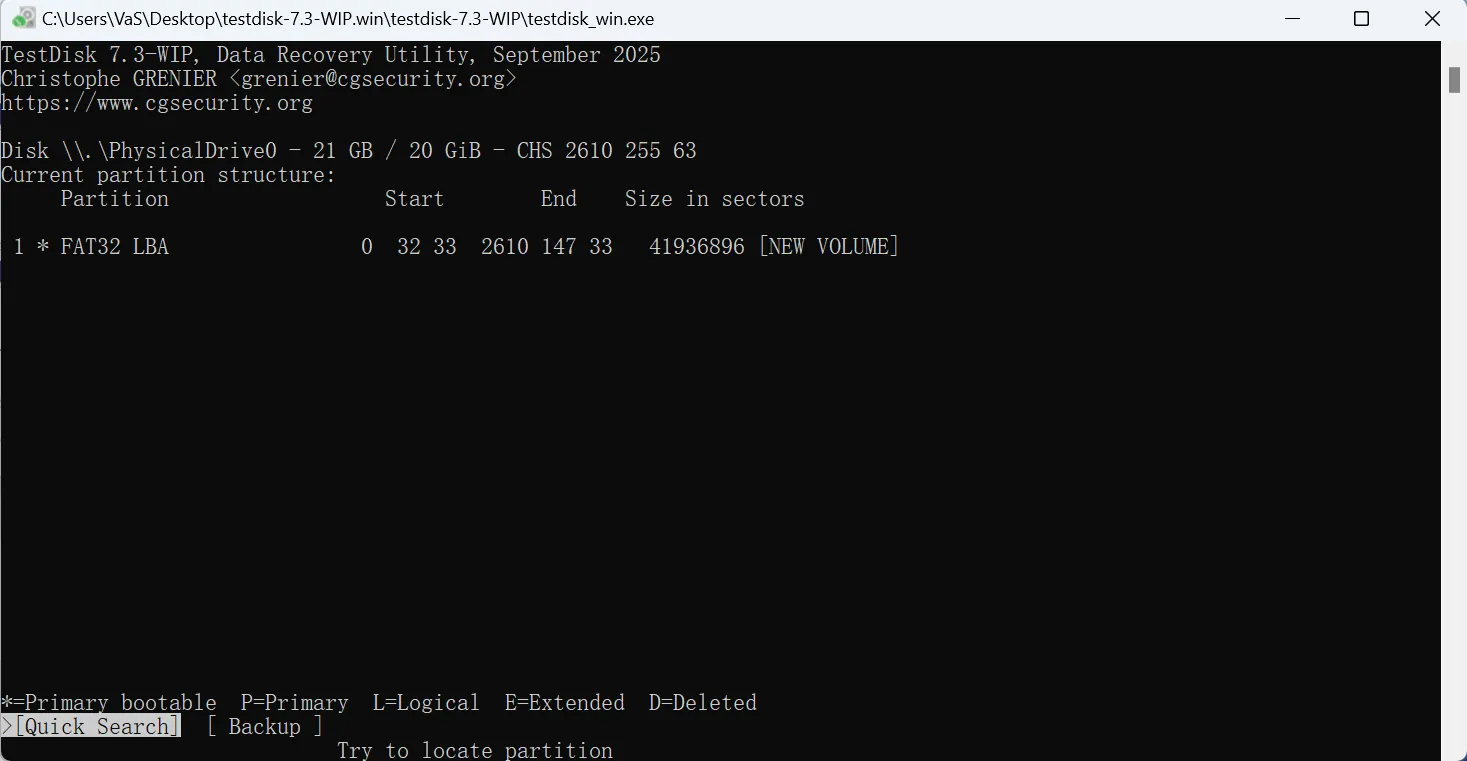
8. If needed, run Deeper Search
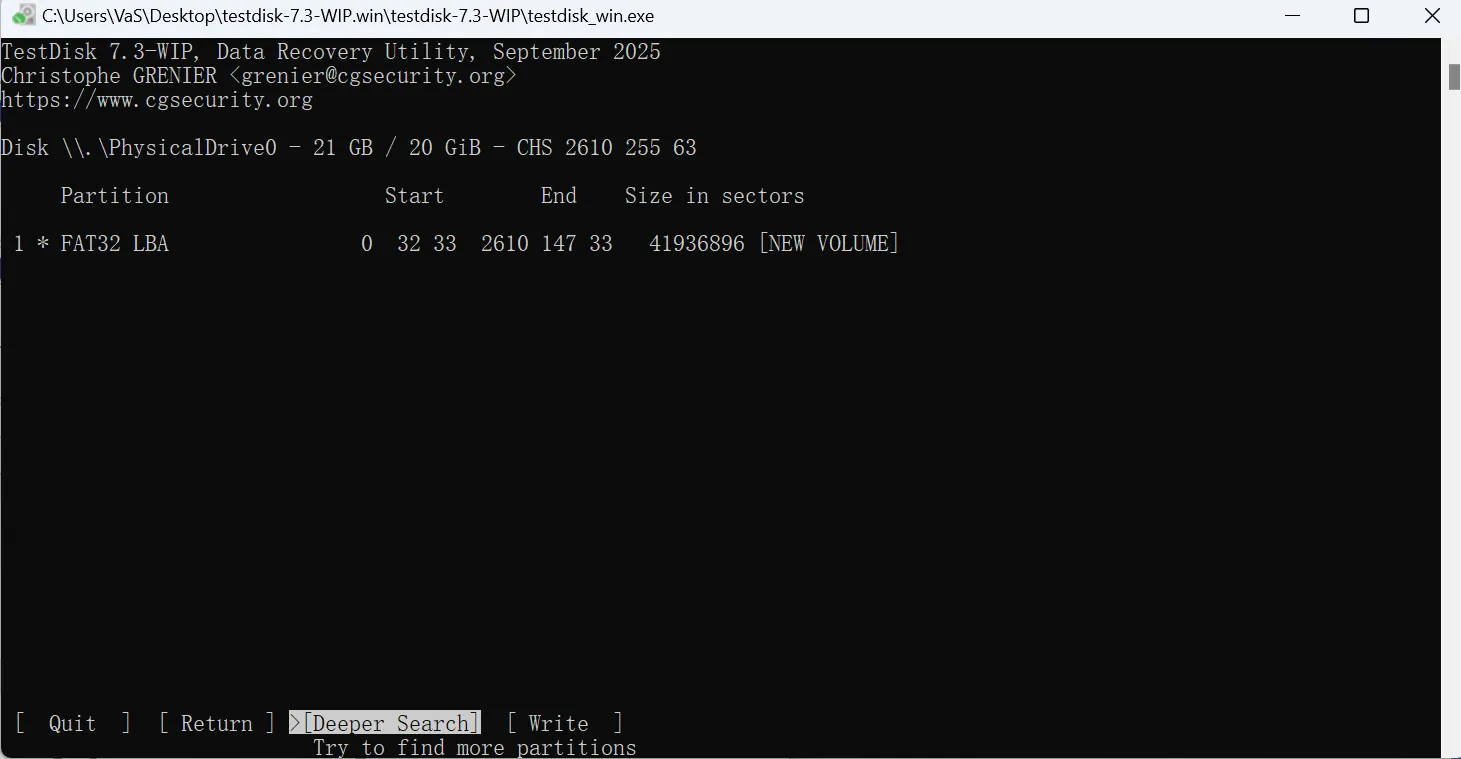
9. Select the correct partition
10. Press Write to rebuild the partition structure
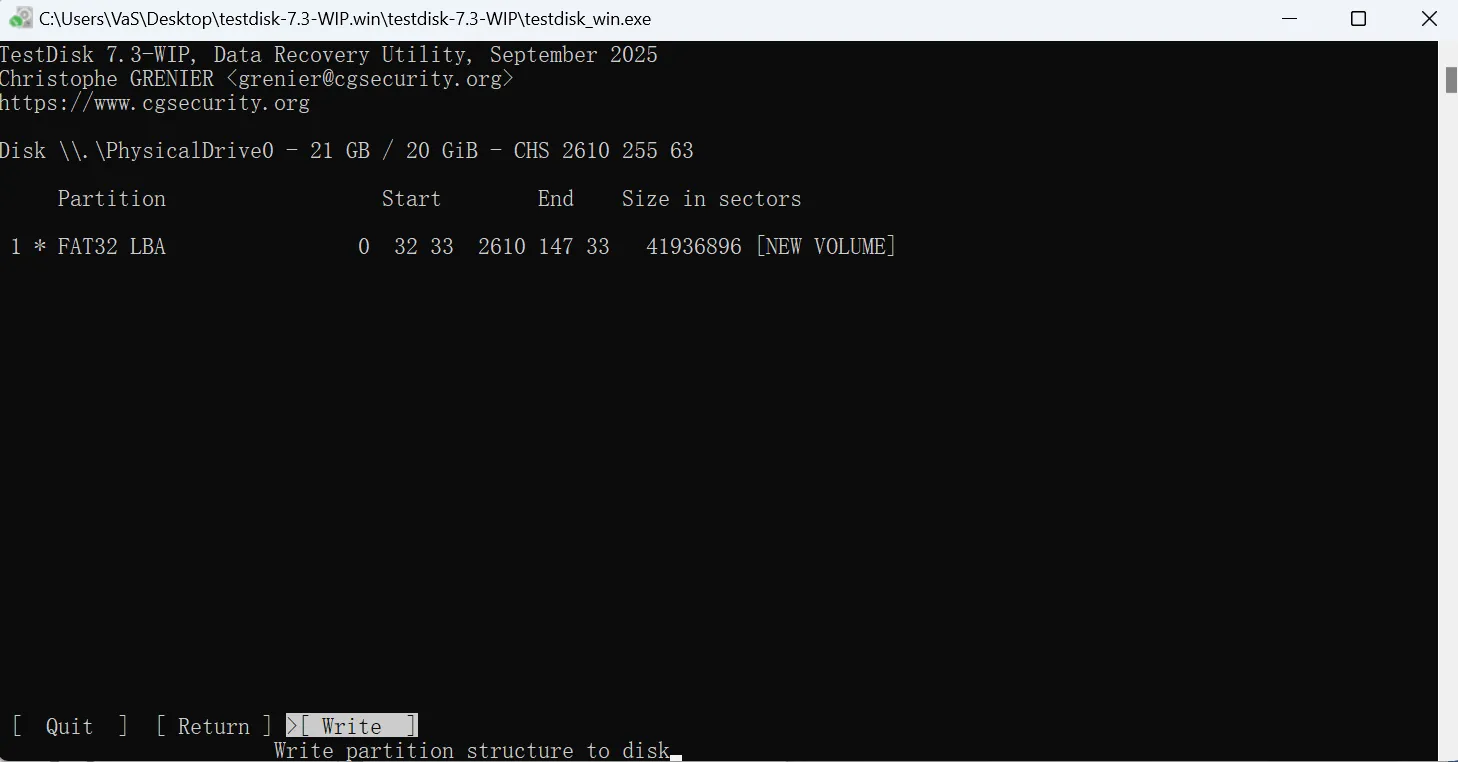
Why This Method Works
- It scans disk structure directly
- It rebuilds partition and file system metadata
- It restores file allocation references
Therefore, it is one of the few tools that can realistically support rebuild file allocation table
Method 3: Rebuild File Allocation Table Manually (Advanced)
This method is only suitable for advanced users. However, it offers deeper control when automated tools fail.
Basic Workflow
1. Open a disk editor tool (such as Winhex)
2. Locate the FAT table or NTFS MFT region
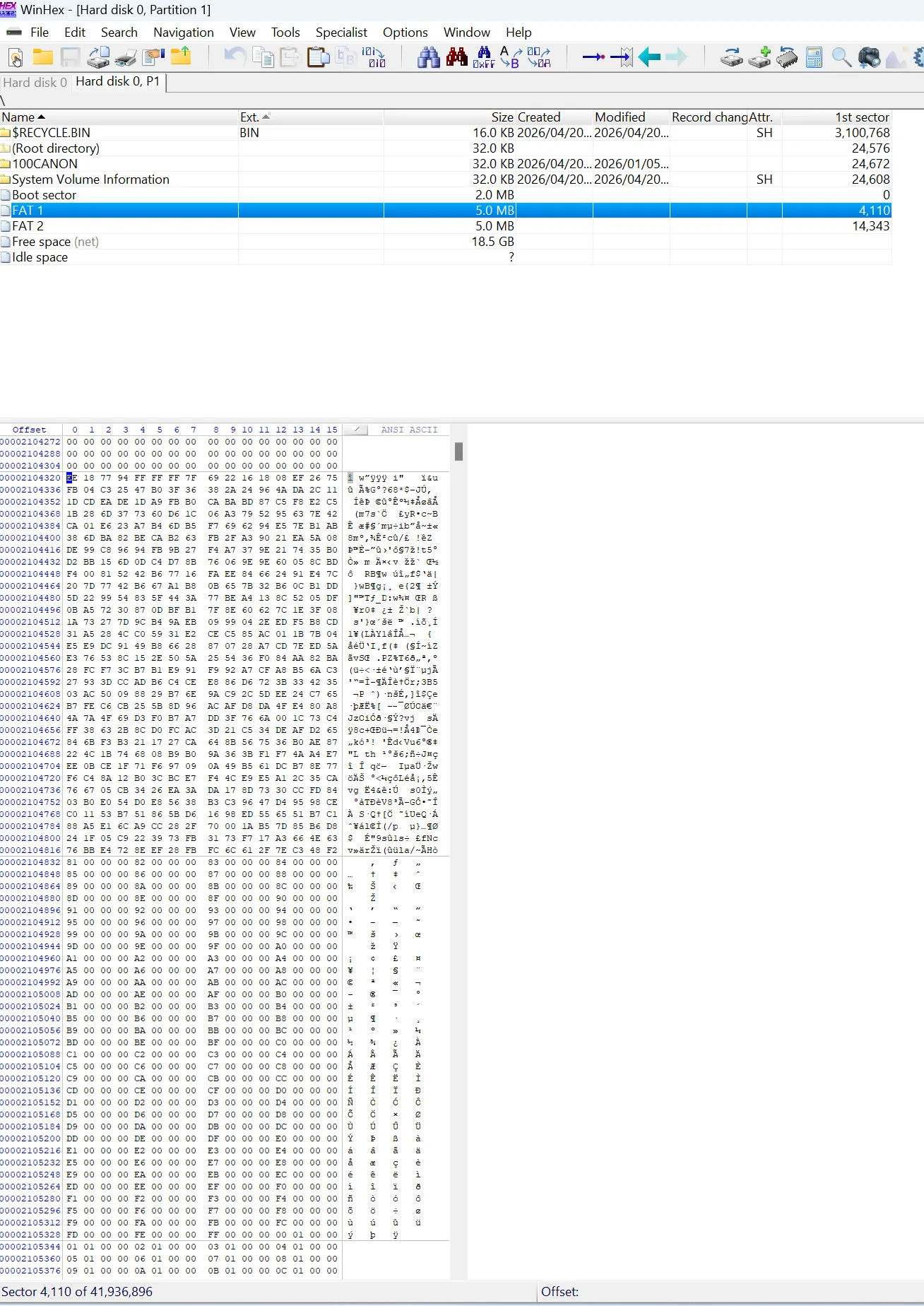
3. Identify broken or missing cluster chains
4. Reconstruct file links manually
5. Save changes carefully
Important Notes
- This method requires knowledge of file system structures
- Mistakes may cause permanent data loss
- Therefore, it is not recommended for general users
Practical Recommendation
Although multiple methods exist, not all are safe. Therefore, you should always follow this order:
- Recover data using Magic Data Recovery
- Try CHKDSK for basic repair
- Use repair tools if needed
- Avoid manual reconstruction unless necessary
Tool Comparison for File System Repair and Recovery
Tool | Data Recovery | Structure Repair | Risk |
Magic Data Recovery | ✅ | ❌ | Low |
CHKDSK | ❌ | ✅ | High |
TestDisk | ❌ | ✅ | High |
Winhex (File system knowledge required) | ✅ | ✅ | High |
As shown above, recovery tools reduce risk. Therefore, they should always come first.
When Repair Attempts Fail
Even with proper steps, repair may not always work.
Common Reasons
- Severe corruption
- Overwritten data
- SSD TRIM operations
Therefore, early recovery increases success probability.
Conclusion
To safely handle file system damage, you should follow a structured process. First, recover your files. Next, verify disk condition. Finally, repair the structure carefully.
By using Magic Data Recovery, you protect your data before making changes. As a result, you avoid unnecessary loss and improve recovery outcomes.
Supports Windows 7/8/10/11 and Windows Server
FAQs
Can I rebuild file allocation table without losing data?
Yes, but only if you recover your data first. Repair tools may delete corrupted entries during the process. Therefore, using a recovery tool before rebuilding significantly reduces the risk of permanent file loss.
What is rebuild file allocation table ntfs?
It refers to repairing the NTFS file structure, mainly the Master File Table. Since NTFS is more complex than FAT, rebuilding requires careful handling and proper tools to avoid damaging file metadata.
Does CHKDSK remove files?
Yes, it can. CHKDSK deletes corrupted entries to fix logical errors. As a result, files may disappear permanently. Therefore, data recovery should always come before repair.
Can a damaged FAT be fixed?
Yes, in many cases. However, repairing FAT does not guarantee file recovery. Therefore, recovering files first ensures better results and prevents accidental data loss.
Is a RAW drive recoverable?
Yes, most RAW drives are recoverable. The issue usually affects the file structure rather than the data itself. Therefore, recovery tools can often retrieve files successfully.
What happens when file structure is corrupted?
The system loses the ability to locate files correctly. As a result, files appear missing or inaccessible. However, the data often remains intact until overwritten.
What is the safest repair method?
The safest method involves three steps. First, recover data. Next, check disk health. Finally, repair the structure. This approach minimizes risk and improves success rates.

Vasilii is a data recovery specialist with around 10 years of hands-on experience in the field. Throughout his career, he has successfully solved thousands of complex cases involving deleted files, formatted drives, lost partitions, and RAW file systems. His expertise covers both manual recovery methods using professional tools like hex editors and advanced automated solutions with recovery software. Vasilii's mission is to make reliable data recovery knowledge accessible to both IT professionals and everyday users, helping them safeguard their valuable digital assets.