
How Does File Allocation Table Work?
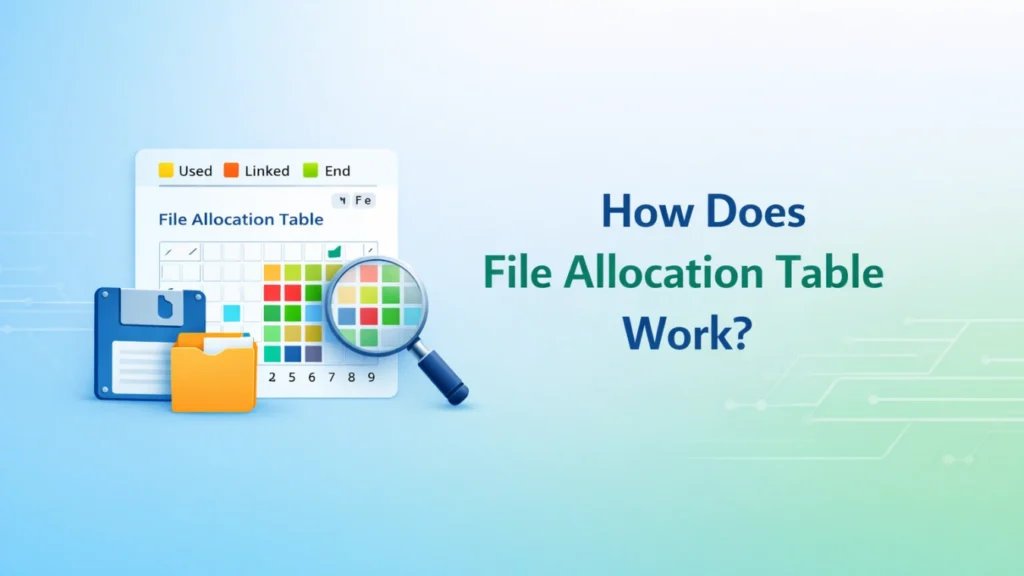
If you have ever plugged in a USB drive or SD card and suddenly found the partition inaccessible, you are not alone. Many removable storage devices still use FAT-based file systems, so when the file allocation table becomes damaged, files may disappear, folders may turn unreadable, or the whole partition may stop opening.
This guide explains how does file allocation table work, what causes FAT-related errors, and what to do when a FAT partition becomes inaccessible. More importantly, it shows the safest way to recover data before repair attempts make the problem worse. If you need a practical solution, Magic Data Recovery is worth considering because it can help recover files lost due to FAT corruption, accidental deletion, formatting, and similar data loss scenarios.
Supports Windows 7/8/10/11 and Windows Server
Table of Contents
What Is the File Allocation Table?
The File Allocation Table is a file system structure used to track where file data is stored on a disk. In simple terms, it works like a map. It tells the operating system which clusters belong to a file and in what order those clusters should be read.
FAT has been widely used in:
- USB flash drives
- SD cards
- External hard drives
- Older Windows storage devices
- Embedded and portable devices
The most common FAT variants include:
Although modern systems often use NTFS or exFAT, FAT remains common because it offers broad compatibility across devices.
How Does File Allocation Table Work?
To understand how does file allocation table work, it helps to break the process into a few simple parts.
1. Data is stored in clusters
A disk does not save a file as one long continuous block. Instead, it splits storage into small units called clusters. When you save a file, the operating system places that file into one or more available clusters.
2. The FAT records the cluster chain
The file itself is not described only by its name. The FAT stores the relationship between clusters. If a file starts in cluster 5 and continues in cluster 9, then cluster 14, the table records that chain.
That means the system can follow the chain step by step until it reaches the end of the file.
3. The directory stores the starting point
The directory entry contains the file name, size, attributes, and the first cluster number. From there, the operating system checks the FAT to locate the next cluster, then the next one, until the full file is read.
4. Free and used space is managed through the table
The FAT also marks clusters as:
- Free
- In use
- Bad
- End of file
Because of this design, the operating system can quickly decide where to write new data.
Why FAT Is Still Used Today
Even though FAT is older than NTFS and exFAT, it still appears in many real-world storage devices.
Broad compatibility
FAT works with many systems and devices, including cameras, TVs, car audio systems, game consoles, and older operating systems.
Simpler structure
Its structure is easier to implement than more advanced file systems. That makes it suitable for lightweight devices and firmware-based environments.
Good fit for removable media
Many users still format USB drives and memory cards with FAT32 because it is easy to recognize across platforms.
However, this simplicity also creates limitations.
Limitations of FAT You Should Know
When people search how does file allocation table work, they often also want to know why FAT fails more easily in some situations.
FAT can fragment files
Because FAT links clusters in chains, files can become fragmented over time. This may reduce efficiency and make recovery harder if metadata becomes damaged.
It has fewer advanced protections
FAT does not provide the same metadata protection and journaling features as modern file systems. As a result, sudden power loss, unsafe removal, or write interruption can lead to corruption more easily.
FAT32 has file size limits
FAT32 cannot store a single file larger than 4 GB. This becomes a problem when users try to move large videos, backups, or disk images.
Why a FAT Partition Becomes Inaccessible
A FAT partition may stop opening for several reasons. In many cases, the issue is not the file content itself. The real problem is damaged file system metadata.
Common causes include:
- Unsafe USB removal
- Power failure during file transfer
- Virus or malware activity
- Bad sectors
- Corrupted boot sector
- Damaged FAT entries
- Interrupted formatting
- File system errors after system crash
When this happens, you may see symptoms like:
- “Drive is not accessible”
- “File or directory is corrupted and unreadable”
- The partition appears as RAW
- Files show incorrect names or sizes
- Folders open empty even though space is used
What Happens to Data When the FAT Is Corrupted?
This is where understanding how does file allocation table work becomes especially useful.
If the FAT is corrupted, the operating system may lose the map that connects file names to the correct cluster chain. The actual file data may still exist on the drive, but the system cannot read it correctly.
In practice, that means:
- The data may still be physically present
- The partition may become inaccessible
- Some files may appear missing
- The file chain may be broken
- New writes can overwrite recoverable content
That is why the first rule is simple: stop using the drive immediately.
Should You Repair the FAT Partition First?
Not always. This is one of the biggest mistakes ordinary users make.
Tools like CHKDSK may repair logical file system errors, but they can also modify directory entries and cluster references. If the corruption is severe, repair attempts may reduce recovery chances for important files.
A safer order is:
- Stop writing to the affected device
- Recover important data first
- Repair or reformat the drive after backup
This approach is especially important when:
- The partition contains irreplaceable files
- The drive shows RAW
- Files disappeared after a FAT error
- The device was accidentally formatted
- The partition cannot be mounted normally
How to Recover Data Lost Due to FAT Problems
If a FAT issue has caused data loss or an inaccessible partition, recovery software is often the most practical solution for non-technical users.
When recovery software makes sense
A recovery tool is useful when:
- The FAT partition is corrupted
- Files were deleted by mistake
- The drive was formatted
- The partition becomes inaccessible
- File system shows errors
- Important files no longer appear in File Explorer
Why Magic Data Recovery is a practical recommendation
Instead of trying risky repair steps first, you can use Magic Data Recovery as a safer recovery-first option.
It is a relevant solution here because it can help recover data lost in FAT-related scenarios, including:
- FAT corruption
- Inaccessible FAT partitions
- Accidental deletion
- Formatting
- Other common logical data loss situations
Core pain points it addresses
Users dealing with FAT errors usually face two urgent problems: they cannot access the partition, and they worry that every extra step may overwrite the lost files. Magic Data Recovery helps by giving you a direct recovery path before major repair actions.
Product advantages
From a practical problem-solving perspective, the value of Magic Data Recovery is that it is suitable for more than one loss scenario. You do not need one method for deleted files, another for formatted drives, and a third for FAT corruption. That makes the recovery workflow simpler and safer.
Real usage examples
It is especially useful when:
- A USB drive formatted in FAT32 asks to be reformatted
- An SD card becomes unreadable after unsafe removal
- Files vanish after a FAT directory error
- A partition becomes inaccessible after corruption
- You accidentally format a removable drive and need the files back
Why it is more reliable than trial-and-error fixes
Manual fixes can be unpredictable for non-experts. Command-based repair may change metadata before you secure the files you need. In contrast, a recovery-first workflow with Magic Data Recovery focuses on extracting recoverable data before deeper repair attempts.
If you are looking for a more efficient solution, it is worth trying Magic Data Recovery.
Supports Windows 7/8/10/11 and Windows Server
How to Use Magic Data Recovery for a FAT Partition
The exact interface may vary, but the general recovery flow is straightforward.
1. Attach the USB drive, SD card, or external disk to your computer. If possible, avoid copying anything to it.
2. Launch the software and locate the affected FAT partition from the device list.

3. Start a scan to search for existing, deleted, formatted, or lost files. If the FAT metadata is damaged, the scan can still help identify recoverable content.

4. Check the scan results carefully. This helps you confirm whether documents, photos, videos, or other files are still recoverable.
5. Save the recovered files to another storage location, not the original affected partition. This lowers the risk of overwriting remaining data.

FAT Corruption vs Deleted Files vs Formatted Drive
Many articles treat all data loss as one problem. In reality, the scenario matters.
FAT corruption
The data may still exist, but the file system map is damaged. Recovery depends on reconstructing metadata or locating file content through scanning.
Accidental deletion
The file entry may be marked as deleted, while the actual content remains until new data overwrites it.
Formatting
A quick format often removes file system references rather than instantly erasing all file content. That is why recovery may still be possible if you stop using the drive early.
This is one reason Magic Data Recovery is a strong fit in this topic. It is not limited to one narrow case. It can help across multiple real-world data loss scenarios.
Best Practices to Prevent FAT Data Loss
Prevention matters because FAT is still widely used on portable devices.
Here are some practical tips:
- Always eject removable drives safely
- Avoid unplugging a device during transfer
- Keep backups of important files
- Scan removable media for malware
- Replace drives that show repeated errors
- Do not ignore bad sector warnings
- Avoid storing very large files on FAT32 when possible
If you use removable media frequently, these habits can reduce the risk of corruption and inaccessible partitions.
Common Mistakes to Avoid
When a FAT partition fails, users often panic and make the situation worse.
Avoid these mistakes:
- Reformatting the drive too early
- Running repair commands before recovery
- Saving recovered files back to the same device
- Continuing to use the damaged partition
- Installing software onto the affected drive
- Assuming empty folders mean the data is gone forever
A calm, recovery-first approach usually gives better results.
Final Thoughts on How Does File Allocation Table Work
So, how does file allocation table work? In short, FAT works by using a table to track how file data is split into clusters and linked together across a storage device. That design is simple and widely compatible, but it also means FAT-related corruption can break the map that points to your files.
When a FAT partition becomes inaccessible or files disappear, the safest response is to stop using the drive and recover data first. That is why Magic Data Recovery is a sensible recommendation in this situation. It addresses the actual problem users face: getting data back from FAT corruption, deletion, formatting, and similar logical loss scenarios without relying on risky trial-and-error fixes.
Supports Windows 7/8/10/11 and Windows Server
FAQs
What does FAT stand for in a file system?
FAT stands for File Allocation Table. It is a file system structure that records how file data is stored across clusters on a disk. The operating system reads this table to locate each part of a file, which is why FAT damage can make files or entire partitions inaccessible.
How does the file allocation table help the operating system find files?
The FAT helps the system follow a file’s cluster chain from beginning to end. A directory entry stores the starting cluster, and the FAT points to the next cluster in sequence. By following those links, the operating system can reconstruct and open the complete file correctly.
Why does a FAT32 partition become inaccessible?
A FAT32 partition can become inaccessible after unsafe removal, power loss, malware infection, bad sectors, or metadata corruption. In many cases, the stored files still exist, but the operating system can no longer read the cluster map properly, so the partition may appear empty, unreadable, or RAW.
Can data be recovered from a corrupted FAT partition?
Yes, data can often be recovered from a corrupted FAT partition, especially if you stop using the device immediately. If the file content has not been overwritten, recovery software may still detect lost files by scanning remaining metadata and file structures, even when the partition no longer opens normally.
Is it better to repair a FAT drive or recover files first?
In most important data loss cases, it is smarter to recover files first. Repair tools may change the file system structure and reduce recovery chances. A recovery-first workflow protects your data before you attempt repairs, reformatting, or other actions that may alter the damaged partition further.
Can Magic Data Recovery recover files deleted from a FAT32 USB drive?
Yes. Magic Data Recovery can be used when files were deleted from a FAT32 USB drive, and it is also suitable for recovery after FAT corruption or formatting. That makes it useful for users who want one practical solution for several common logical data loss situations.
What should I do immediately after FAT corruption is detected?
Stop using the drive right away. Do not copy files to it, do not format it, and do not run repair tools first if the data matters. The next step should be to scan the device with a recovery solution and save recovered files to another healthy storage location.
Is FAT still relevant today?
Yes, FAT is still relevant because many USB drives, SD cards, cameras, and embedded devices rely on it for compatibility. Even though newer file systems offer more advanced features, FAT remains common in removable storage, which is why understanding FAT errors and recovery still matters today.

Jason is a data recovery and technical support specialist with over 15 years of hands-on experience. He has worked extensively with frontline users, troubleshooting difficult data loss cases and providing practical recovery solutions for accidental deletion, formatted drives, damaged file systems, lost partitions, system failures, and other recovery emergencies. His expertise also includes backup and restoration, file repair, and disaster recovery, with a strong emphasis on safe, reliable, and technically accurate guidance.