
How to Fix Corrupted Files on USB Flash Drive
If you are trying to understand how to fix corrupted files on USB flash drive, you are probably dealing with files that will not open or show error messages. In many cases, users try quick fixes immediately. However, those actions often lead to permanent data loss.
Instead, you should take a structured approach. First, identify the cause. Next, secure your data. Then, apply the correct repair method. As a result, you can solve the issue more safely and effectively.
Therefore, this guide explains how to fix corrupted files on USB flash drive step by step. At the same time, it shows you how to avoid common mistakes that many users make.
Table of Contents
Why Files Get Corrupted on USB Flash Drive
Before fixing anything, you need to understand why corruption happens. Otherwise, the same issue may return.
Common causes of USB corruption
- Improper ejection interrupts writing
- File system errors affect FAT32 or exFAT
- Malware damages file structure
- Bad sectors break data storage
- Power interruptions stop transfers
Because these problems affect different layers, each situation requires a different solution. Therefore, identifying the cause improves your chances of success.
Can You Fix Corrupted Files on USB Flash Drive
Yes, you can fix corrupted files. However, success depends on several factors.
- Severity of corruption
- Whether files were overwritten
- Condition of the USB drive
At this point, you should clearly understand one key idea:
- Fixing repairs file structure
- Recovering retrieves data
However, many users skip recovery and go straight to repair. As a result, they lose recoverable files.
Therefore, the safest method for how to fix corrupted files on USB flash drive is simple:
recover first, then fix
Fix Corrupted Files on USB Flash Drive Without Data Loss
Before you repair anything, you should recover your files. This step protects your data. In addition, it prevents accidental loss during repair.
Why Magic Data Recovery is effective
Magic Data Recovery focuses on data recovery before repair. Therefore, it solves the biggest risk: data loss.
Key advantages:
- Recovers files from corrupted or RAW USB drives
- Scans raw sectors without file system dependency
- Supports preview before recovery
- Handles complex corruption cases
- Easy to use
Real-world example
For example, if your USB drive suddenly becomes RAW, most tools cannot access files. However, Magic Data Recovery can still find and restore them. Therefore, you can recover data before formatting.

How to Fix Corrupted Files on USB Flash Drive with Effective Methods
After recovery, you can safely repair the USB or files. The following methods cover different scenarios.
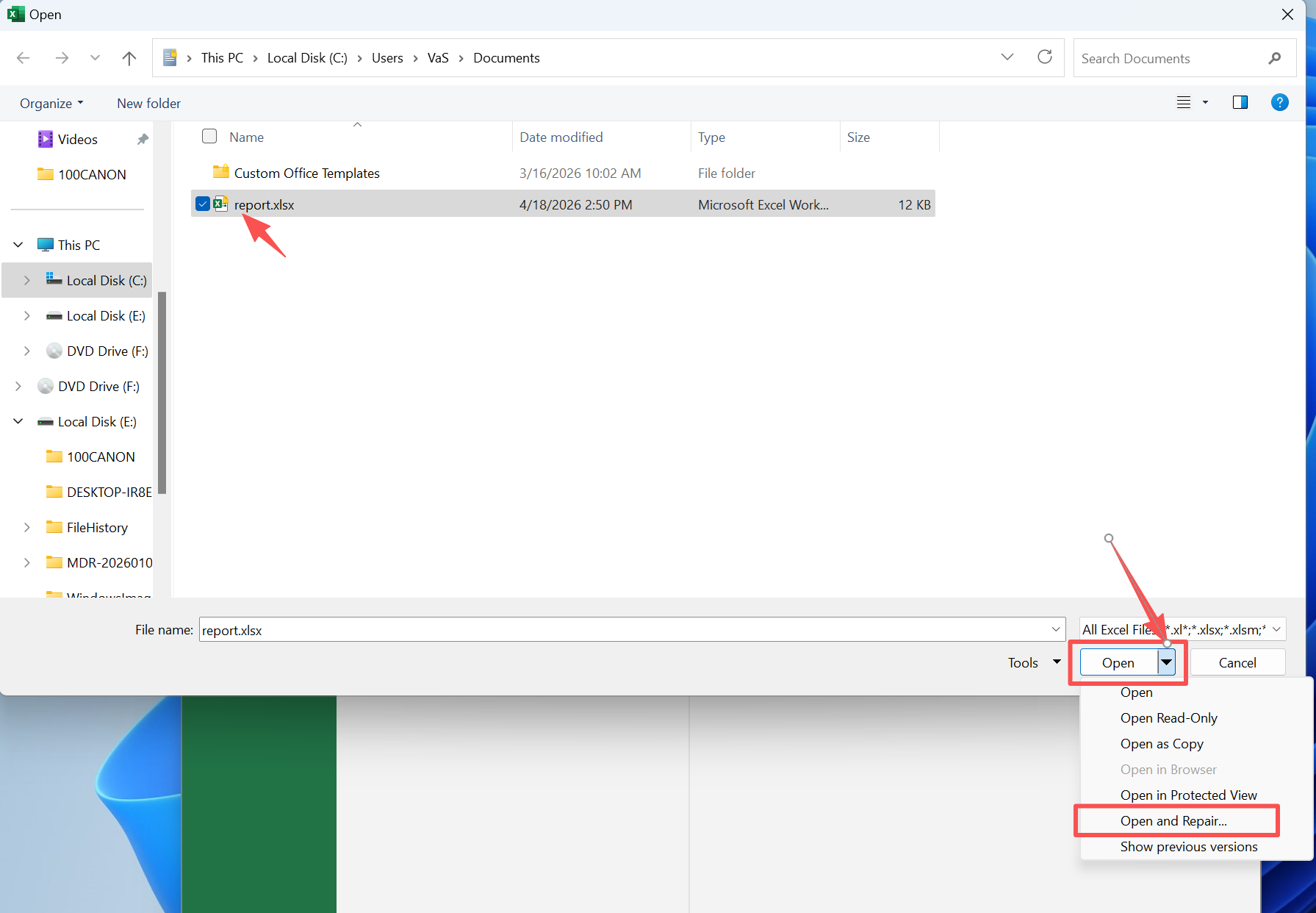
Method 1: Fix Corrupted Files Using Built-in Repair Tools
Many programs, like Word or Excel, include repair features. Therefore, you should try them first.
Steps:
- Open the application
- Click File > Open
- Select the file
- Choose Open and Repair
This method works for minor corruption. However, it may fail when damage is severe.
Method 2: Use CHKDSK to Fix USB Errors
CHKDSK fixes logical file system errors. Therefore, it helps restore access to files.
Steps:
- Press Win + X and open Command Prompt
- Type:
chkdsk X: /f /r - Press Enter
Replace X with your USB drive letter.

⚠️ However, CHKDSK may remove corrupted entries. Therefore, complete recovery before using it.
Method 3: Open Corrupted Files with Alternative Programs
Sometimes, files remain partially readable. Therefore, another program may open them.
You can try:
- Notepad for text files
- LibreOffice for documents
Although results vary, this method often retrieves useful content.
Method 4: Fix USB Drive Errors via Disk Management
When files keep getting corrupted, the issue may not be the file itself. Instead, the USB drive may have underlying errors.
Steps:
- Press Win + X → Disk Management
- Locate the USB drive
- Check its status
- Assign a drive letter if needed
If the system cannot read the file system, files will not open correctly.
Method 5: Format USB Drive to Resolve Corruption
If corruption keeps happening, the file system may be severely damaged. In this case, rebuilding it is necessary.
Steps:
- Right-click the USB drive
- Select Format
- Choose file system
- Confirm
⚠️ However, formatting deletes all data. Therefore, use it only after recovery.
What to Do If You Still Cannot Fix Corrupted Files on USB Flash Drive
Even after repair, some files may remain unusable. However, you still have options.
- Check previous versions
- Use cloud backups
- Search for temporary files
- Recover fragments
Although full recovery is not always possible, partial recovery often works. Therefore, you should explore all options.
How to Prevent Corrupted Files on USB Flash Drive
Prevention reduces risk. Therefore, you should follow these practices:
- Safely eject USB drives
- Avoid interrupting transfers
- Use reliable devices
- Scan for viruses
- Keep backups
As a result, you can avoid most corruption issues.
Conclusion
Fixing USB file corruption requires careful steps. First, recover your data. Then, apply the correct repair method. As a result, you reduce risk and improve success.
In this guide, you learned how to fix corrupted files on USB flash drive using safe and practical solutions. More importantly, you now understand why recovery comes first.
Magic Data Recovery stands out because it protects your data before repair. Therefore, it provides a more reliable approach than traditional methods.
Supports Windows 7/8/10/11 and Windows Server
FAQ
Can I fix corrupted files on USB flash drive without losing data?
Yes, you can fix corrupted files without losing data if you follow the correct process. First, recover your files using a reliable recovery tool. Then, apply repair methods such as CHKDSK or built-in repair options. This approach ensures that your data remains safe even if the repair process modifies file structures.
Why are files corrupted on my USB flash drive but still visible?
This happens because the file system can still display file entries, while the internal file structure is damaged. As a result, files appear in the folder but cannot open properly. In many cases, recovery tools can still access the raw data and restore usable versions of those files.
Does CHKDSK delete corrupted files permanently?
CHKDSK attempts to repair file system errors. However, it may remove corrupted entries during the process. Therefore, some files can disappear after running CHKDSK. To avoid data loss, you should always recover important files before using this command.
What is the safest way to fix corrupted files on USB flash drive?
The safest method is to recover your data first, then repair the USB drive or files. This process ensures that you keep a copy of your files before making any changes. In addition, it allows you to try multiple repair methods without risking permanent data loss.
Can I fix corrupted files on USB flash drive without formatting?
Yes, you can fix corrupted files without formatting in many cases. For example, you can use repair tools, alternative programs, or file system fixes. However, if the corruption is severe, formatting may become necessary after you recover your data.
Why does my USB flash drive show RAW format?
A RAW USB drive means the operating system cannot recognize the file system. This usually happens due to corruption or damage. Although the drive appears empty, data often still exists and can be recovered using tools that scan raw storage sectors.
Is it possible to recover overwritten corrupted files?
Recovering overwritten files is difficult because new data replaces the original content. However, in some cases, partial data or older versions may still exist. Therefore, you should stop using the USB drive immediately and attempt recovery as soon as possible to improve your chances.

Vasilii is a data recovery specialist with around 10 years of hands-on experience in the field. Throughout his career, he has successfully solved thousands of complex cases involving deleted files, formatted drives, lost partitions, and RAW file systems. His expertise covers both manual recovery methods using professional tools like hex editors and advanced automated solutions with recovery software. Vasilii's mission is to make reliable data recovery knowledge accessible to both IT professionals and everyday users, helping them safeguard their valuable digital assets.