
How to Fix My USB Drive: Complete Repair Guide
When your USB drive suddenly stops working, frustration quickly follows. For example, you might see “USB not recognized,” or the system may ask you to format the disk. At this point, many users search for how to fix my usb drive, hoping for a quick fix. However, rushing into repairs often creates bigger problems. In fact, improper fixes may overwrite important data.
Therefore, this guide explains how to fix my usb drive step by step. At the same time, it covers how to fix a malfunctioned usb drive and how to fix a malfunctioned usb flash drive across real scenarios. More importantly, it shows how to recover data from the corrupted USB drive while fixing the issue, which is often the most critical concern.
Table of Contents
Why Your USB Drive Stops Working
Before you fix anything, you need to understand the cause. Otherwise, you may apply the wrong method and make the situation worse. In most cases, USB failures happen because of:
- File system corruption after unsafe removal
- Driver conflicts that prevent detection
- Physical damage such as bent connectors
- Partition errors that turn the drive into RAW
For instance, if your USB shows RAW, the file system is damaged. On the other hand, if it does not appear at all, the issue likely involves drivers or hardware. Therefore, identifying the root cause helps you fix the problem more efficiently.
How to Identify the Issue
Next, you should match your symptom with the correct problem. This step reduces guesswork and improves success.
Symptom | Possible Cause | Recommended Action |
Not detected | Driver issue or hardware issue | Update drivers |
Shows RAW | File system corruption | Recover data first |
Requests format | Logical error | Avoid formatting and Recover data |
Slow or freezing | Bad sectors | Scan and repair |
As a result, you can move directly to the right solution instead of trying everything randomly.
Important Step Before You Fix a Malfunctioned USB Drive
Before applying any repair, you should consider data safety. In many cases, repair tools modify disk structures. Consequently, files may become unrecoverable.
For example, CHKDSK can fix errors. However, it may remove damaged file entries. Similarly, formatting restores usability but deletes all data.
Therefore, a safer approach is to recover files first. Tools like Magic Data Recovery scan the USB at the sector level. Because of this, they can retrieve files even when the file system is corrupted.
In practice, follow this rule: Recover data first → Then fix the USB drive
How to Fix My USB Drive Step by Step
Now, let’s go through practical solutions for how to fix my usb drive. Start simple. Then, move to advanced methods only if necessary.
Try Another USB Port or Computer First
First, connect your USB drive to another port. Then, try a different computer. Sometimes, the issue comes from the port rather than the device. Therefore, this step quickly eliminates external factors.
Update or Reinstall Drivers
Next, check your drivers. Outdated or corrupted drivers often prevent detection.
Steps:
- Open Device Manager
- Expand USB controllers
- Right-click your device
- Choose update or uninstall
- Restart your system
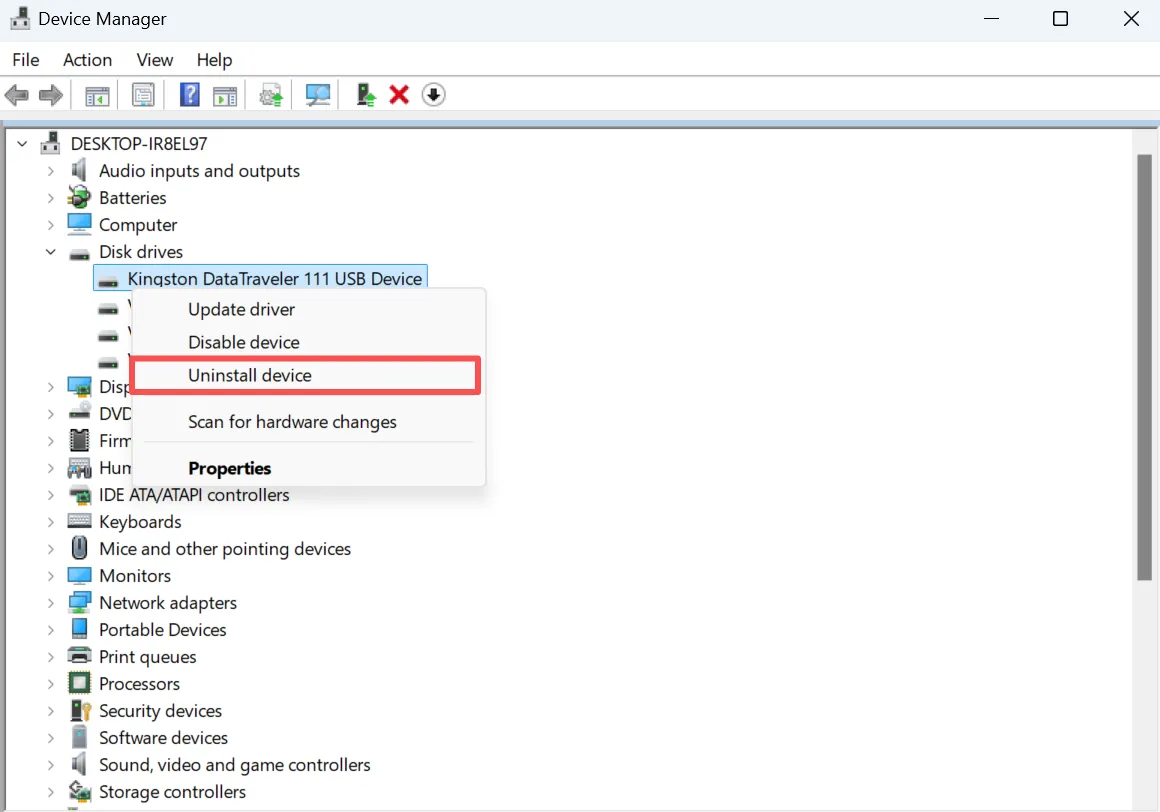
After restarting, Windows installs the correct driver automatically. As a result, the USB may work again.
Use CHKDSK to Fix a Malfunctioned USB Drive
If your USB appears but shows errors, CHKDSK can help.
Steps:
- Open Command Prompt as Administrator
- Enter:
chkdsk X: /f /r - Replace x with the correct drive letter

This command scans and repairs file system errors. However, you should use it carefully. Because it modifies disk data, it may cause file loss. Therefore, recovery first is still the safer option.
Change or Add Drive Letter in Disk Management
If the system detects the USB but cannot open it, Disk Management provides another solution.
Steps:
- Open Disk Management
- Locate your USB drive
- Assign a drive letter
- Initialize the disk if needed
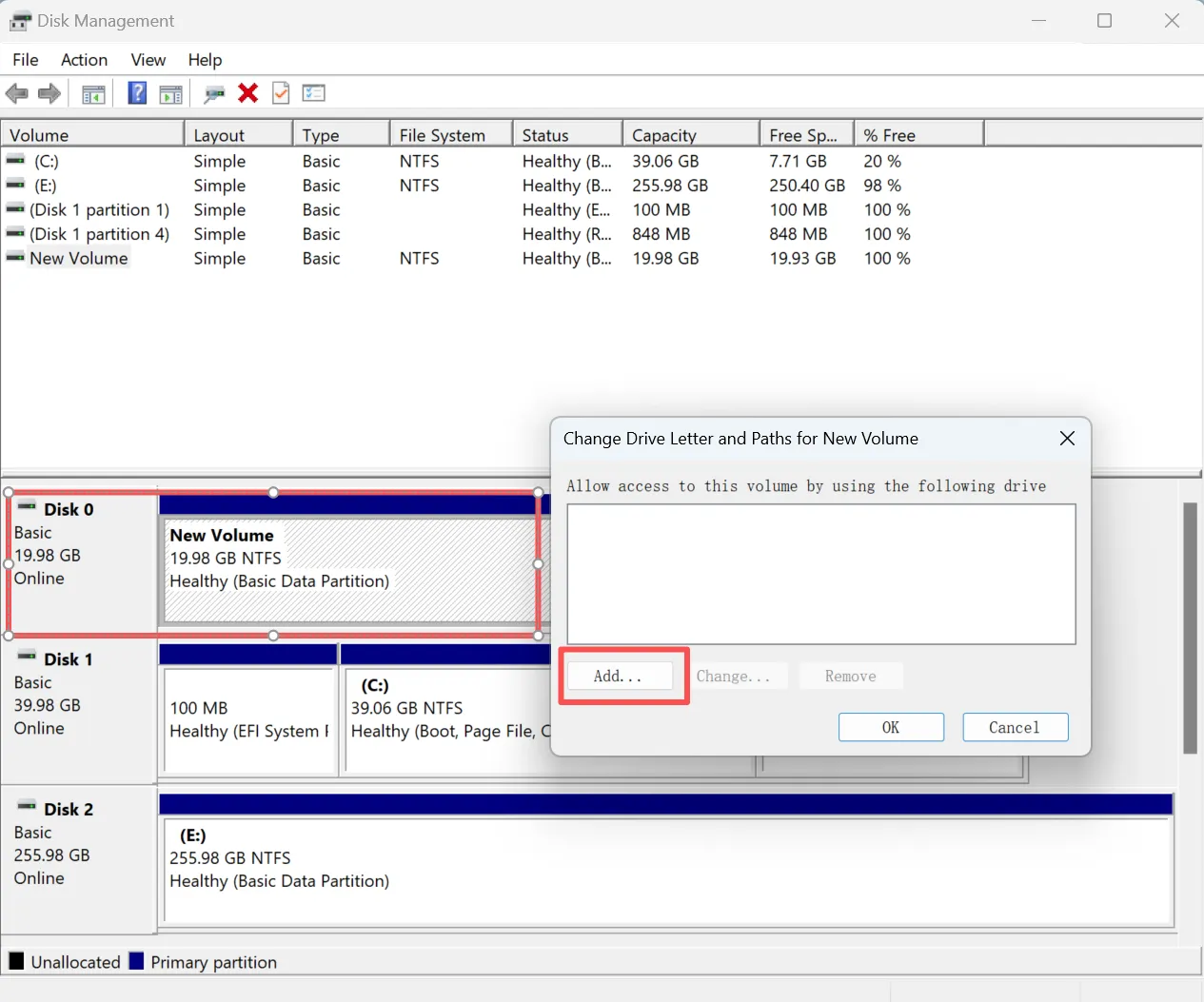
In many cases, this method restores access quickly. Moreover, it works well for partition-related problems.
Format the USB Drive After Fix Attempts
If other methods fail, formatting becomes the final option.
Steps:
- Right-click the USB drive
- Select format
- Choose file system
- Start the process
However, formatting deletes all files. Therefore, you should only use it after recovery.
How to Fix a Malfunctioned USB Drive Not Detected
If your USB does not appear at all, you should focus on detection issues.
You can:
- Check hidden devices in Device Manager
- Enable USB controllers
- Disable power-saving settings
In addition, testing on another computer helps confirm whether the problem is hardware-related. If the USB still does not appear, physical damage is likely.
How to Fix a RAW USB Flash Drive
A RAW USB drive indicates serious corruption. Therefore, you should act carefully.
First, avoid formatting. Next, recover your data. Then, repair or reformat the drive.
For example, many users format immediately. However, this removes all files. Instead, a recovery-first approach protects your data and improves success.
Best Solution to Recover Data Before You Fix USB Drive
When repair methods cannot restore access, recovery becomes the priority. At this stage, Magic Data Recovery offers a practical solution.
Why It Solves the Core Problem
Unlike repair tools, it focuses on data retrieval. Therefore, it works even when the file system fails.
Key advantages:
- Scans raw disk sectors directly
- Works with corrupted or RAW USB drives
- Recovers files without relying on file structure
- Allows preview before recovery
Real Scenario
For instance, if your USB shows “format disk,” the system cannot read it. However, the data may still exist. In this situation, this tool can locate and recover files safely.
Why It Is More Reliable
Most tools try to fix errors first. In contrast, this approach protects your data before making changes. As a result, it reduces the risk of permanent loss.

When to Stop Trying to Fix USB Drive
Sometimes, continuing repairs is not practical.
You should replace the USB drive if:
- It disconnects frequently
- Performance drops significantly
- Errors continue after fixes
- Physical damage is visible
In these cases, replacement saves time and reduces risk.
Tips to Prevent USB Drive Problems
Although fixing is helpful, prevention works better.
You should:
- Always safely remove the USB
- Avoid unplugging during transfers
- Use reliable devices
- Keep backup copies
For example, following a backup strategy ensures that even if the USB fails, your data remains safe.
Conclusion
Learning how to fix my usb drive requires a structured approach. First, identify the problem. Then, apply the correct fix. At the same time, always protect your data.
In many real situations, data loss creates more problems than hardware failure. Therefore, using a recovery-first strategy is the safest choice. Tools like Magic Data Recovery allow you to retrieve files from the USB drive before repair, which makes the process more reliable and secure.
Supports Windows 7/8/10/11 and Windows Server
FAQ
How can I fix my USB drive without losing data?
You should start by identifying the issue and avoiding risky actions like formatting. Instead, try safer methods such as updating drivers or using Disk Management. At the same time, consider recovering your data first. This approach reduces the risk of permanent loss while still allowing you to fix the device effectively.
Why is my USB drive not detected by my computer?
In most cases, this happens because of driver issues, power settings, or faulty ports. First, try a different USB port or another computer. Then, check Device Manager and update the drivers. If the device still does not appear, the problem may involve hardware damage.
Can I fix a malfunctioned USB flash drive showing RAW?
Yes, but you should proceed carefully. A RAW drive indicates file system corruption. Therefore, avoid formatting immediately. Instead, recover your data first, and then repair or reformat the drive. This method protects your files while resolving the issue.
Is it safe to use CHKDSK to fix my USB drive?
CHKDSK can repair file system errors, so it is useful in many cases. However, it may remove corrupted file entries during the process. As a result, some files may become inaccessible. Therefore, you should recover important data before running this command.
What causes a USB drive to become corrupted?
USB drives often become corrupted due to improper removal, sudden power loss, or file system errors. In addition, malware and bad sectors may contribute to the problem. Therefore, safe usage and regular backups can help prevent these issues.
Can I recover data from a damaged USB drive?
Yes, you can recover data if the damage is logical rather than physical. Recovery tools can scan the device and extract files even when the system cannot read it normally. However, physical damage may require professional services.
When should I replace my USB drive instead of fixing it?
You should replace the USB drive when it shows repeated failures, disconnects frequently, or has visible physical damage. At that point, continued repairs may not work. Therefore, replacing the device and recovering any remaining data becomes the best option.

Vasilii is a data recovery specialist with around 10 years of hands-on experience in the field. Throughout his career, he has successfully solved thousands of complex cases involving deleted files, formatted drives, lost partitions, and RAW file systems. His expertise covers both manual recovery methods using professional tools like hex editors and advanced automated solutions with recovery software. Vasilii's mission is to make reliable data recovery knowledge accessible to both IT professionals and everyday users, helping them safeguard their valuable digital assets.