
Kroll Ontrack EasyRecovery Review
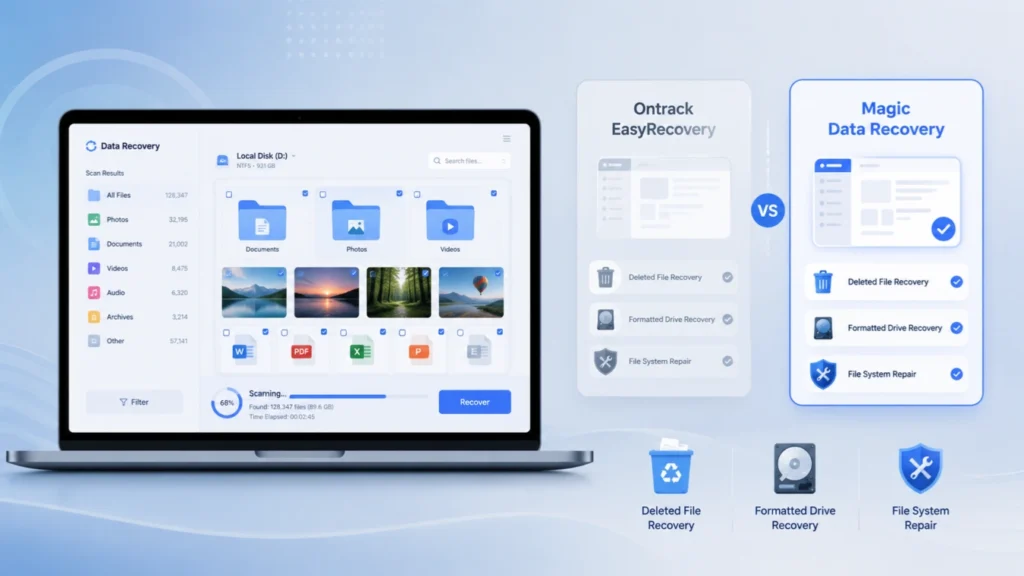
Losing important files can feel stressful, especially when the data disappears after accidental deletion, formatting, partition errors, or file system corruption. Many users search for kroll ontrack easyrecovery because it has a long history in the data recovery field. However, choosing the right recovery tool is not only about brand recognition. You also need to consider scanning speed, file location accuracy, ease of use, supported scenarios, and whether the software fits your real recovery case.
This guide reviews kroll ontrack easyrecovery, explains what ontrack easyrecovery professional can do, and compares it with Magic Data Recovery. If you want a practical recovery solution for deleted files, formatted drives, file system errors, USB drives, memory cards, or lost partitions, this comparison will help you make a safer decision.
Supports Windows 7/8/10/11 and Windows Server
Table of Contents
What Is Kroll Ontrack EasyRecovery?
Kroll Ontrack EasyRecovery is a data recovery software product designed to help users recover files lost because of deletion, formatting, and other logical data loss problems. It is commonly used by individuals, IT users, and businesses that need to scan storage devices and restore lost data from hard drives, SSDs, USB drives, memory cards, and other media.
The software comes in different editions. Among them, ontrack easyrecovery professional targets users who need more advanced recovery options than a basic home version. It usually appeals to people who want a professional-grade recovery tool rather than a simple undelete utility.
In real-world use, this type of software mainly helps with logical data loss. That means the storage device still works and remains detectable by the computer. If a hard drive makes clicking noises, cannot spin up, suffers water damage, or has serious physical failure, software recovery may not be safe. In that case, a professional data recovery lab is usually the better choice.
Common Reasons Users Search for Kroll Ontrack EasyRecovery
People usually search for kroll ontrack easyrecovery when they face one of these problems:
- Files were deleted by mistake.
- A drive was formatted too quickly.
- A USB drive or SD card asks to be formatted.
- A partition disappeared after a system issue.
- Windows shows a RAW file system.
- Photos, videos, documents, or archives are missing.
- A storage device is accessible but files cannot be found.
These cases often look serious, but many of them are still recoverable if you act quickly. The key rule is simple: stop using the affected drive immediately. New data can overwrite lost files, and once overwriting happens, no recovery software can fully rebuild the original file.
Ontrack EasyRecovery Professional: Main Strengths
Ontrack EasyRecovery Professional has several strengths that make it a recognized name in the recovery software market.
1. Broad Data Recovery Coverage
Ontrack EasyRecovery Professional can handle common logical recovery cases, including deleted files, formatted drives, and lost data from several storage devices. For users who want a traditional recovery tool from a long-established data recovery brand, this is a clear advantage.
2. Professional-Grade Feature Set
Compared with very basic undelete software, ontrack easyrecovery professional offers a more complete recovery workflow. It supports quick and deeper scans, preview options, and device-based recovery. Higher-tier editions may also include more advanced features for complex recovery needs.
3. Suitable for Users Who Prefer Established Brands
Some users trust kroll ontrack easyrecovery because the Ontrack name has been associated with data recovery for many years. For businesses or IT users who value brand history, this can make the software feel more familiar.
However, brand history does not automatically mean the tool is the best fit for every user. Many everyday users care more about speed, simplicity, accurate file location, and a smoother path from scan to recovery.
Limitations to Consider Before Using Kroll Ontrack EasyRecovery
Although kroll ontrack easyrecovery is a capable tool, users should understand its possible limitations before making a decision.
1. The Workflow May Feel Heavy for Ordinary Users
Some users want to recover files quickly without learning too many options. In that situation, ontrack easyrecovery professional may feel more formal or technical than necessary. If your goal is to recover deleted photos, office documents, or files from a formatted USB drive, a simpler tool may save time.
2. Scan Speed Can Matter in Urgent Cases
Data recovery often happens under pressure. For example, you may need to recover a work folder before a deadline or restore photos from an SD card before using it again. If scanning takes too long or results are hard to filter, the recovery process becomes frustrating.
That is one reason many users look for a kroll ontrack easyrecovery alternative that offers faster scanning and more accurate file discovery.
3. Free or Trial Limits May Affect Testing
Before buying recovery software, users usually want to confirm whether their missing files can be found. A practical recovery tool should let users scan, preview, and evaluate recoverable files clearly. If the trial experience feels too limited, users may struggle to judge whether the software fits their case.
Magic Data Recovery: A Practical Alternative to Kroll Ontrack EasyRecovery
Magic Data Recovery is designed for users who want a more direct and efficient way to recover lost data from common storage devices. It supports many real-world data loss situations, including accidental deletion, formatting, file system errors, RAW drives, lost partitions, and corrupted storage devices.
Unlike tools that may feel too technical for ordinary users, Magic Data Recovery focuses on a clear recovery process: select the location, scan the device, preview found files, filter results, and recover data to a safe destination.
If you are comparing Magic Data Recovery with kroll ontrack easyrecovery, the key difference is practical usability. Magic Data Recovery focuses on fast scanning, precise lost-file location, and a cleaner workflow for everyday recovery cases.
Supports Windows 7/8/10/11 and Windows Server
Kroll Ontrack EasyRecovery vs Magic Data Recovery
The best recovery tool depends on your data loss scenario. The table below compares kroll ontrack easyrecovery with Magic Data Recovery from several practical angles.
Comparison Point | Kroll Ontrack EasyRecovery | Magic Data Recovery |
Best for | Users who prefer an established professional recovery brand | Users who want fast, simple, and accurate file recovery |
Main scenarios | Deleted files, formatted drives, general logical recovery | Deleted files, formatted drives, file system errors, RAW drives, lost partitions |
Ease of use | Professional but may feel heavier for beginners | Cleaner and more direct for ordinary users |
Scanning experience | Supports quick and deep scanning | Faster scanning workflow with accurate file location |
File locating | Useful preview and scan results | More precise filtering and lost-file targeting |
Suitable users | IT users, advanced users, brand-focused users | Home users, office users, students, small businesses, and professionals |
Recovery approach | Traditional recovery workflow | Problem-solving workflow with preview-based recovery |
Recommendation | Good for users who specifically want Ontrack software | Better everyday choice for efficient data recovery |
Which Tool Has Better Recovery Ability?
Recovery ability depends on several factors: how the data was lost, whether the device still works, whether new data has overwritten the old files, and whether the file system remains readable.
Kroll Ontrack EasyRecovery can help in many common logical data loss cases. It is a valid option for users who need a professional recovery tool. However, Magic Data Recovery gives everyday users a more focused solution for the cases they face most often: deleted files, formatted partitions, file system errors, RAW drives, and missing files after system issues.
For example, if you accidentally formatted a USB drive, Magic Data Recovery can scan the device and help locate files based on recoverable structures and signatures. If a partition turns RAW, the software can scan beyond the broken file system and look for recoverable files directly. This makes it practical for users who do not want to deal with complex recovery settings.
Which Tool Is Easier to Use?
Ease of use matters because wrong actions can reduce recovery chances. A user-friendly recovery tool should guide you clearly and help you avoid risky mistakes.
Magic Data Recovery offers a more straightforward workflow:
- Stop using the affected drive.
- Install the software on a different drive.
- Select the lost-data location.
- Run a scan.
- Preview and filter found files.
- Recover files to another safe drive.
This process helps users avoid two common mistakes: installing recovery software on the same drive that lost data and saving recovered files back to the original damaged location.
Ontrack EasyRecovery Professional also offers a structured recovery process, but some users may find Magic Data Recovery easier when they only need a fast and reliable solution for common Windows data loss cases.
Which Tool Fits Your Scenario Better?
Different recovery scenarios require different priorities. Here is a practical guide.
Choose Kroll Ontrack EasyRecovery If:
- You specifically want software from the Ontrack brand.
- You prefer a professional-style recovery interface.
- You have used ontrack easyrecovery professional before.
- You are comfortable spending more time reviewing scan results.
- You need a traditional recovery tool with a long market history.
Choose Magic Data Recovery If:
- You deleted files and need a quick recovery path.
- You formatted a drive and want to scan it safely.
- Your USB drive, SD card, or external drive shows file system errors.
- You want faster scanning and more precise lost-file location.
- You prefer a clean interface without unnecessary complexity.
- You need to preview files before recovery.
- You want a practical kroll ontrack easyrecovery alternative for everyday use.
How to Recover Lost Files with Magic Data Recovery
If you are looking for a more efficient solution than kroll ontrack easyrecovery, you can try Magic Data Recovery with the following steps.
Step 1: Stop Using the Affected Device
First, stop writing new data to the drive. Do not download files, install programs, copy documents, or format the device again. This helps protect the lost files from being overwritten.
Step 2: Install Magic Data Recovery on Another Drive
Install the software on a healthy drive, not the one that contains the lost files. This is an important recovery best practice because installation files may overwrite recoverable data.
Step 3: Select the Drive or Partition
Open Magic Data Recovery and choose the device where data loss happened. It can be an internal hard drive, external HDD, SSD, USB flash drive, SD card, or another storage device.

Step 4: Scan for Lost Files
Start scanning. A quick scan can find recently deleted files faster. If the data was lost after formatting, partition loss, RAW errors, or file system damage, a deeper scan can search more thoroughly.

Step 5: Preview and Filter Results
After scanning, use preview and filtering options to locate the files you need. This step matters because scan results may include many files. A precise filter can save time and reduce confusion.

Step 6: Recover Files to a Safe Location
Finally, save recovered files to a different drive. Never restore files to the original damaged or formatted device during the recovery process.

Common Mistakes to Avoid During Data Recovery
Whether you use kroll ontrack easyrecovery, ontrack easyrecovery professional, or Magic Data Recovery, you should avoid these mistakes.
Do Not Keep Using the Drive
Every new file may overwrite lost data. Even normal system activity can create temporary files. Therefore, stop using the affected drive as soon as possible.
Do Not Format the Drive Again
Some users format a RAW drive because Windows asks them to. This can make recovery harder. Scan the drive first before making any changes.
Do Not Save Recovered Files Back to the Same Drive
This is one of the most common recovery errors. Always recover files to another safe storage device.
Do Not Expect Software to Fix Physical Damage
If the drive has physical failure, strange noises, severe overheating, or cannot be detected at all, stop DIY recovery. A data recovery lab is safer in that situation.
Conclusion: Is Magic Data Recovery a Better Alternative?
Kroll Ontrack EasyRecovery remains a recognizable data recovery tool, and ontrack easyrecovery professional can help users recover files in many logical data loss situations. It is a reasonable choice for users who specifically prefer the Ontrack brand or want a traditional professional recovery interface.
However, Magic Data Recovery is the better recommendation for many everyday users. It supports deleted files, formatted drives, file system errors, RAW partitions, lost partitions, and corrupted storage devices. More importantly, it offers a faster scanning workflow, more precise lost-file location, useful preview options, and a cleaner recovery process.
If you are searching for kroll ontrack easyrecovery but want a simpler, faster, and more practical solution, Magic Data Recovery is worth trying. It focuses on solving the real problem: helping you find and recover lost files safely without unnecessary complexity.
Supports Windows 7/8/10/11 and Windows Server
FAQs
What is Kroll Ontrack EasyRecovery used for?
Kroll Ontrack EasyRecovery is used to recover files lost because of accidental deletion, formatting, partition issues, and other logical data loss problems. It can scan storage devices such as hard drives, SSDs, USB drives, and memory cards. However, it works best when the device is still detectable and does not have physical damage.
Is Ontrack EasyRecovery Professional good for formatted drives?
Yes, ontrack easyrecovery professional can help recover files from formatted drives if the original data has not been overwritten. However, formatted recovery depends heavily on user actions after formatting. To improve recovery chances, stop using the drive immediately and avoid saving new files before scanning.
What is the best Kroll Ontrack EasyRecovery alternative?
Magic Data Recovery is a strong kroll ontrack easyrecovery alternative for users who want faster scanning, precise lost-file location, and an easier recovery workflow. It supports deleted files, formatted drives, RAW partitions, file system errors, lost partitions, and corrupted storage devices, making it practical for common Windows data loss cases.
Can Magic Data Recovery recover files after file system errors?
Yes. Magic Data Recovery can help recover files from storage devices affected by file system errors, RAW partitions, and inaccessible drives. Instead of relying only on the damaged file system, it can scan the device to locate recoverable files. For best results, avoid formatting the drive before recovery.
Which is easier to use: Kroll Ontrack EasyRecovery or Magic Data Recovery?
Magic Data Recovery is generally easier for everyday users because it provides a cleaner workflow: choose a location, scan, preview, filter, and recover. Kroll Ontrack EasyRecovery offers professional recovery features, but some users may find it more complex when they only need to restore deleted or formatted files quickly.
Does data recovery software work on physically damaged drives?
No software can safely repair serious physical drive damage. If your drive clicks, fails to spin, overheats, or cannot be detected by the computer, stop using it and contact a professional recovery lab. Tools like kroll ontrack easyrecovery and Magic Data Recovery are mainly for logical data loss cases.
Why should recovered files be saved to another drive?
You should save recovered files to another drive because writing them back to the original device may overwrite other lost data. This rule applies to Magic Data Recovery, ontrack easyrecovery professional, and any other recovery tool. Using a safe destination helps protect remaining recoverable files during the recovery process.
Is Magic Data Recovery suitable for beginners?
Yes. Magic Data Recovery suits beginners because it uses a simple scan-preview-recover workflow. Users do not need advanced technical knowledge to start recovery. It also helps with common scenarios such as accidental deletion, formatting, file system errors, RAW drives, and missing partitions, making it a practical choice for everyday data loss.

Jason has over 15 years of hands-on experience in the computer data security industry. He specializes in data recovery, backup and restoration, and file repair technologies, and has helped millions of users worldwide resolve complex data loss and security issues.