
Windows 11 Folder Recovery Guide
Successfully executing a complete folder recovery is crucial when you accidentally remove a critical directory containing years of organized data. If you need to recover deleted folder windows 11 file systems instantly, hitting the standard “Delete” button can feel like an absolute nightmare. When a directory vanishes, you do not just lose individual files. In addition, you lose the complex hierarchy, subdirectories, and sorting that took hours to create.
Fortunately, Windows 11 does not immediately wipe this data from your hard drive sectors. The underlying operating system simply marks the space as available for rewriting. As long as you take action before new data occupies that storage space, you can achieve a full restoration. This comprehensive guide will show you exactly how to recover deleted folders using both native tools and advanced alternative solutions like Magic Data Recovery.
Supports Windows 7/8/10/11 and Windows Server
Table of Contents
Free and Built-in Methods for Folder Recovery in Windows 11
Before exploring third-party technical software, you should always try the native recovery pathways built directly into Windows 11. These methods are completely free and can resolve the issue within a couple of clicks if you want to recover deleted folder windows 11 files that were lost recently.
Method 1: Check the Recycle Bin
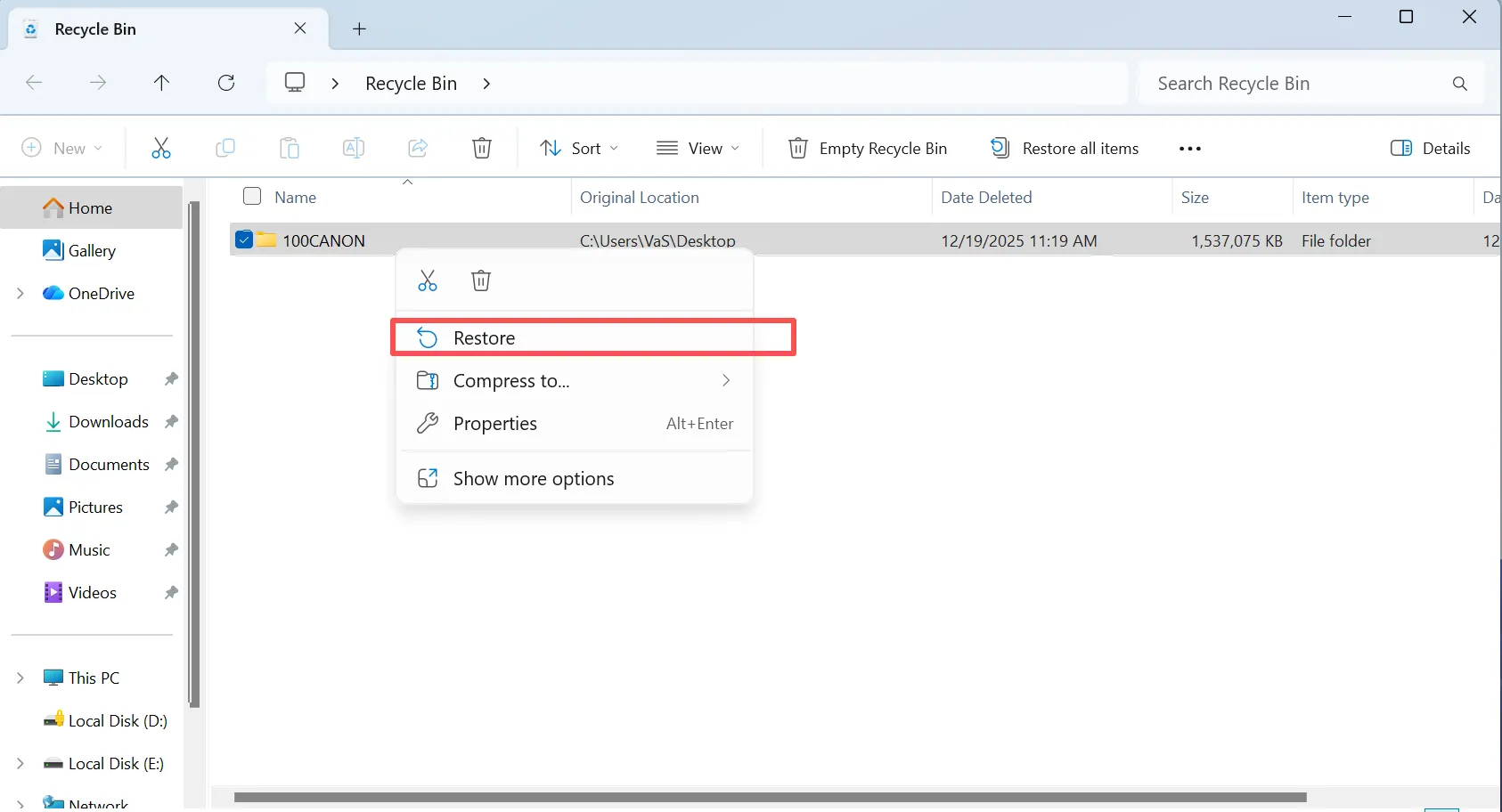
The quickest way to initiate a folder recovery is by inspecting the system Recycle Bin. Unless you used a permanent deletion shortcut, your directory is likely waiting there.
- Step 1: Double-click the Recycle Bin icon on your Windows 11 desktop.
- Step 2: Next, use the search bar in the top-right corner to type the name of your missing directory.
- Step 3: Finally, right-click the item from the search results and select Restore.
Consequently, the directory will immediately return to its original path, preserving all internal file arrangements perfectly.
Method 2: Restore Folder to Previous Versions via File History
If you cleared the Recycle Bin, you can still achieve a successful folder recovery using File History. This built-in backup mechanism takes periodic snapshots of your desktop, documents, music, and pictures.
- Step 1: Open File Explorer and navigate to the parent directory where the lost item used to reside.
- Step 2: Right-click the blank space inside the directory, then choose Properties.
- Step 3: Click on the Previous Versions tab at the top of the window.
- Step 4: Look through the available timestamps, select the version from before the deletion, and click Restore.

Important Note: This method only functions if you previously configured and enabled the File History feature with an external drive or network location.
Method 3: Retrieve Directories from OneDrive Cloud Backup
Windows 11 deeply integrates with OneDrive cloud storage by default. If your standard user profiles are synced with the cloud, a secondary digital safety net exists online to recover deleted folder windows 11 metadata.
- Step 1: Open your web browser and log into the official OneDrive web portal.
- Step 2: Click on the Recycle bin option located on the left-hand navigation menu.
- Step 3: Locate your deleted directory, select it, and click the Restore button at the top.
What to Do If Free Methods Fail? (The Risk of Data Overwriting)
Sometimes, native options fall short. Perhaps you disabled File History to save system space, or maybe you executed a permanent deletion using the Shift + Delete shortcut. Under these specific conditions, standard Windows utilities cannot help you view or restore the missing directory structures.
At this exact moment, you must understand how data storage operates to avoid permanent loss. When Windows removes a directory, it deletes the file system pointer but leaves the raw data intact on the storage sectors. However, any new activity—such as downloading files, installing software, or streaming videos—can overwrite those exact sectors.
Once overwriting occurs, traditional folder recovery becomes impossible. Therefore, you must stop utilizing the affected storage drive immediately. To solve this critical dilemma, you need a specialized tool that scans the deep storage layers to rebuild your lost directory layout before new system processes overwrite it.
The Ultimate Way to Recover Deleted Folder in Windows 11: Magic Data Recovery
When Windows 11 built-in tools fail to deliver results, turning to dedicated technical software becomes necessary. If you are looking for a highly efficient solution, you should try Magic Data Recovery to streamline the entire folder recovery process.
Why Choose Magic Data Recovery?
Most basic recovery utilities simply dump thousands of loose files into a single, chaotic window. This disorganized approach leaves you with the tedious task of sorting through nameless images and documents manually.
Magic Data Recovery directly solves this specific frustration by focusing on directory tree preservation. The software scans your storage drive and actively reconstructs the original file architecture, keeping all your subfolders, organization, and original file names intact.
- Core Pain Point Solved: It prevents the loss of complex folder structures, saving you from sorting through disorganized, renamed files.
- Key Advantage: Features advanced deep-scanning algorithms that read raw disk sectors even after formatting or partition corruption event.
- Versatile Use Cases: Ideal for users who need to recover deleted folder windows 11 structures lost to accidental
Shift + Deletecommands, sudden power failures, or drive disconnects.
Compared to generic tools, this software offers superior stability and precision. It isolates deleted metadata specifically, which provides a significantly higher success rate for complex folder recovery tasks.
Step-by-Step Guide to Use Magic Data Recovery
You can quickly deploy this utility to scan your system and retrieve your missing directory structures by following these optimized steps.
Step 1: Download and Install Magic Data Recovery
First, download the official installation file for Magic Data Recovery. Ensure that you install the software onto a partition different from the one where the deletion occurred. This cautious approach prevents accidental data overwriting and maximizes your recovery success rate.
Supports Windows 7/8/10/11 and Windows Server
Step 2: Select the Targeted Local Drive to Scan
Launch the program to access the clean interface. Next, from the main dashboard, identify and choose the specific storage drive or lost partition where your deleted files were originally stored, then initiate the scanning process.

Step 3: Analyze the Selected Drive for Missing Directories
The software will automatically execute an Advanced Scan across the sectors to complete your folder recovery. Meanwhile, the program structures and dynamically lists all recoverable folders and files in real-time as the progress bar advances.

Step 4: Preview Reconstructed Folders Before Restoration
Next, utilize the built-in preview mechanism to browse through the intact directory tree and verify internal file content. This critical step ensures you pinpoint and select only the precise items you actually need to restore.

Step 5: Safely Output Recovered Folders to a New Destination
Finally, mark the checkboxes next to your target folders and save them to an alternative drive or separate storage environment. Never restore data directly back to the same source partition, because doing so risks instant data corruption.

Pro Tips to Maximize the Success Rate of Folder Recovery
Achieving a perfect restoration requires following industry-standard best practices. Minor operational mistakes during the rescue process can lead to permanent data corruption and ruin your folder recovery attempt.
- Avoid Local Installations: Never download diagnostic utilities or software updates onto the drive containing the lost data. This action is a primary cause of accidental overwriting.
- Use External Targets: Always export your restored folders directly to an external hard drive, secondary internal partition, or USB flash drive. Saving them back to the source drive can corrupt the remaining unrecovered files.
- Check Drive Health First: If an external drive suddenly drops its folders, run a SMART health check. Hardware failure requires different handling than simple accidental deletion.
Conclusion
Losing an entire directory structure can disrupt your workflow and cause significant stress. Fortunately, modern technology provides clear deleted file recovery solutions. You should always begin by checking the Windows 11 Recycle Bin and verifying your File History backups to see if a free copy is readily available.
When native options are unavailable, choosing a dependable, structured tool is the safest path forward. We highly recommend using Magic Data Recovery because it focuses on preserving your original folder hierarchy rather than just pulling raw, unorganized files. Protect your valuable data and save hours of reorganization time by downloading Magic Data Recovery today.
Supports Windows 7/8/10/11 and Windows Server
FAQs About Folder Recovery
Can I recover a folder that was permanently deleted via Shift + Delete?
Yes, you can easily restore these items. Using the Shift + Delete shortcut tells Windows 11 to bypass the Recycle Bin entirely, but the raw data remains intact on the storage sectors. Running a scan with Magic Data Recovery will locate these directories quickly before new files occupy that disk space.
Why do some folder recovery tools lose the original folder name?
This problem happens when the file allocation table or master file table metadata sustains heavy damage. While basic freeware tools only search for raw file signatures, advanced solutions like Magic Data Recovery analyze surrounding file system logs to rebuild the original naming conventions and directory pathways.
Is it possible to perform folder recovery on a formatted SSD?
Solid-State Drives present unique challenges due to the built-in TRIM command, which actively purges deleted sectors during idle system times. However, if you disconnect power quickly or run a specialized tool immediately after the formatting event occurs, you still maintain a viable chance to restore your data.
How long does it take to recover deleted folder windows 11 structures?
The total scanning time depends entirely on the size and physical condition of your storage drive. A Quick Scan usually finishes within a few minutes, whereas a Advanced Scan searching deep disk sectors for older, complex folder structures might take several hours to complete thoroughly.
Can I achieve folder recovery if I partially overwrote the drive?
You can still recover whatever data remains untouched. While the overwritten sectors are gone permanently, the software can scan the remaining portions of the disk. It will extract and rebuild any subdirectories or files that have not yet been replaced by new system data.
What should I do if the software freezes during the deep scan?
First, ensure that no other heavy applications are running in the background. Freezes often occur when the software encounters physical bad sectors on an older drive. If it hangs, try running a targeted scan on specific partitions rather than analyzing the entire drive at once.
Is there a size limit when I recover deleted folder windows 11 items?
No, advanced software solutions do not impose an arbitrary size limit on data restoration. Whether you need to rescue a lightweight document directory or a massive partition holding hundreds of gigabytes of 4K video projects, the software will rebuild the entire layout seamlessly.

Vasilii is a data recovery specialist with around 10 years of hands-on experience in the field. Throughout his career, he has successfully solved thousands of complex cases involving deleted files, formatted drives, lost partitions, and RAW file systems. His expertise covers both manual recovery methods using professional tools like hex editors and advanced automated solutions with recovery software. Vasilii's mission is to make reliable data recovery knowledge accessible to both IT professionals and everyday users, helping them safeguard their valuable digital assets.