
Cisdem Data Recovery Review
Losing files after accidental deletion, an emptied Recycle Bin, formatting, or a corrupted drive can quickly become stressful. Before you try any recovery tool, you need to know what it can recover, what it cannot fix, and how to avoid overwriting your lost data. This Cisdem Data Recovery review explains the tool’s features, use cases, limits, and best alternatives. For a broader recovery workflow, you can also start from this deleted file recovery guide.
Table of Contents
What Is Cisdem Data Recovery?
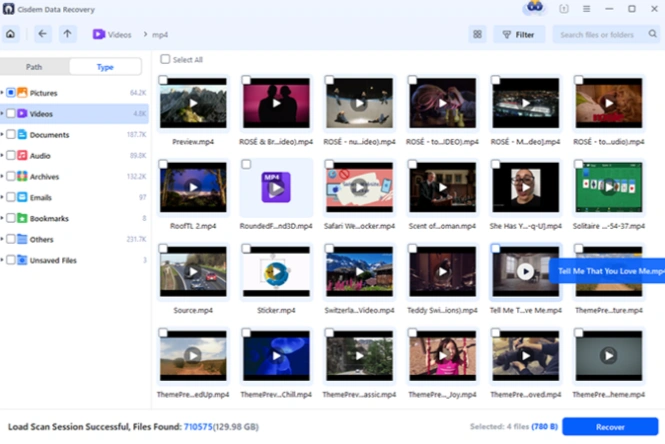
Cisdem Data Recovery is a data recovery software product for Windows and Mac users. It aims to recover lost files from internal drives, external hard drives, SSDs, USB drives, SD cards, cameras, and other storage devices.
According to Cisdem’s official Windows product page, the Windows version supports Windows 11/10/8/7 and is positioned for recovering more than 1000 file types from scenarios such as deleted files, emptied Recycle Bin, formatted drives, damaged drives, RAW drives, partition loss, Windows crash, and virus attack.
The Mac version targets macOS users and lists support for documents, photos, videos, audio, emails, HDDs, SSDs, Fusion Drive, SD cards, USB drives, APFS, HFS+, FAT16, FAT32, exFAT, and NTFS.
In simple terms, Cisdem Data Recovery is useful when files disappear because of logical data loss. Logical data loss means the storage device still works, but the file system, file table, or file records no longer show the files normally.
Is Cisdem Data Recovery Safe and Legit?
For normal logical recovery cases, Cisdem Data Recovery is a legitimate recovery tool. However, safe recovery depends not only on the software but also on how you use it.
The most important rule is simple: stop using the affected drive. If you keep saving new files, installing programs, downloading videos, or copying data to the same disk, new data may overwrite the old file records. Once overwritten, no recovery software can reliably restore the original files.
Use Cisdem Data Recovery only when:
- The drive still appears in Windows Disk Management, File Explorer, macOS Disk Utility, or the software itself.
- The drive does not make clicking, grinding, or repeated disconnecting sounds.
- The files were deleted, formatted, hidden, lost after a file system error, or removed from a storage device that still works.
- You can save recovered files to another healthy drive.
Avoid software recovery if the device has clear physical damage. In that case, a professional recovery lab is safer.
Main Features of Cisdem Data Recovery
Recovery for Deleted and Lost Files
The main reason users search for Cisdem Data Recovery is to recover deleted files. This includes files deleted with Shift + Delete, removed from the Recycle Bin or Trash, or lost after accidental cleanup.
A recovery tool scans the drive for file records and file signatures. If the original data blocks still exist, it can list recoverable files for preview. If new data has overwritten those blocks, recovery becomes incomplete or impossible.
Formatted Drive Recovery
Cisdem Data Recovery also targets formatted drive recovery. This matters when a user formats a USB drive, external hard drive, SD card, or computer partition by mistake.
A quick format often removes file system records without immediately wiping every data block. Because of this, recovery may still work. A full format, secure erase, or heavy reuse after formatting reduces the chance of success.
File System Error and RAW Drive Recovery
A file system error can make a drive show as RAW, unallocated, inaccessible, or unreadable. In these cases, Windows or macOS may ask you to format the drive before use.
Do not format the drive before recovery. Formatting may create new file system structures and reduce the chance of restoring old files. Instead, scan the affected drive first and recover important files to another disk.
Preview Before Recovery
Preview matters because it helps you verify whether a found file is usable before restoring it. Cisdem’s official Windows FAQ says the trial version can scan a selected device and preview recoverable files, but users need the full version to recover the files.
This is a common model among data recovery tools. It lets users check whether the software can find the missing data before they decide whether to pay.
How to Use Cisdem Data Recovery Safely
Follow this workflow before any repair attempt.
Step 1: Stop Using the Affected Drive
If files were deleted from drive D:, stop saving anything to drive D:. If an SD card was formatted in a camera, remove it from the camera immediately. If an external hard drive becomes RAW, do not format it.
This step protects recoverable data from being overwritten.
Step 2: Install Recovery Software on Another Drive
Never install Cisdem Data Recovery on the same drive where files were lost. If you lost files from your system drive, install the software on another computer and connect the affected drive as an external disk.
This reduces the risk of writing new program files over deleted data.
Step 3: Select the Lost File Location
Open the software and select the original location where the files disappeared. This may be a local partition, external hard drive, USB flash drive, memory card, or camera storage device.
If the original partition no longer appears, scan the whole disk instead of only checking visible drive letters.
Step 4: Scan and Wait for Results
Run the scan and wait until the results appear. Larger drives may take longer, especially if the software performs a deep scan.
During the scan, avoid using the affected device. Disconnecting the drive or running repairs at the same time may interrupt recovery.
Step 5: Preview Important Files
Use preview, search, file type filters, size filters, and modified date filters to find the most important files first. For example, search for .docx, .xlsx, .jpg, .mp4, .pdf, or a known filename fragment.
Prioritize business documents, client files, family photos, project videos, and archives.
Step 6: Recover Files to Another Safe Location
Save recovered files to a different healthy drive. Do not restore them to the same drive that lost data.
For example, if files were lost from an SD card, recover them to your computer or an external hard drive. If files were lost from drive C:, recover them to drive D: or another storage device.
Cisdem Data Recovery Pros and Cons
Aspect | Pros | Cons |
Ease of use | Clean workflow for scanning, previewing, and recovery | Some advanced disk cases still need expert handling |
File recovery | Supports common deleted, formatted, and corrupted file scenarios | Cannot recover overwritten data |
Platforms | Separate Windows and Mac versions | A Windows license may not cover Mac, and vice versa |
Trial experience | Allows scan and preview before recovery | Full recovery requires a paid license |
Device support | Works with common drives, USB devices, SD cards, and external storage | Not suitable for physically damaged drives |
Search intent fit | Good for users comparing recovery tools | Users may still need a clearer alternative for Windows-only recovery |
Cisdem Data Recovery vs Magic Data Recovery
If you are comparing Cisdem Data Recovery with Magic Data Recovery, the best choice depends on your platform, recovery scenario, and preferred workflow.
Comparison Point | Cisdem Data Recovery | Magic Data Recovery |
Best for | Users who want a Windows or Mac recovery tool from Cisdem | Windows users who need a clear recovery workflow |
Main scenarios | Deleted files, formatted drives, RAW drives, partition loss, damaged drives | Deleted files, formatted drives, file system errors, inaccessible drives, lost data from common storage devices |
File types | Official page mentions 1000+ file types for Windows | Product page lists 5000+ file types, including documents, photos, videos, audio, archives, emails, and disk image formats. |
Supported devices | Internal drives, external drives, USB drives, SD cards, cameras, and more | HDDs, SSDs, USB flash drives, memory cards, cameras, and other storage media |
Workflow | Select location, scan, preview, recover | Download, select drive, scan, preview, and recover to a safe location |
File systems | Windows and Mac support varies by version | User guide lists FAT/exFAT, NTFS, ReFS, and EXT2/3/4 support. |
Best alternative use case | Users already using Cisdem products | Users who want a focused Windows recovery solution with simple steps |
Why Magic Data Recovery Is a Practical Cisdem Data Recovery Alternative
Cisdem Data Recovery can be useful, but Windows users may want an alternative that focuses more directly on everyday file loss. This is where Magic Data Recovery fits naturally.

Magic Data Recovery solves the core pain points users usually face after data loss:
- Files disappeared after deletion.
- The Recycle Bin was emptied.
- A drive was formatted by mistake.
- A partition became inaccessible.
- A USB drive or SD card shows errors.
- Windows reports a file system problem.
- Important files need preview before recovery.
The main advantage is the simple workflow. Instead of asking users to understand complex disk structures, Magic Data Recovery guides them through scanning, previewing, filtering, and saving files to another safe location.
For example, imagine that you formatted a USB drive before copying work documents to your laptop. Free manual methods may not help because the file records no longer appear. Magic Data Recovery can scan the USB drive, show recoverable documents, and let you save them to your computer.
Another example is an external hard drive that suddenly asks to be formatted. Repairing it first may make recovery harder. A safer choice is to scan the drive, preview the files, recover important data, and then repair or reformat the drive later.
This makes Magic Data Recovery more reliable than basic manual methods in practical cases. It does not claim impossible results. Instead, it gives users a structured way to check what can still be recovered before they take riskier actions.
If you are looking for a more efficient Windows recovery solution, try Magic Data Recovery before formatting, repairing, or rewriting the affected drive.
Supports Windows 7/8/10/11 and Windows Server
When Cisdem Data Recovery May Be Enough
Cisdem Data Recovery may be enough if you use Mac, want a Cisdem product, and only need to recover common files from a healthy drive. It can also make sense if the trial scan previews the exact files you need.
Choose it when:
- You use macOS and prefer a Mac-focused tool.
- The missing files appear clearly in preview.
- The drive has no physical damage.
- You understand that recovery requires saving files to another location.
- You accept the license model after checking the current price.
When Magic Data Recovery May Be Better
Magic Data Recovery may be a better choice when you use Windows and need a direct, beginner-friendly recovery path. It works well for common real-world cases such as deleted files, formatted drives, file system errors, USB recovery, SD card recovery, and external drive recovery.
It is also a strong option when you want to preview recoverable files before making a decision. The Magic Data Recovery user guide also reminds users not to install the software on the affected drive and to save recovered files to a safe location, not the original drive.
That advice follows a key industry best practice: protect the source drive first, recover files second, and repair the disk later.
Common Mistakes to Avoid During Data Recovery
Mistake 1: Installing Software on the Lost File Drive
If you install any recovery tool on the same drive that lost files, the installer may overwrite recoverable data. Always install the software elsewhere.
Mistake 2: Formatting Before Recovery
When Windows or macOS asks you to format a drive, do not click Format before recovery. Scan the drive first. Recover the important files. Then repair or format the drive after your data is safe.
Mistake 3: Saving Recovered Files Back to the Same Drive
Saving recovered files to the original drive can overwrite other lost files that have not been restored yet. Use another internal drive, external hard drive, or USB storage device.
Mistake 4: Ignoring Physical Damage
Software cannot fix broken heads, scratched platters, burnt controller boards, or severe NAND failure. If the drive makes unusual noises or disconnects repeatedly, stop using it and contact a professional recovery service.
Mistake 5: Expecting Any Tool to Recover Overwritten Data
No software can guarantee recovery after overwriting. Recovery depends on whether the old file content still exists on the storage device.
Final Verdict: Is Cisdem Data Recovery Worth Trying?
Cisdem Data Recovery is worth trying if your storage device is still detectable and you want to scan and preview lost files before recovery. It covers common scenarios such as deleted files, formatted drives, RAW drives, partition issues, and external storage recovery.
However, if you are a Windows user who wants a clearer and more focused recovery workflow, Magic Data Recovery is a practical alternative. It helps recover deleted, formatted, and inaccessible files from common storage devices, supports broad file types, and guides users to preview and save files safely.
For best results, stop using the affected drive, scan it before repair, preview the files, and recover them to another healthy location. To learn more about safe deleted file recovery, revisit this deleted file recovery guide.
Supports Windows 7/8/10/11 and Windows Server
FAQs About Cisdem Data Recovery
Is Cisdem Data Recovery free?
Cisdem Data Recovery usually offers a trial version that lets users scan a drive and preview recoverable files. However, full recovery normally requires a paid license. This model helps you check whether the files can be found before you decide whether to buy the full version.
Can Cisdem Data Recovery recover permanently deleted files?
Yes, Cisdem Data Recovery may recover permanently deleted files if the original data has not been overwritten. After deleting files, stop using the affected drive immediately. The more you save, install, download, or copy to that drive, the higher the chance that deleted file content will be overwritten.
Is Cisdem Data Recovery safe to use?
Cisdem Data Recovery is generally safe when downloaded from the official website or another trusted source. Safety also depends on your behavior. Do not install it on the drive that lost data, do not save recovered files to the same drive, and avoid recovery software on physically damaged disks.
Why did Cisdem Data Recovery find files that cannot open?
Recovered files may fail to open if they were partially overwritten, fragmented, corrupted before recovery, or recovered from a damaged file system. Preview helps identify usable files before recovery. If many files cannot open, stop using the drive and try scanning again or consider professional help.
What is the best Cisdem Data Recovery alternative for Windows?
Magic Data Recovery is a strong Cisdem Data Recovery alternative for Windows users. It supports deleted files, formatted drives, file system errors, and data loss from common devices such as HDDs, SSDs, USB drives, and memory cards. Its scan, preview, and recover workflow suits non-technical users.
Can Magic Data Recovery recover files from a formatted drive?
Yes, Magic Data Recovery can help recover files from a formatted drive when the old data has not been overwritten. A quick format often leaves recoverable data behind. For better results, stop using the formatted drive, scan it first, preview the files, and save recovered data elsewhere.
Should I recover files to the same drive?
No. You should never recover files to the same drive that lost data. Saving recovered files there may overwrite other files that are still recoverable. Always choose another healthy storage location, such as a different internal partition, external hard drive, or USB storage device.
When should I use a professional data recovery service?
Use a professional service if the drive has physical damage, makes clicking sounds, disconnects repeatedly, smells burnt, or does not appear in BIOS, Disk Management, or Disk Utility. Software tools work best for logical data loss. Physical failure needs controlled handling and specialized lab equipment.

Jason is a data recovery and technical support specialist with over 15 years of hands-on experience. He has worked extensively with frontline users, troubleshooting difficult data loss cases and providing practical recovery solutions for accidental deletion, formatted drives, damaged file systems, lost partitions, system failures, and other recovery emergencies. His expertise also includes backup and restoration, file repair, and disaster recovery, with a strong emphasis on safe, reliable, and technically accurate guidance.