
Recover Files Deleted from Recycle Bin Windows 10
Accidentally emptying the Recycle Bin can remove an important document, photo, video, or work file in seconds. Fortunately, Windows does not always erase the underlying data immediately. Therefore, you may still recover files deleted from Recycle Bin Windows 10 if new data has not overwritten the original storage space.
However, timing matters when you recover files deleted from Recycle Bin Windows 10. Stop saving files or installing programs on the affected drive. Then, choose the right deleted file recovery option from Windows backups, cloud storage, Windows File Recovery, or Magic Data Recovery.
Supports Windows 7/8/10/11 and Windows Server
Table of Contents
Can You Recover Files Deleted from Recycle Bin Windows 10?
Yes, you may still recover them. Windows usually removes the file reference and marks its space as available rather than erasing every byte immediately. However, downloads, software installations, edits, and updates can overwrite that space.
The storage type also matters. An HDD may retain deleted data until another write replaces it. In contrast, an SSD may use TRIM to clear unused blocks. Therefore, no responsible guide should promise guaranteed recovery.
What to Do Before You Recover Files Deleted from Recycle Bin Windows 10
Before you start Windows 10 Recycle Bin recovery, follow these precautions:
- Stop using the affected drive. Avoid downloads, updates, editing, and file transfers.
- Install recovery software elsewhere. Use another physical drive whenever possible.
- Save recovered files to another location. Otherwise, you may overwrite more deleted data.
- Do not defragment the drive. It may move data into reusable space.
- Avoid running CHKDSK first. It repairs file-system structures rather than deleted files.
- Do not test many tools. Each installation adds activity to the source disk.
These steps protect your best chance to recover files deleted from Recycle Bin Windows 10.
Best Ways to Recover Files Deleted from Recycle Bin Windows 10
Use the table below to choose the most suitable solution.
Situation | Best First Method |
The file still appears in Recycle Bin | Use Restore |
File History contains an earlier copy | Restore a previous version |
OneDrive synced the file | Check the OneDrive Recycle Bin |
You emptied Recycle Bin and have no backup | Scan with Magic Data Recovery |
You prefer a Microsoft command-line tool | Use Windows File Recovery |
The drive clicks, disconnects, or disappears | Stop and contact a recovery specialist |
First, check the safest options. Then, scan the disk only when Windows or a backup cannot restore the file. This order helps you recover files deleted from Recycle Bin Windows 10 with less unnecessary drive activity.
Before using software to recover files deleted from Recycle Bin Windows 10, confirm that the items no longer appear in the bin.
Method 1: Restore Files Still in Recycle Bin
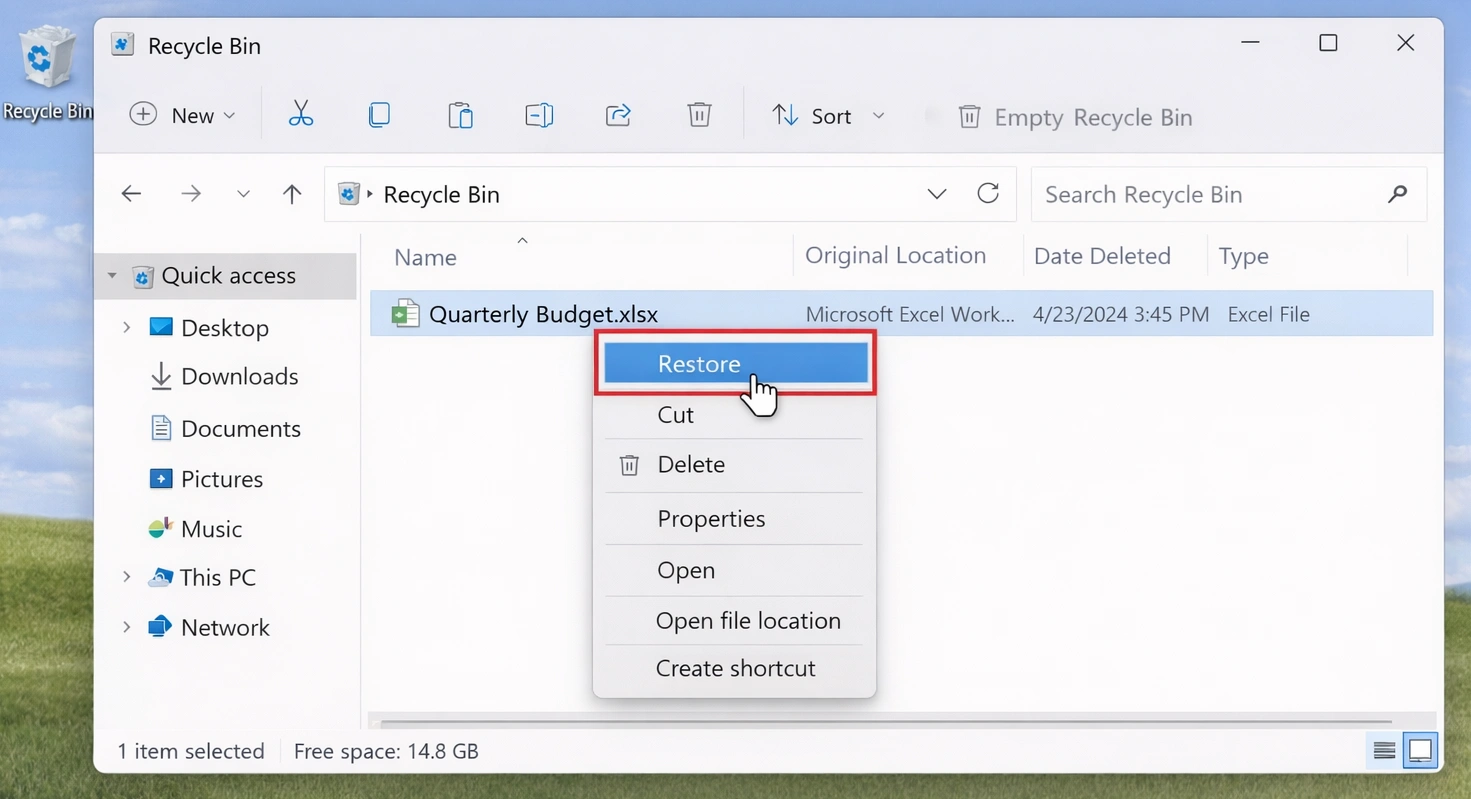
If the file still appears in Recycle Bin, restore it before you try any advanced solution:
- Open Recycle Bin from the desktop.
- Search for the file or sort items by name, location, deletion date, or size.
- Right-click the required item.
- Select Restore.
- Open the original folder and confirm the file.
Windows returns the item to its previous location. However, this method cannot recover files deleted from Recycle Bin Windows 10 after you empty the bin.
A file may also bypass Recycle Bin when you press Shift+Delete, delete it from certain network locations, or remove an item that exceeds the configured Recycle Bin capacity.
Method 2: Recover Files Deleted from Recycle Bin Windows 10 with Magic Data Recovery
When the Recycle Bin is empty and no backup exists, a disk scan becomes the next practical step. Magic Data Recovery lets ordinary users scan the original drive through a graphical interface.
After you empty Recycle Bin, Windows no longer offers a Restore button. However, recoverable traces may remain. Therefore, the software can help you recover deleted files by scanning, organizing, filtering, and previewing found items.
Why Use Magic Data Recovery?
If you need to recover files deleted from Recycle Bin Windows 10 without command-line work, Magic Data Recovery offers several practical advantages:
- A simple drive-selection and scanning process.
- File filters that help you narrow large result lists.
- Preview support for checking recoverable content.
- Support for common documents, photos, videos, audio files, and archives.
- A visual workflow that reduces command-line mistakes.
- A trial that lets users test limited recovery before purchasing.
For example, suppose you delete JPG photos and DOCX files, empty Recycle Bin, and discover that File History was never enabled. Windows cannot restore a backup that does not exist. Therefore, a recovery scan becomes the relevant next step.
Magic Data Recovery does not guarantee every file. Instead, it offers a clearer process for users who want to recover permanently deleted files in Windows 10 without manual commands.
How to Use Magic Data Recovery to Recover Files Deleted from Recycle Bin
Step 1: Download and Install Magic Data Recovery
Download Magic Data Recovery and install it on a drive different from the one that originally stored the deleted files. This approach reduces new writes to the affected location and helps protect recoverable data.
Supports Windows 7/8/10/11 and Windows Server
Step 2: Select the Drive to Scan
Launch Magic Data Recovery. Next, choose the drive that previously contained the deleted files from the main interface. Then, start the scan.

Step 3: Scan for Files Deleted from Recycle Bin
Magic Data Recovery automatically starts an Advanced Scan of the selected drive to recover files deleted from Recycle Bin Windows 10. Meanwhile, the program lists recoverable files as the scan progresses. You can begin reviewing results before the scan finishes. However, completing the scan may reveal additional files and folders.

Step 4: Preview Deleted Files Before Recovery
Next, use the preview function to confirm the file contents. You can also filter the results by file type, name, size, or location. Consequently, you can find specific documents, photos, videos, and archives more efficiently.
Previewing files helps you select only the items you need before you recover the files.

Step 5: Recover Files to a Safe Location
Finally, select the target files and start recovery. Save them to a different drive or storage location rather than the original source drive. Saving data to the same drive may overwrite other recoverable files. As a result, you could reduce the chance of recovering additional data later.

Method 3: Other Ways to Recover Files Deleted from Recycle Bin Windows 10
Magic Data Recovery suits users who prefer a visual interface to recover files deleted from Recycle Bin Windows 10. However, Windows and cloud services may offer suitable alternatives.
Use File History or Previous Versions
File History can help you recover deleted files without software, but only if you enabled it before deletion.
- Open File Explorer.
- Go to the folder that previously contained the file.
- Right-click the folder.
- Select Restore previous versions.
- Choose a version from before the deletion.
- Open it to verify the contents.
- Select Restore To and choose a safe location.
Because this method restores an earlier copy, it does not scan deleted space. Therefore, it often provides a cleaner result than file carving. However, it cannot help when no previous version exists.
Use Windows File Recovery
Microsoft provides Windows File Recovery as a free command-line utility. It helps technical users recover files deleted from Recycle Bin Windows 10, but it requires correct drive letters, modes, paths, and filters.
Use this command structure:
winfr source-drive: destination-drive: [/mode] [/switches]
For recently deleted NTFS files, try Regular mode:
winfr C: E: /regular /n \Users\<username>\Documents\
For a broader search, try Extensive mode:
winfr C: E: /extensive /n *.jpg /n *.png /n *.docx
The source and destination must use different drives. Therefore, do not scan drive C: and save the results back to C:.
Windows File Recovery suits technical users. On the other hand, Magic Data Recovery offers a more approachable way to recover files deleted from Recycle Bin Windows 10 because it provides visual scanning, filtering, and preview tools.
Check OneDrive or Another Cloud Backup
If OneDrive synced the original folder, sign in online and check its Recycle Bin. A local deletion does not always remove the cloud copy immediately.
In addition, check:
- OneDrive version history.
- Google Drive Trash.
- Dropbox deleted files.
- NAS snapshots.
- Company backup systems.
- Manual copies on another disk.
Cloud restoration often provides the best-quality copy because it avoids deleted-sector scanning.
Why Files May Skip Recycle Bin
Some files never enter Recycle Bin. For instance, Shift+Delete removes them directly. Windows may also bypass the bin when a file exceeds its capacity, when you disable Recycle Bin for a drive, or when the file comes from certain network locations.
Additionally, cleanup utilities may delete files directly. Therefore, check the original application, cloud account, and backups before scanning.
To recover Shift Deleted files, stop using the source drive and act promptly.
HDD vs. SSD Recycle Bin Recovery
When you recover files deleted from Recycle Bin Windows 10 on an HDD, deleted data may remain until another write replaces it. Therefore, fast action may improve the result.
An SSD works differently. TRIM tells the SSD which blocks Windows no longer needs, so recover deleted files from SSD cases may become harder.
Do not change TRIM settings casually. Instead, reduce activity and scan promptly.
If a drive clicks, disconnects, disappears from Disk Management, or holds critical data, stop DIY attempts and contact a specialist.
Common Mistakes During Windows 10 Data Recovery
To recover files deleted from Recycle Bin Windows 10 safely, avoid these common mistakes:
- Installing several programs on the affected drive.
- Restoring recovered data to the same source.
- Continuing normal computer use during the scan.
- Assuming a preview guarantees a complete file.
- Running repair tools before securing important data.
- Repeatedly scanning a physically unstable drive.
- Trusting software that promises guaranteed recovery.
After recovery, open each file and verify its contents. In addition, compare important documents, photos, archives, and videos with any available backup.
Conclusion
Start with Recycle Bin Restore when the file still appears there. Next, check File History, Previous Versions, OneDrive, and other backups. Technical users can also try Windows File Recovery with a separate destination drive.
However, when you have emptied Recycle Bin, no backup exists, and you prefer a visual process, Magic Data Recovery provides a practical deleted file recovery solution. It helps you select the affected drive, scan for lost data, filter results, preview available files, and recover selected items to a safer location.
Most importantly, the tool addresses the problem without claiming guaranteed success. That balance makes it a practical choice when you need to recover files deleted from Recycle Bin Windows 10.
Recovery still depends on overwriting, TRIM, drive condition, and time. Therefore, start promptly and always save restored files somewhere else.
Supports Windows 7/8/10/11 and Windows Server
FAQ
Can I Recover Files Deleted from Recycle Bin Windows 10 After Emptying It?
Yes, recovery may remain possible because Windows often marks the file space as available instead of immediately erasing every byte. However, new data can overwrite that space. Therefore, stop using the affected drive, check backups first, and then run a trusted recovery scan when no copy exists.
Can I Recover Permanently Deleted Files Without Software?
You can recover deleted files without software when File History, Previous Versions, OneDrive, another cloud service, or a manual backup contains a copy. These options may recover files deleted from Recycle Bin Windows 10 without scanning free disk space. However, Windows cannot restore a backup that you never created. In that case, Windows File Recovery or reputable data recovery software may provide the next practical option.
Where Do Files Go After Recycle Bin Is Emptied?
After you empty Recycle Bin, Windows usually removes the file reference and marks its storage space as reusable. The data may remain until another write replaces it. Consequently, the file does not move to a hidden folder that you can simply open. Instead, you need a backup or a recovery scan.
Can Shift+Deleted Files Be Recovered?
Sometimes. Shift+Delete bypasses Recycle Bin, but it does not always overwrite the underlying data immediately. First, check File History, cloud storage, and other backups. If no copy exists, stop using the source drive and scan it with Windows File Recovery or a reliable graphical recovery tool.
Can I Recover Deleted Files from an SSD?
Possibly, although SSD recovery can be difficult because TRIM may clear deleted blocks. The outcome depends on the SSD, Windows settings, drive activity, and the time since deletion. Therefore, reduce use immediately and scan promptly. No recovery tool can restore data after the SSD has removed or overwritten it.
Is Windows File Recovery Free?
Yes. Microsoft offers Windows File Recovery as a free command-line utility. However, you must choose the correct source, destination, mode, path, and filters. The source and destination also need different drives. Users who prefer visual controls may find Magic Data Recovery easier to operate and review.
Why Does a Recovery Tool Find a File That Will Not Open?
A scan may find a filename or file fragment even when new data has overwritten part of the content. In addition, some results may lose their original folder structure or metadata. Preview the file when possible, recover it to another drive, and test it with the correct application before relying on it.

Vasilii is a data recovery specialist with around 10 years of hands-on experience in the field. Throughout his career, he has successfully solved thousands of complex cases involving deleted files, formatted drives, lost partitions, and RAW file systems. His expertise covers both manual recovery methods using professional tools like hex editors and advanced automated solutions with recovery software. Vasilii's mission is to make reliable data recovery knowledge accessible to both IT professionals and everyday users, helping them safeguard their valuable digital assets.