
Windows Server 2016 BitLocker & 2019 Guide
Windows Server 2016 BitLocker can protect server volumes, but a missing feature or an unexpected recovery screen can interrupt the job. The same applies to Windows Server 2019 BitLocker. This guide explains installation, encryption, key backup, and recovery. For related recovery situations, see our BitLocker recovery guide. If a saved key has gone missing, Magic Recovery Key can help search accessible storage for recoverable key information.
Before you start, identify your situation: are you protecting an accessible server, or trying to unlock one? A locked server needs an existing unlock method. Installing BitLocker again will not create a replacement key for its encrypted drive.
Table of Contents
Does Windows Server 2016 Support BitLocker?
Yes. Windows Server 2016 BitLocker supports volume encryption, and Windows Server 2019 supports it too. However, neither version installs the BitLocker feature by default. You must add it before you can configure encryption. Microsoft documents the same feature-installation process for both versions.
BitLocker protects data at rest. For example, it helps prevent someone from reading a removed server drive on another computer. It does not replace backups or stop an authorized account from deleting accessible files.
For most small deployments, the important differences concern the server’s configuration:
Deployment detail | Windows Server 2016 | Windows Server 2019 |
BitLocker feature | Install before configuration | Install before configuration |
Desktop Experience | Server Manager and graphical tools available | Server Manager and graphical tools available |
Server Core | Use command-line administration | Use command-line administration |
Recovery planning | Back up each volume’s recovery information | Back up each volume’s recovery information |
A Server 2016 BitLocker deployment therefore needs the same basic planning as a 2019 deployment: an unlock method, an independent recovery route, and a controlled restart.
Before You Enable BitLocker on a Server
A file server can finish encryption successfully and still cause trouble at the next reboot. For example, an administrator may protect C: but forget that applications also need a separately encrypted D: volume.
For Server 2019 BitLocker and older installations, prepare these items first:
- A verified backup: Confirm that you can restore important data and server configuration.
- A maintenance window: Feature installation requires a restart. Coordinate service downtime.
- Console access: Arrange physical or remote management console access. RDP cannot help at a preboot recovery screen.
- A recovery destination: Use your organization’s approved directory backup or a secure location independent of the server.
- A volume inventory: Record drive letters, volume labels, and which applications depend on each volume.
Understand TPM and Startup Requirements
A Trusted Platform Module, or TPM, helps protect the operating system’s encryption key and check the boot environment. A TPM is not a universal requirement for every BitLocker use case: a data volume can use other protectors.
For operating system encryption without a compatible TPM, Windows supports a USB startup-key approach when policy and firmware permit it. This requires planning for every restart. Also, TPM 2.0 requires UEFI rather than Legacy or CSM mode.
For Windows Server 2016 BitLocker on a virtual machine, check the hypervisor’s supported virtual TPM configuration before choosing a TPM-based setup. Do not assume the guest automatically receives access to the host’s physical TPM.
Keep These Three Credentials Separate
Credential | Purpose |
Windows Server product key | Activates Windows; does not unlock encrypted volumes |
BitLocker startup PIN or drive password | Provides a configured normal unlock method |
BitLocker recovery password | Provides the 48-digit recovery credential when normal unlocking fails |
People often call the 48-digit recovery password a “recovery key.” Microsoft also uses “recovery key” for an external key file. Match the credential to the recovery prompt.
How to Install Windows Server 2016 BitLocker
The following installation methods also apply to Windows Server 2019 BitLocker. Installation adds the feature; it does not automatically encrypt your volumes.
Option 1: Use Server Manager
On a server with Desktop Experience:
1. Open Server Manager.
2. Select Manage → Add Roles and Features.
3. Choose Role-based or feature-based installation.
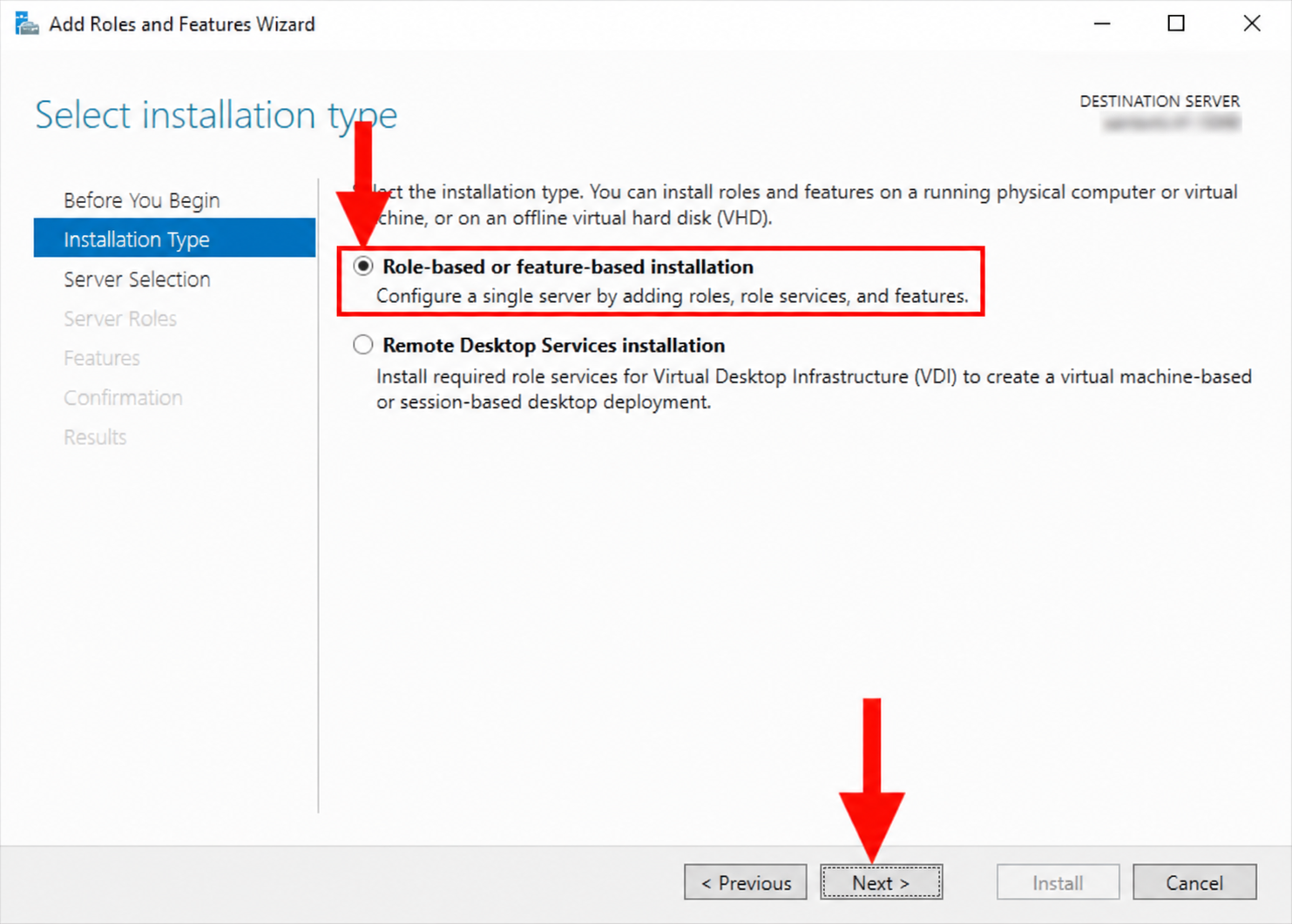
4. Select the correct destination server.
5. Continue past Server Roles to Features.
6. Select BitLocker Drive Encryption and accept the required additions.
7. Review the selection, install, and restart during your maintenance window.
Avoid enabling automatic restart unless you have already arranged the outage.
Option 2: Use PowerShell
Open Windows PowerShell as an administrator. Check the feature first:
Get-WindowsFeature -Name BitLocker
Then install it with its management tools:
- Install-WindowsFeature -Name BitLocker -IncludeManagementTools
Restart at the scheduled time to complete installation. Microsoft also provides installation options for all subfeatures; add those only when your deployment needs them.
After restarting, check that the BitLocker commands are available:
Get-Command Get-BitLockerVolume
If the command is unavailable, review the installation result and pending restart before proceeding.
How to Enable Windows Server 2019 BitLocker
The basic workflow also applies to Server 2016 BitLocker. Start with one server and one volume so you can confirm the recovery process before expanding deployment.
Encrypt the Operating System Drive
For a straightforward Desktop Experience installation:
- Open Control Panel → System and Security → BitLocker Drive Encryption.
- Find the operating system volume, usually C:.
- Select Turn on BitLocker.
- Follow the wizard to configure an available startup method.
- Back up the recovery credential outside this server.
- Choose the encryption scope and mode according to your policy.
- Keep the system check enabled and restart when prompted.
For a server that already holds data, full-volume encryption also covers free space that may contain remnants of previously deleted files. Used-space-only encryption suits a new volume that has never held sensitive unencrypted data.
For Windows Server 2019 BitLocker, choose the encryption algorithm according to your organization’s policy and drive portability requirements. Avoid assuming that the largest key size is the only deployment decision that matters.
Use PowerShell on Server Core
For a new, unencrypted C: volume with a ready TPM, an administrator can first create a recovery password protector:
- Add-BitLockerKeyProtector -MountPoint “C:” -RecoveryPasswordProtector
Retrieve that protector’s details in a private administrative session:
- (Get-BitLockerVolume -MountPoint “C:”).KeyProtector |
- Where-Object KeyProtectorType -eq “RecoveryPassword” |
- Format-List KeyProtectorId, RecoveryPassword
Record the recovery password in your approved secure destination. This output contains a secret; keep it out of shared logs and screenshots. Adding a protector alone does not start encryption.
After verifying the backup, enable TPM-based protection:
- Enable-BitLocker -MountPoint “C:” -TpmProtector -EncryptionMethod XtsAes128
This example uses full-volume encryption and keeps the normal hardware check. Existing protectors, domain policy, or a different startup requirement may require a different command. Microsoft recommends establishing a recovery option before enabling OS-drive encryption.
Protect Data Volumes Separately
Do not assume that encrypting C: also protects D:. In the graphical wizard, select each required data volume, configure its unlock method, and save its own recovery credential.
A practical Server 2019 BitLocker example is a file server with an encrypted OS volume and a separate document volume. Confirm that both unlock after restart before handing the server back to users.
Automatic unlocking can reduce manual work for fixed data volumes, but it requires a protected operating system volume. Keep an independent recovery copy for each data volume even when you enable auto-unlock.
Back Up Recovery Information to Active Directory
For domain-managed Windows Server 2016 BitLocker installations, Active Directory Domain Services (AD DS) can provide a central recovery destination.
In Group Policy, open:
Computer Configuration → Administrative Templates → Windows Components → BitLocker Drive Encryption
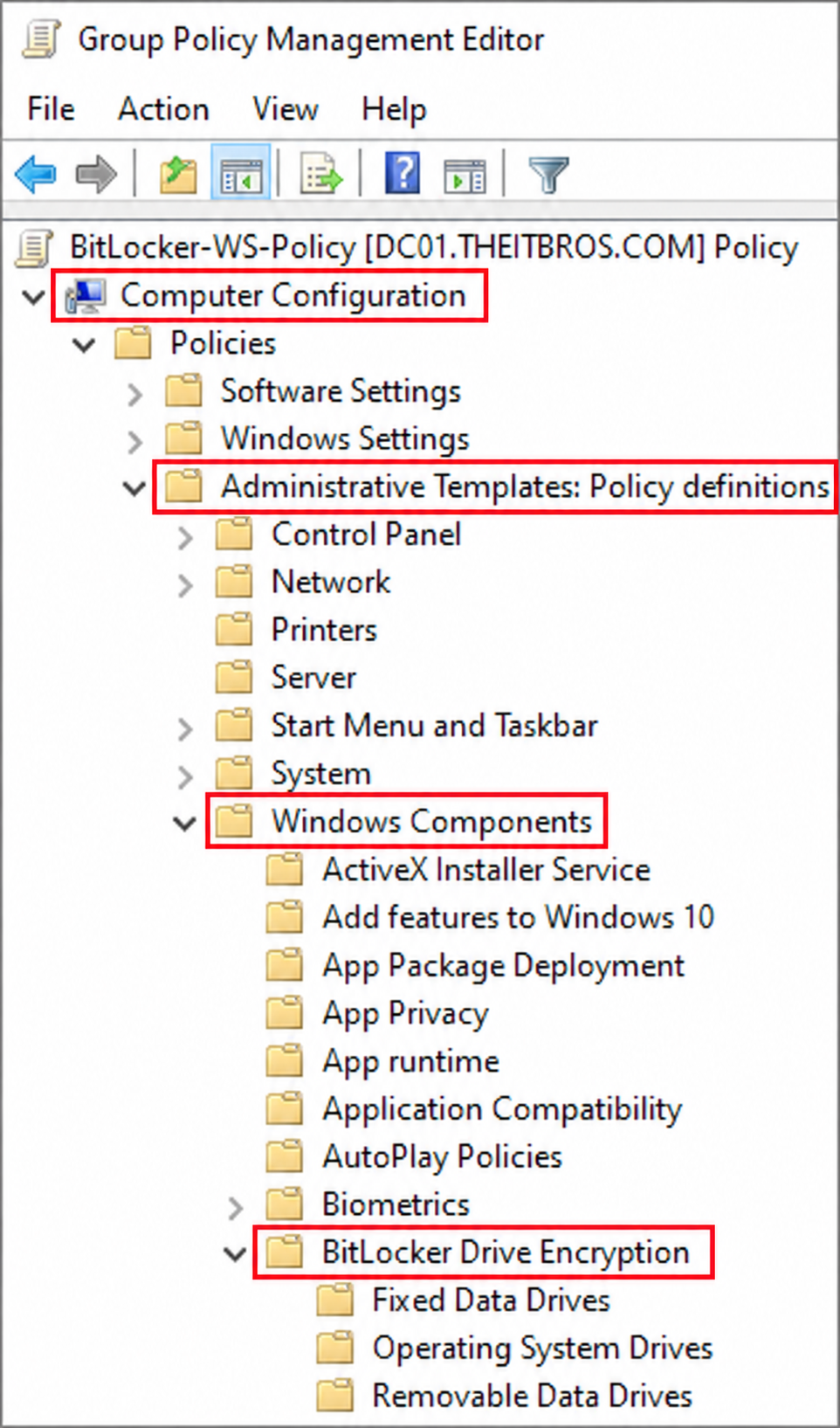
Review the recovery settings under Operating System Drives and Fixed Data Drives. Configure AD DS backup and, where appropriate, require successful recovery-information storage before encryption can begin. Domain membership alone does not establish this safeguard.
For an existing recovery password protector, use its actual ID:
- Backup-BitLockerKeyProtector -MountPoint “C:” -KeyProtectorId “{RECOVERY-PROTECTOR-GUID}”
Replace the placeholder, including its contents, with the recovery protector’s GUID. This command targets AD DS; it does not create a local text-file backup. Confirm that an authorized administrator can retrieve the resulting recovery record.
For Server 2016 BitLocker on a standalone server, use a secure external recovery store instead. A key saved only on the encrypted server may become inaccessible at exactly the wrong moment.
Check Encryption and Protection Status
After setup, inspect all volumes:
- manage-bde -status
Check the conversion status, encryption percentage, protection status, and lock status. “Fully Encrypted” describes conversion; also confirm that protection is on.
For either server version, complete a controlled restart and verify:
- Windows starts through the expected unlock method.
- Required data volumes become available.
- File shares and dependent applications work.
- Another authorized administrator can locate the recovery backup.
These checks turn a completed encryption task into a usable recovery plan.
Fix Common Server 2016/2019 BitLocker Problems
Problem | What to check first |
BitLocker option is missing | Feature installation, administrative rights, and pending restart |
“Compatible TPM” error | TPM readiness, firmware configuration, and startup policy |
Encryption refuses to start | Required recovery backup, effective policy, and the exact error message |
Recovery screen appears after maintenance | Boot or firmware changes and the matching recovery credential |
Data volume stays locked after restart | Its separate unlock method and any auto-unlock configuration |
For Server 2016 BitLocker recovery prompts, investigate recent changes before changing more settings. Clearing the TPM is not a substitute for finding a valid recovery credential.
Some firmware changes require planned suspension. Suspension keeps data encrypted but temporarily changes protection; turning BitLocker off decrypts the volume. Follow the hardware vendor’s update guidance and confirm protection resumes afterward.
A Windows Server 2019 BitLocker problem after reboot may affect only one data volume. Check the affected volume before changing the entire server’s encryption configuration.
Find a Missing Key with Magic Recovery Key
Start with your organization’s authoritative recovery records: AD DS, an approved credential vault, saved recovery files, USB backups, or printed records. Match the recovery key ID to the affected drive. A personal Microsoft account is not the default recovery destination for a domain-managed server.
If those checks fail, Magic Recovery Key offers another search route. It can look for previously stored BitLocker recovery information in accessible supported locations. Amagicsoft also documents software license-key retrieval, saved browser credentials, and Wi-Fi password retrieval. Availability depends on what the source system still stores.
Supports Windows 7/8/10/11 and Windows Server
For Windows Server 2016 BitLocker recovery, its useful distinction is focused key discovery. A general file-recovery scan may return documents without identifying a usable recovery credential. However, there is no verified basis here to claim a higher recovery success rate than Microsoft’s directory records.
Consider an administrator who inherits a server and an accessible old maintenance drive. If that drive contains a recoverable saved key, a focused search may help locate it. This is an illustrative scenario, not a reported product test.
How to Search for Stored BitLocker Keys
1. Download Magic Recovery Key from its official product page.
2. Install and launch it on an accessible, supported Windows system.
3. Select BitLocker Recovery Key.

4. Click Search and review any results.

5. Match the recovered credential to the required recovery key ID.
6. Store the matching key securely before using it.
Follow the Magic Recovery Key user guide for interface details.
The tool cannot run inside a locked preboot screen or bypass BitLocker encryption. A recoverable key must exist in a location the tool can access. A copy stored only inside the locked volume cannot provide an independent recovery route.
For Server 2019 BitLocker data volumes, Windows can unlock a drive with a valid 48-digit recovery password:
- manage-bde -unlock D: -RecoveryPassword YOUR-48-DIGIT-RECOVERY-PASSWORD
Replace the placeholder with the complete password, including its hyphens. Confirm the drive letter first, especially in a recovery environment. Unlocking provides access; it does not decrypt the entire volume.
Conclusion: Make Server Encryption Recoverable
A dependable Windows Server 2016 BitLocker setup includes more than encryption. Back up recovery information, verify protection status, and test the restart path. Apply the same discipline to Windows Server 2019 BitLocker, including every separate data volume.
We recommend Magic Recovery Key when you need a focused way to search accessible storage for a previously saved recovery key. It complements directory backups and manual searches while keeping its role clear: finding existing credentials. For other lockout situations, continue with our BitLocker recovery guide.
Supports Windows 7/8/10/11 and Windows Server
FAQs
Does Windows Server 2016 include BitLocker?
How do I enable Windows Server 2019 BitLocker?
Can Server 2016 BitLocker work without a TPM?
Where should I store a server's recovery key?
Will BitLocker slow down my server?
Can a Windows Server product key unlock BitLocker?
Can Magic Recovery Key recover every missing BitLocker key?
Does unlocking BitLocker turn encryption off?

Jason is a data recovery and technical support specialist with over 15 years of hands-on experience. He has worked extensively with frontline users, troubleshooting difficult data loss cases and providing practical recovery solutions for accidental deletion, formatted drives, damaged file systems, lost partitions, system failures, and other recovery emergencies. His expertise also includes backup and restoration, file repair, and disaster recovery, with a strong emphasis on safe, reliable, and technically accurate guidance.