
How Successful Are SSD Data Recovery Attempts?
You permanently deleted important files from your SSD, or Windows suddenly shows your SSD partition as RAW. How successful are SSD data recovery attempts in these situations? Recovery may still be possible, but your chances depend on what happened to the data—not simply which recovery software you choose.
A deleted file on an SSD can become unrecoverable after TRIM makes its contents inaccessible. However, damaged partitions and file-system errors do not always destroy the underlying files. As a result, SSD recovery success rates vary widely between different data-loss scenarios.
First, stop writing to the affected SSD. This guide explains how to assess your recovery chances, interpret advertised success rates, choose safe recovery methods, and verify whether your files were actually restored. For related device-specific information, visit the Amagicsoft SSD recovery hub.
Table of Contents
Important: Protect Your SSD Before Attempting Recovery
Avoid installing software, downloading files, formatting partitions, or running repair commands on the affected SSD. These actions can modify storage areas or file-system records that recovery tools may need.
Follow these precautions:
- Stop using the affected drive. If it is your Windows system SSD, shut down the computer when practical.
- Do not format or initialize it. Avoid CHKDSK
/f, Secure Erase, and partition repair until important data is protected. - Prepare another physical drive. Use separate storage for recovery software and recovered files.
- Stop if hardware appears unstable. Repeated disconnections, incorrect capacity, and failed detection require a different recovery approach.
Stopping new writes can preserve surviving data. However, it cannot reverse TRIM operations that have already made deleted blocks inaccessible.
How Successful Are SSD Data Recovery Attempts in Different Situations?
There is no universal SSD data recovery success rate. The most useful starting point is identifying the type of data loss.
The following table compares recovery prospects qualitatively. It does not represent measured success percentages.
SSD data-loss scenario | Recovery outlook | Recommended action |
Files remain in Recycle Bin or backup | Favorable if copies are intact | Restore the existing copies |
Permanently deleted files after effective TRIM | Very poor | Check backups and cloud history |
Deleted files with readable underlying data | Possible | Consider recovery software |
RAW partition or file-system corruption | Potentially recoverable | Preserve data before repair |
Lost partition with surviving file contents | Potentially recoverable | Examine the drive without modifying it |
Quick-formatted SSD | Variable; TRIM may reduce prospects | Stop using the drive |
Completed Secure Erase | Extremely poor | Look for independent copies |
Physically damaged or undetected SSD | Uncertain | Seek professional diagnosis |
For example, Shift+Delete may remove a file’s directory entry and trigger TRIM. In contrast, partition-table corruption may prevent Windows from locating files even though their contents remain on the SSD.
Therefore, two SSDs showing missing files can require completely different recovery strategies.
If your files were permanently deleted, consult our guide to recovering deleted SSD files.
What Does an SSD Data Recovery Success Rate Actually Measure?
When evaluating how successful are SSD data recovery attempts, the definition of “success” matters as much as the reported percentage.
A company might classify a recovery as successful after retrieving one requested document. Another might require nearly every file to be usable.
Neither figure is meaningful without knowing how the provider counts its results.
Case success rate vs. file recovery rate
Measurement | Definition | What it tells you |
Case success rate | Successful cases ÷ total assessed cases | How often cases meet a provider’s criteria |
Verified file recovery rate | Fully usable recovered files ÷ known requested files | How much required content was restored |
Partial recovery rate | Cases where only some requested data is usable | How often results are incomplete |
Readable data percentage | Accessible bytes or sectors ÷ assessed total | How much raw storage could be read |
These measurements are not interchangeable.
For instance, successfully extracting thousands of temporary files may provide little value if the user’s one critical database remains corrupted.
Likewise, a program might find hundreds of filenames without recovering their contents.
A detected file is not necessarily a recovered file, and a recovered file is not necessarily usable.
How to calculate a meaningful recovery rate
If the original file inventory is known, calculate:
Verified File Recovery Rate = (Fully Usable Requested Files ÷ Total Requested Files) × 100%
However, this calculation only works when the original file count is reliable.
Without a known inventory, recovery software cannot determine how many files remain undiscovered.
It is also useful to distinguish three outcomes:
- Complete recovery: All required files are recovered and verified.
- Partial recovery: Some required files are usable, while others are missing or damaged.
- Unsuccessful recovery: None of the required data is usable.
These categories provide more meaningful information than a single unexplained percentage.
Why advertised 90% or 99% recovery rates deserve scrutiny
Recovery companies do not necessarily receive comparable cases.
One provider may accept mostly logical file-system problems. Another may handle severely damaged SSD controllers, encrypted storage, and failed NAND flash memory.
Their reported results cannot be compared fairly without adjusting for those differences.
In its discussion of data recovery success rates, $300 Data Recovery explains how case selection, device types, and definitions of success influence reported figures.
Before trusting an advertised percentage, ask:
- Does the rate apply specifically to SSDs?
- Are TRIM-affected and physically damaged SSDs included?
- Does success mean complete recovery or partial recovery?
- How many cases were evaluated?
- Were the recovered files tested for usability?
An advertised percentage without these details cannot reliably predict your individual SSD recovery outcome.
How TRIM Affects SSD Data Recovery Success
Several technical factors explain why how successful are SSD data recovery attempts varies so much.
TRIM and garbage collection
TRIM allows an operating system to notify an SSD that certain logical blocks are no longer needed.
The SSD controller can then reclaim that storage during garbage collection. Once the original contents are no longer accessible through the SSD interface, ordinary recovery software cannot reconstruct them.
This makes deleted-file recovery on SSDs fundamentally different from traditional hard drives.
According to Kingston’s explanation of TRIM and garbage collection, these technologies help SSDs manage unused flash storage and maintain performance.
However, TRIM behavior depends on the operating system, file system, controller, and storage connection.
Therefore, TRIM being enabled does not prove that every deleted file has already become inaccessible.
Logical corruption versus physical failure
A logical failure affects file-system structures, partitions, or metadata.
For example, Windows may report a RAW partition because it cannot interpret the volume’s file system. Nevertheless, some underlying file contents may remain readable.
A physical failure is different. Damaged controllers, electrical components, or flash memory may prevent software from accessing stored data.
Consequently, software recovery is generally more appropriate for stable, readable SSDs with logical data loss than for drives with serious hardware problems.
SSD controller mapping and encryption
SSD controllers distribute data across NAND flash cells through wear leveling and address mapping.
If critical controller information becomes inaccessible, reconstructing the original logical data can be difficult.
Encryption adds another limitation. BitLocker, FileVault, and some hardware-encrypted SSDs require functioning decryption and appropriate credentials.
Neither an ordinary file scanner nor a physical repair automatically bypasses these protections.
Continued writes and time since deletion
Time alone does not determine whether an SSD file remains recoverable.
Effective TRIM may make deleted data inaccessible quickly. Meanwhile, some data on configurations where TRIM was not effective may remain readable for longer.
Continued use introduces additional writes and background activity.
Therefore, the relevant questions are not simply “How many hours have passed?” but “Was the data trimmed, overwritten, or made inaccessible?”
How to Estimate Your SSD Recovery Chances
How successful are SSD data recovery attempts when the SSD is still detected? The answer depends on whether the original file contents remain accessible and whether TRIM or physical damage has affected them.
What you observe | What it may indicate | Best next step |
SSD appears normally with correct capacity | Drive remains accessible | Check backups and deletion history |
Files disappeared but folders still open | Move, sync, hidden files, or deletion | Check original paths and cloud history |
SSD appears as RAW | File-system metadata problem | Preserve data before repairs |
Partition is missing but SSD capacity is correct | Partition metadata damage | Consider logical recovery |
SSD frequently disconnects | Connection or hardware instability | Stop repeated scanning |
SSD is absent from BIOS/UEFI | Hardware, firmware, or connection issue | Seek professional assessment |
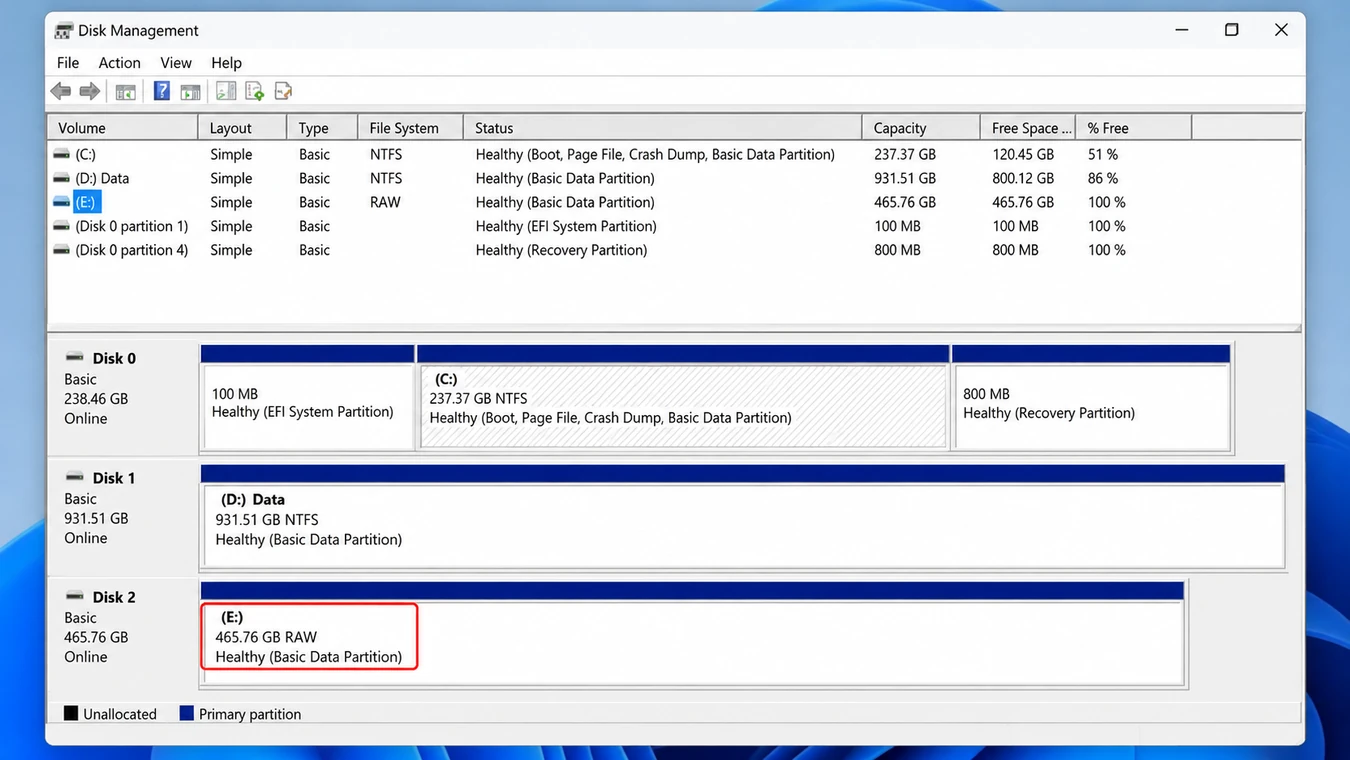
For files that disappeared without an intentional deletion, see why files disappear from an SSD.
Check the Windows TRIM setting
On Windows 10 or 11, open Command Prompt as administrator and run:
fsutil behavior query DisableDeleteNotify
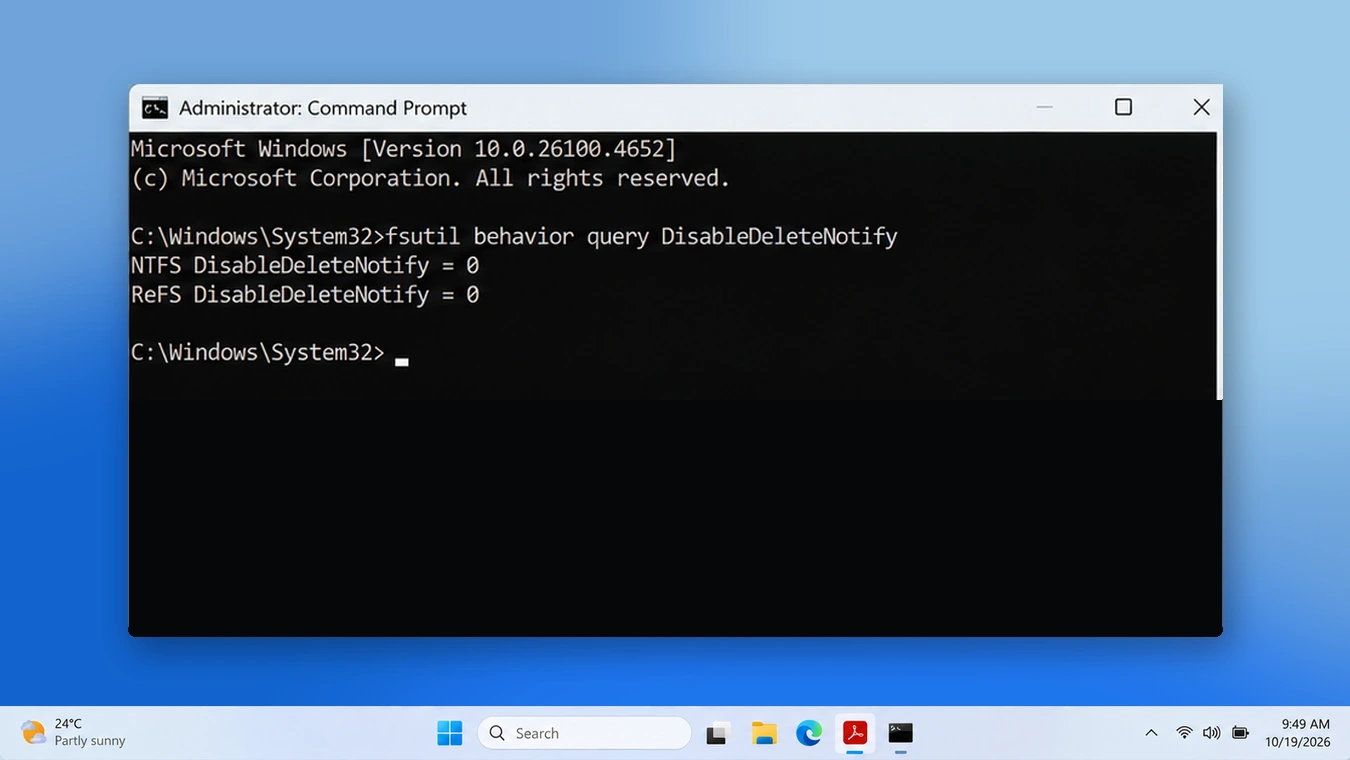
For NTFS, interpret the result as follows:
Command result | Meaning |
| Windows TRIM notifications are enabled |
| Windows TRIM notifications are disabled |
Microsoft confirms these settings in its fsutil behavior documentation.
Important: This command checks Windows configuration. It does not prove whether a particular file was trimmed or remains recoverable. Do not change the setting in an attempt to reverse past deletion.
How to Evaluate SSD Data Recovery Success Rates
A useful recovery assessment records the conditions of the device and tests whether the recovered files remain usable.
For an individual recovery attempt, record these details:
Evaluation field | Information to record |
SSD identification | Manufacturer, model, capacity, connection type |
Operating environment | Windows version and file system |
Data-loss event | Deletion, formatting, RAW, partition loss, or hardware failure |
TRIM information | OS configuration and any confirmed TRIM behavior |
Recovery method | Backup, native tool, third-party software, or laboratory |
Recovery outcome | Complete, partial, or unsuccessful |
Verification | Files opened successfully, content integrity, and any reported errors |
This framework is an assessment worksheet, not a claim that Amagicsoft has completed a particular SSD benchmark.
How to conduct a reproducible recovery test
For a controlled comparison, use a spare test SSD that contains no important data, never a customer’s original data-loss drive.
Prepare a known collection of test files and record their sizes and SHA-256 checksums. Then document the operating system, SSD model, file system, and deletion procedure.
After performing a controlled test, compare recovered files with the originals using checksums and application-level opening tests.
Report complete, partial, and unsuccessful results separately. Repeat the process under documented conditions before drawing broader conclusions.
Why this matters: A screenshot showing that a scanner found files does not establish a recovery success rate. Reliable testing requires a known starting dataset and verified results.
Which SSD Data Recovery Method Should You Try?
Once you have assessed the situation, follow this order:
Existing backup → Built-in recovery → Recovery software → Professional service
Method 1: Restore Files from Recycle Bin or Backup
Best for: Deleted files that still exist in Recycle Bin, cloud version history, File History, or another backup.
First, check Recycle Bin and restore any matching files.
Next, inspect OneDrive’s Recycle Bin and Version History if the folder was synchronized.
If Windows File History was enabled, locate the original folder, open Properties > Previous Versions, and check for a usable backup.
Microsoft provides instructions for restoring files with File History.
Expected result: You restore an intact copy without relying on deleted SSD blocks.
Limitations: A backup must already exist. Cloud synchronization and AutoSave do not guarantee permanent historical copies.
Method 2: Recover SSD Files with Windows File Recovery
Best for: Users comfortable with command-line tools who have an accessible SSD and no usable backup.
Microsoft offers Windows File Recovery for Windows 10 and 11.
Suppose your affected SSD is C: and a separate physical destination drive is E:.
For recently deleted PDF and Word documents on a healthy NTFS volume, use:
winfr C: E: /regular /n *.pdf /n *.docx
For an older deletion or certain file-system problems, Microsoft’s Extensive mode may be more suitable:
winfr C: E: /extensive /n *.pdf /n *.docx
Replace the drive letters with your actual source and destination.
The utility places recovered results in a recovery folder on the destination drive.
Expected result: Recoverable files are exported to separate storage.
Limitations: Windows File Recovery cannot reverse completed TRIM or fix physical SSD damage. It also requires care when choosing recovery modes and file filters.
If the affected drive is your Windows system SSD, consider connecting it to another working computer rather than continuing to run Windows from the affected storage.
Method 3: Try Magic Data Recovery When Built-In Options Fail
Best for: Stable, Windows-readable SSDs where important files are genuinely missing and backups are unavailable.
Magic Data Recovery by Amagicsoft provides a graphical recovery workflow for recognized SSDs.
It can scan for accessible data associated with certain deleted files, missing partitions, and logical file-system problems.
Unlike Recycle Bin or backup restoration, it searches the affected storage for surviving recoverable information.
The software supports browsing scan results and previewing supported file types before recovery. This helps users distinguish promising files from entries that may no longer contain usable data.
However, Magic Data Recovery cannot reverse completed TRIM, reconstruct overwritten content, repair physical hardware damage, or decrypt locked data without the required credentials.
If the built-in recovery options no longer work, you can try Magic Data Recovery before new data overwrites the remaining accessible files.
How to Use Magic Data Recovery to Recover SSD Files
Step 1: Download and Install Magic Data Recovery
Download Magic Data Recovery from the official website. Install it on a separate physical drive rather than the SSD that lost data. If necessary, connect the affected SSD to another working Windows computer.
Supports Windows 7/8/10/11 and Windows Server
Step 2: Select the SSD Where the Files Were Stored
Open Magic Data Recovery and identify the affected SSD or partition. Check the drive capacity and storage location before selecting Search for Lost Data.
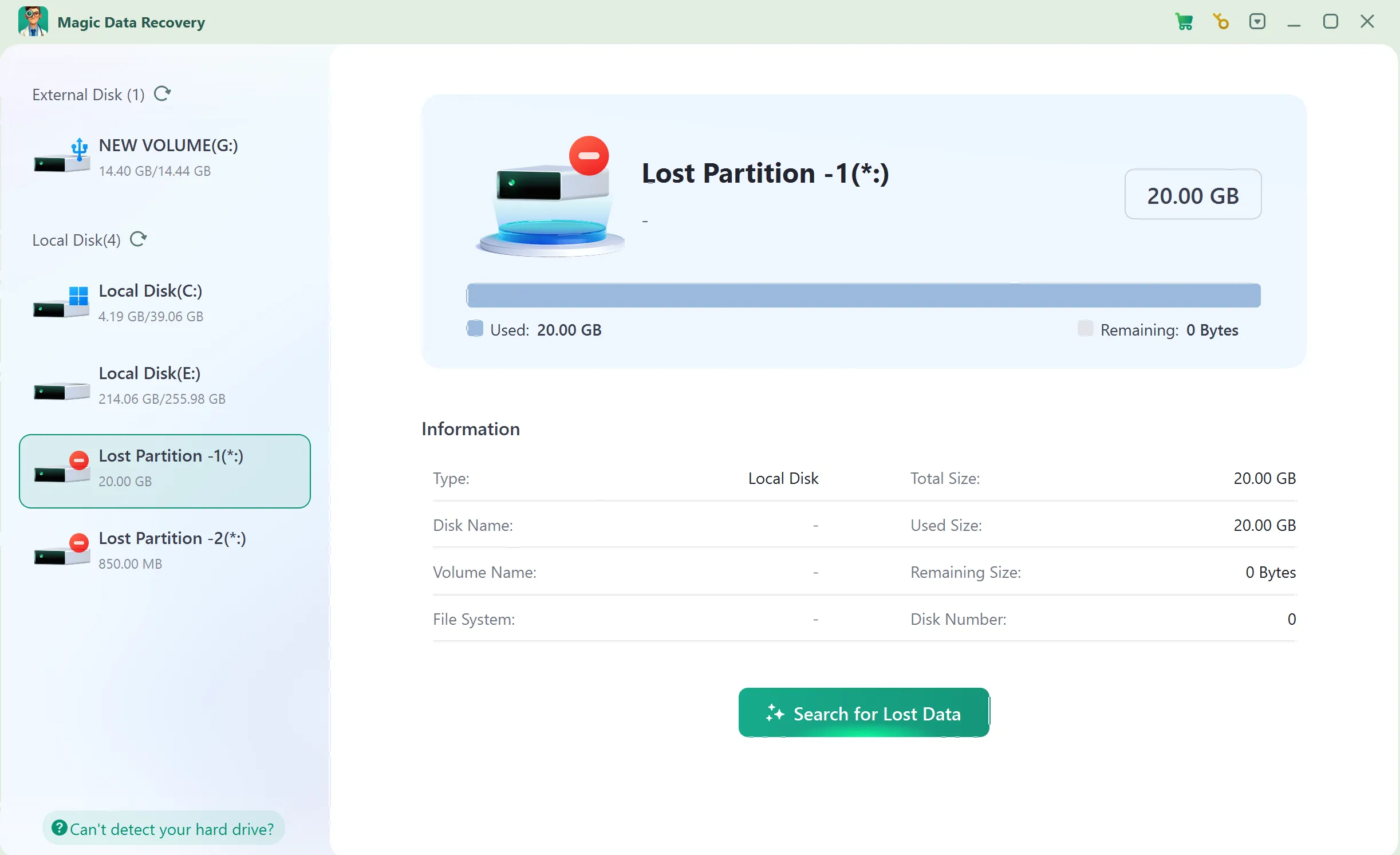
Step 3: Scan for Lost or Deleted SSD Files
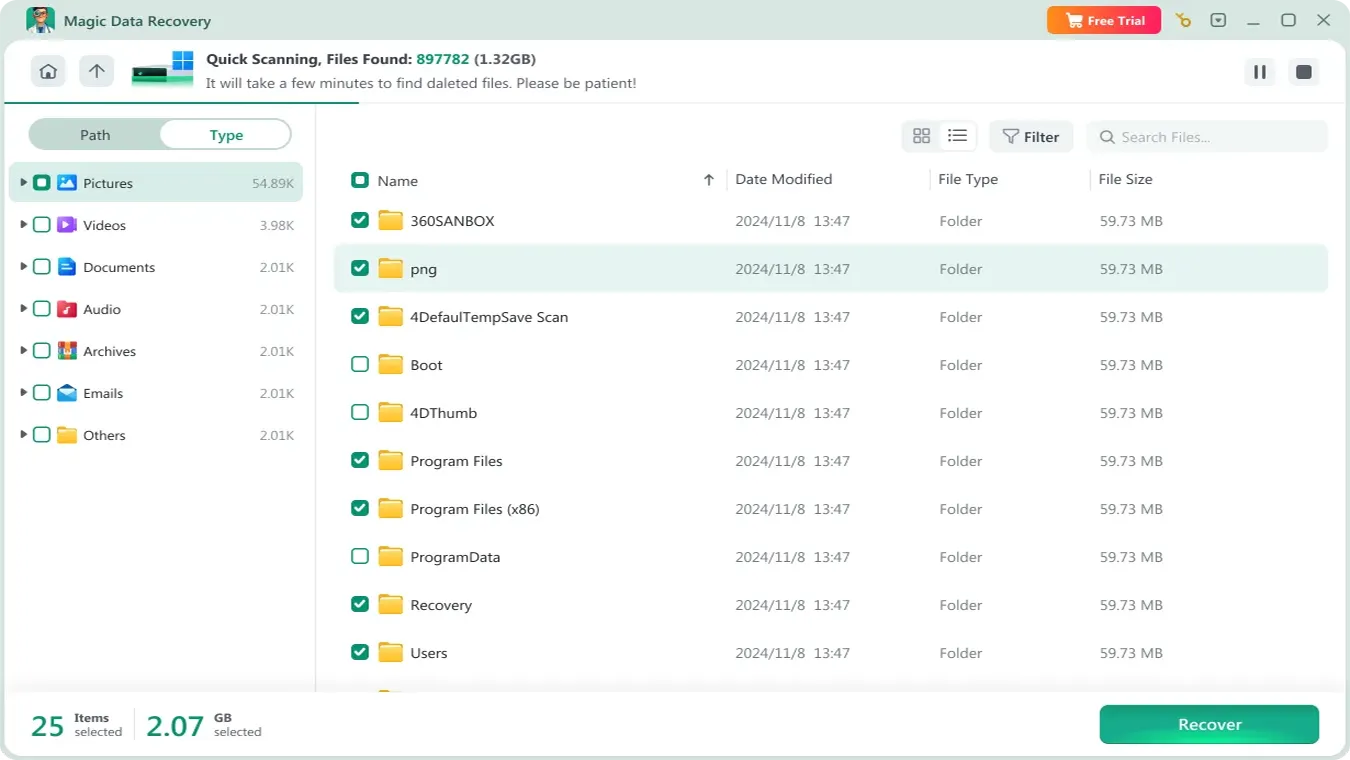
Allow the software to scan the selected SSD. Browse the results by file path or category. The number of files displayed during scanning does not indicate how many will be recovered successfully.
Step 4: Preview Files Before Recovery
Use Preview, when available, to inspect documents, images, or videos. Check whether the content matches the missing file. However, remember that a successful preview does not guarantee the entire file is intact.

Step 5: Recover Files to a Safe Location
Choose the files you need and recover them to another healthy physical drive. Do not use the same SSD as the recovery destination, even if an example screenshot displays a local path.
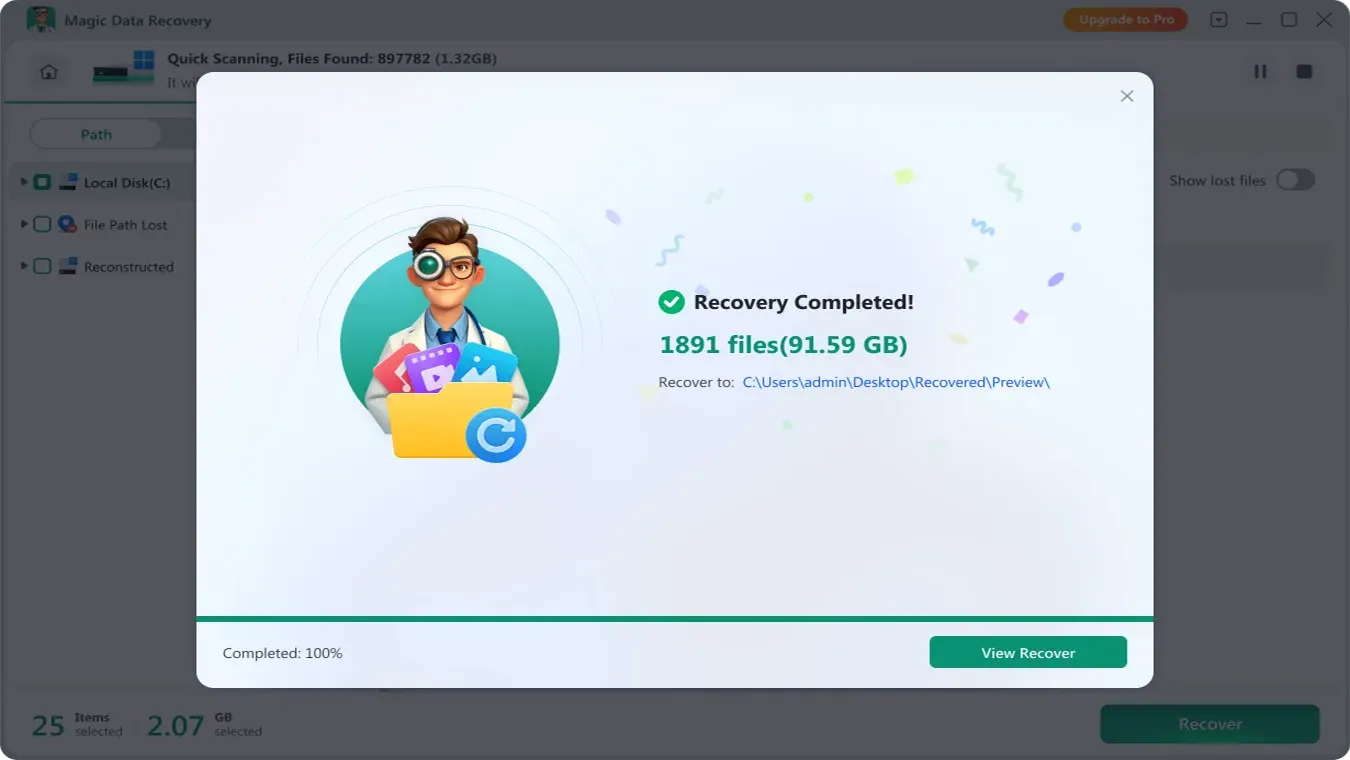
Important: The completion screen confirms that the program finished an export operation. It does not independently prove that every recovered file is usable.
For additional interface details, see the Magic Data Recovery user guide.
How to Verify SSD Data Recovery Results
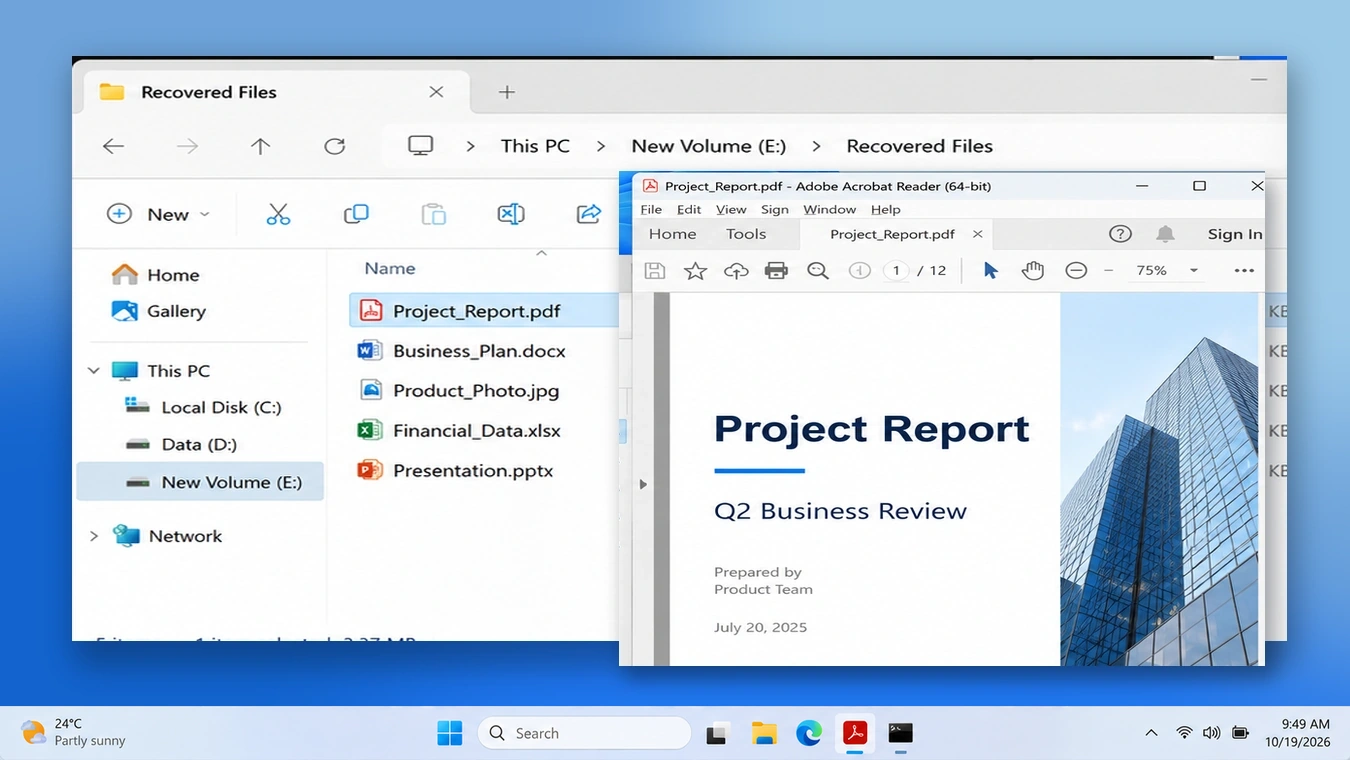
After recovery, evaluate the files rather than relying on the software’s completion message.
Verification method | What to check | What it demonstrates |
File identification | Name, extension, and expected location | Whether the candidate matches the missing file |
File size | Plausible size rather than 0 bytes | Whether obvious truncation exists |
Preview | Recognizable images, documents, or videos | Whether some contents can be read |
Application test | Open the file with its usual program | Basic usability |
Content verification | Pages, video playback, archive extraction | Whether important sections survived |
Checksum comparison | Compare with a previously recorded hash | Whether recovered bytes exactly match the original |
For example, recovering a 2 GB video file does not mean all its frames and audio remain usable.
A video might open successfully but stop playing halfway through. Similarly, an archive may appear intact until extraction reports corruption.
Therefore, how successful are SSD data recovery results should be judged by verified file contents, not the number of detected entries.
When Should You Stop Trying Recovery Software?
Stop DIY recovery if the SSD:
- Disappears from BIOS/UEFI.
- Reports an incorrect capacity.
- Disconnects repeatedly.
- Develops worsening read errors.
- Suffers physical or electrical damage.
Also consider professional handling immediately if the SSD contains the only copy of highly valuable data.
Specialists may diagnose certain firmware, controller, or hardware problems. However, successful laboratory recovery is not guaranteed, especially when encryption or severe NAND damage is involved.
Before accepting a quoted success rate, ask how the provider handles your SSD model and defines complete versus partial recovery.
If the SSD needs repair, protect the data first. Our SSD repair guide explains repair options, but formatting and file-system changes should come after recovery or a verified backup.
How to Improve Future SSD Recovery Outcomes
The best protection against unpredictable SSD recovery success rates is maintaining independent copies of important files.
Use versioned backups on separate physical storage and keep an additional offline or cloud copy. Test restoration occasionally rather than relying on a successful synchronization message.
Additionally, store encryption recovery keys separately from the SSD. Investigate unexpected disconnections and recurring read errors before they develop into serious failures.
Finally, verify backups before formatting, repartitioning, or repairing any storage device.
Conclusion: What Are Your SSD Data Recovery Chances?
So, how successful are SSD data recovery attempts? The answer depends on the actual failure mechanism, not an advertised percentage.
If an intact backup exists, restoring it is usually the most dependable option. If the SSD is readable and data remains accessible beneath damaged file-system records, software recovery may still be possible. However, effective TRIM, completed Secure Erase, and serious controller failures can sharply limit or eliminate recovery opportunities.
Start with Recycle Bin and backups. Next, consider Microsoft’s recovery utility or Magic Data Recovery for appropriate logical data-loss scenarios. Always verify recovered files on another drive before modifying the original SSD. For physical failures, stop repeated scans and consult a specialist.
Ultimately, a realistic SSD recovery assessment requires identifying the data-loss scenario, understanding TRIM, and verifying the restored contents. For more device-specific guidance, explore the Amagicsoft SSD recovery solutions hub.
Supports Windows 7/8/10/11 and Windows Server
FAQs
How successful are SSD data recovery attempts after permanent deletion?
Can SSD files be recovered several weeks after deletion?
Is SSD data recovery more difficult than HDD recovery?
Does quick formatting an SSD permanently erase its files?
Is there a free method to recover deleted SSD files?
Can professional recovery services recover data from a dead SSD?
How can I confirm that SSD recovery software actually succeeded?

Vasilii is a data recovery specialist with around 10 years of hands-on experience in the field. Throughout his career, he has successfully solved thousands of complex cases involving deleted files, formatted drives, lost partitions, and RAW file systems. His expertise covers both manual recovery methods using professional tools like hex editors and advanced automated solutions with recovery software. Vasilii's mission is to make reliable data recovery knowledge accessible to both IT professionals and everyday users, helping them safeguard their valuable digital assets.