
Disk Sector: Sizes, 512e vs 4Kn, and Alignment
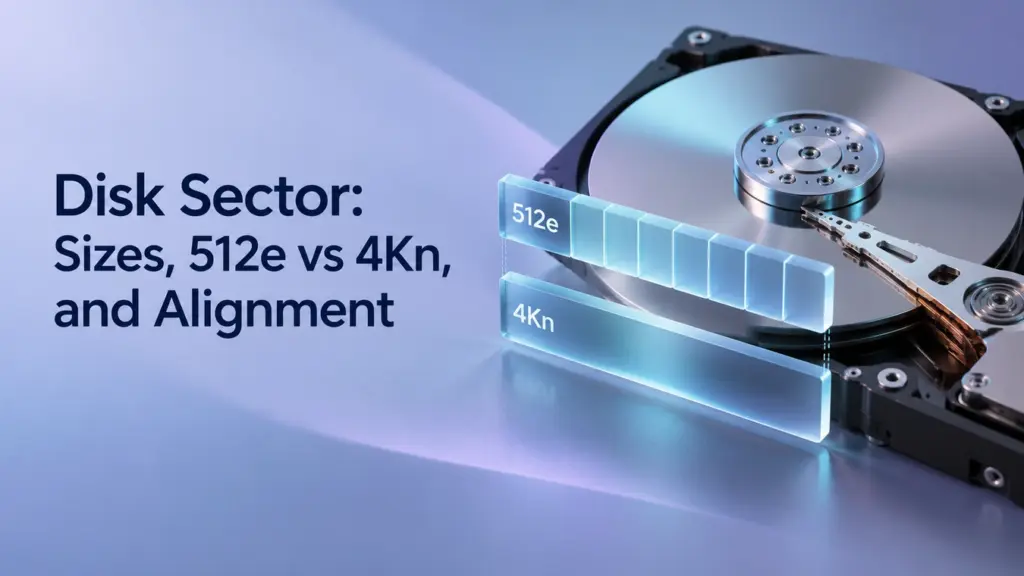
A disk sector is a fixed-size unit used to organize and access data on a storage device. The operating system addresses logical sectors, while the device also reports physical sector information that matters for write alignment and compatibility. These sizes can differ: a 512e hard drive exposes 512-byte logical sectors over 4,096-byte physical sectors.
Sector size becomes relevant when checking drive specifications, cloning a disk, interpreting storage errors, or investigating partition alignment. It is also easy to confuse with a file system’s allocation unit size. This guide explains the differences and provides read-only checks for Windows 10 and Windows 11, with notes for HDDs, SSDs, and storage presented through controllers or adapters.
Table of Contents
How Does a Disk Sector Locate Data?
Modern storage uses logical block addressing, or LBA. Instead of asking for a file by its physical position on a platter, the operating system sends requests referencing numbered logical blocks.
Each LBA identifies one logical sector. Its byte position depends on the logical sector size:
Byte offset = LBA × logical sector size
For example, LBA 2,048 corresponds to:
- 1,048,576 bytes on a device with 512-byte logical sectors.
- 8,388,608 bytes on a device with 4,096-byte logical sectors.
The same LBA number therefore does not necessarily identify the same byte position on different devices.
Partitions occupy ranges within this address space. The MBR partition table, for example, records partition locations using starting LBAs and sector counts.
File systems add another layer. On NTFS, the Master File Table describes files and maps their nonresident contents to allocated storage. A file can occupy several separate ranges rather than one continuous sequence of sectors.
Logical vs. Physical Sector: What Is the Difference?
The distinction between logical sector size vs. physical sector size concerns the interface presented to software and the underlying storage requirements.
Property | Logical sector | Physical sector |
Main role | Defines the device’s logical addressing unit | Describes a device-reported unit relevant to write atomicity and alignment |
What software uses it for | Interpreting LBAs and issuing block I/O | Choosing suitable write boundaries and sizes |
Typical HDD values | 512 or 4,096 bytes | 512 or 4,096 bytes |
Can the values differ? | Yes; 512e exposes 512-byte logical sectors | The same 512e device uses 4,096-byte physical sectors |
“Physical” requires some care on SSDs. NAND flash has pages and erase blocks managed by the controller. The physical sector size reported to Windows does not provide a complete description of that internal layout.
Similarly, a RAID controller or virtual disk can expose storage properties that differ from those of individual underlying drives. Interpret reported values in the context of the connection and storage configuration.
Hard Drive Sector Sizes: 512n, 512e, and 4Kn
The common hard drive sector formats are:
Format | Logical sector size | Physical sector size | Meaning |
512n | 512 bytes | 512 bytes | Native 512-byte sectors |
512e | 512 bytes | 4,096 bytes | 512-byte emulation over 4 KB physical sectors |
4Kn | 4,096 bytes | 4,096 bytes | Native 4 KB sectors |
Here, 4K means 4,096 bytes.
Advanced Format HDDs moved to larger physical sectors to improve formatting efficiency and error correction. The difference between 512e and 4Kn is how that storage is exposed to the host.
Why Does 512e Use Emulation?
512e maintains a 512-byte logical interface for compatibility with software that expects it. Eight consecutive logical sectors fit within one aligned 4,096-byte physical sector.
When a write changes only part of that physical sector, the drive may need to read the existing contents, modify the requested portion, and write back the complete sector. This is called read-modify-write.
The performance effect depends on the workload and drive behavior. A 512e label alone does not establish that a disk is slow.
Is 4Kn Compatible with Windows?
Windows 10 and Windows 11 support 4Kn storage. However, operating system support does not establish compatibility for every application, USB adapter, cloning utility, or boot configuration.
Check the requirements of the complete storage path before migrating to a different logical sector size.
Some NVMe configurations also report physical-sector-related values above 4,096 bytes. Those results require interpretation against the device, driver, and application documentation rather than forcing them into the three HDD categories above.
Disk Sector vs. Block vs. Cluster
The term block changes meaning depending on the storage layer. It is not always a larger collection of sectors.
Term | Storage layer | Meaning |
Logical sector | Device interface | A numbered unit addressed through LBA |
Logical block | Device interface | Often another name for the device’s logical sector |
Cluster or allocation unit | File system | A group of logical sectors allocated by the file system |
NAND erase block | SSD internals | A collection of flash pages erased together |
For example, a file system using 4,096-byte clusters on a device with 512-byte logical sectors has eight logical sectors per cluster. On a device with 4,096-byte logical sectors, a 4,096-byte cluster contains one logical sector.
This is why a Windows formatting dialog showing Allocation unit size: 4096 bytes does not prove that the drive is 4Kn.
The NTFS file system manages file allocation above the device sector layer. Selecting a different cluster size changes file system allocation behavior; it does not normally change the drive’s logical sector format.
When comparing “disk sector vs. block,” first identify whether the source means a device block, a file system allocation unit, or an SSD erase block.
How to Check Sector Size in Windows
The following commands query storage information. They do not format, realign, or repair the disk.
Check a Volume with FSUtil
Open Command Prompt as administrator and run:
- fsutil fsinfo sectorinfo E:
E: is an example. Replace it with the actual volume letter being checked.
Look for these fields:
Field | How to interpret it |
| Logical addressing unit presented for the volume’s backing device |
| Reported physical unit relevant to atomic writes |
| Reported physical unit relevant to performance |
| Unit the file system uses internally for operations requiring atomicity |
| Alignment between the device’s logical and physical starting boundaries |
| Whether the partition aligns with physical sector boundaries |
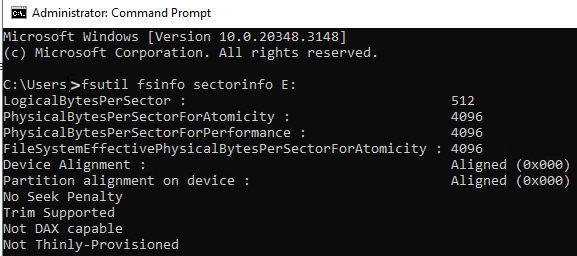
On a conventional directly attached HDD, logical and physical values of 512 and 4,096 indicate 512e. Values of 4,096 and 4,096 indicate 4Kn.
Different physical-related fields are not automatically evidence of corruption. Record their exact names and values, especially when investigating application compatibility.
For an NTFS volume, this additional query helps distinguish sector size from cluster size:
- fsutil fsinfo ntfsinfo E:
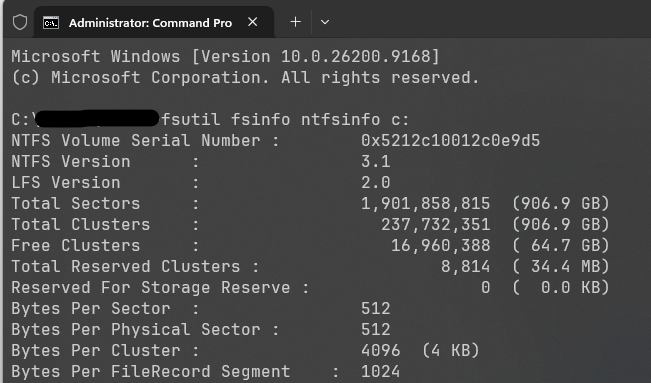
Compare Bytes Per Sector with Bytes Per Cluster.
Compare Disks with PowerShell
Open Windows PowerShell as administrator and run:
Get-Disk |- Select-Object Number, FriendlyName, BusType, Size,
- LogicalSectorSize, PhysicalSectorSize |
- Format-Table -AutoSize
Identify the intended disk by its name, capacity, and connection type. Do not assume that it is Disk 0. Disk numbers can change after restarting or reconnecting devices.
Get-Disk does not enumerate dynamic disks. RAID and virtual storage may also present a logical device rather than expose each underlying drive.
These queries describe the current storage presentation. They are not a complete hardware health test.
What Are Sector Alignment and Partition Alignment?
Sector alignment concerns whether an I/O request begins and ends on suitable storage boundaries. Partition alignment concerns where a partition begins relative to the device’s physical sectors.
A correctly aligned partition provides an appropriate starting point. Applications must still issue suitably aligned writes to avoid unnecessary partial-sector work.
How Misalignment Adds Work
Example: Assume a 512e HDD has 4,096-byte physical sectors, and its logical and physical starting boundaries align.
A 4,096-byte write starting at byte offset 4,096 fits within one physical sector. The same-size write starting at byte offset 512 crosses two physical sectors.
That second request updates portions of two sectors, potentially requiring additional read-modify-write work.
This explains why a 4 KB cluster size alone does not establish correct alignment. Where those clusters begin also matters.
Check the Partition Starting Offset
In Windows PowerShell, run:
Get-Partition -DriveLetter E |- Select-Object DiskNumber, PartitionNumber, Offset,
- @{Name=’Remainder4096′; Expression={$_.Offset % 4096}}
Replace E with the actual volume letter, without a colon.
Offset is the partition’s starting position in bytes. For a conventional device whose physical sector size is 4,096 bytes and whose logical and physical origins align:
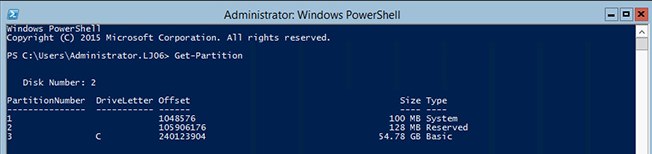
- A remainder of 0 means the starting offset is divisible by 4,096.
- A nonzero remainder means it does not fall on that 4 KB boundary.
This calculation checks a specific boundary assumption. It is not a universal alignment test for RAID stripes, unusual device offsets, or storage reporting other physical units. Compare it with the alignment status returned by fsutil.
Does Every Partition Need to Start at 1 MB?
No. A 1 MiB boundary, equal to 1,048,576 bytes, is divisible by both 512 and 4,096 and is commonly used by Windows partitioning tools. Later partitions can start at other appropriately aligned offsets.
Logical sector size | LBA corresponding to a 1 MiB offset |
512 bytes | 2,048 |
4,096 bytes | 256 |
“Start at sector 2,048” is therefore not a universal instruction across logical sector formats.
If Windows reports the partition as aligned and the drive works normally, there is usually no reason to move it merely because its starting offset differs from an example.
Why Sector Size Matters When Cloning a Disk
Cloning involves more than matching disk capacities. The destination must also support the source data layout through the selected cloning method.
A raw sector copy preserves existing structures. It does not automatically translate a file system and its addressing assumptions between 512-byte and 4,096-byte logical sectors. Whether a migration tool can handle differing formats depends on its documented capabilities.
Before cloning:
- Record both disks’ sector sizes. Compare logical and physical values.
- Check the utility’s compatibility requirements. A larger destination capacity does not establish sector-format compatibility.
- Check the intended connection. If reported values differ between an enclosure and the final internal connection, investigate before proceeding.
- Protect existing destination files. Cloning can overwrite them.
After migration, query the destination again and verify partition alignment. Open important files and check that the expected volumes are accessible.
For a system migration, also verify that the destination boots independently, with the original drive disconnected when appropriate. A completed cloning operation and a successful boot are separate results.
Alignment changes on an existing disk can involve moving substantial amounts of data. Back up important files before attempting them.
Is a Bad Sector the Same as Misalignment?
No. Misalignment describes storage boundaries. A bad sector describes an unreliable or unreadable storage location.
Situation | What it establishes | Appropriate next step |
Logical size is 512 bytes and physical size is 4,096 bytes | A normal 512e presentation on conventional storage | Check alignment or compatibility only when relevant |
Partition is reported as misaligned | Its start does not match the reported physical boundaries | Back up data and evaluate whether realignment is justified |
File reads fail or the drive repeatedly disconnects | An access problem requiring investigation | Protect data and assess the drive and connection |
Windows reports an inaccessible or RAW volume | The file system is not being recognized normally | Investigate without assuming sector size is the cause |
A slow disk alone does not prove misalignment. Likewise, an aligned disk can still have hardware faults.
For symptoms such as persistent read failures, use the separate guide to checking a hard drive for bad sectors.
When important files are inaccessible, avoid formatting, initializing, or moving partitions as an exploratory step. On sufficiently stable hardware, disk imaging for data recovery can preserve readable sectors for later analysis. Imaging cannot capture data from sectors that remain unreadable.
A clicking drive or one that repeatedly disappears may require professional assessment before further scanning. File recovery, file system repair, and partition realignment address different problems.
FAQs
Can I Change a Drive from 512e to 4Kn?
Does Formatting a Disk Fix Partition Alignment?
Are 4 KB Sectors Always Faster Than 512-Byte Sectors?
Why Do Two Tools Show Different Sector Sizes?
Can an Aligned Partition Still Generate Unaligned Writes?

Jason is a data recovery and technical support specialist with over 15 years of hands-on experience. He has worked extensively with frontline users, troubleshooting difficult data loss cases and providing practical recovery solutions for accidental deletion, formatted drives, damaged file systems, lost partitions, system failures, and other recovery emergencies. His expertise also includes backup and restoration, file repair, and disaster recovery, with a strong emphasis on safe, reliable, and technically accurate guidance.