
Obsidian Files Disappeared? 7 Recovery Fixes

If your Obsidian files disappeared after reopening a vault, reinstalling Obsidian, syncing another device, or deleting a folder, do not immediately assume the notes are permanently gone. They may still exist in another vault, the Recycle Bin, Obsidian File Recovery, Sync version history, or a backup. Start with this deleted file recovery guide to understand what deletion actually means. If the files were truly removed from a Windows drive and built-in options fail, Magic Data Recovery may provide another recovery path before new data overwrites them.
Obsidian stores notes as Markdown files inside a local vault folder. Therefore, a missing note in the Obsidian sidebar does not always mean the underlying .md file has been deleted. The safest approach is to identify whether the file is hidden, moved, excluded, deleted, or simply opened from the wrong vault before you use recovery software.
Supports Windows 7/8/10/11 and Windows Server
Table of Contents
What to Do First When Obsidian Files Disappeared
When Obsidian files disappeared, work from the least destructive recovery option to deeper disk scanning:
- Confirm that Obsidian opened the correct vault.
- Search the original vault folder for the missing
.mdfiles. - Check excluded files and refresh Obsidian’s vault cache.
- Look in the Windows Recycle Bin or Obsidian
.trash. - Review File Recovery snapshots.
- Check Obsidian Sync deleted files and version history.
- Restore a backup or scan the original drive after confirming a real deletion.
If deletion is possible, avoid saving downloads, installing programs, or creating new files on the affected partition. New writes can reuse space previously occupied by deleted notes.
Method 1: Confirm the Correct Obsidian Vault
If Obsidian files disappeared after an update, restart, reinstall, or folder change, check the vault path before attempting recovery.
An Obsidian vault is essentially a folder containing Markdown notes and related files. Removing a vault from Obsidian’s vault list does not necessarily delete that folder from Windows.
Open Manage Vaults and compare the displayed vault location with the folder where you normally stored your notes.
Then:
- Open Windows File Explorer.
- Search for the name of a missing note.
- If you cannot remember the filename, search for
*.md. - Check Documents, Desktop, OneDrive folders, and other locations where you may have placed the vault.
- If you find the old vault, select Open folder as vault in Obsidian.
A similar Windows-wide disappearance can also have causes such as moved folders, user-profile changes, or cloud synchronization. Amagicsoft’s guide to recovering files that disappeared on Windows explains these broader scenarios.
Method 2: Check Excluded Files and Rebuild the Vault Cache
Sometimes Obsidian files disappeared from search results or the file explorer inside Obsidian even though the actual files remain on disk.
First, confirm whether the missing .md file exists in Windows File Explorer.
Next, open:
Settings > Files and links > Excluded files
Make sure the missing folder or filename does not match an excluded path.
If the files still exist on disk but Obsidian does not display them correctly, use Rebuild vault cache. A cache rebuild forces Obsidian to recreate its index of the vault.
However, this method does not restore deleted data. If the .md file is no longer present in the vault folder, continue to the trash and recovery methods below.
Method 3: Check the Recycle Bin and Obsidian .trash
If Obsidian files disappeared shortly after you deleted or reorganized notes, check where Obsidian sends deleted files.
Depending on your settings, a deleted note may go to:
- The Windows Recycle Bin
- An Obsidian
.trashfolder inside the vault - Permanent deletion
Start with the Windows Recycle Bin. Search by filename and check the original location. If you locate the note, right-click it and select Restore.
For more detail about how Windows handles these files, see Amagicsoft’s guide to recovering files deleted from the Recycle Bin.
Next, enable hidden items in File Explorer and inspect the vault for a .trash folder.
If you configured Obsidian to permanently delete files, or you already emptied the Recycle Bin, do not keep saving data to that drive. Instead, continue with Obsidian snapshots, Sync history, and backups.
Method 4: Restore Notes with Obsidian File Recovery
Obsidian’s File Recovery core plugin is one of the most useful built-in options when Obsidian files disappeared because of accidental deletion, unwanted edits, or certain application problems.
By default, File Recovery creates snapshots at intervals of at least five minutes and keeps them for seven days. These snapshots remain local to the device instead of synchronizing between computers.
File Recovery applies to .md and .canvas files. Therefore, do not treat it as a complete backup of every attachment or file in your vault.
To check for an earlier snapshot:
- Open Settings > File recovery.
- Find Snapshots.
- Select View.
- Type the missing file name.
- Select an available snapshot.
- Review the content.
- Choose Copy or Restore.
If several versions appear, use Show changes when available to compare them before restoring one.
Why File Recovery Is Not the Same as a Backup
This distinction matters when Obsidian files disappeared.
Autosave or File Recovery records temporary historical states. A backup stores an independent copy that you can still access if the original vault, computer, or storage device fails.
Therefore:
File Recovery ≠ permanent backup
If the snapshot retention period has already expired, File Recovery may no longer contain the version you need.
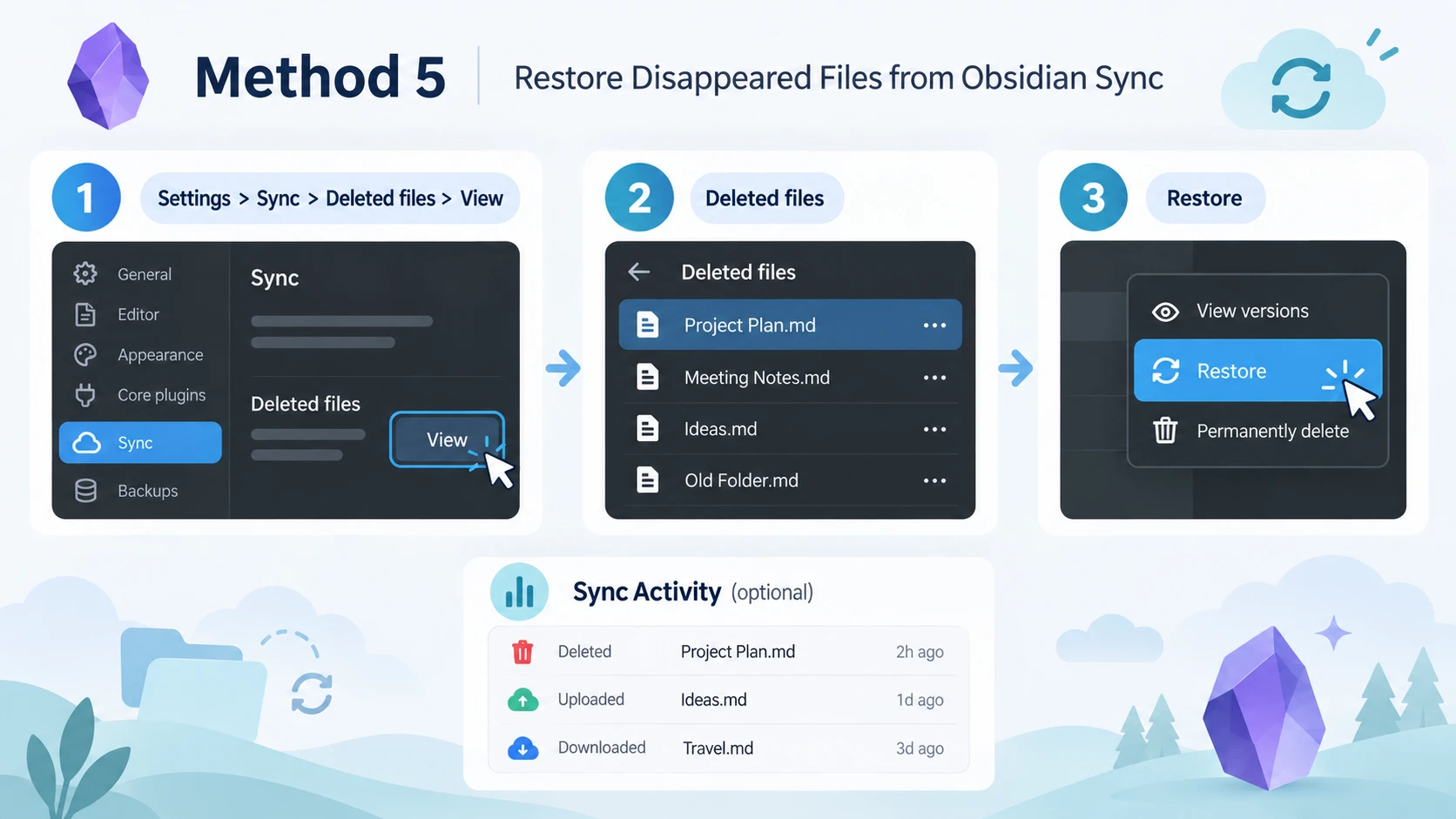
Method 5: Restore Disappeared Files from Obsidian Sync
If Obsidian files disappeared from a vault that uses Obsidian Sync, check Sync history before attempting disk recovery.
Open:
Settings > Sync > Deleted files > View
Find the missing note, choose an available historical version, and restore it.
You can also inspect Obsidian’s Sync Activity log. This may help determine whether another device uploaded, downloaded, changed, or deleted the file.
This is particularly useful when notes disappear shortly after you:
- Connect another computer or phone
- Change the vault structure
- Rename large folders
- Delete notes on another synced device
- Resolve synchronization conflicts
Remember that Obsidian File Recovery and Obsidian Sync version history are separate systems. A snapshot available on one computer does not automatically mean another device has the same local File Recovery snapshot.
Method 6: Restore an Obsidian Vault from a Backup
When Obsidian files disappeared, a backup should take priority over raw disk recovery whenever a usable copy exists.
Check:
- Windows File History
- Previous Versions
- OneDrive version history
- Other cloud backup services
- External backup drives
- NAS backups
- Git repositories
- Manually copied versions of the vault
If an entire vault folder rather than a single note disappeared, the problem may involve a deleted or moved directory. Amagicsoft’s deleted folder recovery guide covers the main Windows methods for this situation.
Do not confuse synchronization with backup. A synchronization service tries to keep locations consistent. Therefore, deleting a file on one device can sometimes propagate the deletion to another.
A separate versioned backup keeps an independent historical copy and provides stronger protection against that type of data loss.
Method 7: Recover Permanently Deleted Obsidian Files
If Obsidian files disappeared from the actual Windows drive and you have already ruled out the wrong vault, hidden files, Recycle Bin, .trash, File Recovery, Sync history, and backups, you may be dealing with genuine disk-level deletion.
At this point, stop unnecessary activity on the original drive.
When Windows deletes a file from an HDD, it can mark the occupied storage space as available for reuse. Until that space is overwritten, some original data may remain recoverable.
SSDs are more complicated because TRIM can tell the SSD that deleted blocks are no longer needed. Garbage collection may later clear those blocks. If your Obsidian vault was stored on an SSD, read guide for files that disappeared from an SSD before attempting recovery.
If the built-in recovery options no longer work, you can try Magic Data Recovery before new data overwrites the deleted files.
When Magic Data Recovery Makes Sense
Magic Data Recovery is relevant when:
- An Obsidian
.mdfile was permanently deleted. - The Recycle Bin has already been emptied.
- Obsidian File Recovery has no usable snapshot.
- Sync history no longer contains the note.
- A complete vault folder was deleted.
- No usable backup exists.
- The original Windows drive is still recognized normally.
Unlike Obsidian File Recovery, Magic Data Recovery does not depend on an Obsidian snapshot. Instead, it scans the storage device for deleted or lost file data.
However, it cannot recreate an unsaved note that was never written to storage. It also cannot restore data after the original sectors have been overwritten. Likewise, software-based recovery cannot solve severe physical storage damage.
How to Use Magic Data Recovery for Missing Obsidian Files
Step 1: Download and Install Magic Data Recovery
Download Magic Data Recovery, but do not install it on the partition where the missing Obsidian vault was stored.
For example, if the vault disappeared from the C: drive, install the software on another available drive when possible. This reduces the risk of overwriting deleted note data.
Supports Windows 7/8/10/11 and Windows Server
Step 2: Select the Drive Where the Obsidian Vault Was Stored
Launch Magic Data Recovery and identify the drive that originally contained your Obsidian vault.
For example, if the vault was located under Documents on the C: drive, select that drive and begin the scan.

Step 3: Scan for Lost or Deleted Obsidian Files
Let the software scan the selected storage device. As results appear, look for the previous vault path, .md notes, .canvas files, or other important files that were stored with your notes.

Step 4: Recover Obsidian Files to a Safe Location
Select the files you need and recover them to a different drive or safe storage location. Do not immediately save recovered files back to the same partition where the data loss occurred. First, verify that the notes open correctly. Then copy valid .md files and folders into a working Obsidian vault.

Why Obsidian Files Disappeared After Syncing
Synchronization deserves special attention because a file can appear to vanish even when the storage device itself is healthy.
For example, another synced device may contain an older vault state. Folder renaming, competing sync services, or deletion on another device can also produce unexpected results.
If you use Obsidian Sync together with OneDrive, Dropbox, iCloud, or another service on the same vault, diagnose the synchronization path carefully before making further changes.
Most importantly, avoid repeatedly moving the vault between folders while troubleshooting. Additional moves can make the original location harder to identify.
How to Prevent Another Obsidian Files Disappeared Problem
Once your notes are safe, create several layers of protection.
Keep File Recovery Enabled
File Recovery provides convenient short-term snapshots for Markdown and Canvas files. Review its retention settings based on how frequently you edit important notes.
Maintain a Separate Backup
Back up the entire vault rather than only .md files. That way, attachments, Canvas files, configuration data, and other important vault content can be preserved together.
Know Where Your Vault Is Stored
Write down the complete Windows path to the vault. This makes it much easier to determine whether Obsidian opened the wrong folder after a reinstall or configuration change.
Prefer Trash Over Permanent Delete
Sending notes to the Recycle Bin or .trash creates another recovery layer. Permanent deletion removes that simple safety net.
Be Careful with Multiple Sync Services
Avoid unnecessarily combining several synchronization tools on the same vault. If you do use multiple systems, understand which service controls each copy.
Keep an Independent Historical Copy
A backup disconnected from the live synchronization process protects you against accidental deletions that propagate between devices.
Conclusion
When Obsidian files disappeared, do not start with recovery software. First verify the vault location, search Windows for the .md files, check excluded files, inspect the Recycle Bin and .trash, and then review File Recovery, Obsidian Sync history, and backups. For a broader explanation of what happens after actual deletion, use Amagicsoft’s deleted file recovery guide.
If those methods confirm that the Obsidian files were permanently deleted from a Windows drive, Magic Data Recovery can scan the original storage for remaining file data. Stop using the affected drive first, recover files to another location, and remember that overwriting and SSD TRIM can reduce or eliminate recovery possibilities.
Supports Windows 7/8/10/11 and Windows Server
FAQ
Why did my Obsidian files disappeared even though I did not delete them?
If your Obsidian files disappeared without an intentional deletion, first check whether you opened the correct vault. A moved folder, excluded path, synchronization change, or cache problem can also make notes seem missing. Search Windows for the original .md files before assuming they were deleted. If they still exist on disk, disk recovery software is unnecessary.
Can Obsidian recover deleted notes automatically?
Obsidian's File Recovery core plugin can restore some deleted or changed notes when a suitable snapshot still exists. By default, snapshots are created at least five minutes apart and retained for seven days. However, File Recovery covers .md and .canvas files rather than every vault file, so it should not replace a separate, versioned backup.
Where do deleted Obsidian files go on Windows?
The location depends on your Obsidian deletion settings. A deleted note may go to the Windows Recycle Bin, an Obsidian .trash folder, or be permanently deleted. Therefore, check both trash locations before trying deeper recovery. If neither contains the note, inspect File Recovery snapshots, Sync version history, and backups before scanning the original storage drive.
Can Obsidian Sync restore files that disappeared?
Obsidian Sync may restore a disappeared or deleted note if an eligible historical version still exists in its version history. Check Settings > Sync > Deleted files and inspect the Sync Activity log for unexpected deletions or changes. Sync history is separate from local File Recovery snapshots, so checking both systems can provide different recovery opportunities.
Will reinstalling Obsidian delete my vault?
Normally, an Obsidian vault is a regular folder stored on your file system rather than inside the application itself. Therefore, reinstalling Obsidian does not automatically mean your Markdown files were erased. If Obsidian files disappeared after reinstalling, search Windows for the original vault folder and use Open folder as vault when you locate it.
Can I recover permanently deleted Obsidian files from an SSD?
Possibly, but SSD recovery is less predictable than HDD recovery. TRIM may tell the SSD that deleted blocks are no longer needed, while later garbage collection can clear them. Stop writing new data to the affected SSD, check snapshots and backups first, and then scan the drive if necessary. No recovery software can guarantee restoration after TRIM or overwriting.
What is the best way to prevent Obsidian files disappeared problems?
Use several protection layers instead of relying on one feature. Keep Obsidian File Recovery enabled, maintain a separate versioned backup of the entire vault, and use Sync primarily for synchronization. Also record the vault's actual storage path and prefer trash over permanent deletion. These steps make accidental deletion, sync conflicts, and incorrect vault selection much easier to recover from.

Vasilii is a data recovery specialist with around 10 years of hands-on experience in the field. Throughout his career, he has successfully solved thousands of complex cases involving deleted files, formatted drives, lost partitions, and RAW file systems. His expertise covers both manual recovery methods using professional tools like hex editors and advanced automated solutions with recovery software. Vasilii's mission is to make reliable data recovery knowledge accessible to both IT professionals and everyday users, helping them safeguard their valuable digital assets.