
How to Fix Bad Sectors on Hard Drive
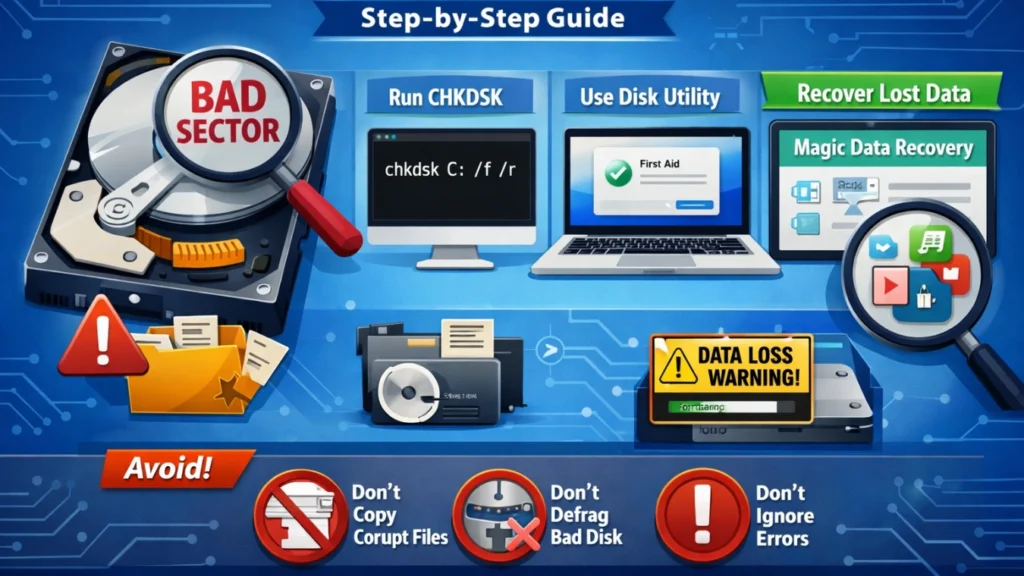
Bad sectors are one of the most common reasons why a hard drive suddenly becomes slow, unstable, or unreadable. In real-life situations, many users only start searching how to fix bad sectors on hard drive after files disappear or the system reports file system errors.
This guide is designed to help you understand what bad sectors are, why they occur, and how to fix bad sectors on hard drive safely without causing further damage. More importantly, it also explains what to do when bad sectors lead to data loss — a scenario that standard repair tools cannot fully handle.
Table of Contents
What Are Bad Sectors on a Hard Drive?
A bad sector is a small area of a hard drive that can no longer reliably store or read data. When the operating system tries to access that sector, errors may occur.
Bad sectors usually fall into two categories.
Physical Bad Sectors
Physical bad sectors result from hardware-level damage. Common causes include:
- Aging or worn-out hard drives
- Manufacturing defects
- Overheating
- Physical impact or vibration
Once physical damage occurs, these sectors cannot be repaired. They can only be isolated to prevent further use.
Logical Bad Sectors
Logical bad sectors are caused by software-related problems, such as:
- Improper shutdowns
- File system corruption
- Malware infections
- Interrupted read/write operations
Unlike physical ones, logical bad sectors can often be repaired. This distinction is critical when learning how to fix bad sectors on hard drive correctly.
Common Signs of Bad Sectors
Based on real usage experience, bad sectors often present the following symptoms:
- Files cannot be opened, copied, or deleted
- Frequent system freezes during disk access
- Unusually slow disk performance
- Automatic disk checks at startup
- CRC or I/O device errors
If these symptoms appear, avoid repeated attempts to access affected files. Doing so may increase data loss.
How to Fix Bad Sectors on Hard Drive Safely
When users ask how to fix bad sectors on hard drive, the safest solution depends on whether the sectors are logical or physical. Below are practical and widely accepted methods.
Method 1: Fix Logical Bad Sectors Using CHKDSK (Windows)
CHKDSK is a built-in Windows tool that checks file system integrity and marks unusable sectors.
Steps
- Press Windows + X and choose Command Prompt (Admin)
- Enter the following command:
chkdsk X: /f /r
(Replace X with the drive letter)
- Press Enter and allow the scan to complete
What CHKDSK Does
- Repairs file system errors
- Marks bad sectors to prevent future use
- Attempts to recover readable data
This is one of the most reliable ways to fix bad sectors on hard drive caused by logical errors.
However, CHKDSK may remove corrupted files during repair. Therefore, data recovery should be considered if files are important.
Method 2: Use Disk Utility to Fix Bad Sectors (macOS)
Mac users can address logical bad sectors using Disk Utility.
Steps:
- Open Disk Utility
- Select the affected drive
- Click First Aid
- Confirm and wait for the process to finish
Disk Utility checks directory structures and allocation maps, which helps resolve logical disk issues.
Method 3: Format the Drive to Isolate Bad Sectors
Formatting forces the operating system to re-map unusable sectors. As a result, those sectors will no longer be accessed.
However, formatting erases all data. This method should only be used when:
- Data has already been backed up or recovered
- The drive is still mechanically stable
Formatting does not fix physical bad sectors. It only prevents them from causing repeated errors.
What You Should Avoid When Fixing Bad Sectors
Many users unintentionally make the situation worse. To reduce risk, avoid the following actions:
- Repeatedly copying files from damaged areas
- Running multiple repair tools at the same time
- Defragmenting a drive with bad sectors
- Ignoring early warning signs
Each of these actions may increase file system corruption.
Can Bad Sectors Cause File System Errors and Data Loss?
Yes. This is extremely common.
When bad sectors affect critical file system areas, problems such as the following may occur:
- RAW file system errors
- Missing or inaccessible partitions
- Disappearing folders and files
- Corrupted directory structures
Although repair tools can fix structural errors, they often do so at the cost of losing data references. As a result, files may disappear even after a successful repair.
How to Recover Data from a Hard Drive with Bad Sectors
Recovering data from a drive with bad sectors requires a cautious approach. Continuous retries on damaged sectors may cause permanent loss.
A reliable recovery solution should:
- Use non-destructive scanning
- Skip unreadable sectors intelligently
- Reconstruct file system metadata
- Protect remaining healthy data
Why Magic Data Recovery Is a Practical Choice

Supports Windows 7/8/10/11 and Windows Server
Problems It Addresses
- Data loss caused by bad sectors
- RAW or corrupted file systems
- Files lost after CHKDSK or formatting
- Inaccessible partitions
Key Advantages
- Advanced sector-level scanning
- Smart handling of damaged sectors
- Supports HDDs, SSDs, and removable drives
- Simple interface suitable for regular users
Real-World Example
For instance, if CHKDSK successfully fixes logical errors but important documents disappear afterward, Magic Data Recovery can scan the disk deeply and retrieve files that are no longer visible to the system.
Compared with basic recovery tools, it focuses on data safety and stability, making it more reliable for damaged drives.
👉 If you are still dealing with data loss after attempting to fix bad sectors on hard drive, Magic Data Recovery is a practical solution worth trying.
How to Reduce the Risk of Bad Sectors
Although not all bad sectors can be prevented, these practices help minimize risk:
- Avoid sudden power loss
- Shut down systems properly
- Keep drives cool and stable
- Monitor disk health regularly
- Replace aging drives early
Preventive habits significantly reduce long-term disk issues.
Conclusion
Learning how to fix bad sectors on hard drive requires understanding the difference between logical and physical damage. Tools like CHKDSK and Disk Utility are effective for repairing logical issues and isolating damaged sectors.
However, when bad sectors lead to file system errors or data loss, repair alone is not enough. In such cases, a reliable recovery tool becomes essential.
That is why Magic Data Recovery is recommended — not as a marketing shortcut, but as a practical and safer way to recover data from drives affected by bad sectors.
Supports Windows 7/8/10/11 and Windows Server
FAQs: How to Fix Bad Sectors on Hard Drive
Can bad sectors be permanently repaired?
Is CHKDSK safe for a drive with bad sectors?
How can I confirm my drive has bad sectors?
Does formatting fix bad sectors?
Can bad sectors cause a RAW file system?
Should I replace a hard drive with bad sectors?
Can I recover data after fixing bad sectors?
Is Magic Data Recovery safe for damaged drives?

Jason is a data recovery and technical support specialist with over 15 years of hands-on experience. He has worked extensively with frontline users, troubleshooting difficult data loss cases and providing practical recovery solutions for accidental deletion, formatted drives, damaged file systems, lost partitions, system failures, and other recovery emergencies. His expertise also includes backup and restoration, file repair, and disaster recovery, with a strong emphasis on safe, reliable, and technically accurate guidance.