
How to Recover Deleted Word Document
Losing a crucial document right before a deadline can cause instant panic. Whether a sudden system crash closed your application or you accidentally hit the delete button, the anxiety is real. Fortunately, you do not have to rewrite your work from scratch. It is highly possible to recover deleted word document files from your computer.
Windows handles file deletion in a way that gives you a second chance. When you delete a file, the operating system does not immediately wipe the actual data from your hard drive. Instead, it marks the space as available for future storage. Therefore, if you act quickly, you can successfully recover deleted documents before new data overwrites them.
This comprehensive guide will walk you through six proven, step-by-step methods to retrieve your lost files. We will cover everything from simple built-in Windows shortcuts to advanced tools, helping you find the right document solution like Magic Data Recovery for your specific situation.
Supports Windows 7/8/10/11 and Windows Server
Table of Contents
Is It Possible to Recover Formatted or Permanently Deleted Word Documents?
Yes, you can absolutely recover deleted documents, even if you think they are gone forever. However, success depends heavily on what you do immediately after the file disappears.
When you delete a file on Windows, the system removes its directory pointer. Consequently, the actual contents of your document remain intact in a hidden state. However, if you continue using your computer, download new files, or install programs, Windows might write new data over that exact space. Once a file is overwritten, it becomes impossible to retrieve.
To maximize your chances to recover deleted word document files, you should follow these technical rules:
- Stop writing new data to the affected drive immediately.
- Do not restart your computer unless necessary, as temporary files might clear.
- Avoid saving new files or running disk utility programs.
- Install any recovery software on a completely different drive or partition.
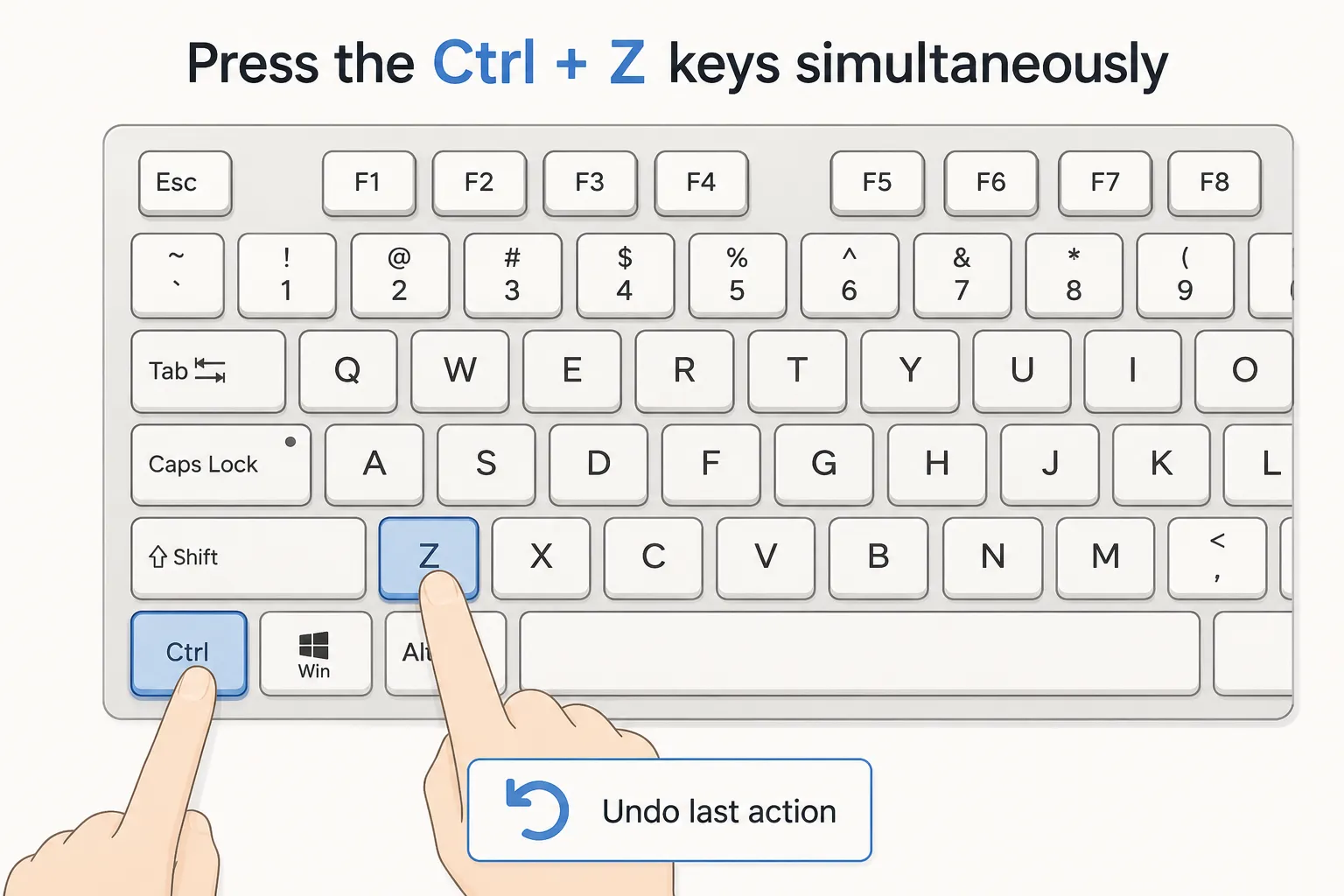
Method 1: The Quickest Fix - Undo Delete (Ctrl + Z)
If you just made a mistake a few seconds ago, the simplest fix takes less than a second. Because Windows tracks your recent folder actions, it allows you to reverse an accidental deletion instantly.
If you mistakenly dragged a file to the bin or pressed delete, follow these steps:
- Open the folder where the document was originally stored.
- Press the Ctrl + Z keys simultaneously on your keyboard.
- Alternatively, right-click anywhere inside the blank space of the folder and select Undo Delete.
This action will immediately pull your file back to its original location. However, this method only works if you have not closed the folder window or performed other file operations since the deletion.
Method 2: Check the Windows Recycle Bin to Recover Deleted Documents
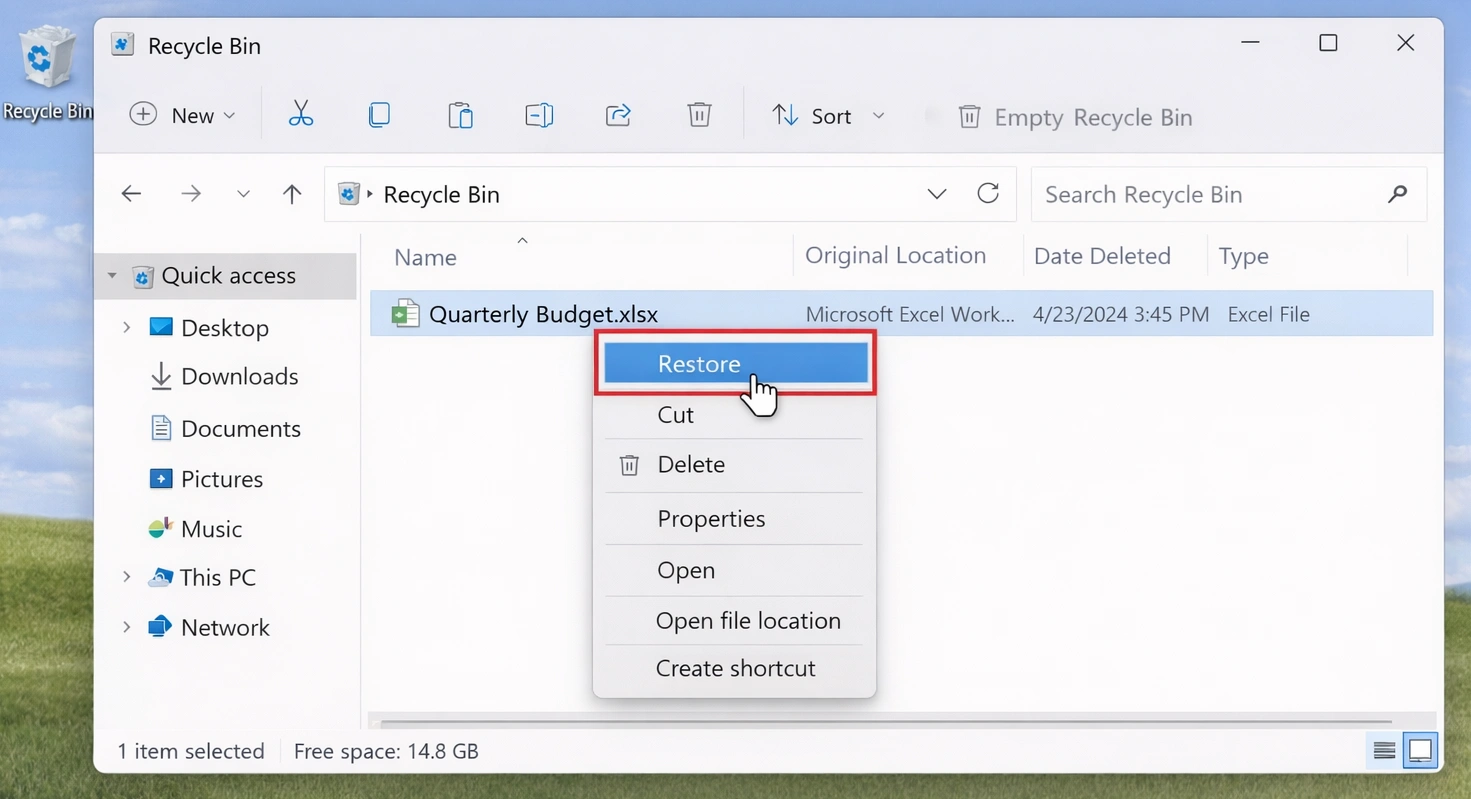
When you delete files normally, Windows stores them in a temporary holding area. Therefore, checking the Recycle Bin is the most logical next step to recover deleted documents.
To check your Recycle Bin and restore your work, follow this guide:
- Double-click the Recycle Bin icon on your Windows desktop.
- Use the search bar in the top right corner and type the name of your file, or search for the document extension like
.docxor.xlsx. - If you see too many files, click the Date Deleted column to sort the items by the most recent date.
- Right-click on your file and select Restore.
The system will instantly send the file back to its original folder. However, if you frequently use the Shift + Delete shortcut, or if you regularly empty your bin, this method will not work. In those scenarios, you need an alternative solution.
Method 3: Use Windows File History to Restore Older Word Files
Windows includes a native backup feature called File History. If you enabled this option prior to losing your file, you can use it to recover deleted documents and restore older versions of your files easily.
To use this feature, try the following steps:
- Navigate to the folder where your document was originally stored.
- Right-click inside the folder and select Properties.
- Switch over to the Previous Versions tab.
- Review the list of available automatic backups, which are sorted by date and time.
- Select a version that contains your missing content, then click Restore.
Please note that this tab will appear completely blank if you never turned on File History or Windows Backup. If you cannot find a history log, you must try other recovery options.

Method 4: Restore Deleted Documents via Cloud Backups
Most modern workplaces and schools use cloud storage systems like Microsoft OneDrive, Google Drive, or Dropbox. If your Microsoft Word application connects to a cloud account, your file might still exist online.
Cloud platforms maintain their own independent recycling systems. To check for your file, follow this process:
- Log into your account via a web browser (e.g., OneDrive).
- Look for the Recycle Bin or Trash option on the left-hand menu.
- Locate your missing document, right-click it, and select Restore.
Furthermore, cloud services track your edit history. If you accidentally deleted the entire text inside a document and saved it, you can right-click the file online and select Version History to rollback to an earlier state.
Method 5: Look for Unsaved Word AutoRecover Backups
Many users try to recover deleted word document files when they actually mean to rescue an unsaved document. If your laptop battery died, or if Word crashed unexpectedly, you can look for AutoRecover backups.
Microsoft Word regularly saves temporary copies of your work in the background. To locate these files manually, try these options:
Option A: Use the Unsaved Documents Feature
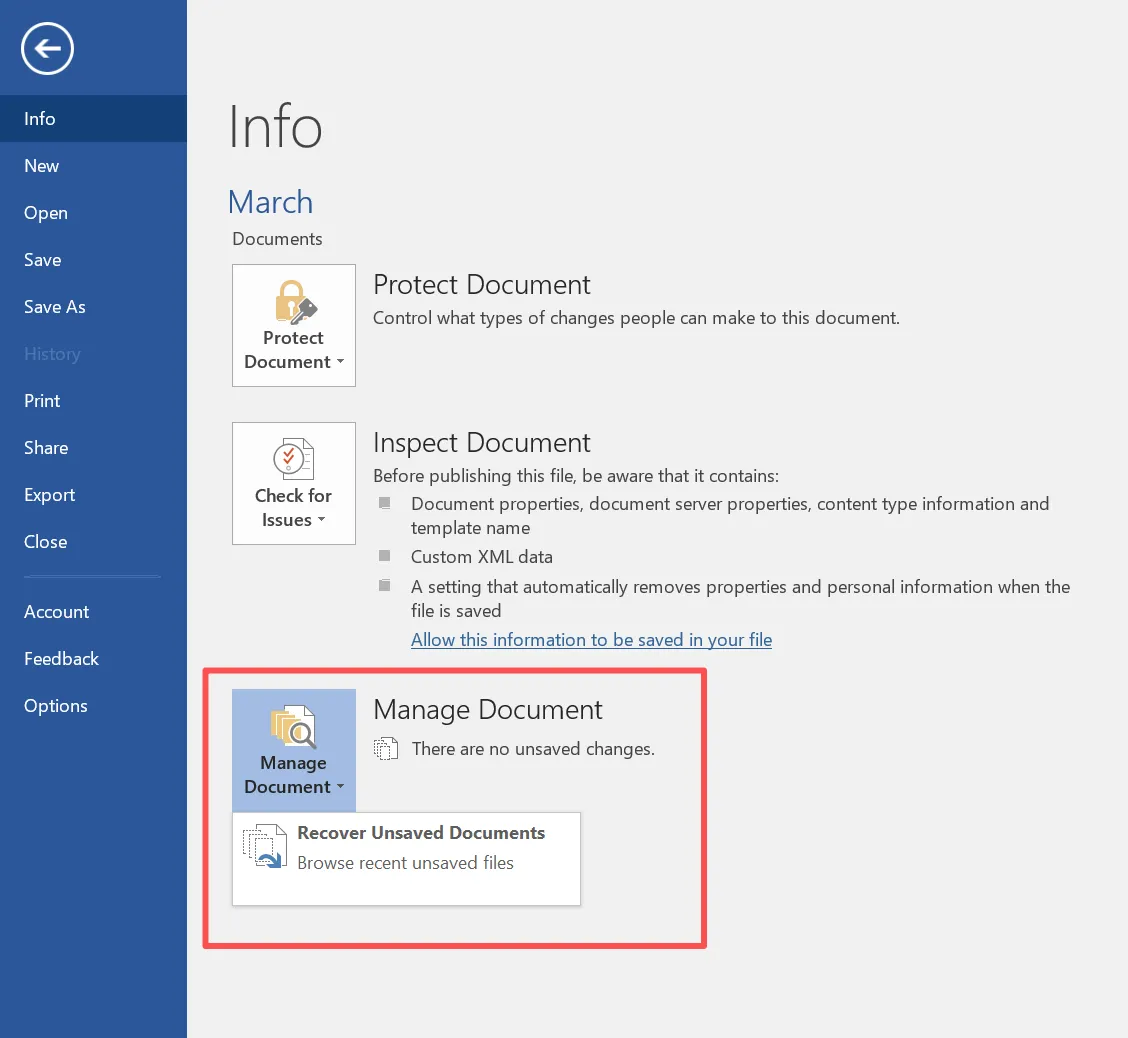
- Open a blank Microsoft Word document.
- Click the File tab in the top left corner, then select Info.
- Click the Manage Document button.
- Select Recover Unsaved Documents from the dropdown menu.
- Browse the folder for
.asdfiles, open your file, and click Save As.
Option B: Explore the Default AppData Path
Sometimes Windows hides these files in system directories. You can find them by opening File Explorer and navigating directly to this path (replace “YourUsername” with your actual account name):
C:\Users\YourUsername\AppData\Roaming\Microsoft\Word\
Method 6: Use Magic Data Recovery to Recover Deleted Word Document Files
If you have tried all the built-in Windows features and cloud backups without success, your file is likely permanently lost from the system layout. This situation usually occurs when you empty the Recycle Bin or use permanent deletion shortcuts. Do not lose hope just yet. To recover deleted word document files that seem completely gone, using a professional recovery tool is the most dependable path forward.
Magic Data Recovery provides a powerful, secure, and user-friendly solution to this exact problem. Developed by Amagicsoft, this program bypasses basic file system barriers to scan the deep sectors of your storage drive. It can reconstruct missing file headers and locate lost .docx, .doc, and .asd files safely without damaging your existing data.
Step-by-Step Guide to Recovering Your Word Documents
Using this software does not require an IT degree. Follow these clear steps to safely bring back your lost files:
Step 1: Download and Install Magic Data Recovery
Download Magic Data Recovery from the official website and install it on a local drive different from the one where your files were lost. This approach prevents accidental overwriting and protects lost data from being destroyed.
Supports Windows 7/8/10/11 and Windows Server
Step 2: Select the Target Drive to Scan
Launch the program. Then, from the main interface, choose the specific local drive or partition where your files were deleted and start the scan.

Step 3: Scan the Chosen Drive for Deleted Files
The software automatically performs an Advanced Scan. Meanwhile, it lists all recoverable files as the scan progresses, allowing you to track the findings in real time.

Step 4: Preview Deleted Files Before Recovery
Next, use the built-in preview function to confirm file content before finalizing the process. This step ensures you recover only the files you actually need.

Step 5: Recover Files to a Safe Location
Finally, select the target files and save them to a different drive or storage device. Never restore data to the same partition, because doing so risks data corruption.

Crucial Tips to Prevent Word Document Loss in the Future
While knowing how to recover deleted documents is highly beneficial, preventing data loss entirely is even better. You can protect your work by adjusting a few basic application settings.
- Lower the AutoRecover Interval: Open Word, go to
File > Options > Save. Change the AutoRecover saving frequency from 10 minutes down to 2 or 3 minutes. - Enable AutoSave: If you have an active Microsoft 365 subscription, toggle the AutoSave switch in the top-left corner of your document window to stream updates to OneDrive instantly.
- Keep Regular Dynamic Backups: Utilize an external drive or a trusted cloud service provider to duplicate your critical project folders automatically.
Conclusion
Losing a critical document is undoubtedly stressful, but you have several highly effective strategies to reverse the damage. You should always start with immediate fixes like the Ctrl + Z shortcut or a quick check of the Windows Recycle Bin. If those simple document recovery methods fail, checking cloud backups or exploring hidden AutoRecover folders can often save your progress.
When files are permanently deleted or lost due to drive corruption, basic manual methods are usually insufficient. In these challenging situations, choosing a dependable third-party tool is your safest approach. We recommend Magic Data Recovery because it provides an optimized file scanning system, a non-destructive read-only framework, and a clear preview layout. By using the right tools and acting quickly, you can reliably restore your files and get right back to work.
Supports Windows 7/8/10/11 and Windows Server
FAQ
Can I recover a Word document after emptying the Recycle Bin?
Yes, you can. When you empty the Recycle Bin, Windows removes the file pointer, but the raw data remains on the drive storage. Therefore, you can deploy Magic Data Recovery to run a deep sector scan, locate the missing code blocks, and reconstruct your file successfully.
Where are temporary Word files stored on Windows 10 and 11?
By default, Windows stores temporary system files and auto-saved files inside a hidden directory. You can quickly view this folder by pressing the Win + R keys, typing %appdata%\Microsoft\Word into the box, and pressing enter to instantly open the location.
Does Shift + Delete permanently erase a Word file?
The Shift + Delete command tells your operating system to bypass the Recycle Bin entirely. Consequently, the file becomes inaccessible to standard applications. However, the underlying data remains on the disk storage until new saving operations overwrite it completely.
Why can't I find my unsaved document in the AutoRecover folder?
This issue usually happens because you disabled the AutoRecover feature, or Word closed normally before generating a temporary backup. To prevent this, you should verify your settings under File > Options > Save and ensure the auto-save interval is set correctly.
Can I recover deleted documents from an external USB drive?
Yes, you can easily restore files from external devices. However, external drives do not use the Windows desktop Recycle Bin for deleted items. Instead, they erase data immediately, meaning you must use a specialized tool like Magic Data Recovery to retrieve them.
Is it safe to use third-party tools to recover deleted word document files?
Using reputable software is completely safe if you select a non-destructive tool. For example, the utility from Amagicsoft uses read-only algorithms. As a result, it scans your drive thoroughly without modifying, overwriting, or damaging your original file structure.
How do I know if my deleted Word file is overwritten?
You can determine this by checking the file preview. If you scan your drive using Magic Data Recovery and the text preview displays corrupted characters, another file has partially overwritten the data. If the preview looks clear, you can restore it safely.

Vasilii is a data recovery specialist with around 10 years of hands-on experience in the field. Throughout his career, he has successfully solved thousands of complex cases involving deleted files, formatted drives, lost partitions, and RAW file systems. His expertise covers both manual recovery methods using professional tools like hex editors and advanced automated solutions with recovery software. Vasilii's mission is to make reliable data recovery knowledge accessible to both IT professionals and everyday users, helping them safeguard their valuable digital assets.