
Recover Deleted Recycle Bin Files: Complete Windows Guide
Accidentally deleted files from the Recycle Bin?
Whether the files are still in the bin or you have already emptied it, there are several ways to recover deleted Recycle Bin files in Windows.
In most cases, deleted files are not permanently erased immediately. Instead, Windows only marks the storage space as available, meaning recovery is still possible before the data is overwritten.
This complete guide shows you how to recover deleted Recycle Bin files in real-world scenarios. You will learn how to restore a missing Recycle Bin icon, understand where deleted files actually go, and recover data even after emptying the Recycle Bin. When built-in Windows tools fail to help, this guide also introduces a reliable recycle bin recovery solution—Magic Data Recovery—based on practical usage experience.
Supports Windows 7/8/10/11 and Windows Server
Wondering if your files can be recovered? Find out in seconds with our quick check below.
Data Recovery Assessment
Answer 3 quick questions to estimate your recovery chances
Table of Contents
Understanding What “Deleted Recycle Bin Files” Really Means
Before you attempt recovery, you need to understand what “deleted” means in Windows. Many users assume that Windows handles all deletions the same way, but this assumption often leads to mistakes.
Common situations include:
- The Recycle Bin icon disappears from the desktop
- Windows sends deleted files to the Recycle Bin
- Users empty the Recycle Bin manually
- Users permanently delete files using Shift + Delete
Each scenario requires a different solution. When you identify the correct situation first, you reduce the risk of unnecessary data loss.
Recycle Bin Missing from Desktop? Restore Deleted Recycle Bin to Desktop First
If you cannot find the Recycle Bin icon, your files may still exist on the system. In many cases, the problem affects only the desktop display, not the data itself.
Why Does the Recycle Bin Disappear from the Desktop?
User reports and Windows support documentation point to several common causes:
- Users hide desktop icons by accident
- Windows personalization settings change
- Third-party cleanup or optimization tools modify system icons
In these situations, Windows does not delete any files.
How to Restore the Recycle Bin to the Desktop (Step-by-Step)
1. Open Settings in Windows
2. Go to Personalization > Themes
3. Click Desktop icon settings
4. Select Recycle Bin
5. Click Apply, then OK
After completing these steps, Windows displays the Recycle Bin icon immediately.
Important clarification:
Restoring the icon does not recover deleted files. If you already emptied the Recycle Bin, you need a different deleted file recovery method, which the next sections explain.
Can You Recover Deleted Files from Recycle Bin?
Yes—but the result depends on how Windows removed the files.
Here is a quick breakdown:
- Files still in the Recycle Bin → Easy to restore
- Recycle Bin emptied → Recovery may still work
- Permanently deleted files → Recovery depends on disk activity
When you understand these differences, you avoid wasting time and taking risky actions.
How to Recover Deleted Files from the Recycle Bin
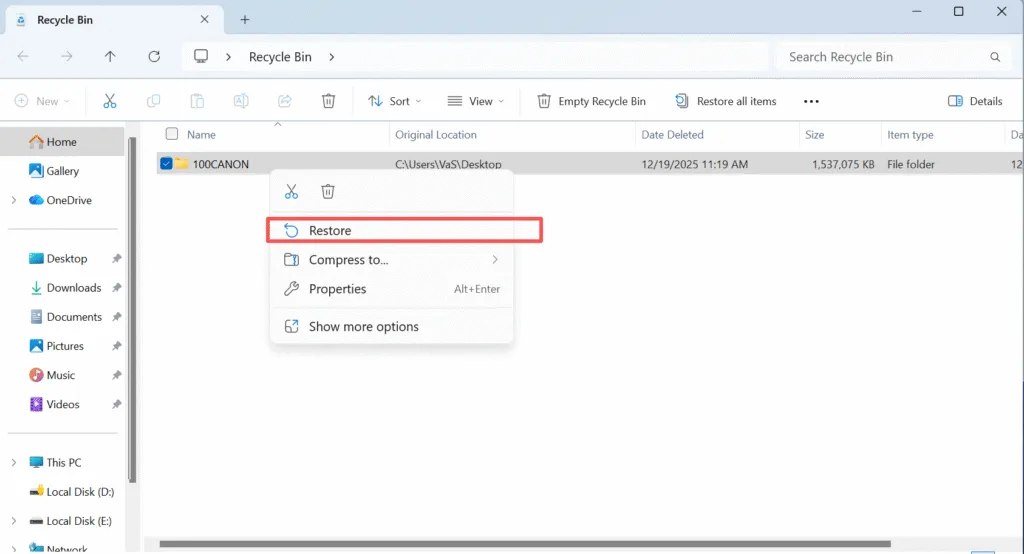
If you have not emptied the Recycle Bin:
1. Open the Recycle Bin
2. Locate the deleted file
3. Right-click the file and select Restore
Windows returns the file to its original location.
Limitation:
This method doesn’t work if you have already emptied the Recycle Bin.
What Happens When Recycle Bin Is Emptied?
When you empty the Recycle Bin, Windows removes file references from the file system but does not erase the actual data immediately. Instead, Windows marks the occupied disk space as available for reuse.
From a data recovery perspective:
- Windows does not destroy files instantly
- New data can overwrite the original content at any time
This behavior explains why quick action with a dedicated recovery tool significantly improves recovery success.
How to Recover Deleted Recycle Bin Files with Magic Data Recovery
When Windows no longer provides access to deleted files, you need a professional recovery tool. In this situation, Magic Data Recovery serves as a practical solution for real data loss scenarios rather than a simple marketing add-on.
Why Magic Data Recovery Works for Recycle Bin Recovery
Based on real usage and technical behavior, Magic Data Recovery solves several core problems:
- It recovers files after users empty the Recycle Bin
- It scans storage at both the file system and sector levels
- It lets users preview files before recovery
- It minimizes the risk of overwriting recoverable data
These features make it a reliable option when Windows tools fail.
How to Use Magic Data Recovery to Recover Deleted Recycle Bin Files
Step 1: Download and Install the Software Safely
Download Magic Data Recovery and install it on a drive different from the deleted one. This reduces the risk of overwriting deleted data during installation.
Supports Windows 7/8/10/11 and Windows Server
Step 2: Select the Original Drive to Scan
Launch the program and choose the hard drive or partition where the deleted files were originally stored. Then start the scan.

Step 3: Wait for the Scan to Complete
The software performs an advanced scan automatically. As it progresses, deleted folders and files will appear in the results.

Step 4: Preview Deleted Files Before Recovery
Previewing files helps confirm they are intact and relevant. This step avoids restoring corrupted or unnecessary data.

Step 5: Recover Files to a Safe Location
Select the required files and recover them to an external drive or a different internal disk. Avoid restoring data to the same drive.

Why Deleted Files Can Still Be Recovered
When files are deleted in Windows, the system does not erase the actual data instantly. Instead, it removes the pointer in the file system and marks the space as reusable.
The original data remains on the disk until it is overwritten by new data, which is why recovery tools can still retrieve deleted files.
Common Mistakes That Reduce Recovery Success
From real recovery cases, the following actions often lead to failure:
- Continuing to use the affected drive heavily
- Installing recovery software on the same disk
- Running multiple recovery tools repeatedly
- Reinstalling Windows before recovery
Avoiding these mistakes significantly improves results.
Conclusion
Recovering lost files is possible in many situations, but success depends on understanding what actually happened to the data. Restoring a missing icon solves visual issues, while emptied or permanently deleted files require deeper recycle bin recovery methods.
For users facing serious data loss, Magic Data Recovery provides a balanced solution—offering advanced scanning, preview functionality, and controlled recovery without unnecessary complexity. If you are looking for an effective and practical way to recover deleted Recycle Bin files, it is a solution worth considering.
Supports Windows 7/8/10/11 and Windows Server
FAQs About Recovering Deleted Recycle Bin Files
Can I recover deleted files from the Recycle Bin after emptying it?
Where do files go after being deleted from the Recycle Bin?
How do I restore files that are still in the Recycle Bin?
Why can’t I find my deleted files in the Recycle Bin?
What is the best way to recover permanently deleted files in Windows?
Can I recover deleted files without using software?
Does Windows have built-in tools for Recycle Bin recovery?
How can I increase the success rate of file recovery?

Vasilii is a data recovery specialist with around 10 years of hands-on experience in the field. Throughout his career, he has successfully solved thousands of complex cases involving deleted files, formatted drives, lost partitions, and RAW file systems. His expertise covers both manual recovery methods using professional tools like hex editors and advanced automated solutions with recovery software. Vasilii's mission is to make reliable data recovery knowledge accessible to both IT professionals and everyday users, helping them safeguard their valuable digital assets.