
Recover Files from Dead Laptop: 7 Safe Ways
Supports Windows 7/8/10/11 and Windows Server
Table of Contents
Can You Recover Files from a Dead Laptop?
Yes, in many cases. The key to successfully recover files from dead laptop storage is identifying which component actually failed.
For example, a damaged motherboard, power circuit, display, or Windows installation can make the laptop unusable while leaving its HDD or SSD intact. In that situation, you may simply remove the storage device, connect it to another computer, and copy the files.
However, the recovery path changes when the drive itself has problems:
Situation | Recommended Action |
Laptop is dead, but drive works normally | Connect drive to another PC and copy files |
Windows cannot boot, but drive is accessible | Use another PC or bootable environment |
Files were deleted or disappeared | Use backup or file recovery software |
Partition became RAW or inaccessible | Recover data before attempting repair |
HDD clicks, grinds, or disappears | Stop DIY attempts and use a recovery service |
BitLocker asks for a key | Find the recovery key before accessing data |
SSD is soldered to motherboard | Consider board repair or professional recovery |
What to Do Before You Recover Files from Dead Laptop Storage
Before you attempt recovery, protect the original drive. The wrong repair attempt can turn recoverable data into overwritten or physically damaged data.
Follow these precautions:
- Do not format or initialize the laptop drive.
- Do not create a new partition on unallocated space.
- Do not install recovery software onto the affected drive.
- Do not save recovered files back to the same disk.
- Avoid repeated power cycles if an HDD makes unusual sounds.
- Do not run CHKDSK before recovering important files from an unstable or corrupted drive.
- Check the laptop warranty before opening the case.
- Do not attempt to desolder an onboard SSD without professional equipment.
If the storage device already shows corruption, RAW partitions, repeated disconnections, or other unusual behavior, read the guide on how to recover files from a broken hard drive before performing repairs.
The safest principle is simple: recover first, repair second.
Method 1: Recover Files from Dead Laptop Cloud Backups
The fastest way to recover files from dead laptop hardware may be to avoid the failed computer completely.
Check services you previously used, such as:
- OneDrive
- Google Drive
- Dropbox
- NAS storage
- External backup drives
- File History
- Backup and Restore
- Email attachments
- Application-specific cloud storage
For example, documents saved inside a synchronized OneDrive folder may already exist online even though the laptop no longer works.
However, cloud synchronization and backup are not identical. A synchronization service can also synchronize deletions or changes. Therefore, check the service’s recycle bin, version history, or deleted-file area if the current copy is missing.
If a recent backup contains your files, restoring from it is usually safer than scanning the original laptop disk.
Method 2: Check Whether the Laptop Is Actually Dead
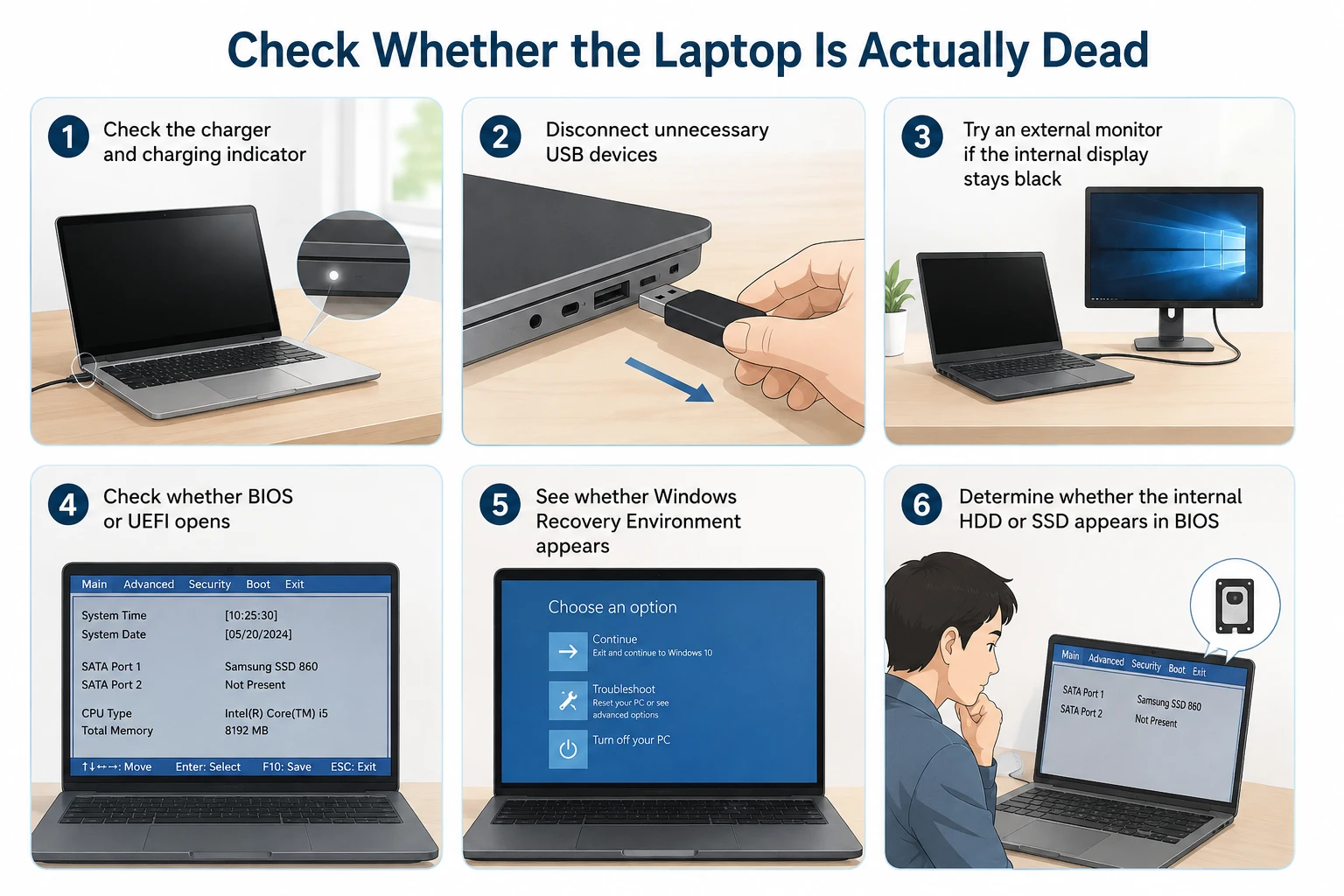
Before removing the drive, confirm whether the laptop itself is completely inaccessible.
If it powers on, try:
- Check the charger and charging indicator.
- Disconnect unnecessary USB devices.
- Try an external monitor if the internal display stays black.
- Check whether BIOS or UEFI opens.
- See whether Windows Recovery Environment appears.
- Determine whether the internal HDD or SSD appears in BIOS.
A laptop with a dead display can look completely unusable even though Windows and its storage continue to work.
Likewise, a damaged Windows installation may prevent startup without damaging your personal files.
If the drive remains healthy, Windows Startup Repair may fix certain startup problems. However, if important files are your priority and the disk behaves unexpectedly, copy or recover the data before running aggressive repair operations.
Method 3: Recover Files from Broken Laptop with a Bootable USB
If the computer powers on but Windows will not start, a bootable Windows PE or Linux environment may allow you to recover files from broken laptop storage without physically removing the drive.
The basic workflow is:
- Create the bootable USB on another computer.
- Connect it to the broken laptop.
- Boot from the USB through BIOS or the boot menu.
- Open the internal drive.
- Copy important folders to another external drive.
Look for files in locations such as:
- Desktop
- Documents
- Downloads
- Pictures
- Videos
- Project folders
- Application data folders
This method works best when Windows itself has failed but the file system and storage hardware remain healthy.
However, an encrypted disk may remain inaccessible. If BitLocker requests a recovery key, locate that key instead of formatting the drive. You can learn more about BitLocker recovery and the information needed to unlock encrypted storage.
Method 4: Remove the Hard Drive or SSD and Connect It to Another PC
If the laptop will not power on, removing its storage device is often the most practical way to recover files from dead laptop hardware.
Modern laptops may contain:
- 2.5-inch SATA HDD
- 2.5-inch SATA SSD
- M.2 SATA SSD
- M.2 NVMe SSD
- Soldered NAND storage
The adapter or enclosure must match the storage interface. An M.2 connector alone does not tell you whether a drive uses SATA or NVMe.
How to Remove and Connect the Drive
- Shut down the laptop.
- Disconnect the charger.
- Disconnect or remove the battery when possible.
- Follow the laptop manufacturer’s disassembly procedure.
- Carefully remove the HDD or SSD.
- Insert it into a compatible SATA or NVMe enclosure.
- Connect the enclosure to another Windows computer.
Then open File Explorer and Disk Management.
If Windows displays the correct drive capacity and the partition appears normally, the physical storage is probably still communicating correctly.
If Windows asks you to Initialize Disk or Format the drive, cancel the prompt. Initializing or formatting changes disk structures and may make recovery more complicated.
Method 5: Recover Files from Laptop Hard Drive by Copying Them
If the connected drive opens normally, you do not need data recovery software. The safest way to recover files from laptop hard drive storage in this situation is ordinary file copying.
Navigate to the old Windows user folder, typically:
Users > OldUserName
Then copy important folders such as:
- Desktop
- Documents
- Downloads
- Pictures
- Videos
- Music
- Work folders
- Project directories
Copy the files to another healthy internal or external drive.
If some files were deleted before the laptop failed, normal copying will not restore them. For those cases, see the dedicated guide on how to recover deleted data from a hard drive.
What If Windows Says Access Denied?
Windows permissions from the old installation may prevent immediate access to some user folders.
An administrator account on the working PC may be able to take ownership of the folder. However, file permissions and encryption are different issues.
If BitLocker encrypts the entire disk, you need the appropriate password or recovery key before accessing the files. Recovery software cannot bypass correctly implemented BitLocker encryption without the required key.
Method 6: Recover Files from Dead Laptop Drive with Magic Data Recovery
Sometimes the laptop HDD or SSD appears on another computer, but the required files are no longer accessible.
For example:
- Files were accidentally deleted.
- The Recycle Bin was emptied.
- A folder disappeared.
- The partition became RAW.
- A partition was deleted.
- Windows reports file-system problems.
- The drive was accidentally formatted.
- Normal file copying cannot locate the required files.
In these logical data-loss situations, Magic Data Recovery can scan a Windows-detected storage device for recoverable files.
This approach differs from a backup. OneDrive, File History, or an external backup restores an existing copy. Recovery software instead examines the storage device for file-system records and recoverable file data that may remain after deletion, formatting, or logical damage.
For accidentally formatted laptop storage, see the more detailed guide to recover data from a formatted hard drive.
Therefore, Magic Data Recovery is a reasonable option when you need to recover files from dead laptop storage and:
- The removed drive is detected by Windows.
- It shows approximately the correct capacity.
- No severe physical failure symptoms exist.
- The missing files are not available in backups.
- Normal file access does not recover the required data.
However, recovery software cannot repair broken HDD heads, damaged NAND chips, failed SSD controllers, or other physical hardware problems. It also cannot reconstruct files whose data has already been overwritten.
If the built-in recovery options no longer work, you can try Magic Data Recovery before new data overwrites the deleted files.
Important Note About SSDs and TRIM
Deleted-file recovery from SSDs differs from HDD recovery. Modern SSDs commonly use TRIM. After Windows deletes data, TRIM can tell the SSD that those storage blocks are no longer needed. The SSD controller may then clear them during garbage collection.
Consequently, deleted files may become unrecoverable even when no visible new files have been written.
How to Use Magic Data Recovery to Recover Files from Dead Laptop Drive
Step 1: Download and Install Magic Data Recovery
Download Magic Data Recovery on the working Windows computer. Do not install it on the HDD or SSD removed from the dead laptop. Installing software on the affected storage device could overwrite deleted data that you want to recover.
Supports Windows 7/8/10/11 and Windows Server
Step 2: Select the Drive from the Dead Laptop
Connect the removed laptop HDD or SSD to the working PC through the appropriate enclosure or adapter.
Launch Magic Data Recovery and identify the affected storage device by its capacity and partition information. Then select it and start the scan.

Step 3: Scan for Lost or Deleted Laptop Files
Allow the program to scan the original laptop drive.
As scanning progresses, recoverable documents, photos, videos, archives, and other file types may appear in the results.

Step 4: Preview Files Before Recovery
Browse the scan results and use Preview where available.
Previewing helps confirm whether you have located the intended document, photo, or other file before recovery. However, preview support depends on the file type and file condition, so not every discovered file can necessarily be previewed.

Step 5: Recover Files to a Safe Location
Choose the files you want and recover them to a different healthy drive.
Do not save recovered files back to the original laptop HDD or SSD. Doing so may overwrite other recoverable data that has not yet been restored.

Method 7: Use Professional Recovery for Physical Drive Failure
Data recovery software only works when the storage device can communicate reliably enough for the computer to read it.
Stop DIY attempts if you notice:
- Repeated HDD clicking
- Grinding or scraping noises
- HDD beeping
- Drive repeatedly disconnecting
- Drive not appearing in BIOS or Disk Management
- Incorrect capacity
- Burning smell
- Severe overheating
- Liquid damage
- Major impact damage
- SSD controller or circuit-board failure
In those situations, repeatedly powering on or scanning the drive may place additional stress on failing hardware.
A professional recovery lab may need specialized equipment to work with failed electronics, HDD heads, platters, SSD controllers, or NAND memory.
Therefore, if the storage device itself has physically failed, professional recovery is the safer approach to recover files from dead laptop hardware.
How to Prevent Laptop Data Loss Next Time
After you successfully recover files from laptop storage, reduce the risk of another emergency.
A practical backup strategy should include more than one copy of important information.
For example:
- Keep important working files on your laptop.
- Maintain a second copy on an external drive or NAS.
- Keep another copy in reputable cloud storage.
- Enable automatic backup where appropriate.
- Test backups occasionally.
- Store BitLocker recovery information separately.
- Avoid keeping the only copy of a project on one laptop.
Remember that autosave and synchronization are not permanent backups. Autosave mainly protects recent application work, while synchronization can replicate both file additions and deletions.
A separate backup gives you another recovery path when the original storage device fails completely.
Conclusion
The safest way to recover files from dead laptop storage depends on what actually failed. First, check cloud and external backups. If the laptop still powers on, try normal access or a bootable environment. If the computer itself has failed but the HDD or SSD remains healthy, remove the drive, connect it to another Windows computer, and copy accessible files.
When Windows still detects the drive but files were deleted, formatted, lost, or made inaccessible by logical damage, Magic Data Recovery provides another recovery option after backups and normal access fail. However, SSD TRIM, overwriting, encryption, and physical damage can limit recovery. If the storage device clicks, disappears, or is physically damaged, stop DIY attempts and consider a professional recovery service.
Supports Windows 7/8/10/11 and Windows Server
FAQs
Can I recover files from dead laptop storage if it will not turn on?
How do I recover files from a broken laptop without removing the hard drive?
How can I recover files from laptop hard drive after connecting it to another PC?
Can Magic Data Recovery recover files from dead laptop drives?
What if the dead laptop drive is protected by BitLocker?
Is it harder to recover files from a dead laptop SSD than an HDD?
When should I stop trying to recover files from dead laptop storage myself?

Vasilii is a data recovery specialist with around 10 years of hands-on experience in the field. Throughout his career, he has successfully solved thousands of complex cases involving deleted files, formatted drives, lost partitions, and RAW file systems. His expertise covers both manual recovery methods using professional tools like hex editors and advanced automated solutions with recovery software. Vasilii's mission is to make reliable data recovery knowledge accessible to both IT professionals and everyday users, helping them safeguard their valuable digital assets.