
How to Fix Dead USB Drive
A USB drive can suddenly look “dead” in several ways: it may disappear from File Explorer, show as RAW, ask to be formatted, display the wrong capacity, or stop opening files. If you are trying to learn how to fix a dead USB drive, the first step is not formatting or running a repair command. It is determining whether Windows can still detect the device and whether the problem is logical or physical.
A dead-looking USB flash drive is not always physically dead. Missing drive letters, driver problems, damaged file systems, or lost partitions can make a functional device inaccessible. However, a USB drive that repeatedly disconnects, overheats, has a damaged connector, reports an abnormal capacity, or cannot be detected on multiple computers may have a hardware-level problem.
This guide follows a safer order: diagnose first, try reversible fixes, protect important files, and only then use repair methods that modify the USB drive. If your files are already inaccessible, you can also refer to our USB Flash Drive Solutions before making changes to the device.
Table of Contents
Quick Answer: Can a Dead USB Drive Be Fixed?
Yes, a dead USB drive can often be fixed when the failure is logical rather than physical.
If Windows can still detect the USB in Disk Management or Device Manager, problems such as a missing drive letter, driver conflict, RAW file system, or damaged partition may still be repairable.
The situation is different when the device is completely undetected across multiple USB ports and computers, becomes unusually hot, repeatedly connects and disconnects, or has visible physical damage. Software cannot repair a broken connector, failed controller, or damaged NAND memory.
Most importantly, if the USB contains files you cannot replace, recover or copy the data before CHKDSK, formatting, DiskPart, or other write-based repairs.
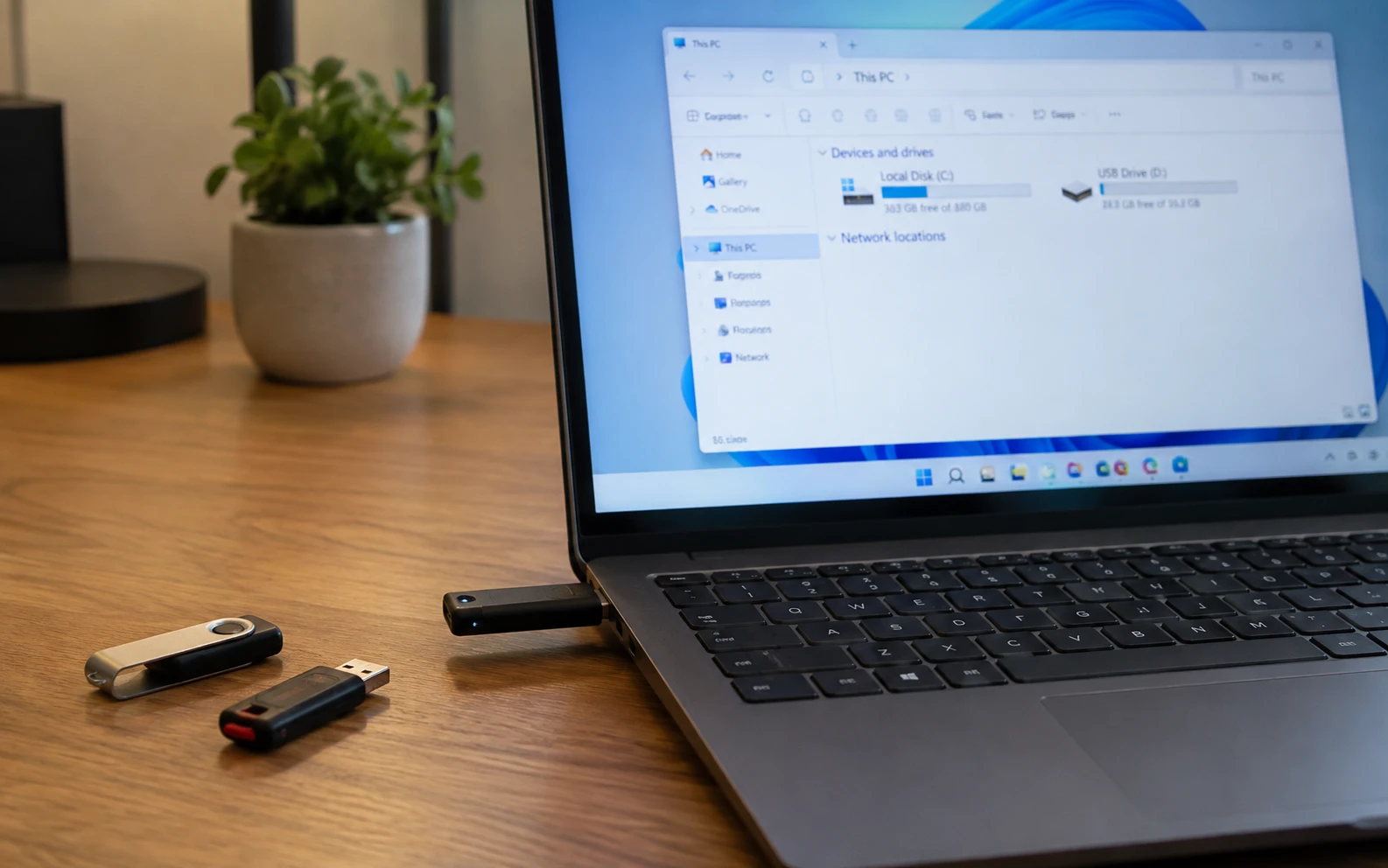
Before You Repair It: Protect Important USB Data
Do not treat every dead USB as an empty device that only needs to work again.
If you can still open the USB normally, copy important files to another drive before troubleshooting further.
If Windows detects the device but the files are inaccessible, the USB shows RAW, or Windows says “You need to format the disk before you can use it,” avoid formatting it yet. A repair that modifies file-system metadata can change the structures recovery software would otherwise use.
Microsoft explains CHKDSK without repair parameters checks the status of a volume, while parameters such as /f and /r can repair file-system structures:
Use this rule throughout the guide:
Important data → recover or back up first → repair afterward.
Diagnose Your Dead USB Drive First
Before choosing a fix, connect the USB and open Disk Management by right-clicking Start > Disk Management. Use what you see to choose the correct path:
What you see | Likely problem | What to do next |
USB works on another PC | Windows, port, or driver issue | Check ports and drivers |
Healthy partition but no drive letter | Mounting or drive-letter conflict | Assign a drive letter |
USB appears as RAW | File-system corruption | Recover data before repair |
USB appears as Unallocated | Lost or damaged partition | Recover data before creating a volume |
Correct capacity but files will not open | Logical or file-system problem | Protect data, then diagnose |
0 bytes or obviously incorrect capacity | Controller, firmware, or hardware issue possible | Avoid aggressive repair |
Repeated disconnects or overheating | Hardware instability | Stop DIY |
Not detected on any computer | Physical or controller failure possible | Consider professional recovery if data matters |
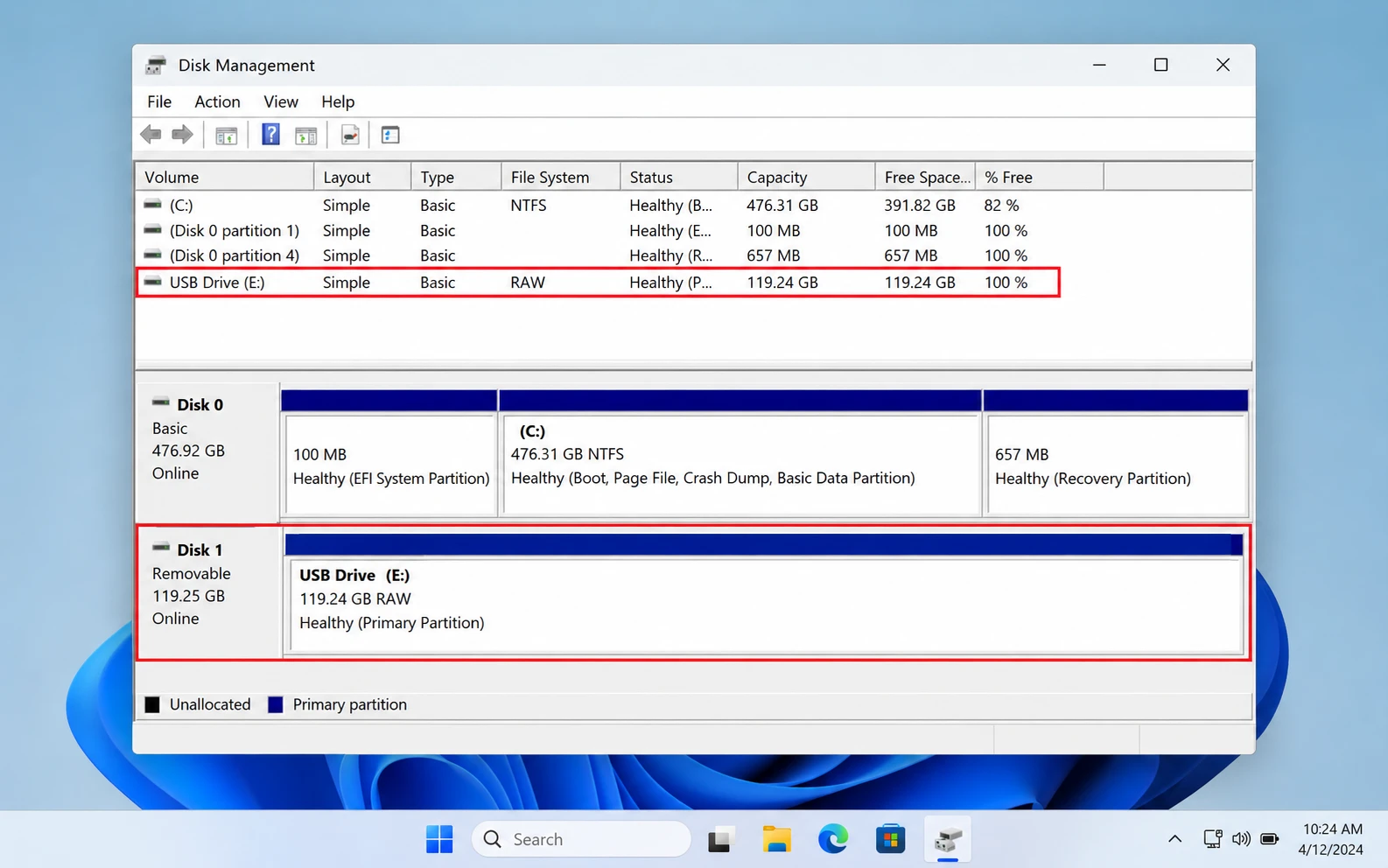
This distinction matters because a USB that is visible in Disk Management but missing from File Explorer requires a very different response from a device that cannot be detected by Windows at all. If recognition is the main problem, follow our dedicated guide to fix a USB drive not recognized in Windows.
Quick Fixes: Try These Low-Risk Checks First
Before modifying drivers, the file system, or partitions, try the simplest reversible checks.
Reconnect the USB to Another Port
Disconnect the USB and plug it directly into another USB port.
If you are using a USB hub or adapter, bypass it temporarily.
If the USB immediately works, the storage device itself may be healthy and the original connection was the problem.
Test the USB on Another Computer
Connect the drive to another Windows computer.
If another PC reads it normally, focus on the first computer’s USB controller, drivers, power management, or mounting configuration rather than repairing the USB itself.
Check the USB Connector
Inspect the connector for bending, looseness, corrosion, or visible damage.
Do not repeatedly bend or reposition a damaged connector to make the drive connect. Intermittent electrical contact can turn a recoverable hardware problem into a more difficult one.
Check Disk Management
If the USB is absent from File Explorer but appears with approximately the correct capacity in Disk Management, Windows is still communicating with the device.
That is an important sign. Continue with the logical troubleshooting path rather than assuming the USB is physically dead.
Low-Risk Repairs for a Dead USB Drive
Once basic connection problems are ruled out, start with fixes that do not intentionally rebuild the file system.
Fix 1. Assign a New Drive Letter
Best for: The USB appears as a healthy partition in Disk Management but is missing from File Explorer.
A missing or conflicting drive letter can make a readable USB appear dead.
- Right-click Start and select Disk Management.
- Locate the USB partition.
- Right-click the partition.
- Select Change Drive Letter and Paths.
- Choose Add or Change.
- Select an unused drive letter.
- Click OK.
Expected result: The USB appears again in File Explorer and can be opened normally.
If it fails: Check the volume status in Disk Management. If it says RAW or Unallocated, do not create or format a new volume simply to make the USB appear.
Fix 2. Reinstall the USB Device Driver
Best for: The USB works on another computer, or Device Manager reports a USB device or controller problem.
- Right-click Start and open Device Manager.
- Expand Disk drives and Universal Serial Bus controllers.
- Locate the affected USB device.
- Right-click it and choose Uninstall device.
- Restart Windows.
- Reconnect the USB drive.
Windows should normally reload the required driver after restart.
Expected result: Windows detects the USB normally and the device appears in File Explorer or Disk Management.
If it fails: If the USB is still visible in Disk Management, continue diagnosing the volume itself. If it is no longer detected reliably, move to the hardware-failure branch instead.
Verification: Has the USB Actually Been Fixed?
Do not continue through every method simply because they are listed in this guide.
After the low-risk fixes, check whether:
- the USB remains connected without repeatedly disappearing;
- its capacity looks correct;
- the expected file system is visible;
- File Explorer can open it;
- existing folders and files can be read normally;
- copying a small non-critical file from the USB succeeds.
If those checks pass, the immediate problem is resolved.
If Windows sees the USB but reports RAW, Unallocated, a formatting prompt, or inaccessible files, you have moved into a data-protection problem, not merely a detection problem.
Recover Files Before Repairing a RAW or Inaccessible USB
When the USB still appears in Windows but its data cannot be accessed, this is the point where data recovery software has a legitimate role.
Magic Data Recovery can scan USB flash drives and other storage devices for recoverable files.
Use this recovery path when:
- the USB has changed to RAW;
- Windows asks you to format it;
- a partition has disappeared;
- Disk Management shows Unallocated space;
- important files disappeared after corruption;
- you need the files before attempting CHKDSK or formatting.

Check the File System Before Repairing It
If your files are already backed up or recovered, you can move from diagnosis into file-system repair.
For a USB that has a normal drive letter, you can first perform a read-only CHKDSK check.
Open Command Prompt as Administrator and enter:
chkdsk X:
Replace X: with the USB drive letter.
For example:
chkdsk E:
Without repair parameters, CHKDSK primarily checks and reports the status of the volume rather than immediately fixing file-system errors.
Expected result: CHKDSK reports whether Windows detects file-system problems.
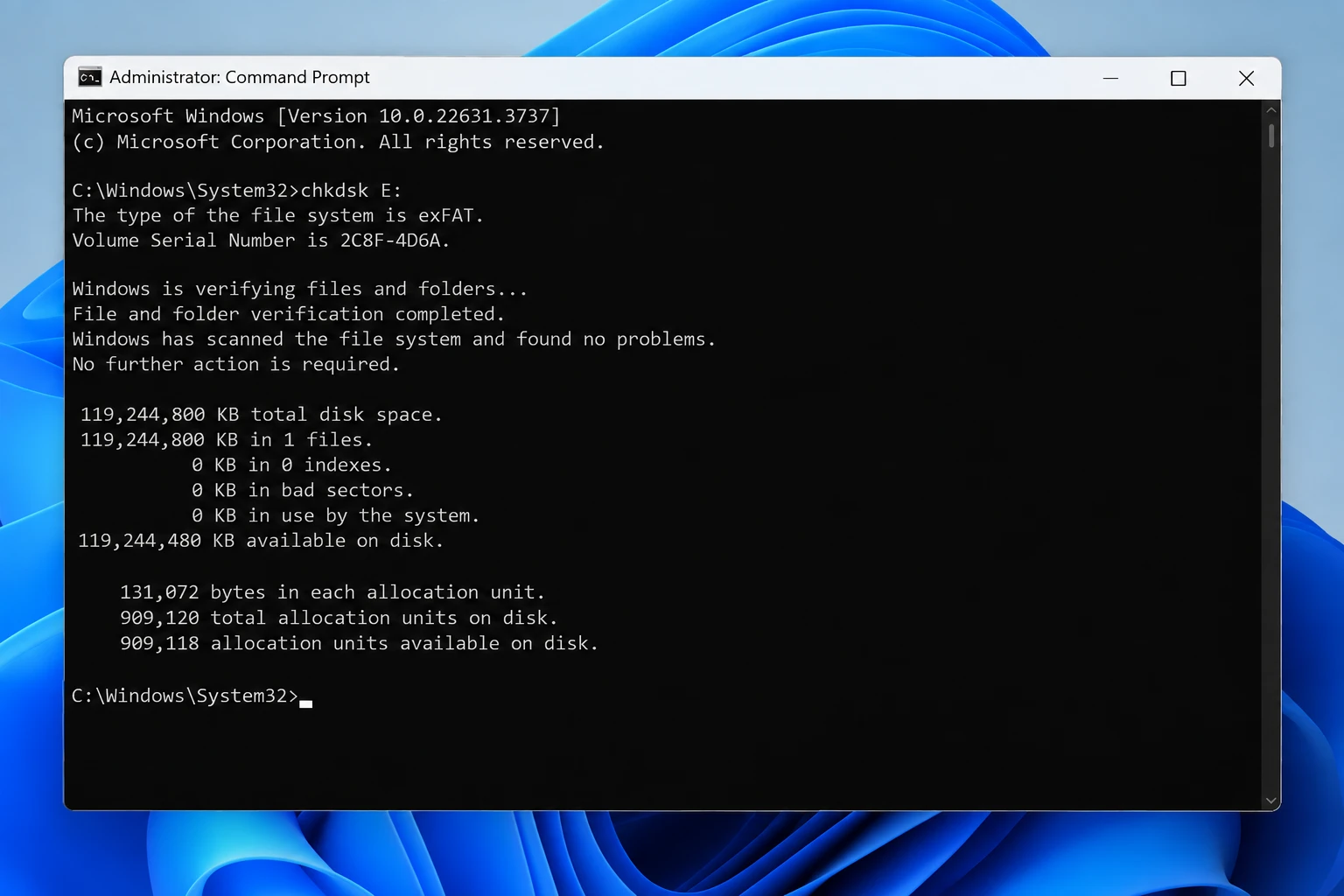
If CHKDSK reports no errors but the USB still behaves incorrectly, the problem may be related to the driver, partition structure, or hardware instead.
If CHKDSK reports file-system errors, confirm that important data has already been protected before moving to repair mode.
Data Protection Checkpoint
Before continuing, confirm one of the following:
- The important files are already backed up or recovered, or
- There is nothing on the USB you need to preserve.
If neither is true, do not continue with write-based repairs.
This checkpoint is particularly important for:
- RAW USB drives;
- corrupted FAT32 or exFAT volumes;
- missing partitions;
- inaccessible files;
- USB drives that have started behaving unpredictably.
Once your files are safe, you can move on to higher-impact repair methods.
Higher-Risk Repairs After Your Data Is Safe
The following methods modify the USB drive. They therefore belong after the data-protection checkpoint.
Fix 3. Run CHKDSK /f for File-System Errors
Best for: A USB with an assigned drive letter and recognizable file system that reports file-system errors.
Open Command Prompt as Administrator and run:
chkdsk X: /f
Replace X: with the USB’s drive letter.
For example:
chkdsk E: /f
The /f parameter tells CHKDSK to fix detected file-system errors.
Microsoft also provides an /r parameter, which locates bad sectors and attempts to recover readable information. /r includes the functionality of /f.
However, do not automatically use:
chkdsk X: /f /r
for every dead USB drive.
For a normal logical corruption case, use the repair that matches the diagnosis rather than automatically choosing the most aggressive command.
Expected result: CHKDSK completes and reports that file-system errors were repaired.
After it finishes:
- Safely eject the USB.
- Reconnect it.
- Open File Explorer.
- Check whether folders and files can now be accessed.
If it fails: Do not repeatedly run CHKDSK on a USB that disconnects, freezes, reports abnormal capacity, or behaves inconsistently.
Fix 4. Format the USB After Recovery
Best for: Severe logical corruption when your important files are already safe and the priority is making the USB usable again.
Formatting creates a new file-system structure. For that reason, formatting should not be treated as a harmless diagnostic method.
To format the drive:
- Open Disk Management or File Explorer.
- Right-click the USB partition.
- Select Format.
- Choose an appropriate file system.
- Complete the format.
Common options include:
exFAT
Suitable for many modern removable-storage scenarios, especially when you need files larger than 4 GB and compatibility across multiple operating systems.
FAT32
Offers broad compatibility with many older devices, but individual files cannot exceed 4 GB. If FAT32 is specifically required by a TV, console, camera, or other device, see how to format a USB drive to FAT32 for the available Windows formatting methods.
NTFS
Suitable when the USB is mainly used with Windows and NTFS-specific features are useful.
After formatting, disconnect and reconnect the USB and test it before using it for important files again.
If Windows refuses to complete the format or repeatedly returns a formatting error, do not keep retrying the same operation. Follow the troubleshooting steps in how to fix unable to format USB drive instead.
Fix 5. Rebuild the USB Partition Layout Only When Necessary
Best for: A USB that remains Unallocated or has an unusable partition structure after the files have already been recovered.
Windows DiskPart can recreate a USB drive’s partition structure, but this is a destructive repair path.
Commands such as:
clean
remove existing partition information.
Therefore, do not use DiskPart while unrecovered files still remain on the USB.
If your data is already safe and you want to rebuild the USB:
- Open Command Prompt or Terminal as Administrator.
- Run:
diskpart - Enter:
list disk - Carefully identify the USB by its capacity.
- Select the correct disk:
select disk N(ReplaceNwith the USB disk number) - Only after verifying the correct disk, run:
clean - Create a new partition:
create partition primary - Format it with an appropriate file system.
- Assign a drive letter.
Important: Selecting the wrong disk can erase the partition structure of another storage device. Only use this method after the USB data is safe and the correct disk has been positively identified.
Logical Failure vs. Physical USB Failure
One of the most important parts of learning how to fix a dead USB drive is knowing whether the problem is logical or physical.
Signs of a Logical USB Problem
A logical problem is more likely when:
- Disk Management still detects the USB;
- the reported capacity is approximately correct;
- the USB shows RAW;
- the USB appears as Unallocated;
- Windows asks you to format the drive;
- the drive is missing a drive letter;
- files disappeared but the device remains stable.
These conditions may still allow software-based recovery or repair.
Signs of a Physical USB Problem
A physical problem becomes more likely when:
- the USB is undetected on several computers;
- it repeatedly connects and disconnects;
- the connector is physically loose or damaged;
- the device becomes unusually hot;
- Windows freezes while trying to access it;
- the capacity appears as 0 bytes or is obviously incorrect;
- the device cannot remain connected long enough for a stable read.
Software cannot repair a physically broken connector, failed controller, or damaged NAND flash memory.
When You Should Stop Trying to Fix the USB Yourself
A “dead USB” does not always have a software solution.
Stop repeated troubleshooting if the drive:
- is undetected on multiple computers and USB ports;
- repeatedly connects and disconnects;
- becomes unusually hot;
- has a visibly broken or loose connector;
- reports 0 bytes or a clearly incorrect capacity;
- freezes Windows whenever it is accessed;
- cannot remain connected long enough for a stable read.
In these situations, repeated CHKDSK scans, formatting attempts, driver reinstallations, or recovery scans are unlikely to solve the underlying hardware problem.
If the files have no backup and are valuable, professional hardware-level data recovery may be the safer next step.
How to Prevent Another USB Drive Failure
After the USB works again, do not assume that a previously unstable drive has become permanently reliable.
To reduce the chance of another failure:
- safely eject the USB before unplugging it;
- avoid disconnecting it while files are being written;
- keep another copy of important files;
- avoid using an unstable USB as the only copy of important data;
- replace the drive if it repeatedly becomes RAW or corrupted;
- stop using a USB that repeatedly disconnects or reports abnormal capacity.
A USB drive that repeatedly requires repair should generally be replaced rather than trusted again for important storage.
Conclusion
A dead USB drive does not always mean the device has physically failed. In many cases, the real problem is a missing drive letter, driver conflict, damaged file system, or lost partition.
The safest approach is to diagnose the USB first and then choose the repair path that matches its actual condition. A healthy partition usually points to a connection, drive-letter, or driver issue. RAW, Unallocated, or inaccessible storage requires more caution because important files may still be recoverable.
Before using CHKDSK, formatting, DiskPart, or other write-based repairs, make sure valuable data has already been backed up or recovered. For a USB that is overheating, repeatedly disconnecting, physically damaged, or completely undetected across multiple computers, software troubleshooting should stop because the problem may be hardware-related.
For logical USB failures where Windows can still reliably detect the device, Magic Data Recovery can help recover important files before higher-risk repairs.
For more USB troubleshooting and recovery scenarios, see our USB Flash Drive Solutions Guide.
Supports Windows 7/8/10/11 and Windows Server
FAQs
Can a dead USB drive be fixed without losing data?
How do I fix a dead USB flash drive that is not showing up?
Should I run CHKDSK on a dead USB drive?
/f modifies file-system structures to repair errors. If important files are inaccessible or the USB is RAW, recover the data before using repair parameters whenever possible.Why does my dead USB drive show as RAW?
Can formatting fix a dead USB drive?
Can I recover data from a USB drive that is completely dead?
How do I know whether my USB drive is physically damaged?

Jason is a data recovery and technical support specialist with over 15 years of hands-on experience. He has worked extensively with frontline users, troubleshooting difficult data loss cases and providing practical recovery solutions for accidental deletion, formatted drives, damaged file systems, lost partitions, system failures, and other recovery emergencies. His expertise also includes backup and restoration, file repair, and disaster recovery, with a strong emphasis on safe, reliable, and technically accurate guidance.