
Excel Unsaved File Recovery Solutions & Tools
Losing an Excel file before saving can feel overwhelming. However, this situation happens more often than most users expect. For example, Excel may crash, your system may shut down suddenly, or you may accidentally close a file without saving. As a result, important data disappears instantly. Fortunately, excel unsaved file recovery is often possible if you follow the correct steps. Moreover, understanding how Excel handles temporary files can significantly improve your chances. Therefore, this guide explains both basic and advanced recovery methods. In addition, it introduces a reliable Excel recovery solution like Magic Data Recovery when built-in features fail.
Supports Windows 7/8/10/11 and Windows Server
Table of Contents
Unsaved File Recovery: What Happens When a File Is Not Saved?
Before attempting excel unsaved file recovery, it is important to understand how Excel manages unsaved data.
Excel uses AutoRecover to create temporary backups at regular intervals. Meanwhile, it also generates temporary files during editing. Therefore, even if you do not manually save your work, some data may still exist.
However, several factors affect recovery. For instance, if AutoRecover is disabled, no backup will be created. Similarly, if a crash occurs too quickly, Excel may not store any data. Consequently, recovery of unsaved excel file depends on both timing and system behavior.
Excel Unsaved File Recovery Method 1: Use AutoRecover
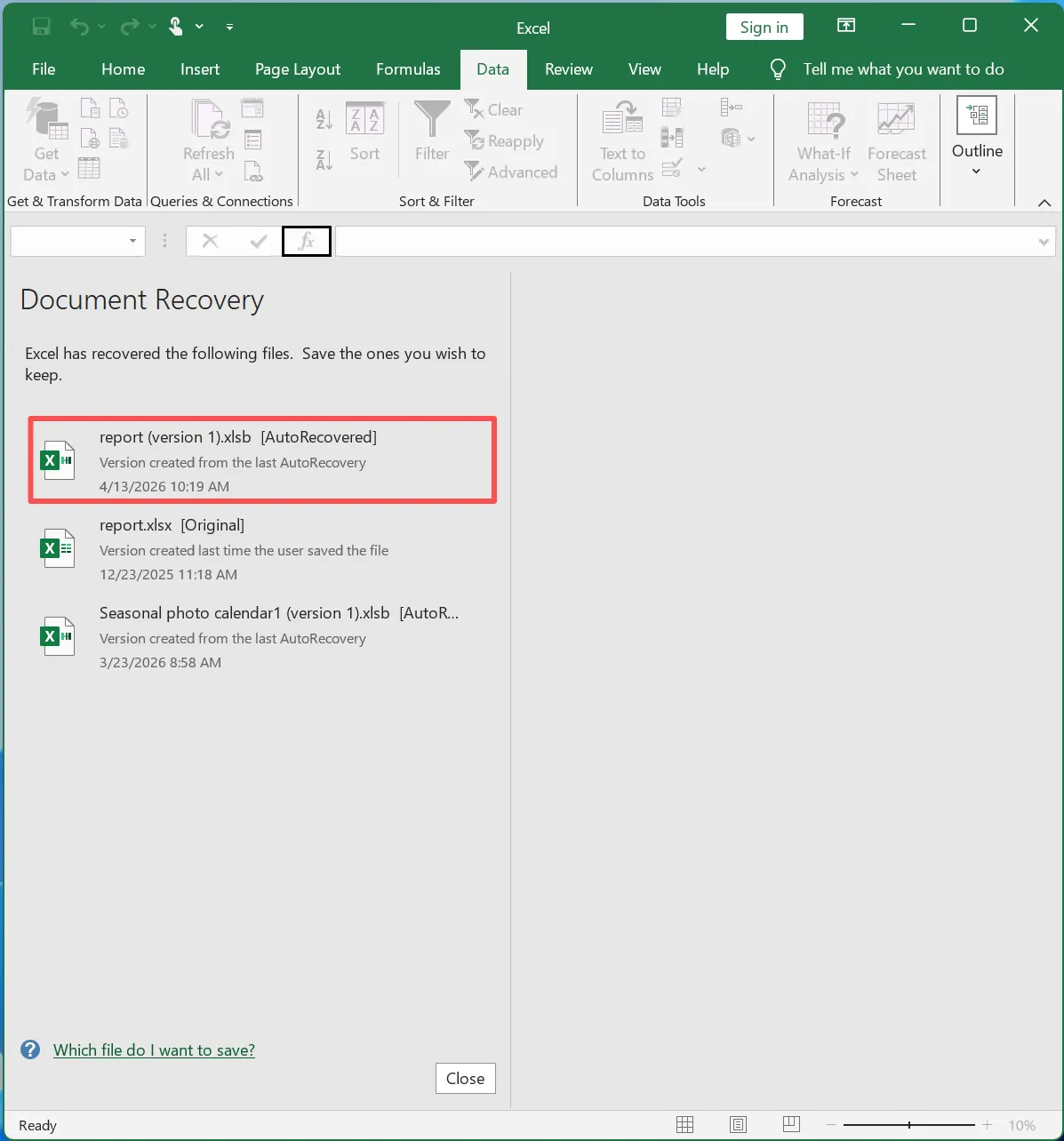
First, AutoRecover provides the quickest way to restore lost data. In most cases, Excel automatically displays recovered files after a crash.
Steps
- Reopen Excel
- Locate the Document Recovery pane
- Select the latest version
- Save the file immediately
When This Method Works
- Excel crashes unexpectedly
- AutoRecover is enabled
- The file was edited recently
However, this method does not always work. For example, if Excel closes normally, the recovery pane may not appear. Therefore, you should continue with other methods if needed.
Unsaved Excel File Recovery Method 2: Recover Unsaved Workbooks
If AutoRecover does not help, you can still perform excel unsaved file recovery manually.
Steps
- Open Excel
- Navigate to File → Info → Manage Workbook
- Click Recover Unsaved Workbooks
- Open and save the file

This method supports recovery of unsaved excel file because Excel stores temporary files in a specific directory.
However, these files are only available for a limited time. Therefore, acting quickly is essential.
Unsaved File Recovery Method 3: Use Temporary Files
In addition, temporary files can help with not saved excel file recovery, especially in crash scenarios.
Steps
- Press Win + R
- Enter
%temp% - Search for Excel-related files
- Open and rename them if necessary
Although this method requires more effort, it can still recover useful data. Moreover, it works even when Excel does not show recovery options.
Why Unsaved File Recovery Sometimes Fails
Despite multiple methods, excel unsaved file recovery may still fail. Therefore, understanding the reasons is crucial.
Common Causes
- AutoRecover is turned off
- Save interval is too long
- System crashes before backup
- Temporary files are deleted
- Disk errors prevent storage
For instance, if a crash happens immediately after editing, Excel has no time to save data. As a result, built-in recovery methods cannot help. Therefore, relying only on Excel features is not enough.
Advanced Unsaved File Recovery Solution with Magic Data Recovery
When standard methods fail, a more advanced approach becomes necessary. Therefore, professional tools like Magic Data Recovery offer a reliable solution.
Why Magic Data Recovery Is Effective
Unlike Excel, this tool scans your storage directly. As a result, it can detect:
- Unsaved temporary Excel data
- Deleted or hidden files
- Previous versions of documents
Therefore, it significantly improves success rates for recovery excel file not saved.
How to Perform File Recovery with Magic Data Recovery
Step 1: Download and Install Magic Data Recovery
Install the software on a different drive to prevent overwriting.
Supports Windows 7/8/10/11 and Windows Server
Step 2: Select the Location to Scan
Launch the program and choose the drive where the file was stored.

Step 3: Scan for Recoverable Files
The software performs an Advanced Scan and lists recoverable files continuously.

Step 4: Preview and Recover Files
Preview and recover the correct Excel file to another location safely.

Why This Solution Is More Reliable
- Works even when Excel recovery fails
- Detects hidden and deleted data
- Allows preview before recovery
- Provides higher success rates
For example, if no file appears in Excel recovery options, this tool can still locate recoverable data. Therefore, it serves as a dependable fallback solution.
Excel Unsaved File Recovery vs Built-in Methods
Method | Success Rate | Limitation |
AutoRecover | Medium | Requires prior setup |
Recover Unsaved Workbooks | Medium | Limited time window |
Temporary Files | Low–Medium | Hard to locate |
Magic Data Recovery | High | Requires installation |
Therefore, combining methods ensures better results.
Tips to Improve Unsaved File Recovery Success
To reduce risk, you should follow these best practices:
- Enable AutoRecover every 5 minutes
- Use AutoSave with cloud storage
- Save files frequently
- Avoid sudden shutdowns
- Maintain regular backups
Additionally, preparing a recovery tool in advance ensures you always have a backup solution.
Conclusion
In summary, excel unsaved file recovery is possible in many situations. Initially, built-in Excel features provide quick solutions. However, they often fail when no backup exists. Therefore, combining these methods with a professional tool offers the best outcome.
Magic Data Recovery stands out because it scans deeply and recovers hidden data that Excel cannot access. Moreover, it provides a safe and efficient recovery process. If you want a reliable solution, it is a practical choice for recovering unsaved Excel files.
Supports Windows 7/8/10/11 and Windows Server
FAQs
Can I perform excel unsaved file recovery after closing Excel normally?
Yes, you can. Excel may still store temporary files even after closing normally. However, these files may be removed quickly. Therefore, you should reopen Excel immediately and check recovery options. If nothing appears, using recovery software improves your chances significantly.
What is the best method for recovery of unsaved excel file?
The best method depends on the situation. AutoRecover works well after crashes. Meanwhile, Recover Unsaved Workbooks helps when Excel closes normally. However, if both methods fail, recovery software provides a more reliable solution because it scans the storage directly.
Why does not saved excel file recovery sometimes fail?
Recovery may fail when Excel does not create temporary backups. This often happens if AutoRecover is disabled or the crash occurs too quickly. Additionally, system cleanup processes may delete temporary files. Therefore, relying solely on built-in methods is not always sufficient.
Can recovery excel file not saved work without AutoRecover?
Yes, it can, but success is limited. Without AutoRecover, Excel relies on temporary files, which may not always exist. Therefore, recovery software becomes essential because it can detect hidden or deleted data that Excel cannot access.
How long does Excel keep unsaved files?
Excel usually keeps unsaved files for a short period. In many cases, these files disappear after closing Excel or restarting the system. Therefore, immediate recovery attempts are crucial to avoid permanent data loss.
What should I do first after losing an unsaved Excel file?
First, reopen Excel and check the Document Recovery pane. Then, try Recover Unsaved Workbooks. If both methods fail, avoid using the affected drive. Finally, use recovery software to scan and recover your file safely.

Vasilii is a data recovery specialist with around 10 years of hands-on experience in the field. Throughout his career, he has successfully solved thousands of complex cases involving deleted files, formatted drives, lost partitions, and RAW file systems. His expertise covers both manual recovery methods using professional tools like hex editors and advanced automated solutions with recovery software. Vasilii's mission is to make reliable data recovery knowledge accessible to both IT professionals and everyday users, helping them safeguard their valuable digital assets.