
NTFS File Allocation Table Guide: Fix Errors & Recover Data Easily
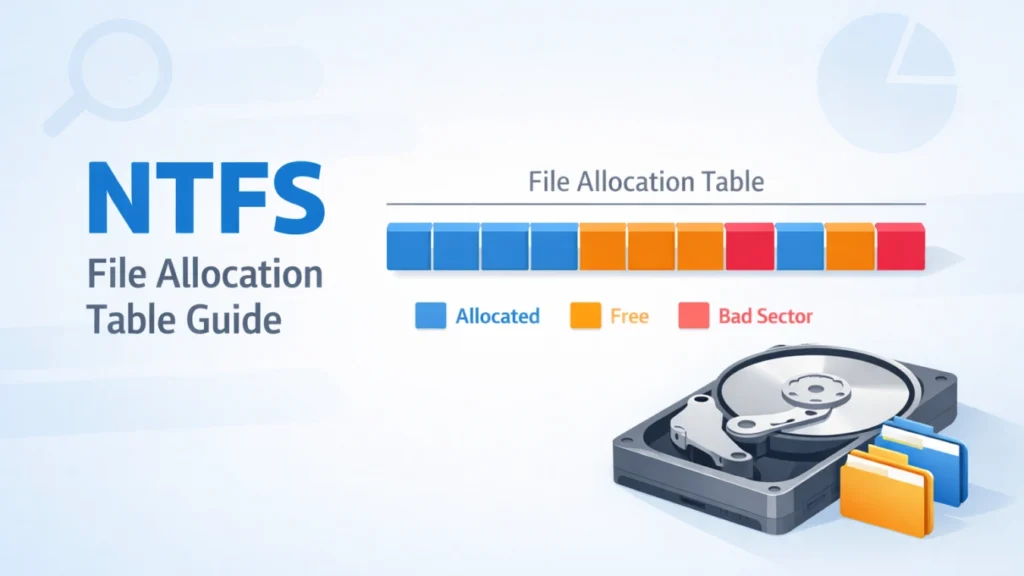
When the NTFS file allocation table becomes corrupted, serious issues can arise. Files may disappear, partitions may become inaccessible, or the system may ask you to format the drive. These problems often occur unexpectedly and can lead to permanent data loss if handled incorrectly.
In this guide, you will learn how the NTFS file allocation table works, what causes related errors, and how to fix them safely. More importantly, we will walk through practical recovery solutions and explain how Magic Data Recovery can help retrieve your data when standard tools fail.
Supports Windows 7/8/10/11 and Windows Server
Table of Contents
What Is the NTFS File Allocation Table
The NTFS file allocation table is a core structure that manages how data is organized on a storage device. It keeps track of where files are located and ensures the system can access them correctly.
Although NTFS primarily relies on the Master File Table (MFT), the allocation logic is similar. It still depends on structured records to manage disk space efficiently.
Key functions include:
- Tracking file locations
- Managing free and used disk space
- Maintaining file system consistency
Because of its importance, any issue in this structure can affect the entire disk.
Common Causes of NTFS File Allocation Table Errors
Several factors can damage the NTFS file allocation table and lead to file system problems.
Sudden power loss
Unexpected shutdowns interrupt disk operations and corrupt allocation records.
Bad sectors
Physical damage may affect the disk structure and stored metadata.
Malware or virus attacks
Malicious programs can overwrite critical file system information.
Improper device removal
Removing external drives without safe ejection often causes logical errors.
System crashes
Operating system failures may disrupt how data is written and stored.
Signs of File Allocation Structure Corruption
When issues occur in the file system structure, you may notice the following:
- Partition becomes inaccessible
- Drive appears as RAW
- Files are missing or unreadable
- System prompts to format the disk
- Noticeable performance slowdown
These symptoms often indicate problems related to allocation records or disk metadata.
How to Fix NTFS File Allocation Table Errors
When dealing with NTFS file allocation table issues, choosing the right repair method is essential. Some solutions focus on fixing the file system, while others aim to recover data safely.
Before attempting advanced recovery, you can start with built-in tools provided by Windows. Below are the most common and effective methods to fix file system errors.
Run CHKDSK to Repair File System Issues
CHKDSK is a built-in Windows utility designed to detect and repair disk errors.
Steps:
- Open Command Prompt as administrator
- Enter: chkdsk X: /f /r
- Press Enter
This process checks and repairs issues associated with the NTFS file allocation table. However, it may remove damaged files during the repair process.
Check Disk Status in Disk Management
Sometimes the partition is still present but not properly assigned.
Steps:
- Open Disk Management
- Locate the affected disk
- Assign a drive letter if needed
This method can restore access but does not fix deeper structural issues.
Restore Data from Backup
If backups are available, restoring data is always the safest option. However, in real-world scenarios, backups are often outdated or missing.
Best Way to Recover Data from NTFS File Allocation Table Issues
When repair tools cannot resolve the issue, using recovery software becomes the most reliable approach.
Why Magic Data Recovery Is Recommended
Magic Data Recovery is built to handle cases where the NTFS file allocation table is corrupted or partitions become inaccessible.

It helps solve:
- Lost partitions caused by file system errors
- Missing files due to allocation structure damage
- RAW drives that cannot be opened
Key advantages:
- Deep scan technology for NTFS-based storage
- Recovers files without formatting
- Preview files before recovery
- User-friendly interface
Practical example:
After a sudden crash, your external drive may stop responding. Instead of repairing the NTFS file allocation table directly, Magic Data Recovery scans the disk and retrieves files safely.
Why it is more reliable:
Unlike traditional repair tools, it focuses on extracting data first. This reduces the risk of overwriting important information.
👉 If you are looking for a safer and more efficient solution, consider trying Magic Data Recovery.
Supports Windows 7/8/10/11 and Windows Server
How to Use Magic Data Recovery
The process is simple and suitable for both beginners and experienced users.
Steps:
- Install and launch the software
- Select the affected drive
- Click Search for lost data to scan

- Preview recoverable files

- Recover files to another location

This ensures safe recovery without further damaging the disk structure.
Tips to Prevent NTFS File Allocation Table Corruption
Preventing file system issues is always better than repairing them later.
Best practices:
- Safely eject external devices
- Avoid sudden power interruptions
- Use updated antivirus protection
- Monitor disk health regularly
- Keep backups of important data
These steps help maintain a stable storage environment.
Conclusion
The NTFS file allocation table plays a vital role in managing how data is stored and accessed. When it becomes corrupted, it can lead to inaccessible partitions and significant data loss.
While built-in tools can resolve minor issues, they may not always protect your files. In comparison, Magic Data Recovery provides a safer and more effective solution by focusing on data retrieval before repair.
If you need a reliable way to handle NTFS file allocation table problems, this tool offers a balanced combination of safety, efficiency, and ease of use.
Supports Windows 7/8/10/11 and Windows Server
FAQs
What is the NTFS file allocation table?
The NTFS file allocation table is responsible for tracking where files are stored on a disk. It allows the system to locate and manage data efficiently. When this structure becomes corrupted, files may become inaccessible or appear missing.
Can file system corruption be repaired?
Yes, minor file system issues can often be repaired using built-in tools. However, severe corruption may require recovery software to safely retrieve data before attempting repairs to avoid further loss.
Why does a drive become RAW?
A drive becomes RAW when the system cannot recognize its file system structure. This usually happens when key metadata or allocation information is damaged, making the data temporarily inaccessible.
Is it safe to use CHKDSK?
CHKDSK is useful for fixing disk errors, but it may remove corrupted files during the process. It is recommended to recover important data first before running repairs.
Can I recover data without formatting?
Yes, recovery tools can scan the disk and restore files without formatting. They rebuild the file structure and allow access to data even when the system cannot read it normally.
What causes file allocation issues?
Common causes include sudden power loss, malware, bad sectors, and improper device removal. These factors can damage how data is organized and tracked on the disk.
How long does recovery take?
Recovery time depends on disk size and damage level. A deep scan may take several minutes to hours, especially for large drives with extensive corruption.
Is recovery software reliable?
Reliable recovery software focuses on extracting data safely without modifying the original disk. This makes it a dependable option when dealing with serious file system problems.

Jason is a data recovery and technical support specialist with over 15 years of hands-on experience. He has worked extensively with frontline users, troubleshooting difficult data loss cases and providing practical recovery solutions for accidental deletion, formatted drives, damaged file systems, lost partitions, system failures, and other recovery emergencies. His expertise also includes backup and restoration, file repair, and disaster recovery, with a strong emphasis on safe, reliable, and technically accurate guidance.