
Folder Access Denied Error Solutions

Table of Contents
How the Folder Access Denied Error Occurs
When you attempt to access a folder, the operating system checks your user permissions against the folder’s Access Control List (ACL). If your account lacks the required permissions, Windows displays an “Access Denied” message. Common scenarios include:
▪️ Trying to open a folder owned by another user.
▪️ Accessing system or program-protected directories.
▪️ Issues after transferring files from another computer or drive.
▪️ Conflicts in shared network folder permissions.
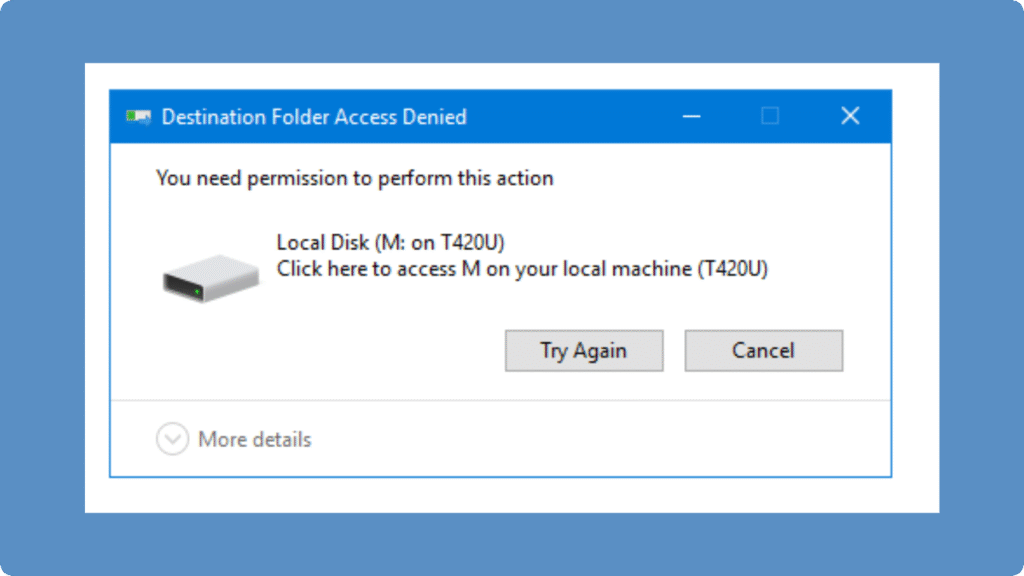
Common Causes
Insufficient Permissions: Your account is not listed as an authorized user.
Ownership Conflicts: Files or folders transferred from another system retain the old owner’s ACL.
Read-Only or Encrypted Attributes: NTFS encryption or read-only settings restrict modifications.
Corrupted File System: Bad sectors or sudden shutdowns may cause folders to become inaccessible.
Step-by-Step Fixes
1. Take Ownership
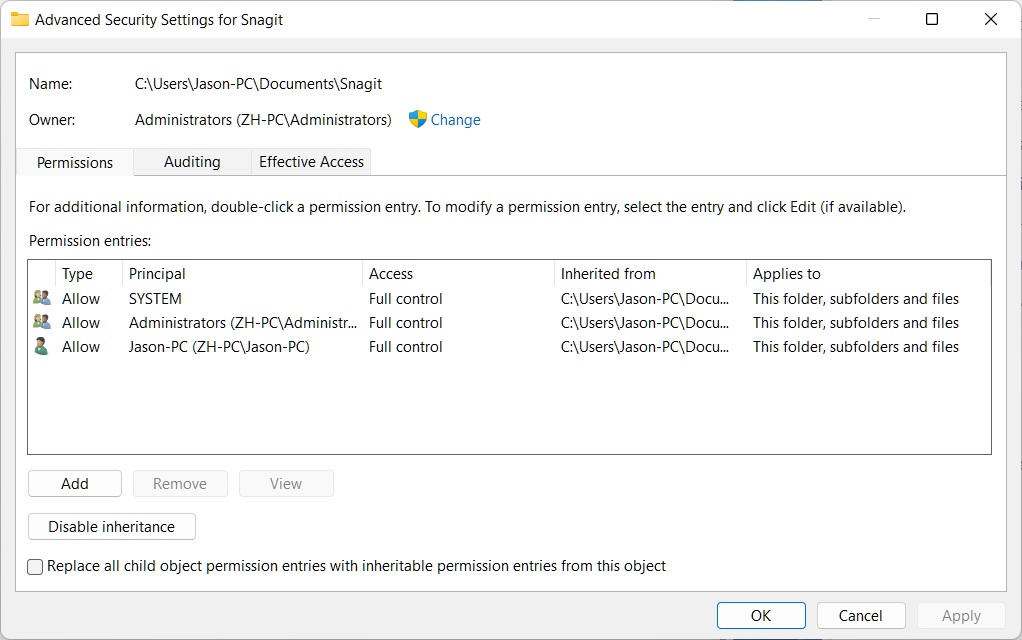
① Right-click the folder → Properties → Security → Advanced.
② Click Change next to Owner → Enter your username → Check Replace owner on subcontainers and objects → Apply.
2. Adjust Permissions
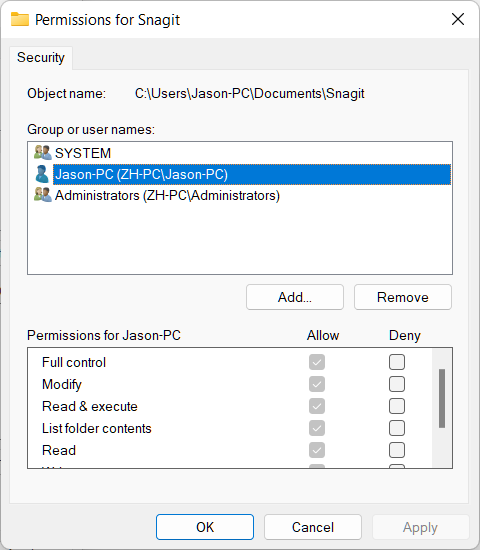
① Return to Properties → Security → Edit.
② Add your user account and assign Full Control.
③ Apply changes recursively to subfolders.
3. Check Read-Only or Encryption
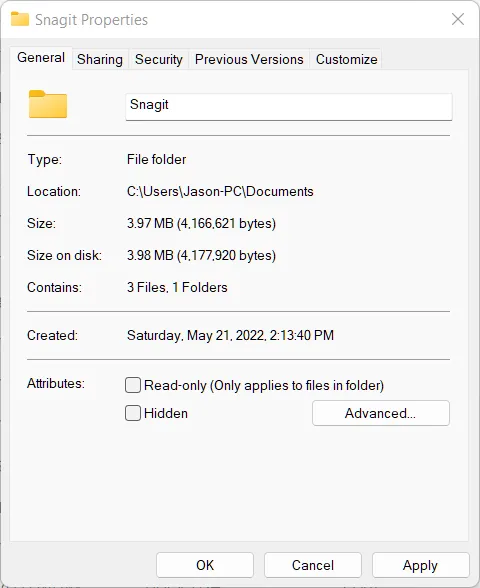
① Right-click folder → Properties → General → Uncheck Read-only.
② For encrypted folders, ensure you have the correct encryption certificate or password.
4. Use Command-Line Tools (Advanced)
① Open Command Prompt as Administrator:
takeown /F "C:\Path\to\Folder" /R /D Y
icacls "C:\Path\to\Folder" /grant YourUsername:F /T
② These commands reclaim ownership and grant full control recursively.
5. Data Recovery Option
Examples
Network Folder Issue: You cannot access a shared project folder after a Windows update.
Transferred Drive Issue: Files from an old laptop show “Access Denied” on a new system.
System Folder Restriction: Windows prevents modifications in C:\Program Files for security reasons.
Conclusion
A Folder Access Denied error is usually caused by permission, ownership, or encryption issues. By systematically checking ownership, adjusting permissions, and using professional recovery tools if needed, you can safely regain access to your files without losing data.
If you need reliable assistance to regain folder access, consider using Magic Data Recovery, a professional tool to help recover your files safely and efficiently. Please download it now.
Supports Windows 7/8/10/11 and Windows Server
Folder Access Denied FAQs
What does a Folder Access Denied error mean?
Why can’t I access a folder after transferring files?
Can I resolve a folder permissions issue without administrator rights?
Does an access denied error mean my files are lost?
How can I regain access to a restricted folder?
Are system folders like C:Program Files always protected?
Why can external drives show an access denied error?
What tool can help recover inaccessible folders safely?

Erin Smith is recognized as one of the most professional writers at Amagicsoft. She has continually honed her writing skills over the past 10 years and helped millions of readers solve their tech problems.