
BitLocker and TPM: Complete Guide for Windows Encryption
Supports Windows 7/8/10/11 and Windows Server
Table of Contents
What is BitLocker?
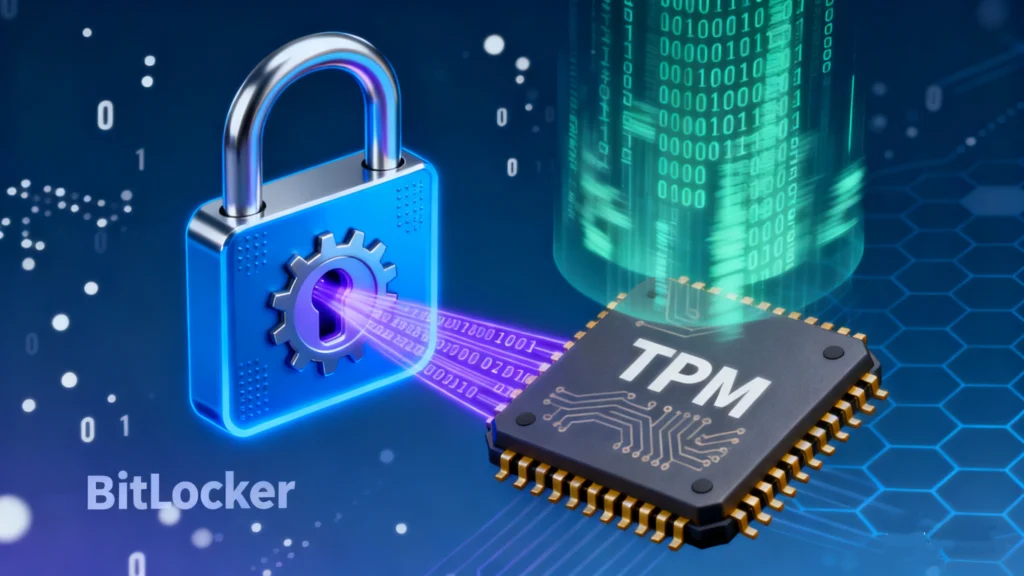
BitLocker is a built-in encryption feature in Windows that protects your data by encrypting the entire drive. It prevents unauthorized access, even if your computer is lost or stolen.
Key points about BitLocker:
- Encrypts entire drives including system and data volumes.
- Can be integrated with TPM for automatic key management.
- Requires a recovery key if hardware or system changes are detected.
Common scenarios where BitLocker is essential:
- Protecting sensitive corporate documents.
- Safeguarding personal data on laptops used in public environments.
- Preventing unauthorized access in case of theft or hardware changes.
What is TPM?
TPM (Trusted Platform Module) is a hardware chip built into most modern computers. It provides secure storage for cryptographic keys and enhances system integrity.
TPM functions relevant to BitLocker:
- Securely stores the BitLocker encryption keys.
- Ensures that the device has not been tampered with before unlocking the drive.
- Supports automatic unlocking without requiring manual password entry.
Without TPM, users must rely on alternative unlock methods, such as a USB key or manual password entry, which can be less convenient.
How BitLocker and TPM Work Together
When BitLocker is enabled with TPM, the module stores the encryption key securely, allowing the drive to unlock automatically during system boot. The process works as follows:
- TPM verifies the integrity of the system hardware and firmware.
- If the system passes verification, TPM releases the BitLocker key to unlock the drive.
- If changes are detected (hardware replacement, BIOS update), BitLocker requests the recovery key.
Benefits of using TPM with BitLocker:
- Simplifies the encryption and decryption process.
- Enhances security by storing keys in a tamper-resistant module.
- Reduces reliance on user-managed passwords or USB keys.
How to Enable TPM and Set Up BitLocker
Follow these steps to ensure TPM is enabled and BitLocker is properly configured:
Step 1: Check TPM status
- Press
Win + R, typetpm.msc, and press Enter. - Confirm that TPM is present and enabled.
Step 2: Enable TPM in BIOS/UEFI (if disabled)
- Restart your PC and enter BIOS/UEFI settings (usually by pressing F2, F10, or DEL).
- Navigate to the Security tab and enable TPM or PTT (Platform Trust Technology).
- Save changes and exit BIOS/UEFI.
Step 3: Enable BitLocker
- Open Control Panel → System and Security → BitLocker Drive Encryption.
- Select the drive to encrypt and choose “Use TPM” as the unlock method.
- Follow the wizard to complete encryption and save the recovery key securely.
Tips for TPM setup:
- Ensure your BIOS firmware is up to date.
- Always back up your BitLocker recovery key in a secure location.
- Avoid using generic passwords; rely on TPM-managed keys for better security.
What to Do If You Lose Your BitLocker Recovery Key
Even with TPM, unexpected system changes or hardware issues may prompt a recovery key request. Losing this key can lock you out of your own data. In such cases, Magic Recovery Key offers a reliable solution.
Why Magic Recovery Key is recommended:
- Recovers lost or forgotten BitLocker keys efficiently.
- Supports multiple Windows versions and drive types.
- Simple step-by-step interface suitable for non-technical users.
How to use Magic Recovery Key:
1. Download Magic Recovery Key: Start by downloading and installing Magic Recovery Key on your device.
Supports Windows 7/8/10/11 and Windows Server

3. Scan for the Recovery Key: Let the tool scan your system for BitLocker recovery keys.
4. Retrieve Your Key: Once the scan is complete, the tool will display your BitLocker recovery key.

5. Unlock Your Device: Enter the recovered key to unlock your BitLocker-encrypted drive.
Advantages over other methods:
- Faster and more reliable than manual recovery attempts.
- Reduces the risk of data loss during encryption lockouts.
- Offers clear instructions, minimizing user errors.
Conclusion
Understanding BitLocker and TPM is crucial for protecting sensitive data on Windows devices. TPM ensures secure key storage and seamless access, while BitLocker provides robust encryption. For users who lose their BitLocker recovery key, Magic Recovery Key presents a practical, trustworthy solution that minimizes downtime and data risk.
If you want a hassle-free way to recover your BitLocker key, Magic Recovery Key is a solution worth considering. It ensures you can regain access to encrypted drives without compromising security or data integrity.
Supports Windows 7/8/10/11 and Windows Server
FAQs
What is BitLocker and how does it work?
What is TPM and why is it important for BitLocker?
How do I check if my PC has TPM?
How do I enable TPM in BIOS for BitLocker?
Can I use BitLocker without TPM?
What should I do if Windows asks for a BitLocker recovery key?
How does Magic Recovery Key help with BitLocker?
Why is it recommended to use TPM with BitLocker?

Erin Smith is recognized as one of the most professional writers at Amagicsoft. She has continually honed her writing skills over the past 10 years and helped millions of readers solve their tech problems.