
What is FAT32 File System
FAT32 File System (File Allocation Table 32) is a disk file system introduced by Microsoft in 1996 as an extension of the original FAT architecture. It uses a 32-bit file allocation table to organize data storage, allowing more efficient space usage than FAT16 while maintaining broad compatibility across operating systems, consumer electronics, and embedded devices.
The FAT32 File System is still commonly used on USB flash drives, SD cards, cameras, game consoles, bootable media, and other removable storage where compatibility is important. Its biggest limitation is that a single file cannot reach 4 GB in size. Therefore, FAT32 remains useful for cross-device storage, but newer file systems such as exFAT and NTFS are often more suitable for large files and modern computers.
Table of Contents
How FAT32 File System Works
The FAT32 File System organizes data using a File Allocation Table, or FAT, that tracks which clusters belong to each file. A cluster is a fixed-size group of disk sectors used as the basic allocation unit for storing data.
FAT32 commonly maintains two copies of the File Allocation Table. The additional copy provides redundancy if one FAT becomes damaged, although it should not be considered a complete backup of the file system.
Each file can occupy one or more clusters. When a file spans several clusters, FAT32 records them as a cluster chain. The system reads entries in the File Allocation Table to determine which cluster comes next until it reaches the end of the file.
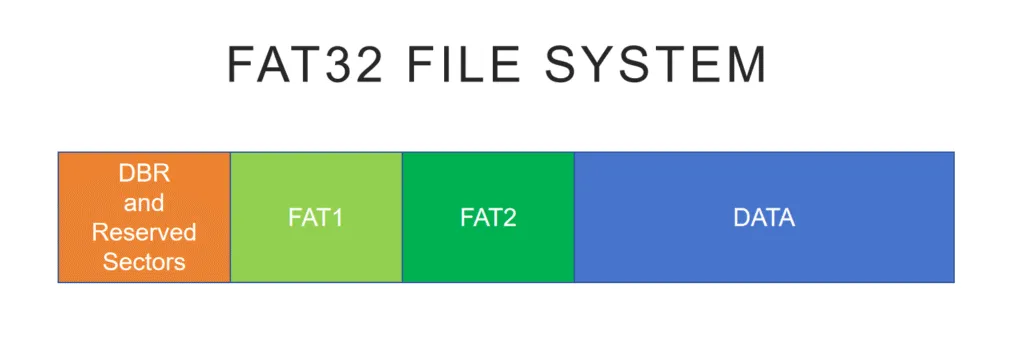
When the operating system reads a file, it uses the directory information to find the file’s starting cluster and then follows the cluster chain recorded in the FAT.
Compared with FAT16, FAT32 can address significantly more clusters. This allows smaller cluster sizes on larger volumes and can reduce wasted storage space.
FAT32 File System Size and Volume Limits
One of the most important characteristics of the FAT32 File System is its 4 GB individual file-size limit.
Technically, the maximum size of a single FAT32 file is 4 GiB minus 1 byte, or 4,294,967,295 bytes. In everyday usage, this is commonly referred to as the 4 GB FAT32 file size limit.
This limitation comes from the 32-bit unsigned field used to store the file size in a standard FAT directory entry. Therefore, the commonly cited 4 GB FAT32 limit refers to the size of an individual file rather than the total capacity of the storage device.
For example, a 128 GB FAT32 USB drive can contain many gigabytes of data, but you cannot copy one 6 GB video file to it.
Volume size is a separate issue. With commonly used 512-byte sectors, FAT32 volumes are typically associated with capacities up to approximately 2 TB. The practical limit can vary depending on sector size, cluster configuration, the operating system, and the tool used to create the file system.
In short:
- Maximum individual file: About 4 GB
- FAT32 volume: Can be much larger than 4 GB
- Formatting limit: Depends partly on the operating system and formatting utility
This distinction is important when choosing FAT32 for modern storage devices.
Why FAT32 File System Is Still Widely Used
Although newer file systems such as NTFS and exFAT offer support for larger files and more advanced features, the FAT32 File System remains relevant for several practical reasons.
- Universal compatibility: FAT32 is supported by Windows, macOS, Linux, cameras, smart TVs, game consoles, media players, and many embedded systems.
- Low overhead: Its relatively simple structure makes FAT32 suitable for removable storage and hardware with limited resources.
- Boot and firmware support: Many BIOS, UEFI, recovery, and firmware-update environments support or require FAT32-formatted media.
- Legacy device support: Older devices may recognize FAT32 even when they cannot read exFAT or NTFS.
As a result, FAT32 is still commonly used when compatibility matters more than advanced file-system functionality.
When Should You Use FAT32 File System?
The FAT32 File System remains a sensible choice when:
- A camera, smart TV, game console, car multimedia system, or other device specifically requires FAT32.
- You are creating compatible boot or firmware-update media.
- A USB drive must work with both newer and older devices.
- You do not need to store individual files larger than 4 GB.
- Cross-platform compatibility is more important than advanced security features.
However, FAT32 is generally less suitable when:
- You regularly work with videos, disk images, archives, or other files larger than 4 GB.
- You are formatting a Windows system or internal drive.
- You need file permissions, encryption, or journaling.
- You use a large external SSD mainly with modern computers.
- Your devices already support exFAT.
In these situations, exFAT or NTFS will usually provide a more practical storage environment.
FAT32 vs NTFS
Both FAT32 and NTFS are Microsoft file systems, but they were designed for different purposes.
Feature | FAT32 | NTFS |
Maximum individual file | About 4 GB | Supports much larger files |
Typical use | USB drives, SD cards, removable media | Windows internal and system drives |
Journaling | No | Yes |
Permissions | No | Yes |
File-system encryption | No | Yes |
Cross-platform support | Excellent | More limited outside Windows |
Legacy-device support | Excellent | Limited |
FAT32 prioritizes compatibility and simplicity, while NTFS focuses more heavily on reliability, security, permissions, journaling, and support for modern Windows storage.
For an internal Windows HDD or SSD, NTFS is generally more appropriate. However, FAT32 can still be preferable for removable storage that must work with cameras, televisions, game consoles, firmware tools, or older devices.
FAT32 vs exFAT vs NTFS
For modern removable storage, it is also useful to compare FAT32 File System with both exFAT and NTFS.
Feature | FAT32 | exFAT | NTFS |
Best suited for | Maximum device compatibility | Modern removable storage | Windows internal storage |
Files larger than 4 GB | No | Yes | Yes |
Journaling | No | No | Yes |
Windows read/write | Yes | Yes | Yes |
macOS read/write | Yes | Yes | Limited native NTFS write support |
File permissions | No | No | Yes |
Typical devices | USB, SD, cameras, firmware media | USB, SDXC, external SSDs | Windows HDDs and SSDs |
Choose FAT32 File System when maximum compatibility is required or a device specifically requires FAT32.
Choose exFAT when you need removable storage capable of holding files larger than 4 GB while remaining compatible with modern Windows and macOS computers.
Choose NTFS primarily for Windows internal drives or storage that benefits from journaling, permissions, encryption, and other Windows-specific features.
Common FAT32 File System Limitations
While the FAT32 File System is reliable enough for many removable-storage applications, its relatively simple architecture also creates several limitations.
4 GB Individual File Size Limit
FAT32 cannot store an individual file that reaches 4 GB in size. This can be a major problem for large videos, virtual-machine images, disk images, installation packages, and compressed archives.
No File-Level Security
FAT32 does not support NTFS-style access-control permissions or built-in file-system encryption.
Therefore, it is poorly suited to situations where multiple users require different levels of access to stored files.
No Journaling
FAT32 does not maintain a metadata transaction journal.
As a result, sudden power loss, system crashes, or unsafe drive removal can leave file-system metadata inconsistent and increase the risk of corruption.
Fragmentation
Files can become fragmented after repeated creation, deletion, and modification. On heavily used storage, this can affect performance, particularly on mechanical disks.
Limited Suitability for Modern System Drives
FAT32 lacks many of the reliability, security, and management features expected from a modern desktop operating system.
These limitations make the FAT32 File System unsuitable for many modern internal-storage workloads. However, they do not eliminate its usefulness for removable media, boot drives, embedded systems, and compatibility-focused storage.
How to Format a USB Drive to FAT32 File System
Formatting creates a new file system on the selected partition. Therefore, back up any important files before starting.
To format a compatible USB drive as FAT32 in Windows:
- Insert the USB drive.
- Open Disk Management.
- Right-click the USB partition and select Format.
- Choose FAT32 as the file system.
- Select the preferred allocation unit size if necessary.
- Confirm the operation.
For supported USB drives, FAT32 may also be available through File Explorer.
Does Windows Still Have a 32 GB FAT32 Formatting Limit?
The commonly discussed 32 GB limit is not the actual maximum capacity of the FAT32 File System. Instead, it originated from limitations imposed by Windows formatting tools.
Traditional Windows graphical formatting interfaces may not offer FAT32 for partitions larger than 32 GB. However, newer Windows 11 versions have increased the FAT32 creation limit of the command-line format tool to as much as 2 TB.
Therefore, FAT32 formatting behavior may depend on:
- Windows version and build
- The formatting interface being used
- Storage capacity
- Sector size
- Partition configuration
If FAT32 is unavailable for a large USB drive, first check whether the target device specifically requires FAT32.
For modern removable storage that must hold files larger than 4 GB, exFAT is often a better choice.
Data Safety Considerations
If a FAT32 volume becomes corrupted or accidentally formatted, important file-system metadata may be damaged or reset while some original file data remains on the storage device.
This is particularly important from a data-recovery perspective. A deleted or formatted FAT32 file may remain recoverable until its clusters are overwritten by new data.
Therefore, if important files suddenly disappear:
- Stop writing new data to the FAT32 drive.
- Avoid formatting the drive again.
- Do not copy new files onto the affected storage.
- Recover important files before attempting file-system repairs.
A controlled, read-only recovery approach can reduce the risk of overwriting recoverable data.
Professional recovery tools such as Magic Data Recovery can scan FAT32 volumes and identify recoverable files after accidental deletion, formatting, or certain logical file-system problems.
If you need to recover data from a FAT32 drive, follow these steps.
1.Download and Install the Software
Install Magic Data Recovery on a different drive so that the installation does not overwrite potentially recoverable files on the affected FAT32 device.
Do not install the software directly on the drive from which you need to recover data.
Supports Windows 7/8/10/11 and Windows Server
2.Select the FAT32 Drive & Start Scanning
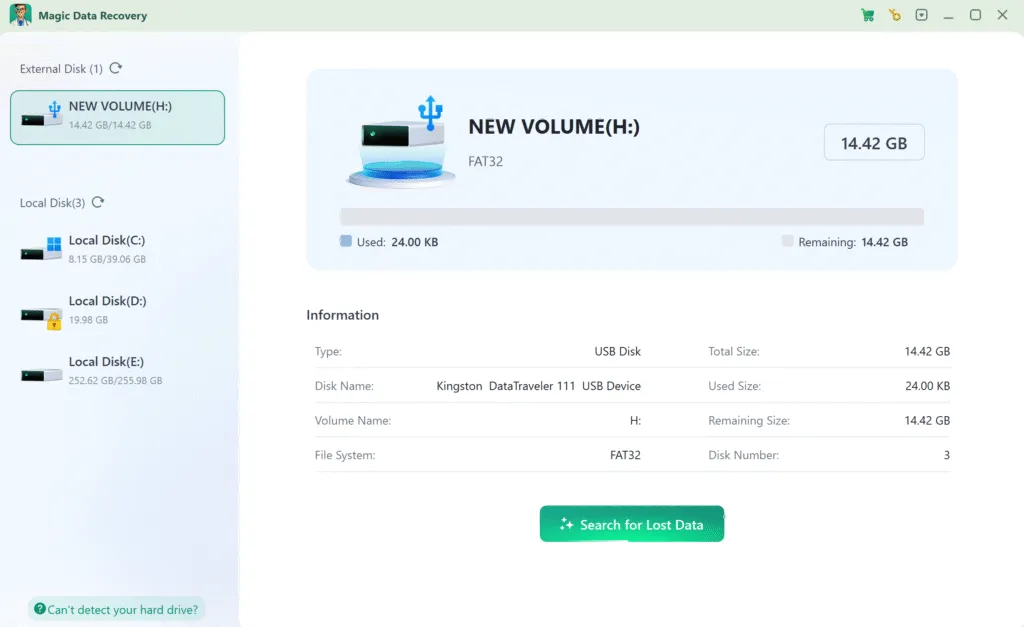
Launch the software. It will automatically detect all connected drives.
→ Select the FAT32 drive containing the lost files.
→ Click “Search” to begin the recovery process.
3. Wait for the Scan to Complete
The software performs an Advanced Scan to locate all recoverable files. Scan time mainly depends on the drive’s capacity and performance.

4. Preview Files Before Recovery
Once scanning finishes, all found files appear in the results list. Use the “Preview” feature to open files (e.g., photos, documents) and verify they match your lost data.

5.Recover Data Safely
Select the files you need and click “Recover” button to choose a different drive (e.g., an external USB or secondary internal drive).
⚠️ ABSOLUTELY DO NOT recover files to the original FAT32 drive—this risks overwriting and permanent data loss.

Conclusion
The FAT32 File System remains a practical and widely supported file system for removable storage, particularly when broad device compatibility matters more than advanced security and file-management features.
Its simple design makes FAT32 suitable for USB flash drives, SD cards, cameras, boot media, firmware-update devices, smart TVs, game consoles, and many embedded systems. However, the 4 GB individual file-size limit, lack of journaling, and absence of modern permissions make it less suitable for large files and modern operating-system drives.
For modern removable storage containing large files, exFAT may be more appropriate. For Windows system and internal drives, NTFS provides more advanced reliability and security features.
If unexpected data loss occurs on a FAT32 volume, avoid writing new data to the affected device. You can use Magic Data Recovery to scan the FAT32 storage for recoverable files before attempting repairs or another format.
Supports Windows 7/8/10/11 and Windows Server
FAT32 File System FAQ
What does FAT32 mean for USB?
Which is better, FAT32 or NTFS?
Are all 32GB SD cards FAT32?
Is FAT32 still in use?
Do all USB drives support FAT32?
How do I put my USB in FAT32?
What are the downsides of FAT32?
Can I convert FAT32 to NTFS?

Vasilii is a data recovery specialist with around 10 years of hands-on experience in the field. Throughout his career, he has successfully solved thousands of complex cases involving deleted files, formatted drives, lost partitions, and RAW file systems. His expertise covers both manual recovery methods using professional tools like hex editors and advanced automated solutions with recovery software. Vasilii's mission is to make reliable data recovery knowledge accessible to both IT professionals and everyday users, helping them safeguard their valuable digital assets.