
Proven Methods to Recover Deleted Files on Windows
Accidentally deleting important files from your computer can be a nightmare, especially when they seem to be lost forever. Whether it’s a document, photo, or video, the panic sets in once you have emptied the Recycle Bin . Fortunately, permanently deleted files aren’t always gone for good. In this guide, we’ll walk you through how to recover Windows deleted files efficiently, using both built-in Windows tools and third-party deleted file recovery solutions like Magic Data Recovery.
Supports Windows 7/8/10/11 and Windows Server
Wondering if your files can be recovered? Find out in seconds with our quick check below.
Data Recovery Assessment
Answer 3 quick questions to estimate your recovery chances
Table of Contents
How to Recover Deleted Files from Windows: Proven Methods
Method 1: Check the Recycle Bin
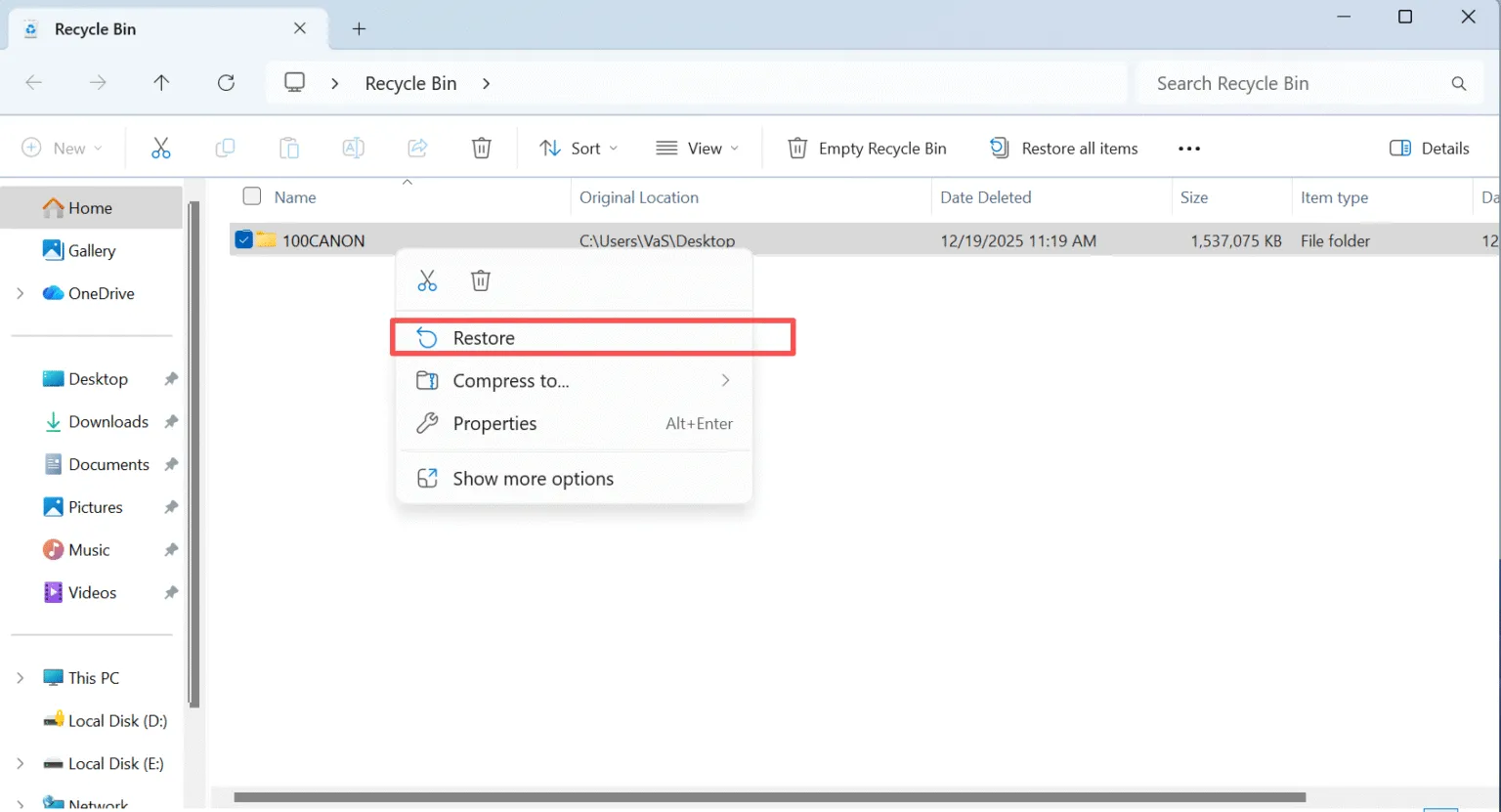
If you’ve accidentally deleted a file, the first place to check is the Recycle Bin. Windows moves deleted files to the Recycle Bin, where they remain until manually emptied.
- Open the Recycle Bin by double-clicking its icon on your desktop.
- Search for the file you want to recover.
- Right-click the file and select Restore to return it to its original location.
If the file isn’t in the Recycle Bin, don’t panic. There are still ways to retrieve it.
Method 2: Use Windows File History
Windows offers a built-in tool called File History, which can help you restore lost files.
- Open Control Panel and navigate to System and Security — File History.
- Select Restore personal files. You will see all the backups if you made before data loss.
- Select and restore the files you need.
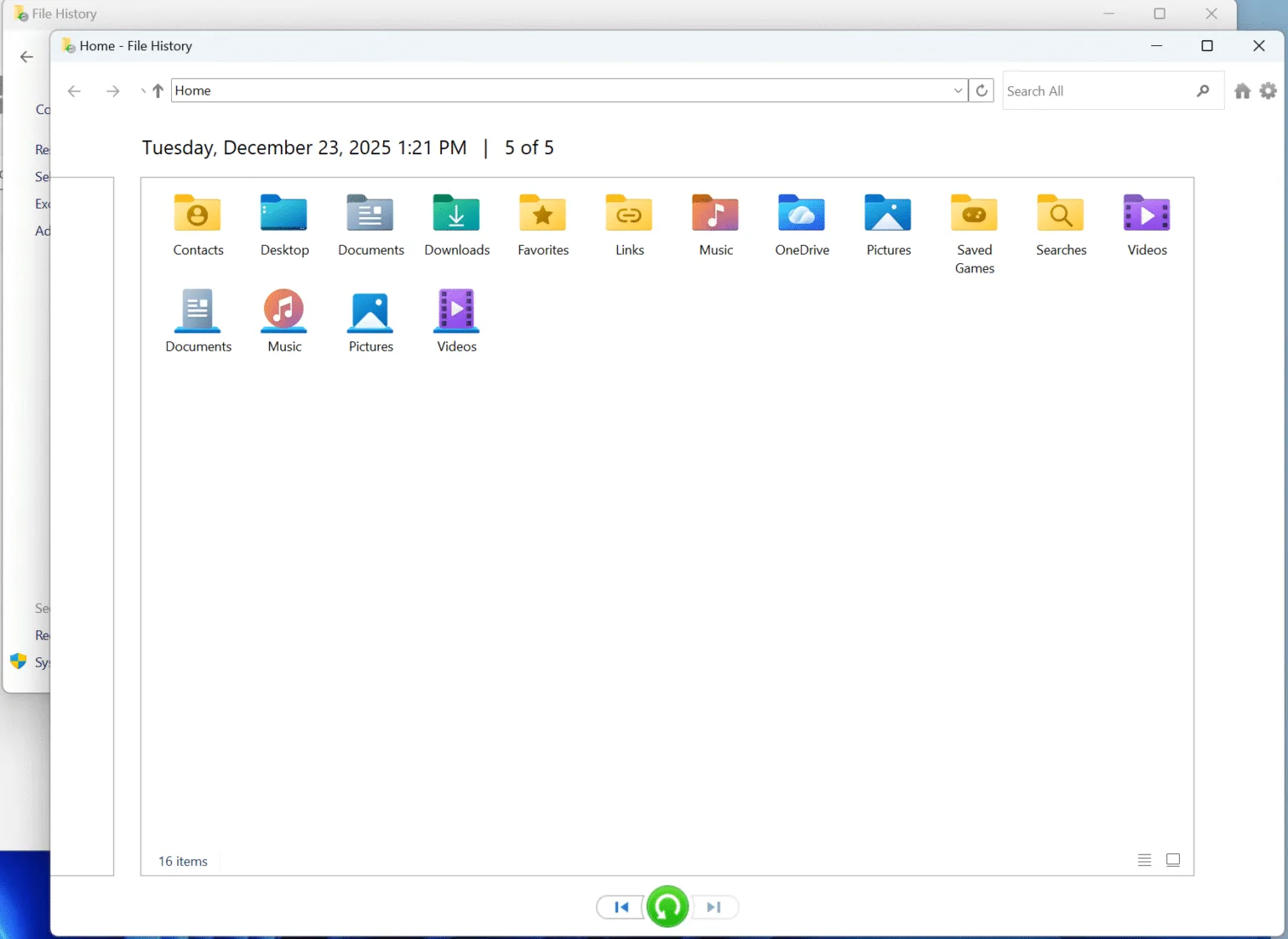
If you haven’t set up File History previously, this method won’t work. But if you have it enabled, this is one of the easiest ways to restore files.
Method 3: Recover Using a Backup
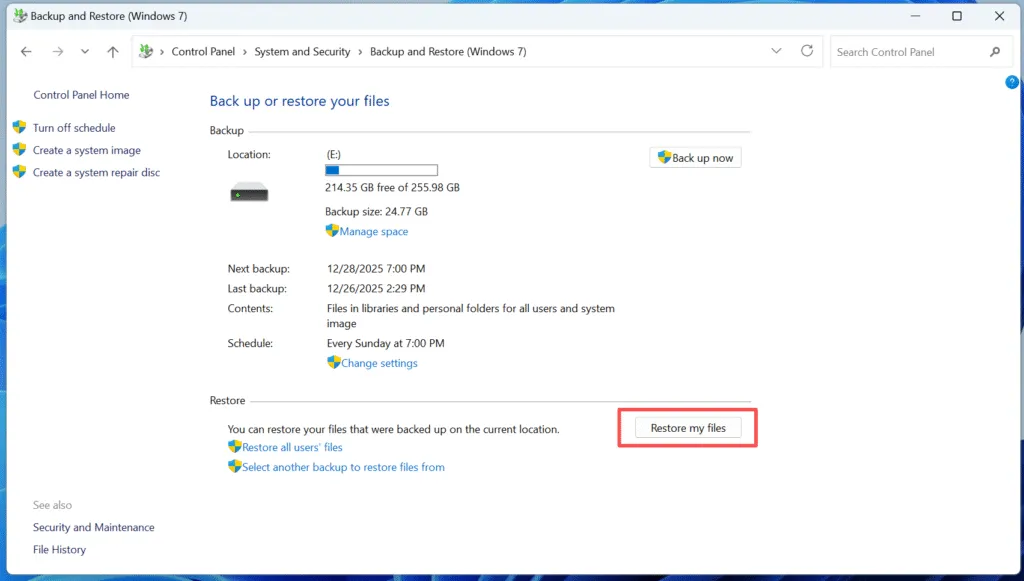
If you’ve been diligent about backing up your files using Windows Backup, you can restore your deleted files from a previous backup.
- Open Control Panel and go to System and Security > Backup and Restore (Windows 7).
- Click Restore my files and follow the prompts to select your backup and recover the files you need.
Method 4: Use Data Recovery Software After Permanent deletion
If you’ve permanently deleted your files (i.e., emptied the Recycle Bin or used Shift + Delete), recovery can be more challenging. Magic Data Recovery is an excellent tool to help you recover deleted files that are no longer in the Recycle Bin.
Recover Windows Deleted Files Using Magic Data Recovery
Magic Data Recovery is a powerful tool that can scan your computer for permanently deleted files and restore them in just a few steps. Here’s how to use it:
Step 1: Download and Install Magic Data Recovery
Start by downloading Magic Data Recovery from the official website and installing it on a drive different from the one where your deleted files were located. This ensures that you don’t accidentally overwrite the deleted files, which could make recovery more difficult.
Supports Windows 7/8/10/11 and Windows Server
Step 2: Select the External Hard Drive to Scan
On the main interface, select the hard drive where you deleted files and start a scan.

Step 3: Scan the Drive for Deleted Files
The software will automatically perform an Advanced Scan. During this scan, it will detect all the files that can be recovered, including those that are permanently deleted.

Step 4: Preview Deleted Files Before Recovery
Once the scan is complete, use the Preview function to see the content of the files found. This step ensures that you recover only the files you actually need, saving you time and storage.

Step 5: Recover Files to a Safe Location
Finally, select the files you wish to recover and choose a different drive to save them. DO NOT save the files to the original drive, as this could overwrite the lost files.

Why Magic Data Recovery Is Your Best Option to Recover Windows Deleted Files
While there are many options available for recovering deleted files, Magic Data Recovery stands out due to its unique features and ease of use.
- Advanced Scan Technology: Unlike many other tools, Magic Data Recovery uses advanced scanning algorithms to detect deleted files that might have been overlooked by less powerful software.
- Preview Function: You can preview files before recovery, ensuring that you don’t waste time recovering unnecessary data.
- Multiple File Formats Supported: The software can recover over 5,000 file formats, including photos, documents, videos, and more.
- Safe and Secure: Magic Data Recovery does not overwrite your files during the scanning process, reducing the risk of permanent data loss.
If you’re serious about recovering lost data, Magic Data Recovery offers the best balance of speed, reliability, and ease of use.
Conclusion
Recovering deleted files from Windows doesn’t have to be a daunting task. While you can use built-in tools like the Recycle Bin or File History, but they only works if you haven’t emptied the Recycle Bin or you made backups before data loss. The most effective solution for data loss is a reliable third-party tool like Magic Data Recovery. This software makes it easy to recover files that seem lost forever, ensuring that your data stays safe and secure.
Supports Windows 7/8/10/11 and Windows Server
Windows Recover Deleted Files – FAQs
How to recover permanently deleted files from Windows?
How do I recover a file I accidentally deleted?
Is it possible to recover deleted files in Windows 10?
Where do permanently deleted files go on Windows?
Can I still recover permanently deleted files?
Are permanently deleted files actually deleted?
Where to find deleted files if not in the recycle bin?
Are things deleted from recently deleted gone forever?

Vasilii is a data recovery specialist with around 10 years of hands-on experience in the field. Throughout his career, he has successfully solved thousands of complex cases involving deleted files, formatted drives, lost partitions, and RAW file systems. His expertise covers both manual recovery methods using professional tools like hex editors and advanced automated solutions with recovery software. Vasilii's mission is to make reliable data recovery knowledge accessible to both IT professionals and everyday users, helping them safeguard their valuable digital assets.