
A Comprehensive Guide to Hard Disk Errors
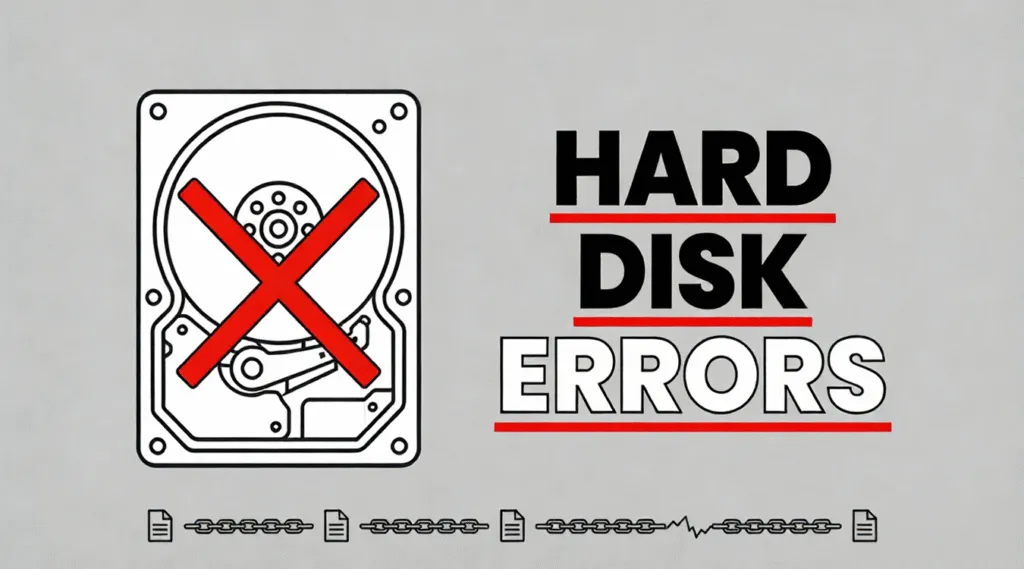
Few things are more alarming than seeing error messages related to your storage device. Hard disk errors often appear without warning—your computer slows down, files disappears, or the system refuses to boot. The good news is this: in most cases, these errors do not mean your data is permanently lost.
This guide explains what hard disk errors really are, how to detect them early, which errors can be fixed safely, and—most importantly—how to recover your data from corrupted drives when repairs alone are no longer enough.
Table of Contents
What Are Hard Disk Errors (and Why They Matter)
The errors refer to problems that prevent a storage device from reading or writing data correctly. These errors can affect:
- The file system structure (NTFS, FAT32, exFAT)
- Individual sectors on the disk surface
- Logical links between files and folders
- Metadata such as indexes and allocation tables
While some errors are minor and fixable, others can escalate quickly—leading to data loss if ignored.
Early Warning Signs of Hard Disk Errors
Before a drive completely fails, it usually sends signals. Recognizing these symptoms early gives you a chance to act.
Typical signs include:
- Files taking unusually long to open
- Frequent “disk needs to be checked” messages
- Applications freezing when accessing certain folders
- Missing or corrupted files
- Unexplained system crashes or restarts
If you notice these signs, do not panic. The next step is diagnosis—not random fixes.
How to Check and Fix a Hard Disk for Errors
Checking for hard disk errors should always start with built-in diagnostic tools. These tools are designed to analyze disk structures without immediately modifying data.
Using CHKDSK on Windows
1. Open Command Prompt as an administrator.
2. Type the command chkdsk C: /f /r and press Enter (replace “C:” with the appropriate drive letter).
3. /f tells CHKDSK to fix errors, while /r locates bad sectors and recovers readable information.
4. Let CHKDSK complete the process and reboot if necessary.

Important:
Running repair commands modifies disk structures. If your drive already shows signs of failure, data recovery should come before repair attempts.
CHKDSK Usage Scenarios
CHKDSK is effective—but limited. It can fix:
- Logical issues like file system corruption
- Lost clusters
- Cross-linked files
- Incorrect file size records
It cannot fix:
- Physical disk damage
- Severe bad sector spread
- Mechanical failures
That’s why CHKDSK is best used after data recovery, not before.
Should You Fix Hard Disk Errors Immediately?
This is where many users make a costly mistake.
When fixing errors is safe
- Minor file system inconsistencies
- Drives that are still fully accessible
- No missing or critical data reported
When fixing errors can cause data loss
- Drives showing RAW file system status
- Clicking or abnormal noises
- Files already missing or unreadable
In these situations, repairing errors may overwrite recoverable data.
This is why professional recovery workflows follow this order:
Scan → Recover data → Repair disk
Recovering Data from a Hard Disk with Errors
When hard disk errors affect file access, traditional repair tools are no longer enough. This is where a dedicated recovery solution becomes essential.
Why Magic Data Recovery Is Recommended
Magic Data Recovery is designed specifically for scenarios involving disk errors, including:
- File system corruption
- RAW partitions
- Accidental formatting after disk errors
- CHKDSK-related data loss. Some files may become .CHK files after CHKDSK
Key advantages:
- Read-only scanning — no risk of overwriting data
- Supports NTFS, FAT32, exFAT and EXT file systems
- Recovers files even when the system cannot access the drive
- Clear preview before recovery
Unlike repair tools, Magic Data Recovery focuses on preserving your data first, not modifying the disk.

Common Causes of Hard Disk Failure
Based on industry data and real-world recovery cases, the most common causes are:
- Gradual bad sector development
- Improper shutdowns
- Power surges
- Overheating
- Long-term mechanical wear (HDDs)
Hard disk errors are often the early stage of failure, not the end.
Conclusion
In conclusion, detecting and fixing hard disk errors is essential to maintaining data integrity and preventing data loss. By using tools like CHKDSK or third-party software like Magic Data Recovery, you can fix minor issues and recover lost data. Remember, always back up your files to avoid the devastating effects of hard disk failure.
If you are dealing with disk errors and missing files, recover your data first with Magic Data Recovery—then fix the problem.
Supports Windows 7/8/10/11 and Windows Server
FAQs About Hard Disk Errors
How to check hard disk for errors?
How to fix errors in a hard disk?
How to identify a hard disk issue?
Should I run CHKDSK r or f?
How can you tell if a hard drive is corrupted?
What errors does CHKDSK fix?
Can disk errors be repaired?
What is the most common cause of hard drive failure?

Vasilii is a data recovery specialist with around 10 years of hands-on experience in the field. Throughout his career, he has successfully solved thousands of complex cases involving deleted files, formatted drives, lost partitions, and RAW file systems. His expertise covers both manual recovery methods using professional tools like hex editors and advanced automated solutions with recovery software. Vasilii's mission is to make reliable data recovery knowledge accessible to both IT professionals and everyday users, helping them safeguard their valuable digital assets.