
Fix Correcting Errors in the Master File Table Mirror
When your system starts checking the disk, you might see a notification about correcting errors in the master file table mirror. This message often appears during a CHKDSK process when Windows detects a discrepancy between the main Master File Table (MFT) and its backup. Although it sounds technical, understanding this process is essential for maintaining your data integrity. Consequently, this guide will walk you through why this happens and how to resolve it safely.
Table of Contents
Understanding the Role of the Master File Table (MFT)
The NTFS file system relies heavily on the Master File Table. To ensure reliability, Windows maintains a partial copy known as the MFT Mirror. However, sudden power failures or hardware glitches can cause these two versions to become out of sync. When the system detects this inconsistency, it begins correcting errors in the master file table mirror to prevent file system collapse.
Therefore, you should not ignore this warning. If the mirror cannot be synchronized with the primary MFT, your drive might become RAW or inaccessible. Fortunately, Windows usually handles this automatically during startup. Nevertheless, if the process hangs or repeats frequently, you must take manual intervention.
Common Symptoms and Causes of Correcting Errors in Master File Table Mirror
Experience shows that MFT errors rarely happen without an underlying cause. Most users report that the system hangs for hours during the correcting errors in the master file table mft mirror phase. Below are the most frequent catalysts for this problem:
- Improper System Shutdowns: Sudden power failures often interrupt the MFT writing process. As a result, this leads to data desynchronization.
- Physical Disk Degradation: Hard drives eventually develop bad sectors. Because these sectors coincide with the MFT location, the mirror will fail to sync.
- Software Conflicts: Buggy drivers or incompatible system updates can occasionally corrupt the file system metadata.
- Malware Activity: Specific types of ransomware target the file system. For this reason, they prevent users from accessing their partitions by corrupting the MFT.
Why You Must Recover Data Before Correcting Errors in Master File Table Mirror
When you face the chkdsk insufficient disk space to repair master file table mirror error, the situation is delicate. Running aggressive repair commands like chkdsk /f /r involves the system attempting to rewrite data on damaged sectors. However, if the drive is failing physically, these repair attempts can permanently overwrite your irreplaceable files.
Therefore, the most professional advice is to prioritize data extraction before performing any system-level repairs. This “safety-first” approach ensures that even if the partition becomes unbootable after a repair attempt, your files are already secure. Similarly, professional technicians always clone a drive before attempting to fix correcting errors in the master file table mirror issues.
Use Magic Data Recovery for Maximum Safety
If you are looking for a reliable way to bypass these errors, Magic Data Recovery is the industry standard. Specifically, this tool handles corrupted NTFS structures that Windows cannot read. Consequently, it provides a safety net when the built-in Windows tools fail.
- Bypassing File System Errors: Unlike Windows, this software reads the raw data from the disk. As a result, it ignores the corrupted “index” that causes correcting errors in the master file table mirror loops.
- Deep Partition Analysis: The tool can reconstruct the file directory even if the MFT and the MFT Mirror are both severely damaged.
- Universal Compatibility: Whether you use an SSD, HDD, or external thumb drive, provides a seamless recovery experience.
- Risk-Free Scanning: It operates in a read-only mode. Because of this, it will never write new data to your damaged drive during the scan.
Usage Example: Imagine your 1TB drive is stuck in a repair loop. To fix this, simply connect it to another PC. Then, run Magic Data Recovery to pull your documents onto a healthy drive. Afterward, you can safely proceed with formatting or repairing the original disk without the fear of losing your memories.
How to Resolve Correcting Errors in the Master File Table Mirror
Once your data is safe, you can proceed with the following technical solutions. We have ranked these methods from the simplest to the most advanced.
Method 1: Using the Standard CHKDSK Utility
First, you should try the built-in Windows repair tool. However, ensure you run it with administrative privileges to give it full access to the file system.
- Type CMD in your Windows search bar. Subsequently, right-click it and select Run as Administrator.
- In the black window, type the following command:
chkdsk C: /f. Note that you must replace “C:” with the letter of your troubled drive. - Press Enter. If prompted to schedule the scan on the next restart, type Y and reboot your computer.
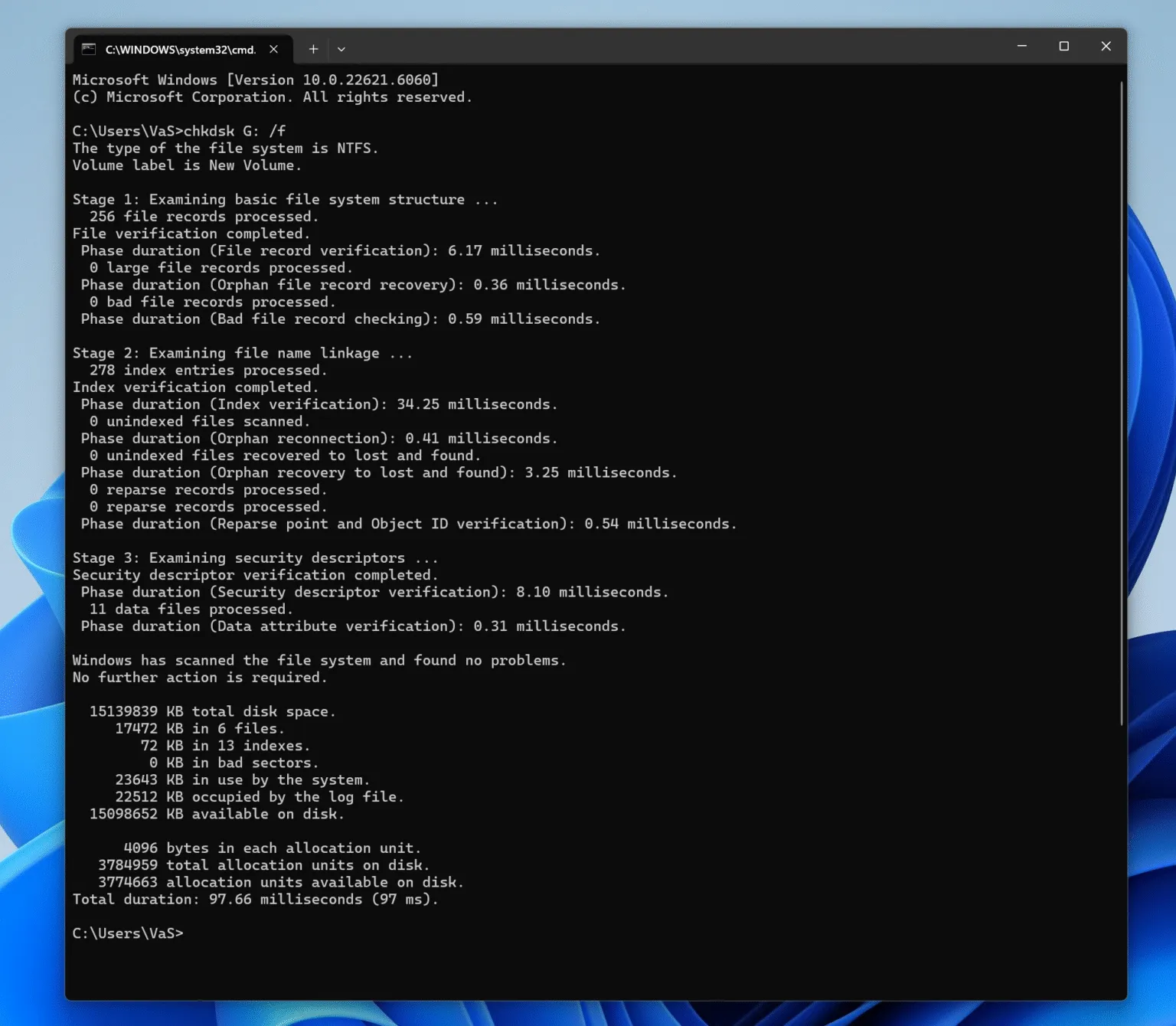
During the reboot, Windows will attempt correcting errors in the master file table mirror. If the damage is minor, this process usually resolves the issue within 20 to 60 minutes. Nevertheless, do not interrupt the process once it begins.
Method 2: Solving CHKDSK Insufficient Disk Space to Repair Master File Table Mirror
Many users encounter a roadblock where the utility stops and reports chkdsk insufficient disk space to repair master file table mirror. Contrary to popular belief, this does not always mean your drive is full. Instead, it means there is not enough contiguous free space for CHKDSK to write a new MFT.
To resolve this, try these steps:
- Delete Temporary Files: Use a WinPE bootable disk or Safe Mode to delete the Temp folder. By doing this, you create room for the file system to reorganize.
- Shrink and Expand the Partition: Sometimes, using a disk management tool to slightly resize the partition helps. Because this forces Windows to reorganize the free space, it allows the repair to proceed.
- Run the /Admin Switch: In some Windows versions, using
chkdsk C: /f /r /xprovides a more thorough cleanup. Specifically, the /x switch forces the volume to dismount, which can bypass certain space limitations.
Advanced Repairs for Correcting Errors In Master File Table Mirror
If the drive is physically healthy but the OS continues correcting errors in the master file table mft mirror, the problem might lie within the Windows system files. Consequently, you should use the System File Checker (SFC).
- Open Command Prompt as an administrator.
- Type
sfc /scannowand press Enter. - Afterward, run
DISM /Online /Cleanup-Image /RestoreHealth.
These commands repair the underlying Windows architecture. Frequently, this stops the repetitive loop of correcting errors in the master file table mirror because it fixes the drivers responsible for disk communication.
Conclusion: A Proactive Approach to Disk Health
Dealing with the cycle of correcting errors in the master file table mirror is a clear sign that your storage health is declining. While Windows provides tools like CHKDSK, they often fall short when faced with the chkdsk insufficient disk space to repair master file table mirror error.
To conclude, the safest path forward involves a two-step process: recover and then repair. By using Magic Data Recovery, you eliminate the risk of permanent data loss. This professional software ensures that your memories and work files remain safe. Specifically, it provides a solution when the disk’s file system is beyond manual repair.
If you are currently struggling with a disk that refuses to boot, do not wait for a total hardware failure. Instead, visit and take the first step toward securing your digital life. Because recovering your data is the only certain outcome, it is the most reliable way to turn a technical disaster into a simple fix.
Supports Windows 7/8/10/11 and Windows Server
FAQs - Correcting Errors in the Master File Table Mirror
How long should I wait for the repair to finish?
Generally, you should allow at least 2 to 4 hours. However, if the process stays at the same percentage for over 12 hours, the drive likely has a hardware failure. Therefore, you should stop and use recovery software.
Can I skip the MFT mirror correction?
Yes, you can press any key within the first few seconds of boot-up to skip CHKDSK. Nevertheless, this is only a temporary fix. In contrast, the error will eventually lead to a complete system crash if ignored.
Why does CHKDSK fail on an SSD?
SSDs handle data differently than HDDs. If an SSD reports chkdsk insufficient disk space to repair master file table mirror, it often indicates that the controller chip is failing.
Is the MFT Mirror identical to the MFT?
No, it is not. The MFT Mirror is a backup of only the first four critical records of the MFT. For this reason, it can only fix the most essential boot errors.
Will formatting my drive fix this permanently?
Yes, formating recreates the file system structure. However, this deletes all data. Consequently, you can use Magic Data Recovery before choosing this option.
Can a virus cause MFT mirror errors?
Absolutely. Some malware specifically targets the NTFS metadata. Therefore, after repairing the MFT, you must perform a deep antivirus scan to ensure the system is clean.
Does a "RAW" drive mean the MFT is gone?
Essentially, yes. A "RAW" status means Windows can no longer read the MFT. In this state, professional recovery software is the only way to retrieve your files since Windows cannot see them.

Vasilii is a data recovery specialist with around 10 years of hands-on experience in the field. Throughout his career, he has successfully solved thousands of complex cases involving deleted files, formatted drives, lost partitions, and RAW file systems. His expertise covers both manual recovery methods using professional tools like hex editors and advanced automated solutions with recovery software. Vasilii's mission is to make reliable data recovery knowledge accessible to both IT professionals and everyday users, helping them safeguard their valuable digital assets.