
How to Fix a Corrupted Master File Table
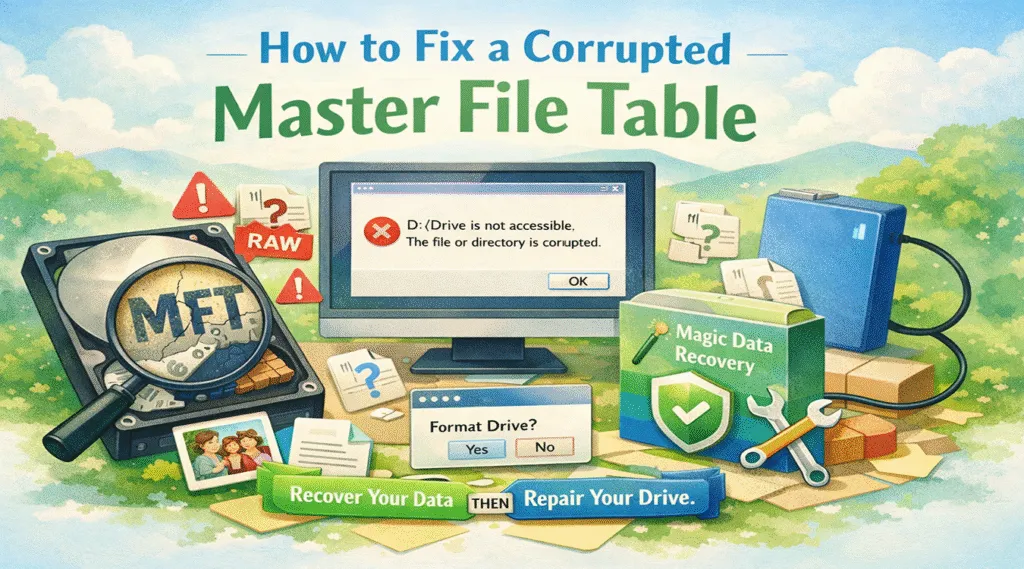
Imagine waking up, turning on your computer, and discovering that your entire D: drive has suddenly vanished. Instead of your familiar folders, Windows greets you with a terrifying message stating the drive is not accessible. In many instances, the primary culprit behind this digital nightmare is a corrupted master file table.
The Master File Table (MFT) acts as the ultimate “map” of your entire NTFS hard drive. Specifically, it tells the operating system exactly where every file starts and ends on the disk. Consequently, when you encounter a master file table corrupt error, your computer effectively loses the ability to find your data. Although the files themselves remain physically intact on the storage media, the “index” is broken. Therefore, this guide will walk you through the safest path to getting your important files back.
Table of Contents
Common Symptoms of a Master File Table Corrupt Error
Identifying the problem early can prevent you from making critical mistakes that lead to permanent data loss. If you notice any of the following signs, you are likely dealing with a master file table corrupt issue:
- The RAW Drive Status:First, in Disk Management, your drive partition shows as “RAW” instead of “NTFS.”
- Access Denied Messages:Furthermore, you might see errors like “Location is not available” or “The file or directory is corrupted.”
- Boot Failures:Sometimes, Windows fails to start and triggers a disk check that hangs indefinitely.
- System Prompt to Format:Most importantly, a pop-up may ask you to format the disk before use. However, you must never click format until your data is safe!
Why Does a Corrupted Master File Table Occur?
Understanding the root cause helps you choose the most effective fix. Generally, several technical factors lead to a corrupted master file table:
- Sudden Power Loss: If the computer shuts down while the system is updating the MFT, the file can become inconsistent.
- Hardware Failure:In addition, physical bad sectors on the disk surface often prevent the system from reading the critical MFT index.
- Software Crashes: A blue screen of death (BSOD) during disk-intensive tasks frequently causes a master file table corrupt error.
- Malware Infections:Finally, certain types of ransomware specifically target the file system’s metadata to lock users out.
The Golden Rule: Recover Data Before You Repair
Before we dive into technical commands, we must address a critical safety warning. Many users immediately try to “fix” the disk using Windows built-in tools like CHKDSK. However, these tools often work by deleting “orphaned” file entries to make the file system consistent again. As a result, the repair process itself can permanently erase the files you are trying to save. Because of this risk, experts recommend a “recovery-first” strategy.
Use Magic Data Recovery for Maximum Safety
If you value your documents and photos, the most logical approach is to use a professional retrieval tool first. Specifically, we highly recommend Magic Data Recovery for this specific emergency.
Unlike standard Windows utilities, Magic Data Recovery bypasses the corrupted master file table entirely. By doing so, it uses advanced “Content-Aware” scanning algorithms to look for file signatures directly on the disk sectors. Because it doesn’t rely on the broken MFT, it can find files that Windows simply cannot see.
Why is Magic Data Recovery the best choice for an MFT error?
- RAW Drive Support:First, it specializes in reading drives that Windows considers “unreadable” or “unformatted.”
- Deep Scanning:Secondly, the software can reconstruct the original folder structure even if the master file table corrupt error is severe.
- Read-Only Mode:Moreover, it ensures that the software never writes to the damaged drive during the scan, which prevents data overwriting.
- Instant Preview:Finally, you can actually see your recovered files before you decide to save them.
Usage Scenario: If your external hard drive suddenly shows a corrupted master file table, simply connect it to your PC. Then, run Magic Data Recovery and save your files to a different, healthy drive. After your files are safe, you can proceed with the following repair steps without any anxiety.
How to Fix a Corrupted Master File Table (Step-by-Step)
Once you have secured your data with Magic Data Recovery, you can safely try these methods to restore the drive.
Method 1: Use the CHKDSK Command
Fortunately, Windows includes a built-in tool called Check Disk (CHKDSK) designed to repair file system errors.
- To begin, press the Windows Key and type cmd.
- Next, right-click Command Prompt and select Run as Administrator.
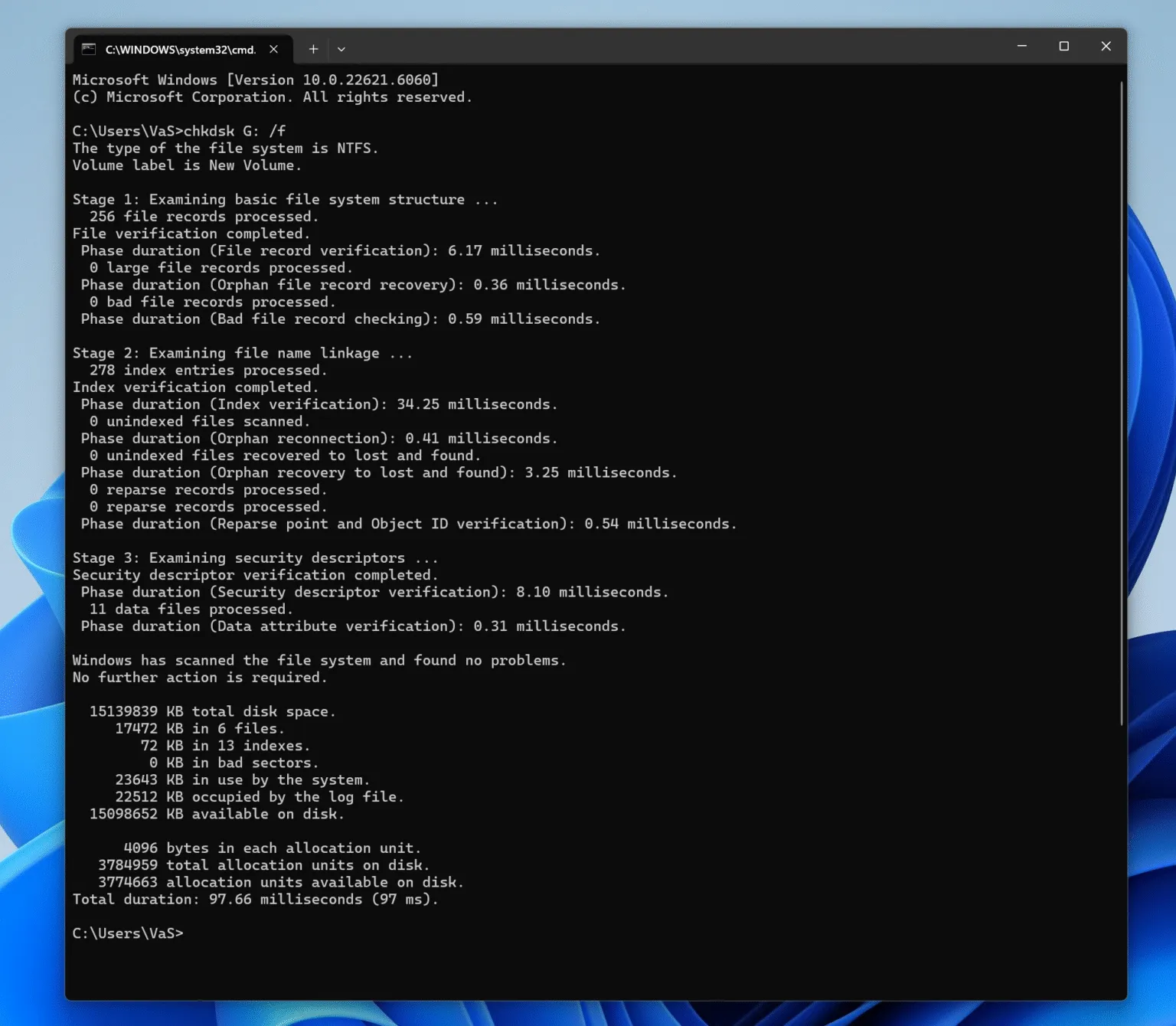
- Subsequently, type the following command: chkdsk X: /f (Be sure to replace “X” with your actual drive letter).
- Finally, wait for the process to finish. If the system says the MFT is too damaged to repair, you must try other options.
Method 2: Repair the MFT Mirror
The NTFS file system keeps a backup copy called the MFT Mirror. While Windows usually uses this automatically, severe corruption might require professional partition software to swap the primary MFT with the mirror. However, this is a technical task that requires extreme caution.
Method 3: Reformat the Partition
If the corrupted master file table results from logical errors rather than physical disk damage, reformatting is the most effective solution. In this case, the process creates a brand-new, healthy MFT.
- First, right-click the Start button and select Disk Management.
- Then, find your RAW drive, right-click it, and select Format.
- Choose NTFS as the file system and click OK to complete the process.
Conclusion
Dealing with a corrupted master file table is undoubtedly a stressful experience. Because the MFT is the backbone of your data organization, any damage to it feels like a total loss. Nevertheless, you can take a methodical approach to recovery by following the steps outlined above.
Always remember that software repairs should be your second priority. Before you run any risky system commands to fix a master file table corrupt error, use Magic Data Recovery to pull your important files to safety. By using this professional-grade tool, you provide a bridge between a broken file system and your peace of mind. Once your files are secured, you can format your drive with total confidence.
Supports Windows 7/8/10/11 and Windows Server
FAQs About Corrupted Master File Table
Can a corrupted master file table be fixed without losing any data?
Yes, it is possible. But, you should only attempt this if you use a recovery tool like Magic Data Recovery first. Otherwise, tools like CHKDSK may delete data to "clean" the file system.
Is MFT corruption a sign that my hard drive is physically dying?
Sometimes it is. While power outages cause logical corruption, frequent MFT errors usually indicate developing bad sectors on the disk. Consequently, you should check your drive's health status.
Why does CHKDSK fail with the message "Windows cannot recover master file table"?
This error occurs because both the primary MFT and its backup (Mirror) are too damaged. In this state, Windows lacks the information needed to rebuild the index.
Does a master file table corrupt error also happen on modern SSDs?
Certainly, it does. Although SSDs don't have moving parts, they still use the NTFS file system. Therefore, electronic failure can corrupt the MFT on an SSD just as easily as on an HDD.
How long does it take to recover data from an MFT error?
The time depends entirely on the size of your drive. For example, a 1TB drive might take several hours for a deep scan because the software must examine every individual sector.
How can I prevent a corrupted master file table in the future?
To prevent this, you should use an Uninterruptible Power Supply (UPS). In addition, always use the "Safely Remove Hardware" option for external disks.
What is the main difference between MFT and FAT?
The MFT is exclusive to the NTFS file system. Conversely, FAT (File Allocation Table) is an older system used primarily for SD cards and smaller USB drives.

Vasilii is a data recovery specialist with around 10 years of hands-on experience in the field. Throughout his career, he has successfully solved thousands of complex cases involving deleted files, formatted drives, lost partitions, and RAW file systems. His expertise covers both manual recovery methods using professional tools like hex editors and advanced automated solutions with recovery software. Vasilii's mission is to make reliable data recovery knowledge accessible to both IT professionals and everyday users, helping them safeguard their valuable digital assets.