
How to Open Document Recovery in Excel
Losing an Excel spreadsheet unexpectedly can be stressful, especially if hours of work disappear due to a crash. Many users search for how to open document recovery in Excel to restore unsaved Excel files quickly. This guide explains both automatic and manual recovery methods and introduces reliable tools like Magic Data Recovery for complex scenarios.
Supports Windows 7/8/10/11 and Windows Server
Table of Contents
What Is the Document Recovery Pane in Excel
Before learning how to open document recovery in Excel, it helps to understand how Excel recovery actually works.
The Document Recovery pane is a built-in Excel feature designed to restore unsaved files after abnormal program shutdowns. Specifically, Excel creates temporary backup files through the AutoRecover system.
AutoRecover automatically saves a temporary version of the workbook every few minutes. Consequently, if Excel crashes or closes unexpectedly, the program can restore the most recent autosaved version.
When Excel launches again, it scans the AutoRecover folder and displays any available files in the recovery pane.
Typically, the recovery panel shows:
- Recovered versions of the workbook
- Autosaved copies created before the crash
- The original file version
Each entry also displays a timestamp. Therefore, users can easily identify the most recent version.
Because of this system, understanding how to open document recovery in Excel allows users to recover work quickly after crashes.
When Does Excel Show the Document Recovery Pane
Excel automatically displays the recovery pane after certain events:
- Crashes during editing – large spreadsheets or plugin conflicts may trigger a crash.
- Unexpected system restart – Windows updates or sudden reboots interrupt Excel sessions.
- Power outage – unsaved work relies on AutoRecover files.
- Forced closure – ending Excel via Task Manager prevents normal saving.
These triggers make it crucial to know how to open document recovery in Excel immediately after restart.
How to Open Document Recovery in Excel Automatically
The easiest method involves reopening Excel after a crash.
Follow these steps:
- Open Microsoft Excel again.
- Allow Excel to load the previous session.
- Look for the recovery pane on the left side.
- Select the recovered workbook version.
- Click Save As and store the file safely.
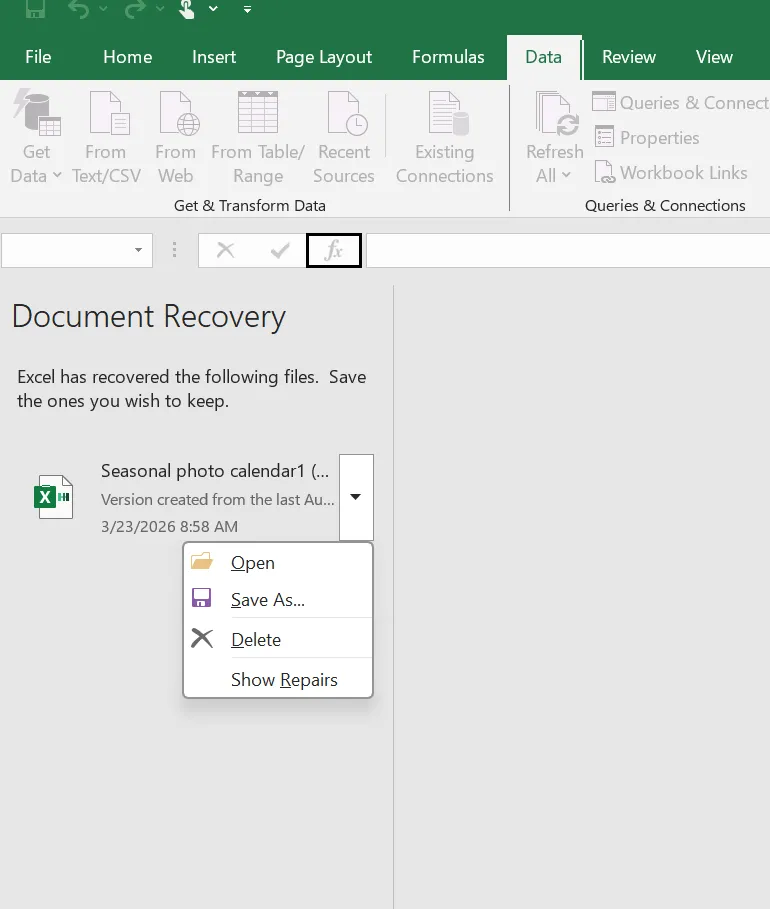
In most cases, Excel automatically restores the recovery pane. Therefore, this process represents the simplest way to understand how to open document recovery in Excel.
However, the recovery panel may not always appear. In that case, Excel still allows users to locate unsaved files manually.
How to Open Document Recovery in Excel Manually
If Excel does not display the recovery panel, you can open the recovery location manually.
Follow these steps:
- Open Excel.
- Click File.
- Select Open.
- Scroll to the Recent section.
- Click Recover Unsaved Workbooks.

Excel then opens the AutoRecover folder where temporary files are stored. If Excel saved a recovery copy, you can open and save it.
Therefore, this manual method often solves situations where users search for how to open document recovery in Excel after closing a file accidentally.
Where Excel Stores AutoRecover Files
Excel stores recovery files in a hidden system folder. Knowing this location helps when Excel fails to display the recovery pane.
Typical folder location:
C:\Users\Username\AppData\Local\Microsoft\Office\UnsavedFiles
You can also check the exact path inside Excel:
- Click File
- Select Options
- Open the Save tab
- Locate AutoRecover file location
Inside this folder, Excel typically saves temporary files with the .asd extension.
Nevertheless, AutoRecover files are temporary. Therefore, Windows cleanup tools or disk operations may delete them automatically. When that happens, Excel can no longer restore the workbook.
What to Do If Document Recovery Does Not Appear
Sometimes the recovery pane never appears even after restarting Excel. Several factors may cause this issue.
First, AutoRecover may have been disabled. Without AutoRecover, Excel does not create temporary backup files.
Second, temporary files might have been deleted by disk cleanup utilities.
Third, the workbook may have been overwritten. Once the file saves over the previous version, Excel cannot restore earlier content.
Finally, the spreadsheet may have been deleted entirely.
In these situations, Excel cannot restore the file. Consequently, a disk-level recovery tool becomes necessary.
Recover Lost Excel Files Using Magic Data Recovery
When Excel recovery fails, Magic Data Recovery offers a practical solution. Instead of relying on temporary backups, the software scans the storage drive directly.
Because it analyzes the file system and disk sectors, the tool can detect files even after deletion.
This approach helps in many situations:
- Accidentally deleted Excel spreadsheets
- Files removed during system cleanup
- Data lost after disk errors
- Partition damage or RAW drives
- Lost files after crashes
Why Magic Data Recovery Is Effective
Several features make this solution reliable.
Deep scanning technology
The software scans disk structures to locate recoverable files.
Preview before recovery
Users can view Excel documents before restoring them.
Multiple file system support
The tool works with NTFS, FAT32, and exFAT drives.
Simple workflow
Even beginners can recover files with minimal technical knowledge.
Therefore, when users search for how to open document recovery in Excel but Excel cannot restore the file, Magic Data Recovery becomes a reliable alternative.
How to Recover Excel Files Using Magic Data Recovery
If Excel cannot restore the spreadsheet, follow these steps.
Step 1: Download and Install Magic Data Recovery
Download and install Magic Data Recovery on your computer. Install the software on a different drive from the location where the data was lost. This approach helps prevent overwriting recoverable files.
Supports Windows 7/8/10/11 and Windows Server
Step 2: Select the Drive to Scan
Launch the program and open the main interface. Then choose the storage drive where the Excel file was originally stored. After that, start the scanning process.

Step 3: Scan the Drive for Lost Files
Next, the software automatically performs an advanced scan. During this process, Magic Data Recovery lists recoverable files in real time, including Excel spreadsheets.

Step 4: Preview Excel Files Before Recovery
After the scan finishes, review the results. Use the preview feature to check file content and confirm that the spreadsheet is correct.

Step 5: Recover Files to a Safe Location
Finally, select the Excel files you want to restore and save them to a safe location on your computer. Avoid restoring files to the original drive because doing so may overwrite remaining data.

Tips to Prevent Excel Data Loss
Although recovery tools are useful, prevention remains the best strategy.
Consider these practical tips:
- Enable AutoRecover in Excel settings
- Save spreadsheets frequently
- Use cloud storage with version history
- Avoid force-closing Excel
- Maintain regular backups
These habits significantly reduce the risk of losing important spreadsheets.
Conclusion
Understanding how to open document recovery in Excel helps users restore unsaved spreadsheets after crashes, power failures, or unexpected shutdowns. Excel’s Document Recovery pane and AutoRecover feature provide the first layer of protection against data loss.
However, these built-in tools do not work in every situation. Temporary files may disappear, documents may be deleted, or storage errors may occur.
Therefore, when Excel cannot restore a file, a professional recovery solution becomes necessary. Magic Data Recovery scans the storage drive directly and locates lost Excel files even when Excel’s internal recovery system fails. Because of its deep scanning technology, preview feature, and simple workflow, it provides a reliable solution for recovering important documents. If Excel recovery does not restore your file, trying Magic Data Recovery can be an effective next step.
Supports Windows 7/8/10/11 and Windows Server
FAQs About How to Open Document Recovery in Excel
How do I open document recovery in Excel manually?
Open Excel and go to File → Open → Recover Unsaved Workbooks. Excel will display temporary files created by AutoRecover.
Why is the Excel recovery pane not showing?
The recovery pane may not appear if AutoRecover is disabled, temporary files were deleted, or Excel closed normally.
Where are Excel AutoRecover files stored?
AutoRecover files are usually stored in:
C:\Users\Username\AppData\Local\Microsoft\Office\UnsavedFiles
Can Excel recover files that were not saved?
Yes. Excel can restore unsaved files if AutoRecover created a temporary version.
Can deleted Excel files be recovered?
Yes. If the file was deleted, Excel cannot restore it. However, data recovery software can scan the drive and recover the file.
How long does Excel keep recovery files?
Excel usually keeps AutoRecover files until the program closes normally or the file is saved.
Can recovery software restore Excel spreadsheets?
Yes. Professional recovery tools such as Magic Data Recovery can scan the storage device and recover lost Excel files even after deletion.

Vasilii is a data recovery specialist with around 10 years of hands-on experience in the field. Throughout his career, he has successfully solved thousands of complex cases involving deleted files, formatted drives, lost partitions, and RAW file systems. His expertise covers both manual recovery methods using professional tools like hex editors and advanced automated solutions with recovery software. Vasilii's mission is to make reliable data recovery knowledge accessible to both IT professionals and everyday users, helping them safeguard their valuable digital assets.