
Where Are Word Recovery Files Stored? Full Guide
If you are asking where are word recovery files stored, you are usually in a stressful situation and you may need document recovery solutions. Word crashed. Your PC restarted. You closed a file without saving. Or worse, the document disappeared completely.
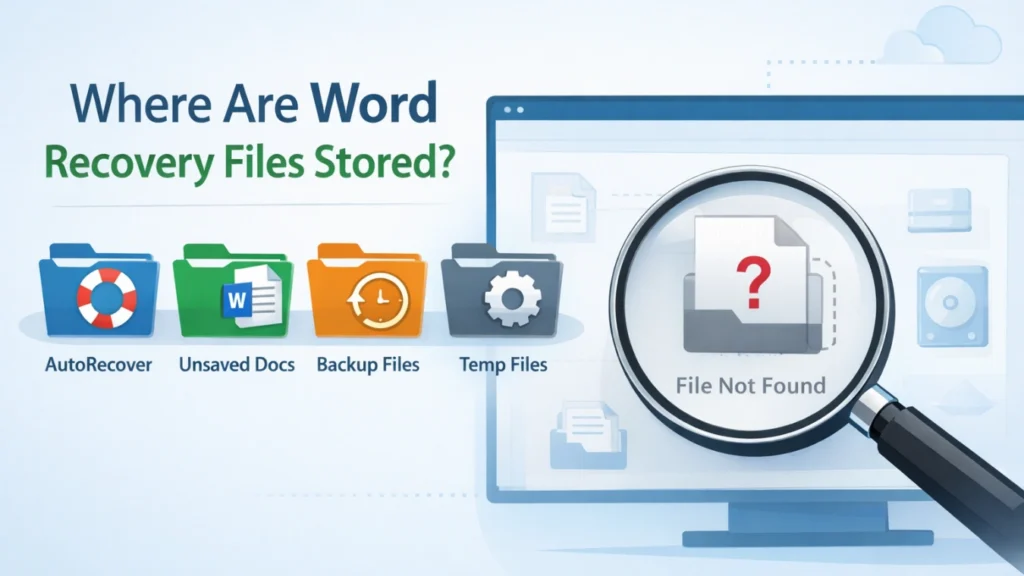
The good news is that Microsoft Word often keeps recovery data in several locations, including AutoRecover folders, Unsaved Documents, backup files, and temporary folders. Microsoft documents commonly point users to C:\Users\<UserName>\AppData\Roaming\Microsoft\Word and C:\Users\<UserName>\AppData\Local\Microsoft\Office\UnsavedFiles, while Word also offers a built-in “Recover Unsaved Documents” option. On Mac, Word lets users view or change the AutoRecover location in Preferences.
However, there is a catch. Sometimes the recovery file is no longer there. In that case, built-in Word recovery is not enough, especially if the file was deleted, the drive was formatted, or the file system became corrupted. That is exactly where a tool like Magic Data Recovery becomes useful: not as a forced add-on, but as the practical next step when Word’s own recovery paths fail.
Supports Windows 7/8/10/11 and Windows Server
Table of Contents
What does where are word recovery files stored really mean?
When users search where are word recovery files stored, they usually mean one of four things:
- Where does Word save AutoRecover files?
- Where are unsaved Word documents stored?
- Where are Word backup files kept?
- Where are temporary Word files located?
These are related, but they are not the same.
AutoRecover files
AutoRecover files are Word’s emergency copies. Word saves them at intervals to reduce data loss after a crash or forced shutdown. Microsoft recommends keeping AutoRecover on and setting the save interval to five minutes or less.
Unsaved documents
Unsaved documents are files you created or edited but never saved normally. Word may still place recoverable versions in the UnsavedFiles folder or show them through the “Recover Unsaved Documents” menu.
Backup files
Backup files usually use the .wbk extension. They only appear if “Always create backup copy” is enabled in Word settings.
Temporary files
Temporary files often use .tmp and can exist in Windows temp folders while Word is running or editing a document. These files may help in limited recovery situations, but they are less reliable than AutoRecover files.
Where are word recovery files stored on Windows?
If you need the direct answer to where are word recovery files stored, start with these Windows locations:
1. AutoRecover and Word recovery folders
Microsoft lists these common paths for Word recovery-related files on Windows:
- C:\Users\<UserName>\AppData\Roaming\Microsoft\Word
- C:\Users\<UserName>\AppData\Local\Microsoft\Office\UnsavedFiles
These are the first places I would check in a real recovery case, especially after a crash.
2. Unsaved Documents inside Word
Open Word and go to:
File > Info > Manage Document > Recover Unsaved Documents
This is one of the fastest built-in methods when the document was never fully saved.
3. Search for ASD files
If the normal folder does not help, search Windows for:
- .asd
Microsoft specifically recommends searching for .asd files when the missing document does not appear in the standard locations.
4. Search for WBK backup files
If backup copy was enabled, search for:
- .wbk
Those files can contain an older but usable version of the missing document.
5. Check temporary folders
A practical temp path on Windows is:
- %temp%
Some guides also point users to:
- C:\Users\[Your Username]\AppData\Local\Microsoft\Office\UnsavedFiles
- C:\Users\[Your Username]\AppData\Roaming\Microsoft\Word\
Where are word recovery files stored on Mac?
On Mac, Word lets you review or change the AutoRecover save location through Preferences. Microsoft’s support steps are: go to Word > Preferences > File Locations, then select AutoRecover files > Modify to view or change the folder.
That means the exact location may vary by setup. If you are on Mac and cannot find the file, checking Word’s current AutoRecover setting is usually faster than guessing folders manually. This is an important point many articles skip.
How to find the AutoRecover location inside Word
If you want a precise, user-friendly way to answer where are word recovery files stored, the best method is to check Word itself.
On Windows
Go to:
File > Options > Save
Then look for the AutoRecover file location field. Microsoft confirms that this is where you can view or change the recovery path.
On Mac
Go to:
Word > Preferences > File Locations > AutoRecover files
This route is better than searching random folders because it shows the active path for your current installation.
Why you still cannot find the recovery file
This is where many users get stuck. They know where are word recovery files stored, but the file is still missing.
Here are the most common reasons:
Word never had time to create an AutoRecover copy
If Word crashed before the next AutoRecover interval, no recovery copy may exist. Microsoft notes that AutoRecover depends on the save interval you set.
The document was actually deleted, not just unsaved
AutoRecover helps with crashes and unsaved work. It does not work the same way for permanently deleted files, emptied Recycle Bin items, or formatted partitions. Microsoft separately recommends checking the Recycle Bin and, in more advanced deletion cases, using file recovery tools.
The file was overwritten or the storage device has errors
If a disk has file system damage, corrupted sectors, or a partition issue, Word’s built-in recovery path may not expose the file at all.
The recovery folder was changed
This happens more often than people think, especially on shared computers, managed work devices, or systems that sync folders to cloud storage. On Mac and Windows, Word allows the AutoRecover location to be modified.
What to do if you cannot find the Word recovery file
If you searched the standard folders and still found nothing, use this order.
Step 1: Recover Unsaved Documents in Word
Open Word and use:
File > Info > Manage Document > Recover Unsaved Documents
Step 2: Search for .asd, .wbk, and the document name
Use Windows search and include both extensions. Microsoft specifically mentions .asd and .wbk as recovery-related formats.
Step 3: Check Recycle Bin
If the file was deleted recently, this is still the simplest fix. Microsoft recommends it before moving to more advanced recovery methods.
Step 4: Check temp folders
Search %temp% and Word-related temp locations. This is not the cleanest method, but it sometimes works after abrupt shutdowns.
Step 5: Use a dedicated data recovery tool
If the file is gone because of deletion, formatting, file system errors, or partition problems, Word’s built-in recovery features may no longer help. This is the point where a true data recovery solution is more appropriate.
When Magic Data Recovery makes sense
If your issue is bigger than “I forgot to save,” Magic Data Recovery is the better fit.

That includes cases like:
- You deleted the Word file and emptied Recycle Bin
- The USB drive or hard drive was formatted
- The partition shows errors or becomes inaccessible
- The file system is damaged
- Word recovery files are missing entirely
- The document disappeared after a crash and normal recovery paths failed
In these cases, Word is no longer the main recovery layer. The storage device is.
Why recommend Magic Data Recovery here?
The reason is simple: it addresses the actual failure type.
Word’s built-in tools mainly help when recovery metadata still exists in expected locations. By contrast, Magic Data Recovery is designed for broader data loss scenarios such as deleted files, formatted drives, and file system errors. That makes it more reliable when the missing Word document is no longer visible in AutoRecover, UnsavedFiles, or temp folders.
Core pain points it solves
- Missing Word files that do not appear in Word recovery paths
- Deleted documents that bypass normal Word recovery
- Formatted storage where recovery folders no longer exist
- Corrupted file systems that hide or break access to document data
Product advantages
- Supports recovery from deletion, formatting, and file system errors
- Better suited for storage-level loss than Word-only methods
- Useful when built-in recovery steps return no result
- Practical for documents on internal drives, external drives, memory cards, and USB devices
Real usage examples
Here are a few common examples from actual recovery logic:
- You wrote a contract draft, closed Word, and later realized the file was never saved properly. First try Word recovery folders. If nothing appears and the drive has issues, use Magic Data Recovery.
- You deleted a thesis chapter from an external drive and emptied Recycle Bin. AutoRecover will not solve that. A recovery tool is the better route.
- Your USB drive asks to be formatted before opening. In that case, Word recovery locations are irrelevant because the problem is the file system itself.
Why it is more reliable than other options
It is more reliable in these cases because it does not depend on Word having successfully created an .asd or .wbk file first. Instead, it targets the missing data at the storage level. That is the right approach when the loss comes from deletion, formatting, or file system damage rather than a simple unsaved-session problem.
If you are looking for a more efficient solution after Word recovery folders fail, it is worth trying Magic Data Recovery.
Supports Windows 7/8/10/11 and Windows Server
Best practices to avoid losing Word files again
Once you understand where are word recovery files stored, prevention becomes much easier.
Keep AutoRecover enabled
Microsoft recommends leaving AutoRecover on and using a short interval, ideally five minutes or less.
Verify the AutoRecover location
Open Word settings and confirm the active path. This matters if you use multiple drives or cloud-synced folders.
Turn on backup copy if needed
If you work on critical legal, academic, or business documents, .wbk backups can add another layer of protection.
Save important files to stable storage
External drives with connection issues, unstable USB devices, and damaged partitions create more serious recovery cases.
Use a recovery tool before writing new data
If a file is deleted or a drive is formatted, avoid saving new files to that device. New data can overwrite recoverable content.
Final answer: where are word recovery files stored?
The short answer is that Word recovery files are commonly stored in the AutoRecover and UnsavedFiles locations, especially under AppData\Roaming\Microsoft\Word and AppData\Local\Microsoft\Office\UnsavedFiles on Windows, while Mac users can view the active AutoRecover location through Word Preferences. You can also recover files through File > Info > Manage Document > Recover Unsaved Documents in Word.
But if you still cannot find the file, the issue may no longer be a simple Word recovery problem. It may be deletion, formatting, or file system damage. That is why Magic Data Recovery is the tool I would recommend in the conclusion: it solves the cases that built-in Word recovery often cannot handle, and it does so for real-world data loss scenarios rather than only unsaved-session recovery.
Supports Windows 7/8/10/11 and Windows Server
FAQs
Where are Word recovery files stored by default on Windows?
By default, Word recovery-related files are often found in C:\Users\<UserName>\AppData\Roaming\Microsoft\Word and C:\Users\<UserName>\AppData\Local\Microsoft\Office\UnsavedFiles. The exact path can vary based on your Word settings and version. You can also confirm the active AutoRecover path inside Word under File, Options, and Save.
How do I find an unsaved Word document?
Start in Word itself. Open File, go to Info, choose Manage Document, and then click Recover Unsaved Documents. If nothing appears, search your computer for .asd files and check the UnsavedFiles folder. This works best when Word crashed or the file was closed before a normal save.
What is the difference between AutoRecover and backup files in Word?
AutoRecover files are emergency copies Word creates at intervals to reduce data loss after crashes. Backup files, usually with the .wbk extension, only appear if you enable “Always create backup copy” in Word settings. AutoRecover helps with interrupted sessions, while backup files help preserve an earlier saved version.
Why can’t I find my Word recovery file?
The recovery file may not exist if Word crashed before the next AutoRecover save, the file was deleted instead of unsaved, the recovery folder changed, or the storage device has file system issues. In more serious cases, the problem is no longer inside Word. It has moved to the storage level.
Are temporary Word files the same as recovery files?
Not exactly. Temporary Word files usually support background editing tasks and may use .tmp, while AutoRecover files are specifically intended to help restore unsaved work after interruptions. Temp files can sometimes help, but they are generally less predictable and less reliable than standard Word recovery locations.
Can I recover a deleted Word document if the recovery folder is empty?
Yes, but not usually through Word alone. If the document was deleted, the Recycle Bin is the first place to check. If it is gone from there too, especially after permanent deletion, formatting, or partition problems, a dedicated recovery tool such as Magic Data Recovery is a more suitable option.
When should I use Magic Data Recovery instead of Word recovery?
Use Magic Data Recovery when the file is missing because of deletion, formatting, file system errors, partition issues, or inaccessible storage. Word’s built-in recovery works best when AutoRecover or Unsaved Documents still exist. Once those files are gone, a storage-level recovery method is usually the smarter and more reliable next step.
How can I prevent Word document loss in the future?
Keep AutoRecover enabled, shorten the AutoRecover interval, verify the save location, and consider enabling backup copy for important work. Also, save files to healthy storage and avoid writing new data to a device after data loss. These habits reduce risk and improve recovery chances if something goes wrong.

Jason is a data recovery and technical support specialist with over 15 years of hands-on experience. He has worked extensively with frontline users, troubleshooting difficult data loss cases and providing practical recovery solutions for accidental deletion, formatted drives, damaged file systems, lost partitions, system failures, and other recovery emergencies. His expertise also includes backup and restoration, file repair, and disaster recovery, with a strong emphasis on safe, reliable, and technically accurate guidance.