
Wise Data Recovery Review: Is It Safe and Effective?

Losing critical files due to an unexpected system crash, accidental deletion, or a corrupted storage partition can be a nightmare. In your search for a quick hard drive solution, you have likely come across various utilities promising immediate file rescue. One frequently mentioned option is Wise Data Recovery. This lightweight program claims to save your missing documents and photos with just a single click. However, before you trust your valuable database to any scanning engine, you must check whether it can truly deliver results under pressure.
This comprehensive Wise Data Recovery review evaluates its everyday features, real-world scanning capabilities, and significant architectural limitations. Furthermore, we will explore exactly what happens when lightweight applications fail and analyze a more robust Wise Data Recovery free alternative like Magic Data Recovery designed for complex storage disasters. By examining these utilities side by side, you can make the smartest decision to safeguard your digital life.
Supports Windows 7/8/10/11 and Windows Server
Table of Contents
Key Features: What Does Wise Data Recovery Offer?
When you first launch the utility, the minimalist user interface stands out immediately. Developers built this tool specifically for individuals who prefer a straightforward, no-fuss approach to file retrieval. Therefore, it serves primarily as a quick file recovery tool for everyday digital mishaps.
Supported File Systems and Media
The scanner supports standard file architectures across a variety of traditional storage options. Consequently, the standard drive search covers:
- File Systems: Full compatibility with NTFS, FAT32, exFAT, and Extended FAT formats.
- Storage Devices: Complete access to internal mechanical HDDs, modern SSD configurations, USB thumb drives, and digital camera memory cards.
- File Extensions: Safe scanning for basic office documents (DOCX, PDF, XLSX), popular image formats (JPG, PNG), and standard audio tracks or video recordings.
The Standout Feature: Portable Mode
One of the most practical aspects of this program is its portable deployment method. Specifically, by utilizing Wise Data Recovery Portable, you can run the scanner directly from an external flash drive without installing any packages on your local operating system.
Data management experts highly recommend this specific practice. If you install fresh software onto the same storage space where your files disappeared, you can easily overwrite the deleted sectors. As a result, those files will become permanently unrecoverable.
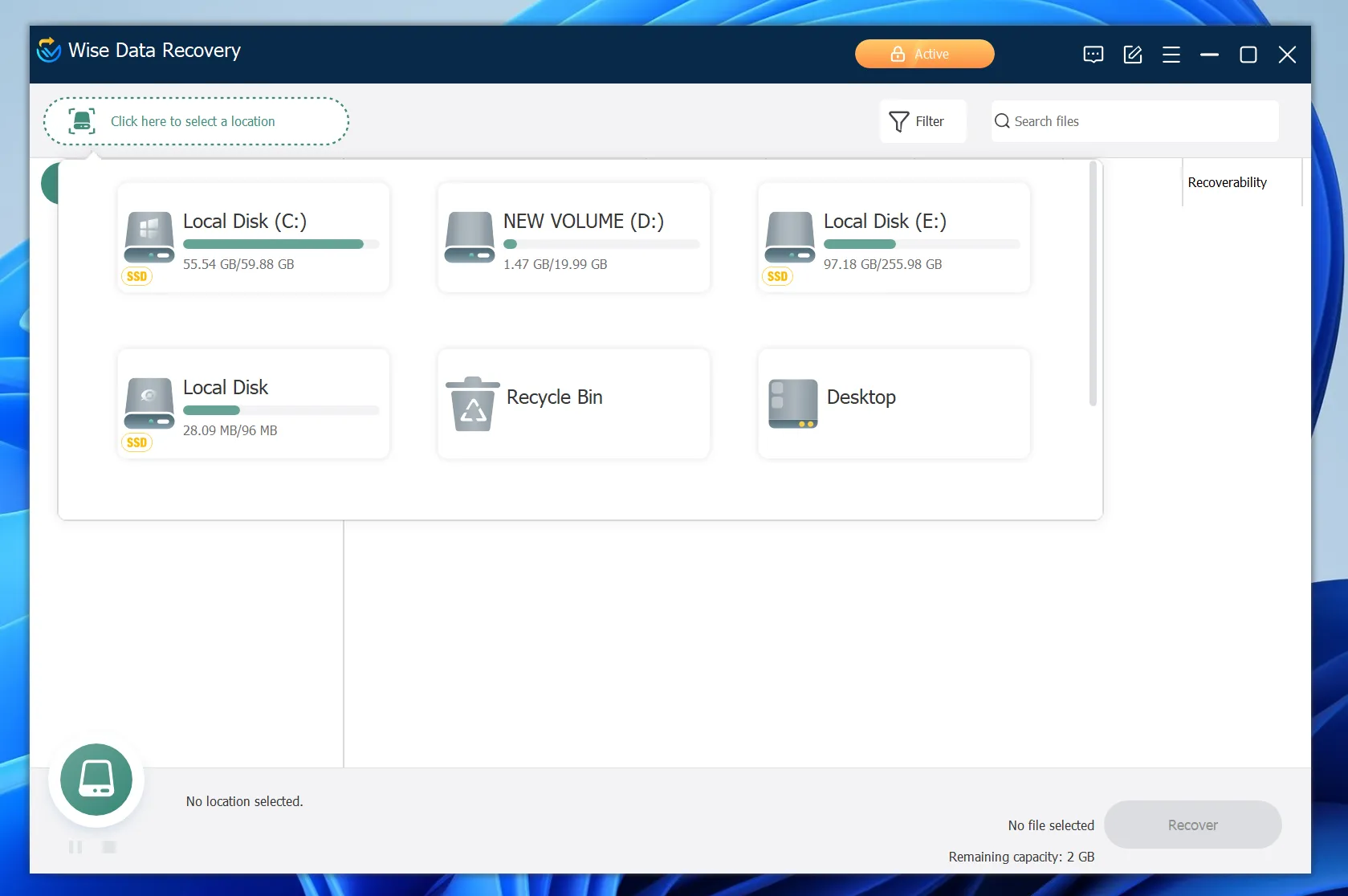
Hands-On Performance Test: Where Wise Data Recovery Excels and Fails
To provide an honest and technically accurate assessment, we tested the utility under two completely different data loss situations. Success in data retrieval depends heavily on the severity of the logical damage. Consequently, any file recovery tool must prove its worth across easy and hard scenarios alike.
Scenario 1: Basic Deletion (Recycle Bin Emptying)
In our first trial, we deleted a collection of research PDFs, text spreadsheets, and JPEG photos from a healthy internal NTFS hard drive. Following this, we emptied the Recycle Bin entirely.
The tool performed exceptionally well during this evaluation. The scan phase concluded in less than sixty seconds. Then, it successfully located the missing entries, preserved their original names, and completed a clean restoration. Therefore, if you only need to rescue an entry you deleted just a few moments ago, this program offers a fantastic solution.
Scenario 2: Formatted Drives and Missing Partitions
Our second test involved an exFAT storage drive that had been quick-formatted due to an inaccessible raw system error. Unfortunately, this tough scenario quickly revealed the true limits of the software’s quick indexing algorithms.
Although the initial check identified the physical storage block, the software could not reconstruct the original folder hierarchies. Instead, it sorted many salvaged pictures into generic folders. Worse yet, several large video tracks were completely unreadable after extraction.
This failure occurs because the utility relies heavily on existing file markers. When a format clears those markers, a simple index scanner cannot piece the fragmented binary clusters back together.
Pros and Cons: A Balanced Evaluation of the Tool
Every utility application has specific advantages and distinct drawbacks. To help you evaluate your choices, we compiled the most important findings from our practical testing period below.
Pros:
- Lightweight Architecture: The download package remains tiny, meaning the process consumes minimal system resources during runtime.
- Fast Index Checks: Standard scans take less than a minute on healthy local hard disks.
- Intuitive Design: The layout feels accessible for beginners, using color indicators to display potential file health.
Cons:
- Windows Only: Despite older web guides stating otherwise, the company no longer provides a native macOS program; the Mac download button simply redirects users to an unrelated brand.
- Shallow Scan Capabilities: The engine struggles whenever it encounters heavy file corruption, missing logical maps, or altered drive letters.
- Restrictive Preview Window: You can only view previews for items under 10MB, which means you must restore larger movies or archives completely blindly.
- Installer Prompts: The standard setup wizard occasionally suggests bundled utility add-ons, which requires your attention to deselect.
Technical Analysis: Why Light Utilities Fail Complex Challenges
To understand why a lightweight program like Wise Data Recovery fails during a partition formatting disaster, you must look at how digital storage functions underneath.
When you delete an item, your computer does not erase the actual binary data from the physical sectors instantly. Instead, it modifies a tiny record within the file system layout—such as the Master File Table (MFT) on Windows NTFS or the File Allocation Table (FAT) on removable cards. This quick modification tells the computer that it can write new information over that space later.
A lightweight file recovery tool typically reads these remaining high-level markers. However, if an error destroys the MFT, or if a drive drops into a RAW format, the basic scanner loses its path completely.
Because it lacks deep raw carving systems, it cannot scan physical disk blocks directly to identify file types by their unique hexadecimal headers. Consequently, the utility either reports zero findings or produces corrupt, broken files.
The Ultimate Alternative for Deep Carving: Magic Data Recovery
If you are facing a severe storage emergency—such as a formatted partition, an unreadable flash card, or a drive sector displaying raw errors—a simple index scanner will not suffice. Instead, you need a professional-grade alternative that carries out low-level sector reconstruction. For these challenging recovery projects, Magic Data Recovery stands out as an exceptionally powerful Wise Data Recovery free alternative.
Rebuilding Destroyed File Architectures
While simple utilities stop working if directory structures are missing, Magic Data Recovery uses a comprehensive, content-aware scanning system. This intelligent engine analyzes far beyond surface-level folder entries. It conducts an intense, block-by-block inspection of the storage media, searching for specific file signatures to reconstruct broken partitions manually.
Core Strengths of Magic Data Recovery:
- Low-Level Binary Scanning: The software reads deep sector data directly from hardware, allowing it to bypass errors on RAW drives and corrupted structures.
- Unrestricted Pre-Recovery Preview: This utility provides a full-size visual and hexadecimal preview window for files of all types, allowing you to check file health before saving.
- Clean Installation: The software bundle remains entirely secure, tracking zero ad networks or unwanted applications.
- Outstanding Risk-Free Policy: It includes a generous 500MB free recovery allowance with no expiration dates, letting you evaluate its premium capabilities without spending anything upfront.
Practical Scenarios
Imagine your digital camera card suddenly reports a storage malfunction and demands a complete format. Alternatively, think of a massive backup drive that fails to mount on your desktop computer.
While everyday scanning utilities will likely show an empty results page, Magic Data Recovery will ignore those operating system errors, examine the raw sectors, and successfully rebuild your essential images and files.
Expert Recommendation: If you are searching for a more efficient and dependable solution to handle complex data loss, you should try Magic Data Recovery to experience deep-level file reconstruction.

Which Tool Offers a Better Solution?
When you invest in data software, you must look past the initial price tag and focus on the overall return on investment for your lost memories.
Features & Capabilities | Wise Data Recovery | Magic Data Recovery |
Primary Use Case | Simple accidental file deletion | Formatted disks, RAW partitions, deep corruption |
Scan Architecture | High-level file index scanning | Sector-by-sector carving and signature matching |
Free Evaluation Cap | Up to 2GB for basic files | 500MB with unrestricted premium access |
Platform Compatibility | Windows 11, 10, 8, 7 | Windows 11, 10, 8, 7 |
Although Wise offers a larger free allowance for basic file deletions, its yearly payment structure feels expensive if the engine fails to locate formatted items. Choosing a dedicated, comprehensive application ensures you possess the technical strength needed to survive severe storage structural failures.
Conclusion
Our analysis demonstrates that Wise Data Recovery functions as a decent, speedy utility for minor file emergencies. If you accidentally emptied your Recycle Bin or removed a few simple text papers from a healthy drive, this tool provides a fast and painless hard drive solution.
However, true data emergencies are rarely that simple. For complex scenarios involving formatted memory cards, inaccessible external storage blocks, or corrupted wedding videos, a lightweight scanner will fall short.
To maximize your success rate under tough conditions, utilizing a professional utility like Magic Data Recovery is the absolute safest path forward. Download the free version today to scan your hardware, view your files, and secure your data before committing your budget.
Supports Windows 7/8/10/11 and Windows Server
FAQ
Is Wise Data Recovery completely free to use?
The program uses a freemium pricing structure. Specifically, it allows you to restore up to 2GB of data for free, provided the files are easily accessible and do not require advanced deep scanning. For large recovery tasks and premium customer service, you must purchase a paid software subscription plan.
Does Wise Data Recovery support macOS?
No, the application currently only runs on Windows 11, 10, 8, and 7 systems. Although several old review articles online mention an apple version, the software publisher's official platform now redirects all Mac visitors toward alternative, completely separate third-party utilities.
What is the best Wise Data Recovery free alternative for formatted drives?
The most reliable alternative for formatted or heavily corrupted hardware is Magic Data Recovery. It utilizes advanced sector parsing and deep signature analysis, allowing the utility to reconstruct lost folder paths even when your operating system reports the drive partition as completely missing.
Why are some files corrupted after using a basic file recovery tool?
Lightweight tools often struggle with file fragmentation. When a drive loses its tracking directories, basic utilities stitch data pieces together incorrectly, resulting in corrupted files. Professional alternatives avoid this error by analyzing underlying file headers to rebuild data structures safely from scratch.
Is it safe to install data utilities directly onto the broken drive?
No, you should never install any data applications onto the affected drive. Doing so risks writing new data blocks directly over the deleted files, which makes them permanently unrecoverable. Always run your utilities from a separate drive or use a dedicated portable version.
What should I do if my storage drive displays a RAW format error?
When a drive changes to RAW format, your operating system can no longer read its structure. You should stop using the drive immediately and deploy a professional sector scanning program like Magic Data Recovery to bypass the error and rescue your files.

Vasilii is a data recovery specialist with around 10 years of hands-on experience in the field. Throughout his career, he has successfully solved thousands of complex cases involving deleted files, formatted drives, lost partitions, and RAW file systems. His expertise covers both manual recovery methods using professional tools like hex editors and advanced automated solutions with recovery software. Vasilii's mission is to make reliable data recovery knowledge accessible to both IT professionals and everyday users, helping them safeguard their valuable digital assets.