
Ultimate USB Drive Data Recovery Guide (2026)
Losing critical files from a portable thumb drive can quickly turn into an absolute nightmare, which is why understanding effective usb drive data recovery is so essential. For instance, a university student might lose a semester-long thesis, or a professional photographer might accidentally wipe a client’s irreplaceable event photos. Because flash memory devices are incredibly small and constantly moved between different computers, they remain highly vulnerable to sudden logical file corruption, accidental formatting, and structural glitches.
Fortunately, your missing data is usually not permanently lost. When you delete a file, your operating system simply modifies the storage index to mark that specific sector as available for future use. Therefore, the original raw data remains completely intact on the physical memory chips until new information overwrites it. This comprehensive guide provides a detailed roadmap for successful usb drive data recovery. You will learn the underlying technical reasons behind storage mishaps, explore proven strategies to recover files from a USB drive, and discover how to choose the a proper data recovery software like Magic Data Recovery to salvage your unique files safely.
Supports Windows 7/8/10/11 and Windows Server
Table of Contents
Can You Perform USB Drive Data Recovery Successfully?
The Technical Reality: Deleted Data Remains Intact
To understand how to safely execute usb drive data recovery, you must first understand how flash storage architecture organizes information. Most standard thumb drives utilize portable file systems like FAT32, exFAT, or NTFS to map file locations.
When a user deletes an item or initiates a quick format, the operating system does not immediately wipe the actual binary data from the internal NAND cells. Instead, it merely removes the specific file pointer within the directory structure. Consequently, the actual contents of your lost spreadsheets, photos, or audio recordings stay completely hidden on the hardware sectors. As long as those sectors remain untouched by new activity, specialized tools can scan the storage media, identify these orphaned data fragments, and piece them back together seamlessly.
The Golden Rules of USB Flash Drive Recovery
Successful free flash drive recovery depends heavily on your immediate actions following a data loss incident. Because any write operation can permanently overwrite your hidden data, you must follow these safety practices:
- Disconnect the device immediately: Stop saving new documents, running portable apps, or transferring files to the affected flash drive.
- Minimize active system exposure: Do not leave the device connected to an active computer unnecessarily, since background indexing services or automatic antivirus scans can write hidden temporary files to it.
- Isolate your installation path: Always install your digital recovery applications onto your computer’s local hard drive rather than the flash media you are trying to rescue.
Common Scenarios for Corrupted USB Drive Recovery
Before attempting a complete corrupted usb recovery, you must identify exactly what went wrong with your storage hardware. Generally speaking, flash storage failures fall into two distinct operational groups: logical damage and physical damage.
- Accidental Deletion: This is undoubtedly the most frequent user error. When you press Shift + Delete or clear files via a temporary command, the operating system bypasses the Windows Recycle Bin entirely, which means specialized software scanning is your only viable path to retrieve them.
- The System Prompts a RAW Format Error: This incredibly frustrating issue occurs when a drive partition table becomes corrupted. Because Windows can no longer interpret the directory layout, it displays an alarming notification stating that you must format the disk before using it.
- Virus or Malware Disruption: Malicious programs can alter critical file attributes, completely hide your directory structures, or corrupt the boot configuration data of your removable media.
- Accidental Formatting: Formatting a drive clears the primary file allocation index. While a quick format leaves the actual data blocks intact for easy retrieval, a full format writes zeros across the entire disk, which completely destroys the files.
The Best USB Drive Data Recovery Software Options Compared
When software-based data loss occurs, selecting the appropriate recovery utility determines whether you successfully restore your valuable directories or lose them forever. Let us examine how the leading desktop utilities compare in 2026.
Software Name | Free Quota | Best For | Graphical UI |
Magic Data Recovery | 500MB Free | Comprehensive DIY Recovery, RAW Drives | Yes (Simple) |
Disk Drill | 500MB Free | Visual Layout Aesthetics | Yes (Modern) |
EaseUS Data Recovery | Up to 2GB | Large Drive Scans | Yes (Standard) |
Recuva | Unlimited Free | Fast Scans on Healthy File Systems | Yes (Legacy) |
PhotoRec | Completely Free | Open-Source Enthusiasts | No (Command Line) |
Top Recommendation: Magic Data Recovery
If you are searching for a highly effective, industrial-grade solution to resolve complex storage failures, Magic Data Recovery by Amagicsoft offers an outstanding combination of deep scanning capabilities and straightforward operation. This specialized tool directly addresses your core data loss anxieties by employing a highly advanced, sector-by-sector deep parsing algorithm. Furthermore, it easily recognizes hundreds of distinct file formats, including professional RAW images, massive video files, and legacy text documents.
If you are dealing with an unstable device that Windows flags as completely unreadable, this software can bypass the broken logical file structure to extract your folders directly. Additionally, the 500MB free recovery quota allows users to safely test the tool’s performance without any initial financial commitment.

Option 2: Disk Drill
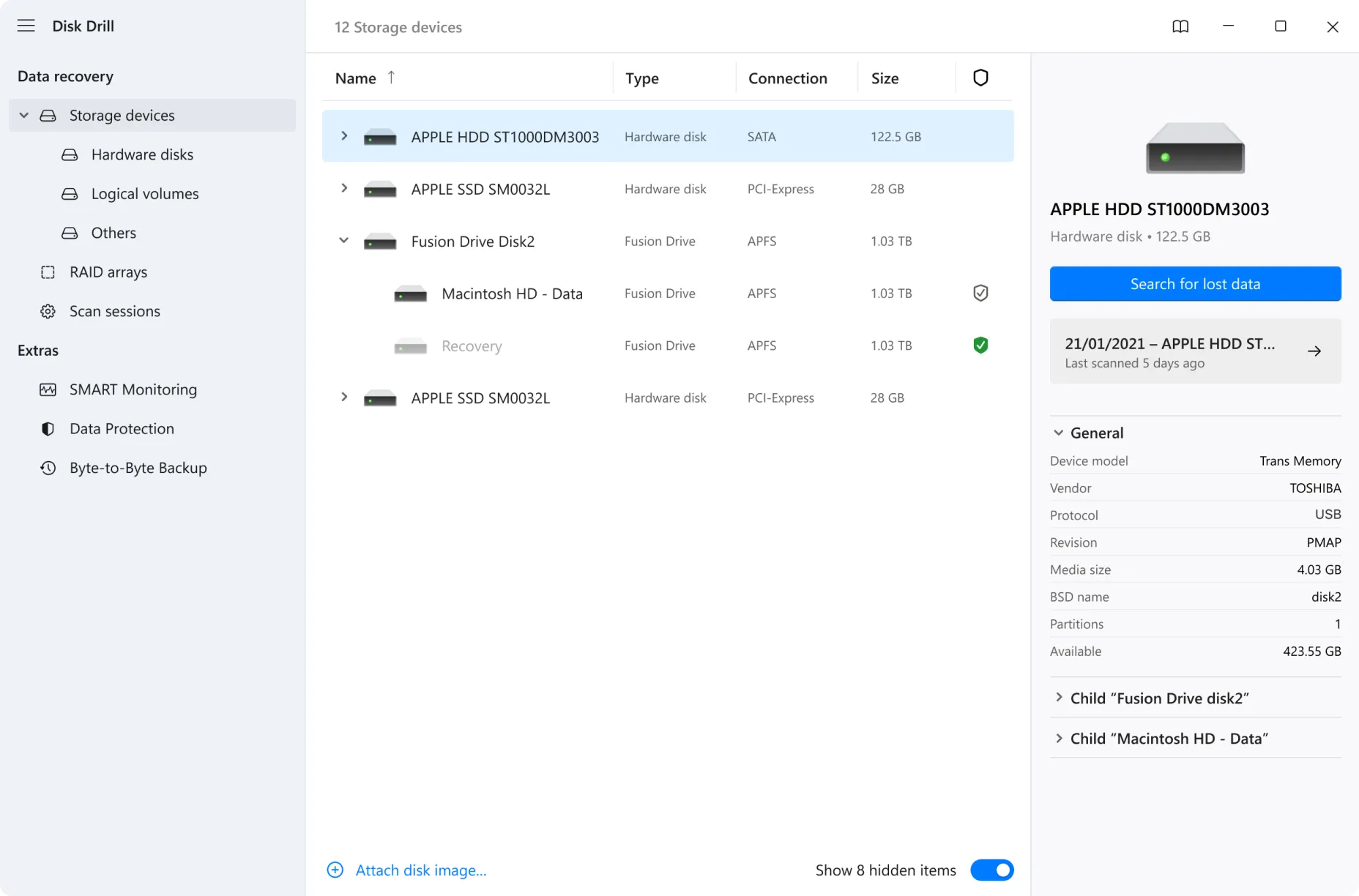
Disk Drill represents a popular premium alternative within the modern best usb data recovery software market. It features a beautifully designed user experience and provides reliable scanning results across both major operating systems. However, the commercial upgrade licenses are quite expensive for individual users who simply want to rescue a single device. While its visual presentation is certainly elegant, its actual sector extraction capability on deeply corrupted RAW partitions does not outperform Magic Data Recovery.
Option 3: EaseUS Data Recovery Wizard
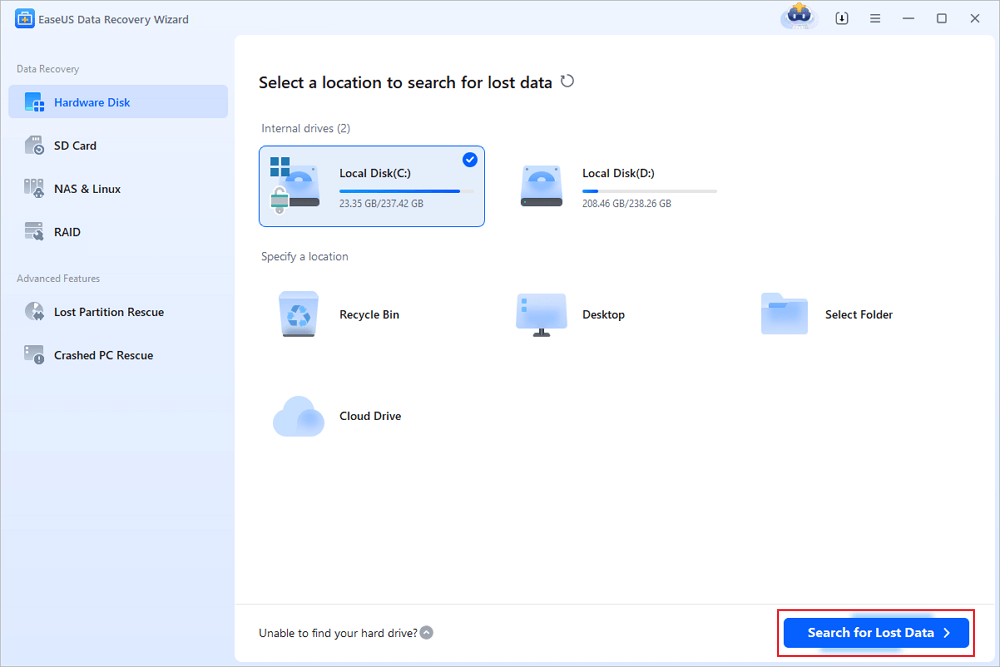
EaseUS Data Recovery Wizard is another well-known name encountered during a typical usb drive data recovery search. It features a robust scanning engine that handles large storage arrays efficiently. Nevertheless, many users find its pricing model aggressive, and its scanning speed tends to drag significantly on older USB ports. Additionally, while they advertise a 2GB free allowance, you must share their product link on social media platforms to unlock the full amount, which introduces unnecessary friction for users in a data emergency.
Option 4: Recuva
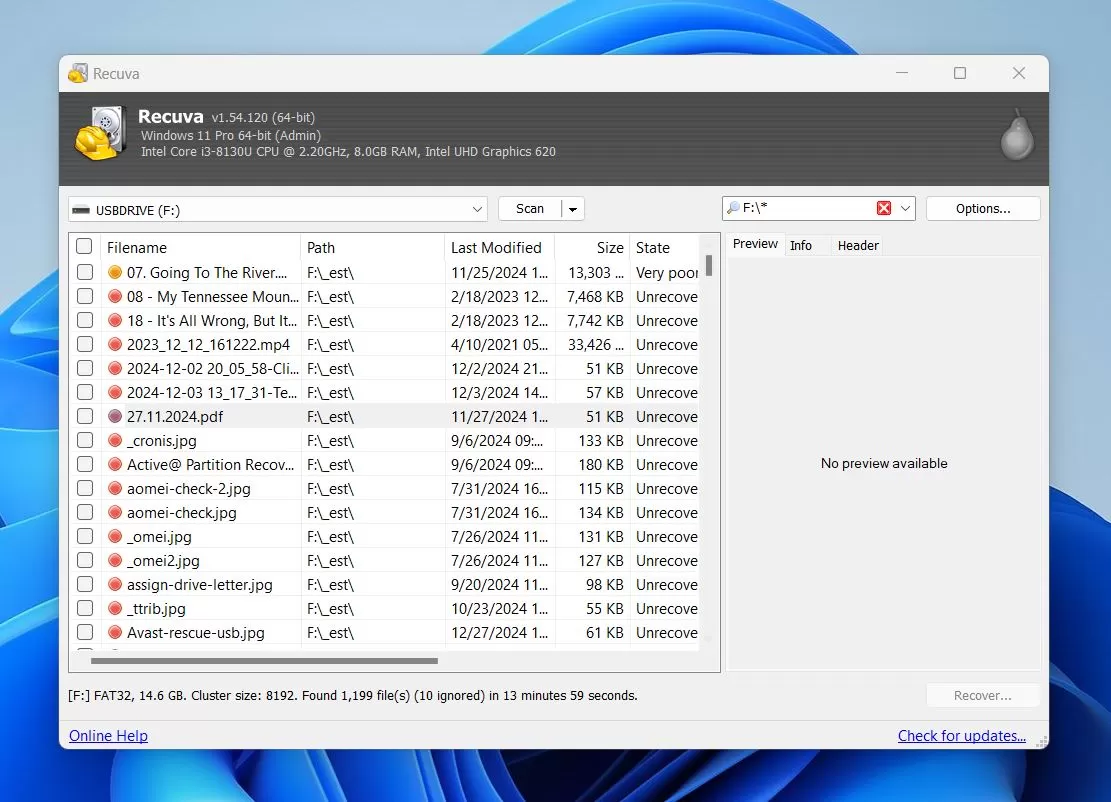
Recuva remains a familiar choice because its standard desktop version offers unlimited file saving for free. It works decently for basic tasks, such as undeleting a document you lost a few moments ago. Nevertheless, this utility has not received significant structural updates to its core engine recently. As a result, its deep scanning algorithm struggles significantly with modern, high-capacity exFAT storage layouts, and it frequently fails to reconstruct original folder hierarchies during a complex corrupted usb recovery.
Option 5: PhotoRec
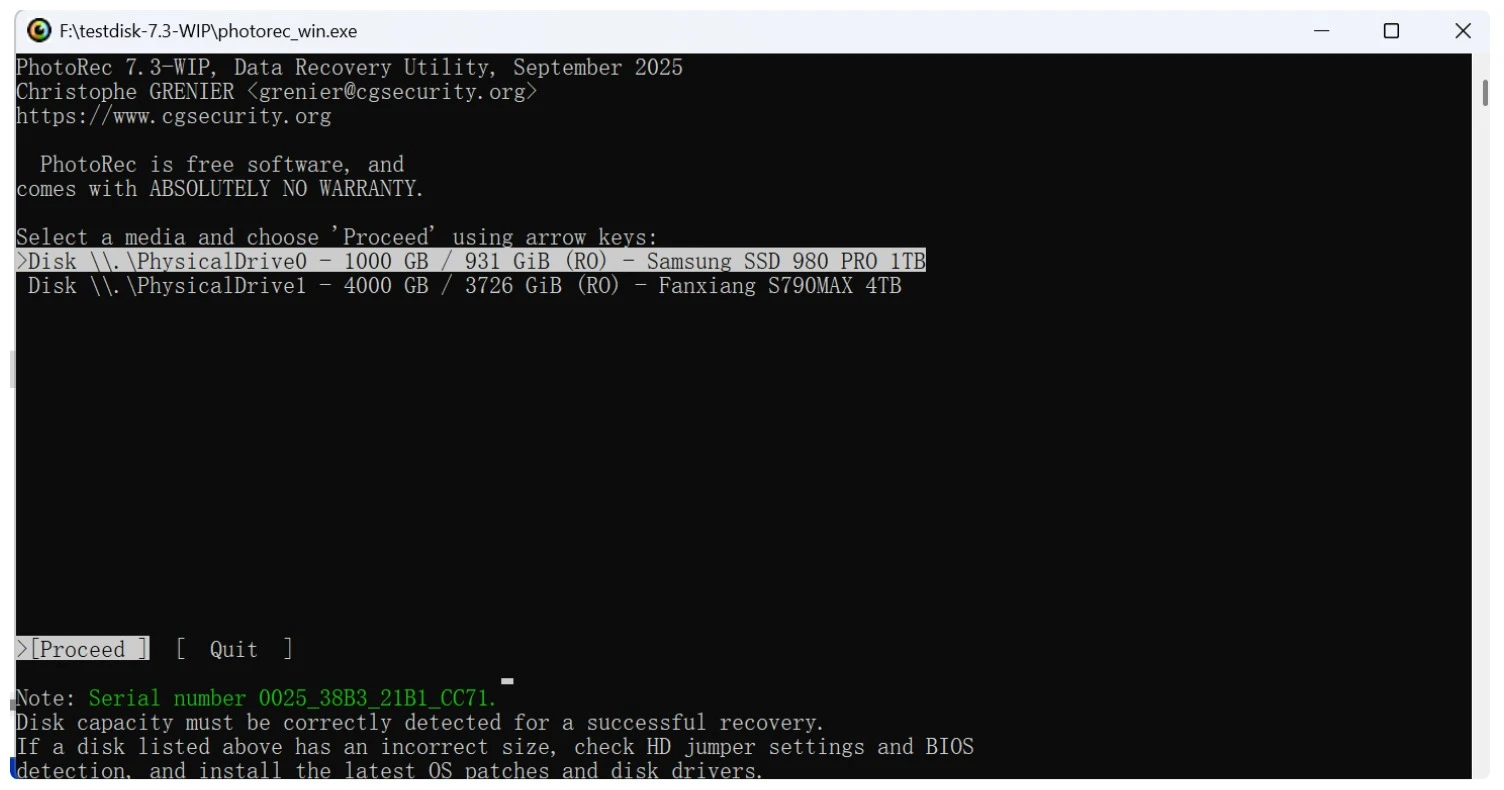
PhotoRec is a completely free, open-source application that delivers surprisingly high data extraction success rates. Because it ignores the file system entirely and goes straight after the underlying raw data, it can occasionally salvage files from severely corrupted volumes. However, this tool features absolutely no graphical user interface (GUI). It runs entirely inside a text-based command-line window, which makes it incredibly intimidating for regular users and increases the risk of accidentally formatting the wrong local hard drive.
How to Perform USB Drive Data Recovery: Step-by-Step
This structured tutorial will guide you through the exact process of retrieving your data using Magic Data Recovery. Please ensure that you follow these operational stages carefully on your computer.
Step 1: Download and Install Magic Data Recovery
First, download the official installation package for Magic Data Recovery from the Amagicsoft website. Install the software directly onto your main internal computer drive rather than the compromised flash drive. This precautionary measure effectively avoids data overwriting and keeps your lost data perfectly safe.
Supports Windows 7/8/10/11 and Windows Server
Step 2: Select the Flash Drive to Scan
Next, launch the application on your computer desktop. The main interface will automatically display all available storage devices connected to your system. Select the specific flash drive where your data was deleted to initialize the target path.

Step 3: Scan the USB Flash Drive for Lost Files
The utility will automatically execute an Advanced Scan on your selected storage media. Meanwhile, the background engine will analyze the hidden sectors and dynamically list all recoverable items in the interactive workspace as the scan moves forward.

Step 4: Preview Lost Files Before Recovery
Once the scanning process finishes, you can navigate through the reconstructed folder structure. Use the integrated preview tool to inspect the integrity of your pictures or text files. Consequently, this helpful verification step ensures you consume your free flash drive recovery allowance only on fully functional files.

Step 5: Recover Files to a Safe Location
Finally, mark the checkboxes next to the files you wish to rescue and click the primary recovery button. Choose a secure destination folder on your local computer hard drive to save the files. Never restore your files directly back onto the same flash drive, because doing so can trigger immediate file corruption.

Advanced Fixes for Unrecognized USB Drives
Sometimes, basic software applications cannot scan your flash media if the operating system fails to communicate with the hardware. If your computer does not display your storage drive during a corrupted usb recovery attempt, you can try these advanced system solutions.
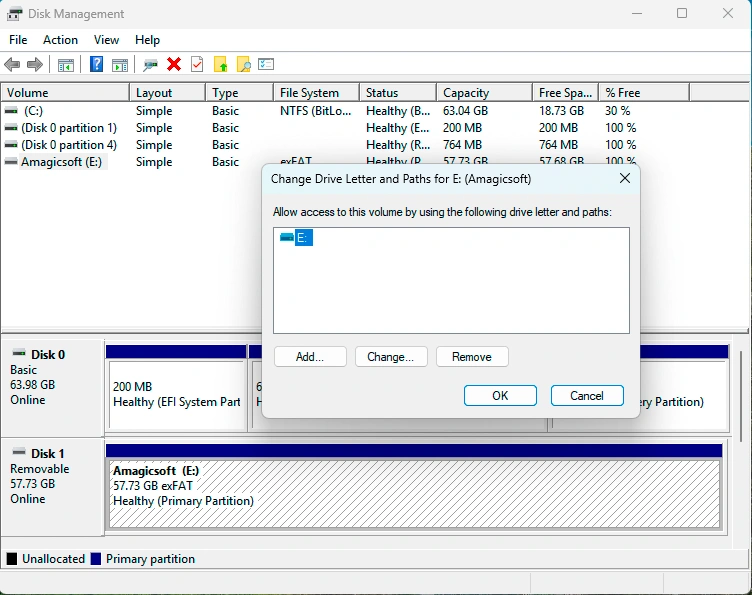
Solution 1: Remap the Drive Letter via Disk Management
If your storage device is physically functional but lacks an assigned path letter, Windows will fail to show it inside File Explorer.
- Right-click the Windows Start button and open Disk Management.
- Locate your removable storage drive within the lower visual device grid.
- Right-click the unallocated storage volume and click Change Drive Letter and Paths.
- Assign a completely unique, unused drive letter (such as “M:” or “R:”) and apply your settings.
Solution 2: Run the CHKDSK Repair Directive (With Caution)
The native Windows command line utility can repair basic file system directory errors, but you must use it with extreme care.
chkdsk X: /f
(Please swap ‘X’ with your specific flash drive letter)

⚠️ Professional Safety Alert: Running the chkdsk /f command forces the operating system to fix damaged index lines. However, if the volume corruption is severe, this process might permanently erase broken file pieces that specialized software could otherwise extract. Therefore, we strongly advise running Magic Data Recovery to save your files before executing any destructive command line repairs.Conclusion and Best Practices for USB Drive Data Recovery
Experiencing a sudden data loss emergency is undeniably stressful, but modern storage architecture gives you an outstanding chance of a successful recovery. If you ever find yourself in this situation, stop utilizing the device immediately and use a dependable tool to extract your files from USB drives.
If you want an efficient, professional solution to handle usb drive data recovery safely at home, Magic Data Recovery is an ideal choice. Its powerful sector analysis tools, convenient pre-recovery file viewer, and practical 500MB free trial give you everything you need to restore your files safely. If you are looking for a reliable solution to protect your digital workspace, give this application a try today.
Supports Windows 7/8/10/11 and Windows Server
FAQs - USB Drive Data Recovery
Can I perform a full usb drive data recovery entirely for free?
Yes, you can. Magic Data Recovery allows you to run deep scans, view discovered items, and completely recover up to 500MB of files for free. Furthermore, this initial allowance features no hidden expiration dates, which gives you complete flexibility to test its extraction capabilities at your own pace.
Why does Windows say my flash drive must be formatted before use?
This error usually implies that your device's partition table or boot sector has suffered severe logical corruption. Therefore, you should never click format, because doing so makes recovery harder. Instead, run a professional software utility to extract your hidden files before attempting any system formatting.
Is it possible to recover files from flash drive after formatting it?
Yes, provided that you performed a Quick Format rather than a Full Format. A Quick Format merely wipes the file index map, leaving the actual file blocks intact. However, you must immediately deploy a tool like Magic Data Recovery to extract those files before new data overwrites them.
What should I do if my computer fails to recognize my flash drive?
First, open Disk Management to see if the hardware shows up without a drive letter. If it appears there, simply assign a new letter to make it accessible. However, if the device does not show up at all, try cleaning the connector or using a different port.
Can software restore a physically cracked or bent flash drive?
No, software tools cannot fix physical hardware damage. If your flash drive has been physically broken, submerged in water, or suffered an electrical short circuit, you must contact a specialized cleanroom laboratory. These services desolder the memory chips manually, though they cost significantly more than software.
How does the file preview function help me save my lost data?
The file preview tool displays the actual contents of a document or image before you save it. This prevents you from wasting your 500MB free recovery quota on corrupted files. Consequently, you can ensure that you only restore perfectly intact, functional files to your PC.
How can I prevent sudden data loss on my flash devices in the future?
You can easily protect your files by always using the "Safely Remove Hardware" option before unplugging your device. Additionally, avoid editing documents directly on the portable drive while it is plugged in, and regularly copy your critical data onto a secondary cloud storage backup location.

Vasilii is a data recovery specialist with around 10 years of hands-on experience in the field. Throughout his career, he has successfully solved thousands of complex cases involving deleted files, formatted drives, lost partitions, and RAW file systems. His expertise covers both manual recovery methods using professional tools like hex editors and advanced automated solutions with recovery software. Vasilii's mission is to make reliable data recovery knowledge accessible to both IT professionals and everyday users, helping them safeguard their valuable digital assets.