
iTop Data Recovery Review & Alternative
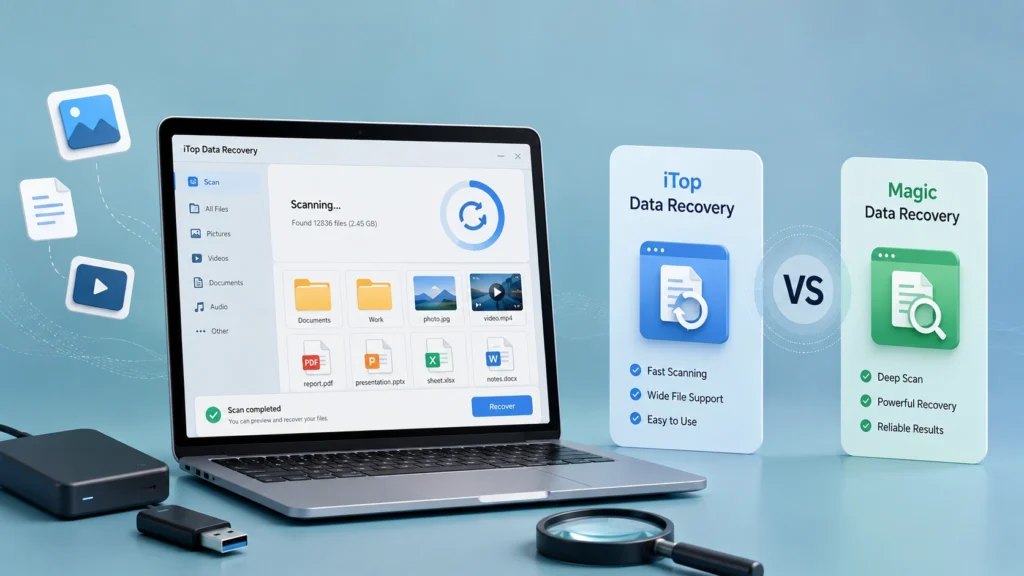
Losing important files can happen faster than most people expect. You may delete a folder by mistake, format a USB drive, lose access to a partition, or find that files disappear after a system error. In these cases, many users search for itop data recovery or i top data recovery because they want a simple tool that can scan a drive and bring lost files back.
However, choosing the right recovery tool matters. A slow scan, unclear file results, or poor file location can waste time and increase the risk of overwriting lost data. This guide reviews itop data recovery, explains where it works well, compares it with Magic Data Recovery, and helps you decide which solution fits your data loss situation better.
Magic Data Recovery is also a great data recovery tool and it focuses on practical recovery needs: deleted files, formatted drives, file system errors, lost partitions, USB drives, memory cards, and other common storage problems. It also scans faster and helps users locate lost files more accurately, which is especially useful when time matters.
Supports Windows 7/8/10/11 and Windows Server
Table of Contents
What Is iTop Data Recovery?
iTop data recovery is a Windows data recovery program designed to restore lost files from common storage devices. It can help recover photos, videos, documents, audio files, and other file types from internal drives, external hard drives, USB drives, SD cards, and similar devices.
The software targets users who need a simple recovery process. In most cases, users select a location, start a scan, preview found files, and recover the files they need. This workflow makes iTop data recovery suitable for beginners who do not want to deal with complex disk recovery settings.
Common use cases include:
- Recovering deleted files from a PC
- Restoring files after emptying the Recycle Bin
- Scanning a formatted USB drive or memory card
- Finding lost photos, videos, and office documents
- Recovering files after a system crash or storage error
For basic file loss cases, itop data recovery can be a workable choice. Still, users should compare it with other recovery tools before deciding, especially when the data loss scenario is more complex.
iTop Data Recovery Review: Key Features
Simple Scan and Recovery Process
One strength of itop data recovery is its beginner-friendly workflow. The interface usually guides users through drive selection, scanning, previewing, and recovery. This approach lowers the learning curve for users who only need to recover recently deleted files.
However, simplicity does not always mean better recovery performance. If the lost files come from a formatted drive, corrupted file system, or damaged partition, users need a tool that can scan deeply and organize results clearly.
Support for Common File Types
iTop data recovery supports many common file types, including photos, videos, documents, compressed files, and audio files. This is useful for home users, students, office workers, and content creators who need to recover mixed files from one device.
For example, if a user accidentally deletes a folder that contains Word documents, JPG images, MP4 videos, and ZIP files, itop data recovery may help scan and list those files for recovery.
Preview Before Recovery
Preview is an important feature in any data recovery tool. It helps users check whether a file is recoverable before saving it. iTop data recovery includes preview options for many common file types, which can reduce unnecessary recovery attempts.
This matters because file names may become unclear after deletion or formatting. A preview feature helps users confirm the file content instead of guessing from file size or extension alone.
Recovery From Multiple Storage Devices
Users often search for i top data recovery when files disappear from USB drives, external hard drives, SD cards, or computer disks. iTop supports many common storage devices, which makes it suitable for everyday recovery cases.
Even so, recovery quality depends on the data loss reason. A recently deleted file is easier to restore than a file lost after repeated formatting, file system damage, or continued use of the same drive.
Common Data Loss Scenarios: Which Tool Fits Better?
Accidental Deletion
Accidental deletion is one of the easiest recovery scenarios if users act quickly. When a file gets deleted, the system usually marks its space as reusable instead of immediately destroying the file content. Therefore, users should stop using the drive and scan it as soon as possible.
For simple deletion, itop data recovery can be useful. However, Magic Data Recovery is often a better fit when users need faster scanning and more precise file location. It helps users quickly filter and identify the files they want to restore.
Formatted Drive Recovery
Formatting a drive can remove file system records and make files disappear from normal view. In this case, a basic scan may not be enough. Users need a recovery tool that can detect lost file structures and search deeper into the drive.
Magic Data Recovery is recommended for formatted drive recovery because it supports formatted storage recovery and helps locate lost files more accurately. Compared with itop data recovery, it gives users a more focused solution when the original folder structure is missing or damaged.
File System Error
A file system error can make a drive show messages such as “You need to format the disk before you can use it,” “Access is denied,” or “The file or directory is corrupted.” These problems are more complicated than normal deletion.
In this situation, users should avoid formatting the drive immediately. Instead, they should use reliable recovery software to scan the device first. Magic Data Recovery supports recovery from file system errors, making it a practical option when Windows cannot open a drive normally.
Lost Partition
A lost partition may happen after disk management mistakes, system updates, partition resizing, or unexpected power failure. When a partition disappears, files may still exist on the disk, but the system cannot locate them through normal access.
For this type of case, users should choose a tool with strong scanning logic and clear file categorization. Magic Data Recovery is suitable because it can handle multiple data loss situations and help users find files even when the original access path is no longer available.
iTop Data Recovery vs Magic Data Recovery
Recovery Ability
iTop data recovery can help with common file recovery needs, including deleted files, formatted drives, and storage device recovery. It is a reasonable option for users who want a basic recovery workflow.
Magic Data Recovery, on the other hand, is designed for broader and more practical recovery cases. It supports recovery from deletion, formatting, file system errors, lost partitions, and other unexpected data loss situations. This makes it more useful when users face unclear or complex problems.
Better choice: Magic Data Recovery, especially for formatted drives, file system errors, and mixed data loss scenarios.
Suitable Scenarios
iTop data recovery works best for users who need a simple recovery tool for common deleted files. It may be enough when the files were deleted recently and the storage device still works normally.
Magic Data Recovery fits more scenarios. For example, it can help when a USB drive asks to be formatted, an SD card loses photos, a hard drive shows file system errors, or a formatted partition needs to be scanned. This wider scenario coverage gives users more flexibility.
Better choice: Magic Data Recovery for users who do not know exactly why the files were lost.
Ease of Use
Both tools are designed for ordinary users. iTop data recovery offers a simple interface and a straightforward recovery process. This makes it friendly for beginners.
Magic Data Recovery also keeps the process simple, but it improves usability with faster scanning and more accurate file location. When a scan finds thousands of files, accurate filtering and file positioning become more important than a clean interface alone.
Better choice: Magic Data Recovery, because it balances ease of use with better file discovery efficiency.
Scan Speed
Scan speed affects the recovery experience directly. A slow scan can frustrate users, especially when they need to recover files from a large hard drive or external disk.
Magic Data Recovery has an advantage here because it scans faster and helps users find lost files more efficiently. For users who need quick results, this can save time and reduce repeated scanning.
Better choice: Magic Data Recovery for faster scanning and quicker file identification.
File Location Accuracy
A recovery tool should not only find files. It should also help users locate the right files quickly. After formatting or file system damage, recovered files may appear under different categories, lost folders, or file type groups.
Magic Data Recovery performs better in this area because it focuses on precise file location. Users can find target files more easily instead of opening many unrelated results.
Better choice: Magic Data Recovery when accuracy matters.
Comparison Table: iTop Data Recovery vs Magic Data Recovery
Comparison Point | iTop Data Recovery | Magic Data Recovery |
Main Use | Basic Windows file recovery | Broader data loss recovery |
Deleted File Recovery | Supported | Supported |
Formatted Drive Recovery | Supported | Supported with stronger practical focus |
File System Error Recovery | Limited by case | Supported for common file system errors |
Scan Speed | Good for basic scans | Faster scan experience |
File Location | Useful preview and filtering | More accurate lost file location |
Ease of Use | Beginner-friendly | Beginner-friendly with clearer recovery workflow |
Best For | Simple deleted file recovery | Deletion, formatting, file system errors, and complex loss cases |
Why Magic Data Recovery Is a Better iTop Data Recovery Alternative
Many users search for itop data recovery because they want a simple answer to a stressful problem: “Can I get my files back?” That is a valid starting point. However, the best recovery software should do more than scan a drive. It should help users recover the right files safely, quickly, and clearly.
Magic Data Recovery solves several core pain points:
- It supports recovery from deletion, formatting, file system errors, and other common data loss cases.
- It scans faster, which helps users check recoverable files sooner.
- It locates lost files more precisely, reducing the time spent browsing useless results.
- It works with common storage devices, including hard drives, USB drives, external disks, and memory cards.
- It keeps the workflow simple enough for ordinary users.
For example, if a user formats an external hard drive by mistake, a basic deleted file scan may not be enough. Magic Data Recovery can scan the formatted device and help locate recoverable files more accurately. If a USB drive suddenly asks to be formatted, the user can scan it before taking risky actions.
Therefore, Magic Data Recovery is not just an alternative to i top data recovery. It is a more practical solution for users who want better speed, clearer results, and broader recovery support.
Supports Windows 7/8/10/11 and Windows Server
How to Recover Lost Files With Magic Data Recovery
Follow these steps to improve your recovery success:
Step 1: Stop Using the Device
Stop saving new files to the affected drive. New data may overwrite lost files and make recovery harder.
Step 2: Install Magic Data Recovery on Another Drive
Do not install recovery software on the same drive where files were lost. For example, if files disappeared from drive D, install the software on drive C or another safe location.
Step 3: Select the Lost File Location
Open Magic Data Recovery and choose the drive, partition, USB device, or memory card where the data loss happened.

Step 4: Start the Scan
Run a scan to search for deleted, formatted, or inaccessible files. The software will list recoverable files after scanning the selected location.

Step 5: Preview and Filter Files
Use file type, path, size, or preview options to locate the files you need. This step helps avoid recovering unnecessary files.

Step 6: Recover Files to a Safe Location
Save recovered files to another drive. Never save them back to the same location before confirming that recovery is complete.

Best Practices Before Using Any Data Recovery Software
Before using itop data recovery, Magic Data Recovery, or any other recovery tool, follow these best practices:
- Do not format the drive unless recovery has finished.
- Do not run disk repair tools before recovering important files.
- Do not install software on the affected drive.
- Do not copy new files to the device with lost data.
- Recover files to a different storage device.
- Preview files before recovery when possible.
These steps reduce the risk of overwriting lost data. They also improve your chances of getting usable files back.
When Should You Choose iTop Data Recovery?
You may choose itop data recovery if your situation is simple and you only need a basic recovery tool. For example, it may work well when you recently deleted a few files from a healthy drive and want a quick scan.
It can also suit users who prefer a simple interface and only need to recover common file types such as photos, videos, and documents.
However, if your data loss involves formatting, file system errors, a lost partition, or a large number of files, Magic Data Recovery is a stronger option. It gives users faster scanning, better file location, and broader scenario support.
Final Verdict: Is iTop Data Recovery Worth Trying?
iTop data recovery is a useful Windows recovery tool for basic file loss situations. It offers a simple workflow, common file type support, preview options, and storage device recovery. For users with recently deleted files, it can be worth trying.
Still, Magic Data Recovery is the better recommendation for users who want a more efficient and accurate solution. It supports deleted file recovery, formatted drive recovery, file system error recovery, and other common data loss scenarios. It also scans faster and helps users locate lost files more precisely.
If you are looking for a practical itop data recovery alternative, Magic Data Recovery is a reliable choice. If you need to recover important files from a deleted, formatted, or inaccessible device, try Magic Data Recovery before taking risky actions like formatting or repairing the drive.
Supports Windows 7/8/10/11 and Windows Server
FAQs
What is iTop Data Recovery used for?
iTop data recovery is used to recover lost, deleted, or inaccessible files from Windows computers and storage devices. It can help restore common file types such as photos, videos, documents, and audio files. Users often try it after accidental deletion, Recycle Bin emptying, formatting, or storage device issues.
Is iTop Data Recovery suitable for formatted drive recovery?
Yes, itop data recovery may help scan formatted drives and find recoverable files. However, formatted drive recovery can be more complex than simple deletion. If the original file system structure is damaged, Magic Data Recovery may be a better option because it supports formatted recovery and helps locate lost files more accurately.
What is the best iTop Data Recovery alternative?
Magic Data Recovery is a strong itop data recovery alternative for users who need faster scanning and more precise file location. It supports deleted files, formatted drives, file system errors, and other common data loss scenarios. It is especially useful when users do not know exactly why their files disappeared.
Can I recover files after emptying the Recycle Bin?
Yes, recovery may be possible after emptying the Recycle Bin if the deleted files have not been overwritten. Stop using the drive immediately and scan it with recovery software. Magic Data Recovery can help search for deleted files and restore them to a safe location on another drive.
Why should I not save recovered files to the same drive?
Saving recovered files to the same drive may overwrite other lost data that has not been restored yet. This can reduce your recovery success. Always save recovered files to another partition, external drive, or USB device. This rule applies whether you use i top data recovery, Magic Data Recovery, or another tool.
Is Magic Data Recovery easier to use than iTop Data Recovery?
Both tools are designed for ordinary users, but Magic Data Recovery offers a more efficient recovery workflow. It scans faster and helps users locate lost files more precisely. This becomes important when a scan returns many files and users need to identify the correct documents, photos, or videos quickly.
Can data recovery software fix file system errors?
Data recovery software does not always “fix” file system errors directly. Instead, it scans the affected device and helps recover files before users try repairs or formatting. Magic Data Recovery supports recovery from common file system error situations, making it useful when Windows cannot open a drive normally.
Should I try iTop Data Recovery or Magic Data Recovery first?
If your case is simple, itop data recovery may be enough. However, if you need faster scanning, better file location, and support for deletion, formatting, and file system errors, Magic Data Recovery is the better first choice. It is more suitable for users who want a practical and efficient recovery solution.

Jason is a data recovery and technical support specialist with over 15 years of hands-on experience. He has worked extensively with frontline users, troubleshooting difficult data loss cases and providing practical recovery solutions for accidental deletion, formatted drives, damaged file systems, lost partitions, system failures, and other recovery emergencies. His expertise also includes backup and restoration, file repair, and disaster recovery, with a strong emphasis on safe, reliable, and technically accurate guidance.