
Computer Data Recovery: Top Software Compared
Losing important documents, irreplaceable family photos, or critical business archives can trigger immediate panic. Whether an unexpected system crash corrupted your operating system, an accidental partition format wiped a storage device, or you inadvertently hit “Shift + Delete” on a main project folder, the situation demands urgent action. Fortunately, implementing the right computer data recovery strategy can save your files, as they are rarely gone forever from the physical storage sectors. By understanding how to initiate a successful computer hard drive recovery, you can safely rescue your lost files right from your hard drives without paying commercial laboratory fees.
When digital disaster strikes, understanding the exact technical execution of these tools can save you thousands of dollars. Most logical data loss issues remain highly fixable if you follow the correct guidelines. This detailed guide compares the industry’s leading software options like Magic Data Recovery, explains the mechanics of data restoration, and reveals how to maximize your file retrieval success rate.
Supports Windows 7/8/10/11 and Windows Server
Table of Contents
The 4-Step Emergency Protocol for Computer Data Recovery
When you first notice that files are missing, your immediate actions dictate whether those sectors remain salvageable or become permanently unrecoverable. For this reason, you should execute this emergency protocol straight away to preserve your deleted assets.
- Stop Writing New Data Instantly: This action serves as the foundational rule of computer hard drive recovery. When Windows deletes a file, the operating system does not immediately scrub the data from the internal disk platters. Instead, the storage controller simply marks that specific space as available for future input. Consequently, downloading new applications or saving small browser caches can easily overwrite the hidden file remnants.
- Examine the Local Recycle Bin: Although this step sounds elementary, users often overlook it during moments of panic. Therefore, open the Recycle Bin folder on your desktop, locate your missing folders, right-click them, and select “Restore” to push them back to their original storage directories.
- Isolate the Recovery Installation: If the files completely bypassed the Recycle Bin, specialized computer data recovery software becomes necessary. However, you must never install the extraction tool onto the exact same drive partition where the data loss occurred. For example, if you accidentally wiped documents on your C: drive, you should download the utility onto a secondary D: drive or a separate flash drive.
- Identify the Failure Type: Pay close attention to the physical behavior of your computer hardware. If your drive produces distinct clicking, grinding, or loud buzzing noises, you are dealing with a severe mechanical failure. Software utilities cannot repair damaged physical components, so you must power down the computer immediately and contact an authorized cleanroom service. Conversely, if the storage drive spins quietly but files disappeared due to formatting or partition deletion, you can safely deploy a software solution.
Understanding Common Computer Hard Drive Recovery Scenarios
Different situations require different approaches. To help you choose the best path forward, we have categorized the most frequent data loss scenarios that users encounter, along with their likelihood of a successful software fix.
Data Loss Scenario | Root Cause of the Issue | Can Software Fix It? |
Accidental Deletion | Hitting Shift + Delete or emptying the Recycle Bin | Yes — Highly recoverable before overwriting occurs. |
Formatted Partition | Accidentally formatting a drive (NTFS/exFAT/FAT32) | Yes — Remaps the file system but leaves raw data intact. |
RAW or Inaccessible Drive | File system corruption or damaged Master File Table (MFT) | Yes — Requires a deep sector-by-sector scan. |
System Crash / Blue Screen | Operating system failure or corrupted boot sector | Yes — Requires connecting the drive to another PC. |
Physical Hardware Damage | Dropped drive, broken PCB, or worn-out magnetic heads | No — Requires a professional mechanical laboratory. |
Top 5 Computer Data Recovery Software Compared
To help you find the right balance between processing power, technical complexity, and overall cost, we have thoroughly analyzed the top 5 solutions available in 2026.
Magic Data Recovery (The Balanced Solution)
When regular system backups are completely missing, Magic Data Recovery by Amagicsoft provides an exceptionally streamlined, problem-solving approach. This utility avoids the unnecessary system bloat of massive corporate software bundles, making it an ideal choice for everyday users who require professional sector analysis.
- Core Pain Points Resolved: The application perfectly handles the terrifying “RAW Drive” error where Windows suddenly demands that you format a disk before opening it. It reads the raw storage clusters directly, allowing you to salvage your files before executing any destructive formatting operations.
- Unique Advantages: The program features highly optimized native synchronization for encounters with NTFS, FAT32, and exFAT. This direct architectural focus ensures that original file names and complex folder hierarchies remain completely intact. Furthermore, a risk-free pre-recovery preview lets you test file integrity before purchasing a license.
- Best Used For: Recovering office documents, multimedia assets, and lost partitions from desktop hard drives and laptops without a steep learning curve.

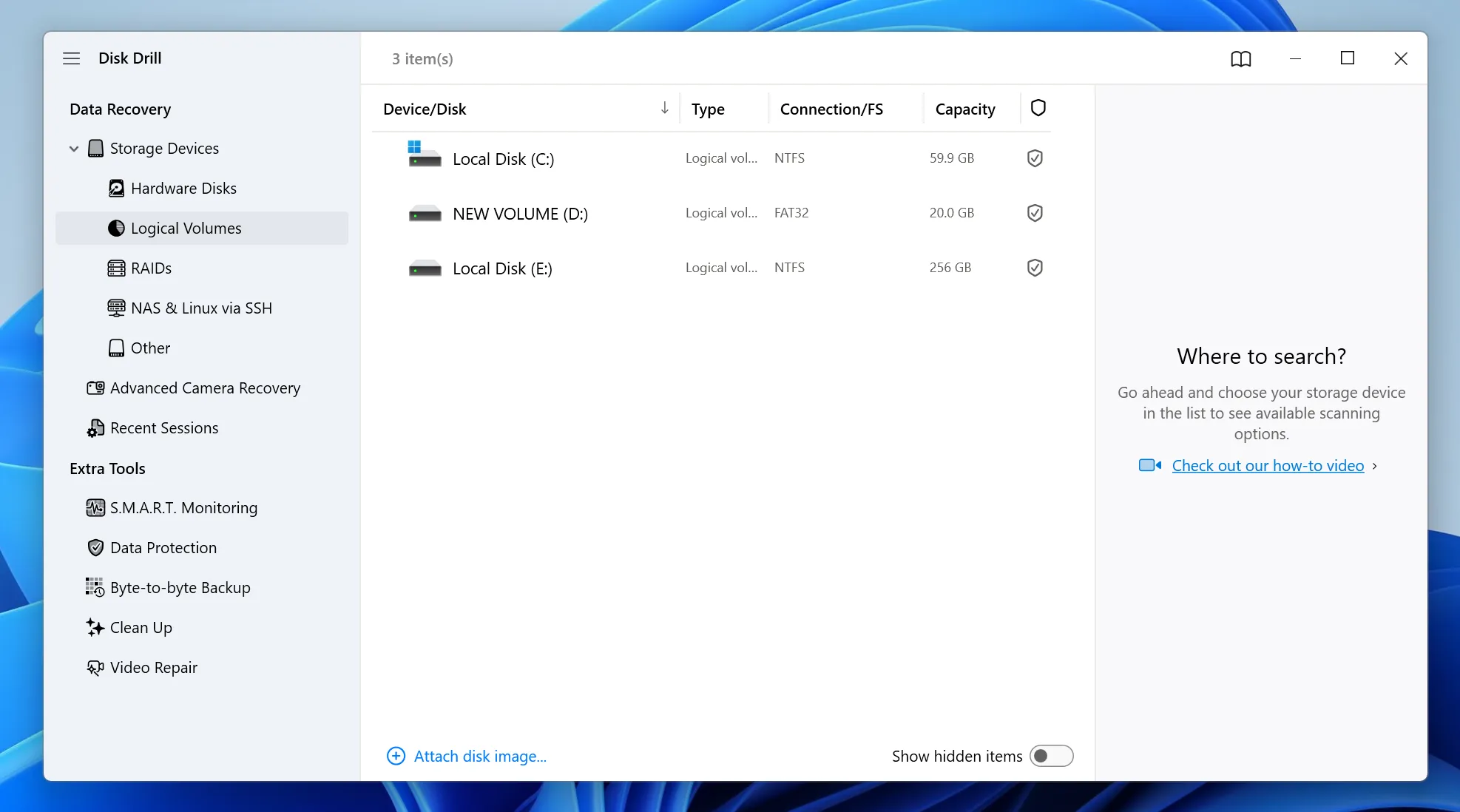
Disk Drill (The Feature-Rich Competitor)
Developed by CleverFiles, Disk Drill represents a popular, modern choice in the data extraction industry. The latest version offers an updated visual layout alongside secondary disk management tools.- Pros: It features a highly intuitive user interface and supports over 400 distinct file formats. The tool also includes a special video reconstruction module for fragmented camera footage.
- Cons: The pro upgrade cost remains quite steep for a single-user license, and deep scans on high-capacity internal disks can take several hours to complete.
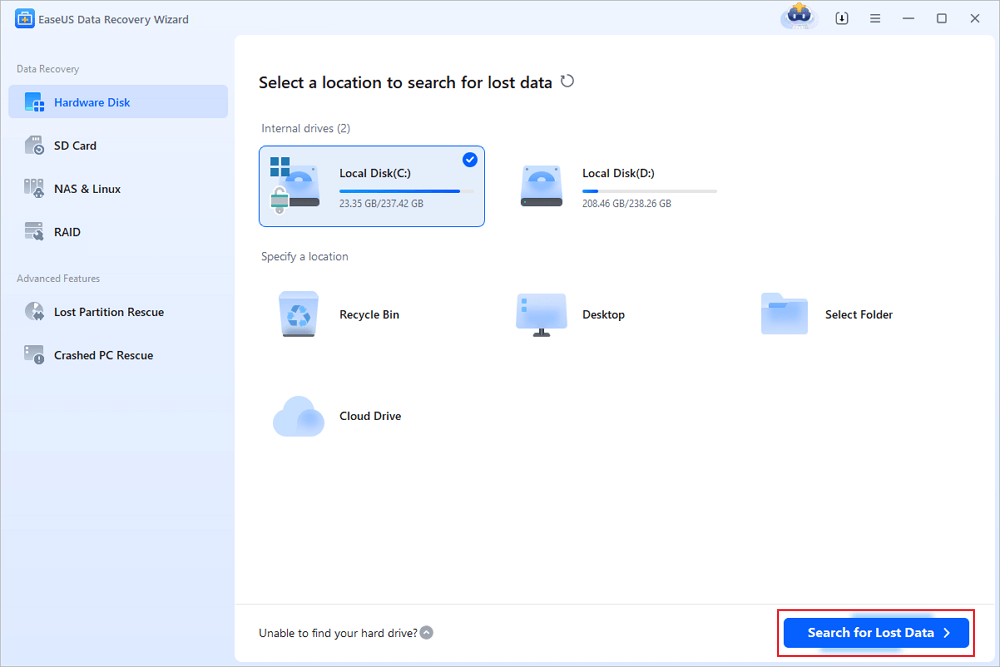
EaseUS Data Recovery Wizard (The Fast Scanner)
EaseUS stands out as a well-known name that utilizes a traditional step-by-step wizard style to guide users through the rescue process.- Pros: The initial quick scan engine works remarkably fast on healthy storage media. It provides a generous free trial allowance for minor data rescue tasks.
- Cons: The monthly subscription pricing model feels expensive for individual consumers. Users occasionally report duplicate entries in large scan results.
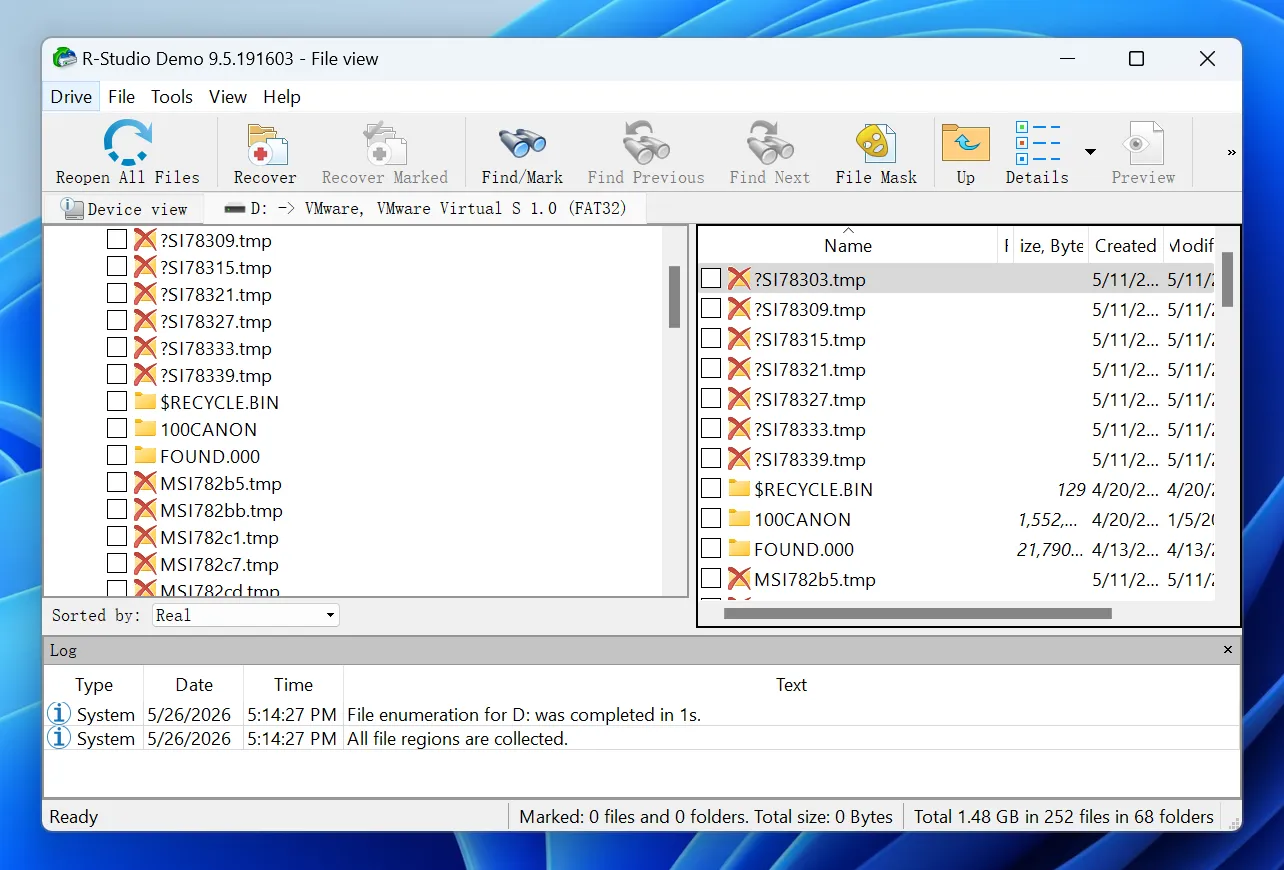
R-Studio (The Expert’s Toolkit)
R-Studio targets IT professionals, network administrators, and forensic experts who require ultra-deep data analysis.- Pros: It offers unparalleled support for complex RAID reconstructions, damaged network storage arrays, and advanced raw file carving.
- Cons: The user interface looks highly intimidating and resembles a command-line utility. Average users may find the extensive settings completely overwhelming.
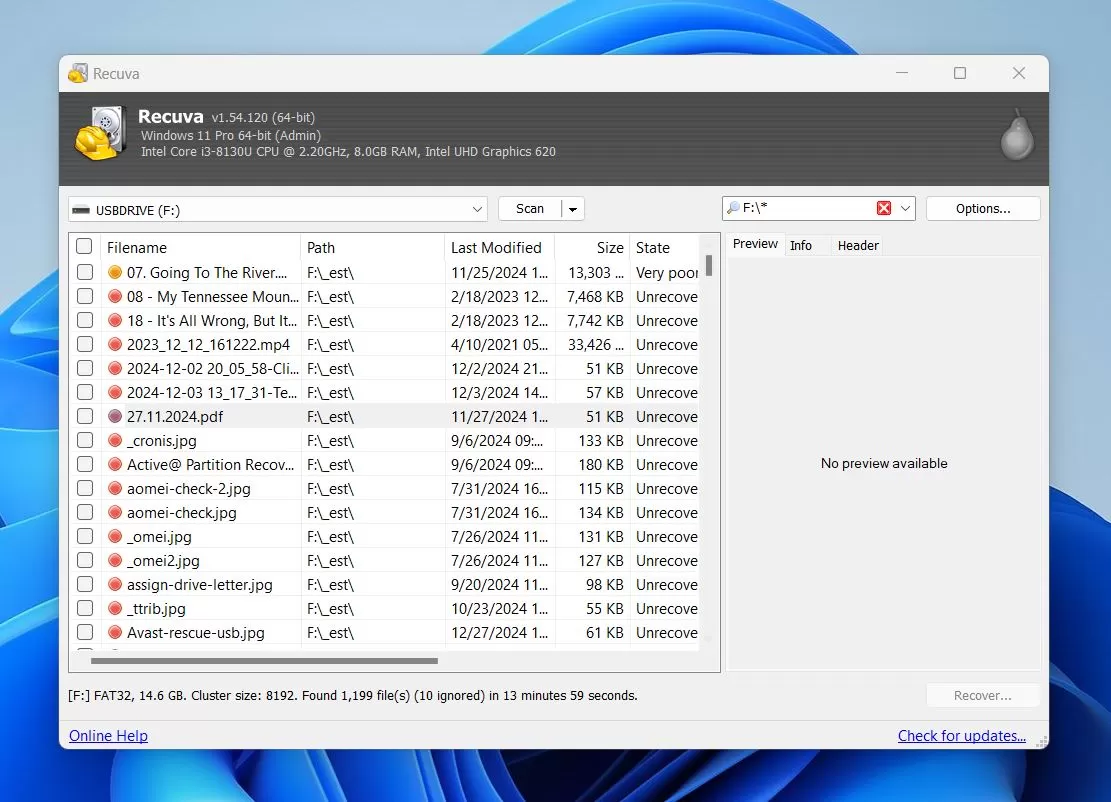
Recuva (The Lightweight Classic)
Recuva is a classic, lightweight Windows-only utility designed for quick, basic file retrieval tasks.- Pros: The software utilizes very little system memory and can run as a portable application without full installation. The pricing structure is highly affordable.
- Cons: The underlying scanning algorithms have not received major updates recently, resulting in significantly lower success rates when dealing with severely corrupted or formatted partitions.
2026 Comparison Matrix for Computer Hard Drive Recovery
The following structural matrix outlines the core performance metrics, file system compatibility, and overall cost considerations for each software tool.
Software Title | Supported File Systems | Key Scanning Strength | User Interface Style | Value for Money |
Magic Data Recovery | NTFS, exFAT, FAT32, ext2/ext3, HFS+/ReFS | High-efficiency sector mapping | Clean & focused | Excellent |
Disk Drill | NTFS, APFS, HFS+, EXT4 | Fragmented video rebuilding | Modern sidebar | Moderate |
EaseUS Wizard | NTFS, FAT32, exFAT, HFS+ | Rapid initial folder sorting | Step-by-step wizard | Pricey |
R-Studio | All major systems + RAID | Advanced parameter customization | Expert console | Expensive |
Recuva | NTFS, FAT, exFAT | Quick undelete on healthy drives | Legacy simple | Basic |
Step-by-Step Guide: How to Execute Your Computer Data Recovery
Running your first software data rescue does not require an advanced degree in computer science. Follow this clear tutorial to navigate the process smoothly using Magic Data Recovery.
Step 1: Download and Install Magic Data Recovery
First, download the official installation package below. You must install the software on a healthy partition or secondary internal drive that is completely separate from the affected storage area. This precise setup strategy prevents accidental overwriting and protects your hidden data from destruction.
Supports Windows 7/8/10/11 and Windows Server
Step 2: Select the Target Drive to Scan
Launch the program on your computer. From the main user interface dashboard, review the available volumes and choose the specific partition or hard disk where your files were originally deleted. Once selected, initiate the automated scanning process.

Step 3: Scan the Storage Media for Lost Files
The utility immediately executes its advanced low-level scanning algorithms to thoroughly inspect your internal disk sectors. As the analysis progresses in real time, the program dynamically generates a structured list of all recoverable items found within the storage clusters.

Step 4: Preview Recoverable Files Before Extraction
Next, navigate through the found directories and utilize the built-in visual preview panel to confirm the integrity of your documents or images. This vital inspection step ensures that you select and restore only the specific files you actually need.

Step 5: Save Your Recovered Files to a Safe Location
Finally, mark the checkboxes next to your target assets and execute the final extraction command. You must choose a completely different physical disk partition or secondary storage device to save these items, because restoring data directly back to the same wounded drive risks immediate file corruption.

Pro Tips to Maximize Computer Hard Drive Recovery Success
Data preservation relies heavily on physical disk mechanics. By implementing these industry best practices, you can dramatically improve your overall recovery odds.
- Understand SSD TRIM Constraints: Solid-State Drives utilize an internal maintenance command called TRIM to clear deleted data blocks quickly. Because of this background process, computer data recovery on an internal SSD must occur immediately after the deletion event. If the TRIM command executes, the underlying data blocks are wiped permanently at a hardware level.
- Avoid Chkdsk on Wounded Hard Drives: Running the Windows built-in utility CHKDSK on a corrupted drive can be a critical mistake. This command attempts to fix the file system by forcing directory structures into alignment, which often drops or overwrites orphaned file indexes during the process.
- Control Device Temperatures: Severely stressed hard drives can get incredibly hot during long scanning cycles. Ensure that your computer maintains proper ventilation during a computer hard drive recovery, as excessive heat can cause weak mechanical components to fail permanently before the scan concludes.
Conclusion
Encountering a sudden loss of critical information is always a stressful experience, but a methodical approach always yields the best results. By halting all drive activity, choosing the right category of software, and performing an extraction carefully, you can restore your lost data from hard drives with inimal friction.
While tools like Disk Drill and EaseUS offer quality experiences, they often carry high premium price tags. Conversely, R-Studio remains far too complicated for non-technical users. We highly recommend Magic Data Recovery because it delivers a perfect middle ground. The software targets the exact file systems you use every day, ignores unnecessary enterprise features, and presents an honest look at your salvageable files through its robust preview panel.
If you are currently looking for an efficient, secure way to protect your hard work, don’t wait for background system processes to overwrite your sectors. Grab your computer, download Magic Data Recovery today, and pull your valuable memories back into safety.
Supports Windows 7/8/10/11 and Windows Server
FAQs About Computer Data Recovery
Can I recover data from a computer that won't boot?
Yes, you can absolutely rescue those files. You just need to remove the internal hard drive from the crashed computer and connect it to a working PC using a SATA-to-USB adapter cable. Afterward, run Magic Data Recovery on the healthy PC to safely scan and extract your important files.
Why do some recovered files turn out to be corrupted?
This unfortunate corruption occurs when new information partially overwrites the deleted file sectors before you start the rescue process. To minimize this risk, you should avoid using the drive immediately after data loss and run an advanced deep scan rather than a basic quick scan.
Does computer data recovery work on modern SSD drives?
It depends entirely on the status of the internal TRIM command. If Windows has already executed TRIM optimization, the data blocks become permanently empty. However, if you launch the recovery process immediately after deleting the files, you can often save them before TRIM wipes the sectors.
How long does a computer hard drive recovery process take?
The total scanning time depends primarily on the physical capacity of your drive and its overall health. For instance, a quick scan takes less than two minutes, whereas a deep sector-by-sector scan on a large 2TB hard drive can take anywhere from two to five hours.
Is it possible to recover files deleted years ago?
It is possible only if no new data has occupied those specific sectors over the years. If you used the hard drive continuously during that time, new files have likely overwritten the old remnants, making computer hard drive recovery impossible for those ancient files.
Why should I avoid installing software on the target drive?
Installing any software creates new data entries on the disk platters. If the operating system places the new software files directly on top of the sectors where your deleted data hides, it destroys the old files permanently. Therefore, always use a separate partition.

Vasilii is a data recovery specialist with around 10 years of hands-on experience in the field. Throughout his career, he has successfully solved thousands of complex cases involving deleted files, formatted drives, lost partitions, and RAW file systems. His expertise covers both manual recovery methods using professional tools like hex editors and advanced automated solutions with recovery software. Vasilii's mission is to make reliable data recovery knowledge accessible to both IT professionals and everyday users, helping them safeguard their valuable digital assets.