
How to Recover Recently Deleted Files: Easy Methods

Accidentally deleting important files is a situation that almost every computer user has faced. Whether you emptied the Recycle Bin too quickly, pressed Shift + Delete, or lost files from an external HDD, the need for recently deleted files complete recovery is very common.
This guide explains how to recover recently deleted files from Windows 11/10, Recycle Bin, File History, external drives, USB drives, HDDs, SSDs, and cloud storage. You will also learn when built-in Windows tools are enough and when professional data recovery software such as Magic Data Recovery is a better choice. The good news is that deleted files are not immediately lost forever. With the right deleted file recovery methods, you can often restore them fully.
Supports Windows 7/8/10/11 and Windows Server
Table of Contents
Why Recently Deleted Files Can Be Completely Recovered
When you delete a file, your operating system does not wipe it immediately. Instead, it only marks the disk space as “available.” The actual file data remains on the hard drive until it is overwritten by new data.
This explains why recently deleted files complete recovery is technically possible. If you act quickly, recovery software can scan the drive, identify deleted file entries, and reconstruct them. Using a correct deleted file recovery method normally can normally get files back in most cases.
According to Microsoft’s NTFS technical overview, NTFS and FAT32 file systems keep directory entries even after deletion, which makes recovery possible unless overwritten.
Quick Guide: Choose the Right Recovery Method
Use this table to choose the best method based on your situation.
Deleted File Situation | Best Recovery Method | Recovery Chance |
Deleted with the Delete key | Recycle Bin | High |
Just deleted seconds ago | Ctrl + Z or Undo Delete | High |
Deleted from a folder with File History enabled | File History or Previous Versions | High |
Deleted with Shift + Delete | Data recovery software | Medium to High |
Deleted after emptying Recycle Bin | Data recovery software | Medium |
Deleted from external HDD or USB drive | Data recovery software | Medium to High |
Deleted from SSD | Recover immediately; affected by TRIM | Uncertain |
Deleted from OneDrive, Google Drive, or Dropbox | Cloud Trash or Recycle Bin | High if still within retention period |
Before You Recover: Do These 3 Things First
Before trying any recovery method, follow these important rules.
1. Stop using the affected drive
If you deleted files from Drive D, stop saving anything to Drive D. If you deleted files from a USB drive, stop using that USB drive. New data may overwrite the deleted file and make complete recovery impossible.
2. Do not install recovery software on the same drive
If your deleted files were on Drive C, do not install recovery software on Drive C unless you have no other choice. Installing new software may overwrite the deleted files.
The safer option is to install the recovery tool on another drive or use another computer to create a recovery environment.
3. Recover files to a different location
Never restore recovered files back to the same drive during the recovery process. Save them to another internal drive, external hard drive, or USB drive to avoid overwriting recoverable data.
How to Recover Recently Deleted Files?
Method 1: Recover Recently Deleted Files from Recycle Bin
Best for: Files deleted with the Delete key
Difficulty: Easy
Recovery chance: High
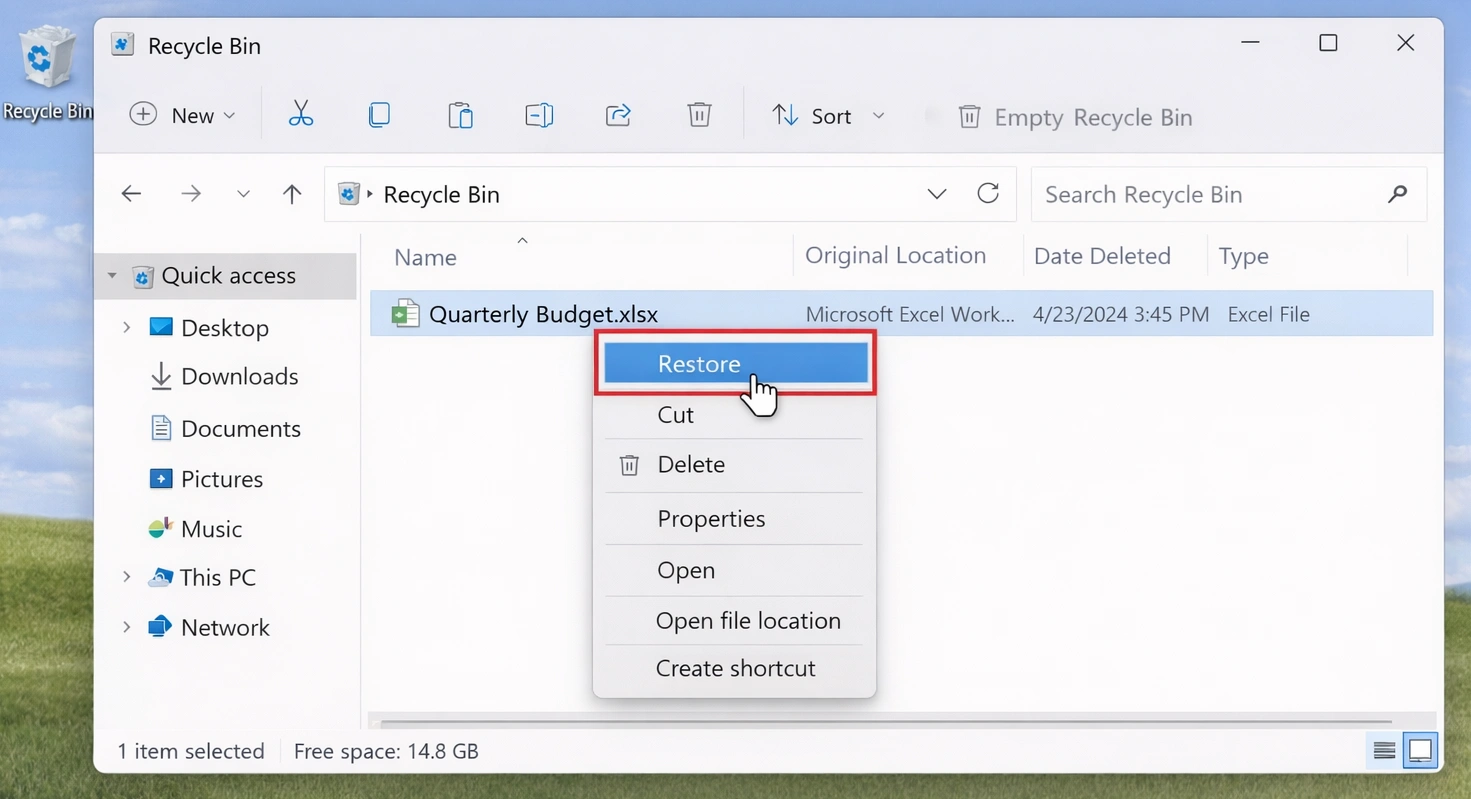
The Recycle Bin is the first place to check when files are deleted from a Windows computer. If you deleted a file by pressing the Delete key or using the right-click Delete option, the file may still be in the Recycle Bin.
Steps to restore files from Recycle Bin
- Double-click the Recycle Bin icon on your desktop.
- Search for the deleted file by name, file type, or deletion date.
- Right-click the file you want to restore.
- Select Restore.
- The file will return to its original folder.
Method 2: Use Ctrl + Z or Undo Delete
Best for: Files deleted seconds ago
Difficulty: Very easy
Recovery chance: High
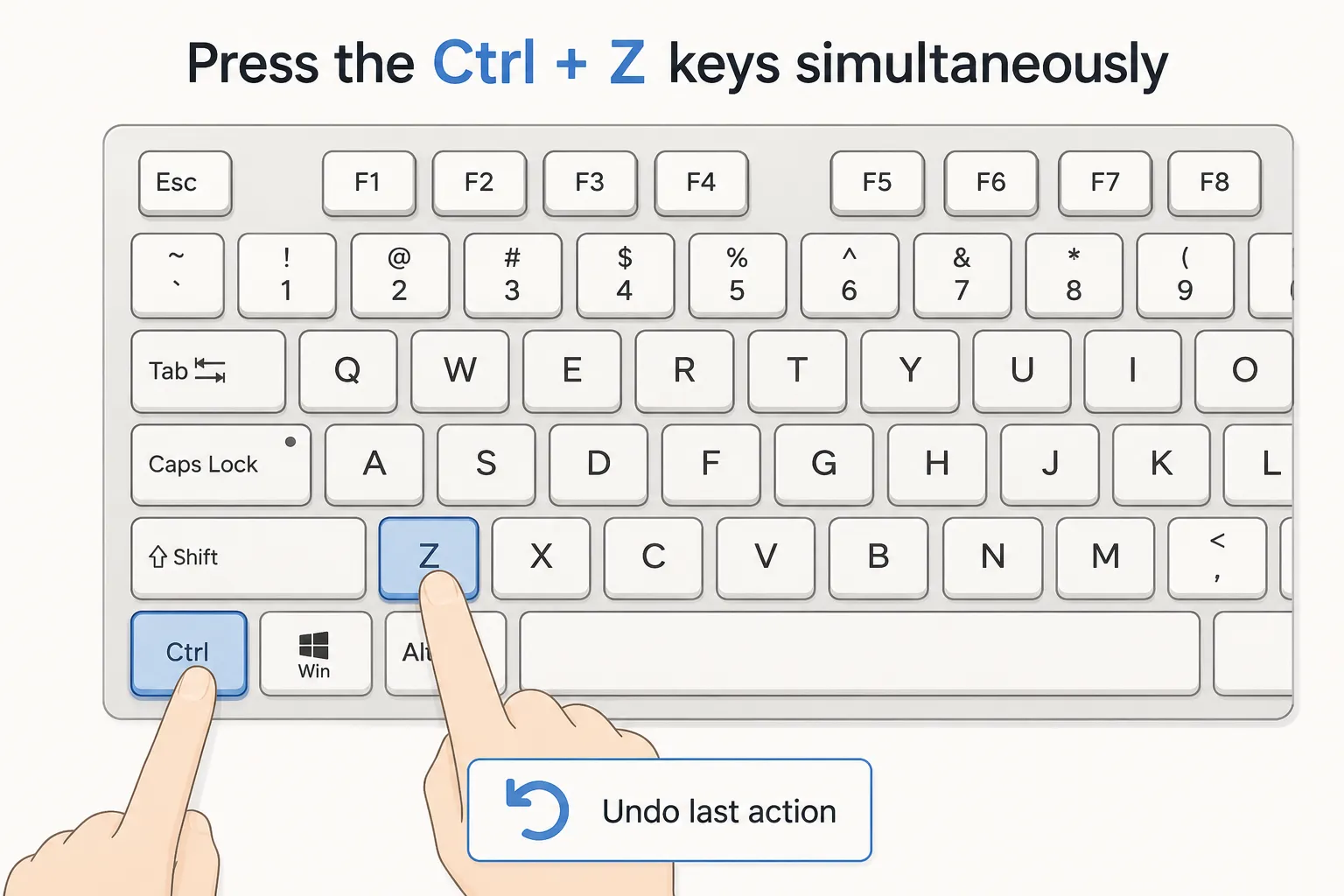
If you just deleted a file and have not performed many actions afterward, Windows may allow you to undo the deletion immediately.
Steps to undo file deletion
- Open the folder where the file was deleted.
- Press Ctrl + Z on your keyboard.
- Check whether the deleted file comes back.
- You can also right-click inside the folder and select Undo Delete if the option appears.
This method is simple, but it only works shortly after deletion. If you restarted the computer, closed File Explorer, or performed many file operations, this option may no longer be available.
Method 3: Restore Recently Deleted Files from File History or Previous Versions
Best for: Users who enabled Windows backup features
Difficulty: Easy to medium
Recovery chance: High if backup exists
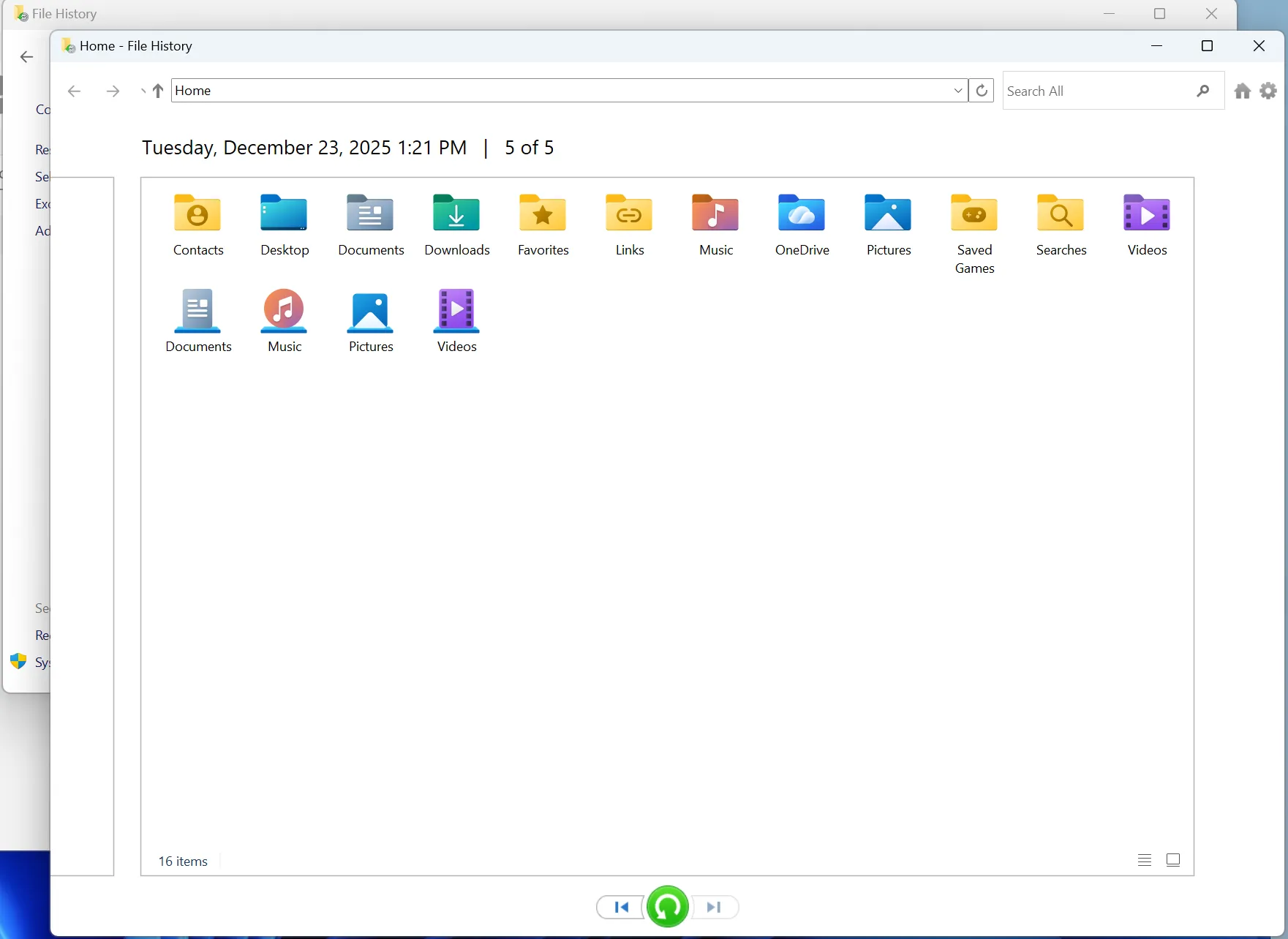
Windows has built-in backup features that may help restore deleted files. If File History or Previous Versions was enabled before the file was deleted, you may be able to recover an earlier copy.
Option A: Restore from File History
- Open the folder where the deleted file was originally stored.
- Search for “Restore your files with File History” in Windows Search.
- Open File History.
- Browse through available backup versions.
- Select the file or folder you want to recover.
- Click the Restore button.
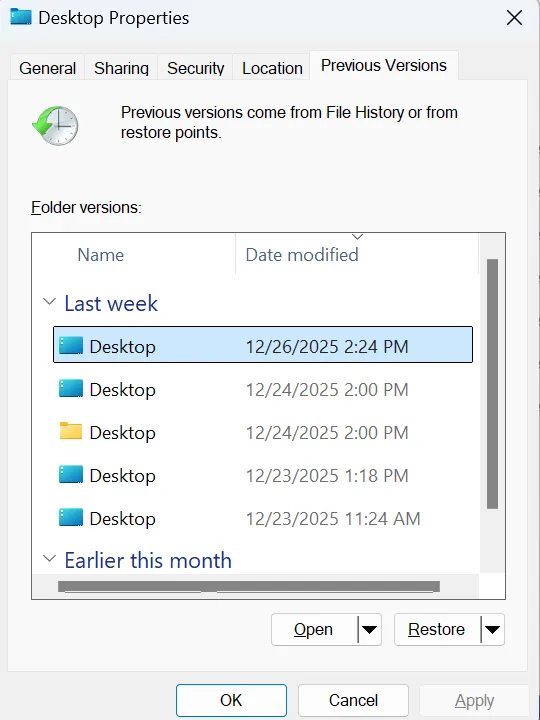
Option B: Restore Previous Versions
- Right-click the folder where the deleted file was stored.
- Select Properties.
- Open the Previous Versions tab.
- Choose a version created before the deletion.
- Click Open to preview it or Restore to recover it.
Important note
This method only works if Windows had already created a backup or restore point. If File History was not enabled before deletion, this method may not find the missing file.
Method 4: Recover Recently Deleted Files with Magic Data Recovery
Best for: Deleted files not found in Recycle Bin, Shift-deleted files, emptied Recycle Bin, external drives, USB drives, HDD recovery
Difficulty: Easy
Recovery chance: Medium to high, depending on overwrite status
Magic Data Recovery is a professional data recovery tool designed to recover deleted, lost, formatted, or inaccessible files from different storage devices. It is suitable when built-in Windows methods cannot find your deleted files.
Steps to recover recently deleted files with Magic Data Recovery
2.Download and install. Get the software onto your Windows PC. DO NOT install the software to the drive where the lost files located.
Supports Windows 7/8/10/11 and Windows Server
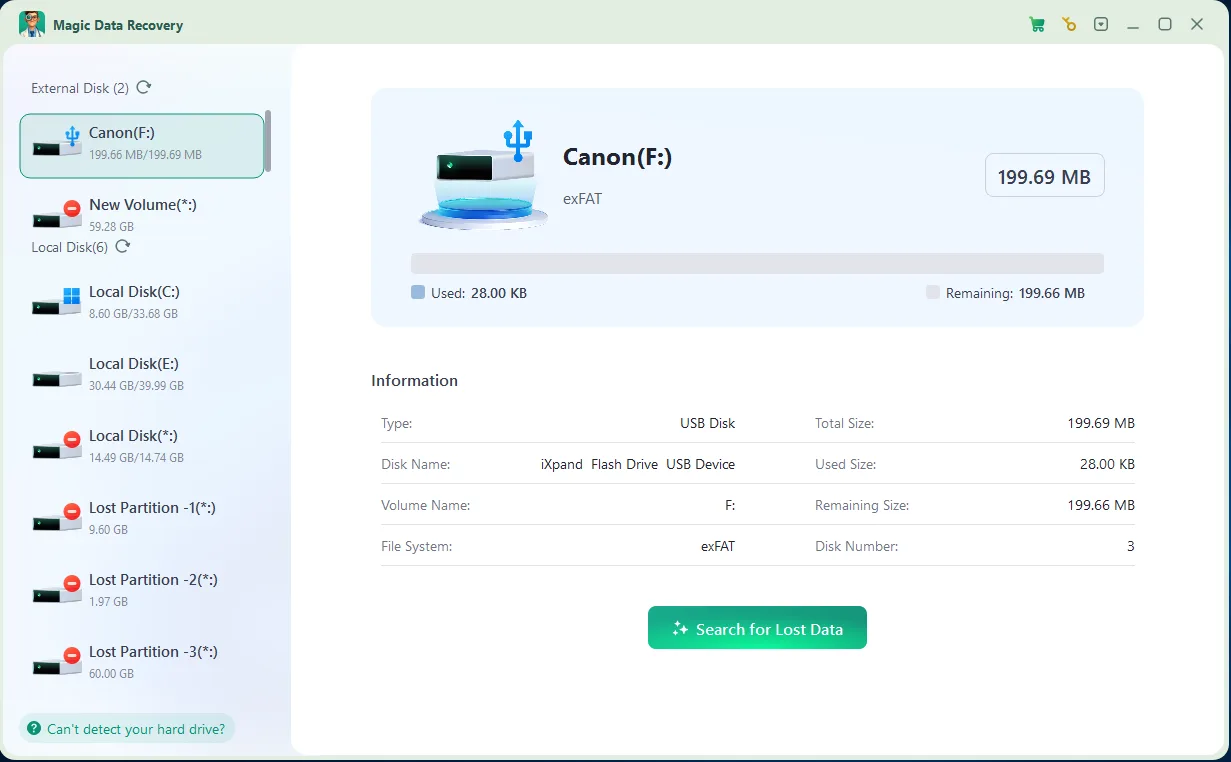
4.Preview and Recover: Once the scan completes, you’ll be able to preview recoverable files. This ensures you don’t restore the wrong ones, and helps you recover exactly what you need. Always recover the files to a different drive to avoid overwriting any remaining data.

HDD vs SSD: Why Complete Recovery Is Different
The type of storage device has a big impact on deleted file recovery.
HDD recovery
On a traditional hard disk drive, deleted files often remain on the disk until new data overwrites them. This means recently deleted files from an HDD usually have a better chance of complete recovery.
If you stop using the HDD immediately and scan it with recovery software, the success rate can be high.
SSD recovery
SSD recovery is more complicated because of TRIM. TRIM helps SSDs manage deleted data and maintain performance, but it can also make deleted files harder or impossible to recover.
If TRIM has already cleared the deleted data, recovery software may not be able to restore the file completely.
This does not mean SSD recovery is always impossible. But if your deleted files were stored on an SSD, you should act quickly and avoid writing new data to the drive.
Conclusion
Recently deleted files are not always gone forever. If you act quickly and choose the right recovery method, you may be able to recover deleted files completely. Start with the simplest methods first: Recycle Bin, Ctrl + Z, or File History. If those options do not work, try a professional recovery software such as Magic Data Recovery. For the best recently deleted files complete recovery result, remember three rules: stop using the affected drive, do not install software on the same drive, and recover files to a different location.
Supports Windows 7/8/10/11 and Windows Server
FAQ
Can recently deleted files be recovered completely?
Where do recently deleted files go on Windows?
How can I recover files deleted with Shift + Delete?
Can I recover recently deleted files after emptying the Recycle Bin?
Is it possible to recover recently deleted files from an SSD?
Why are some recovered files corrupted or unable to open?
What is the safest way to recover recently deleted files?

Vasilii is a data recovery specialist with around 10 years of hands-on experience in the field. Throughout his career, he has successfully solved thousands of complex cases involving deleted files, formatted drives, lost partitions, and RAW file systems. His expertise covers both manual recovery methods using professional tools like hex editors and advanced automated solutions with recovery software. Vasilii's mission is to make reliable data recovery knowledge accessible to both IT professionals and everyday users, helping them safeguard their valuable digital assets.