
Files Disappeared from Desktop Windows 7
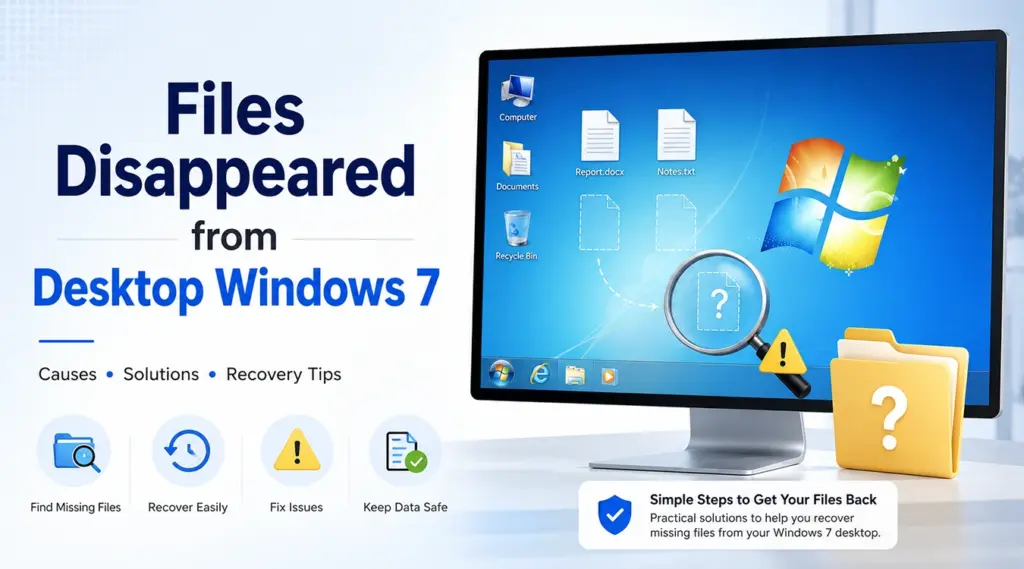
If your files disappeared from desktop Windows 7, do not assume they are permanently lost. Windows 7 may hide desktop icons, load another user profile, move files, or send deleted items to the Recycle Bin. In other cases, the files may actually be deleted. Therefore, this guide helps you identify the cause, try safe Windows fixes first, and use a dedicated deleted file recovery tool like Magic Data Recovery only when built-in options cannot restore the missing data.
Important: If you suspect real data loss, stop saving new files to the affected drive. New writes can overwrite deleted data and reduce the chance of recovery.
Supports Windows 7/8/10/11 and Windows Server
Table of Contents
Why Have Files Disappeared from Desktop Windows 7?
When files disappeared from desktop Windows 7, deletion is only one possible cause. First, compare your symptoms with the likely explanation.
What You See | Likely Cause | Best First Action |
All desktop items vanish | Desktop icons are hidden | Show desktop icons |
Some files are missing | Hidden attributes or deletion | Show hidden files |
Wallpaper or settings changed | Different or temporary profile | Check C:\Users |
Search still finds the files | Files were moved | Open their location |
Files appear in Recycle Bin | Accidental deletion | Restore them |
A backup exists | Previous Versions or Windows Backup | Restore the backup |
Files are nowhere to be found | Possible deletion | Scan with Magic Data Recovery |
Therefore, start with the least invasive fix. A display or profile issue needs Windows troubleshooting, while genuine deletion requires a recovery solution.
Method 1: Show Desktop Icons in Windows 7
If files disappeared from desktop Windows 7 together with shortcuts and folders, Windows may simply hide all desktop icons.
- Right-click an empty area of the desktop.
- Point to View.
- Make sure Show desktop icons has a check mark.
If the files return, the data never left the desktop. However, if only some items remain missing, continue with the next method.
This check should come first because it changes only the desktop view and does not alter stored files.
Method 2: Show Hidden Files and Folders in Windows 7
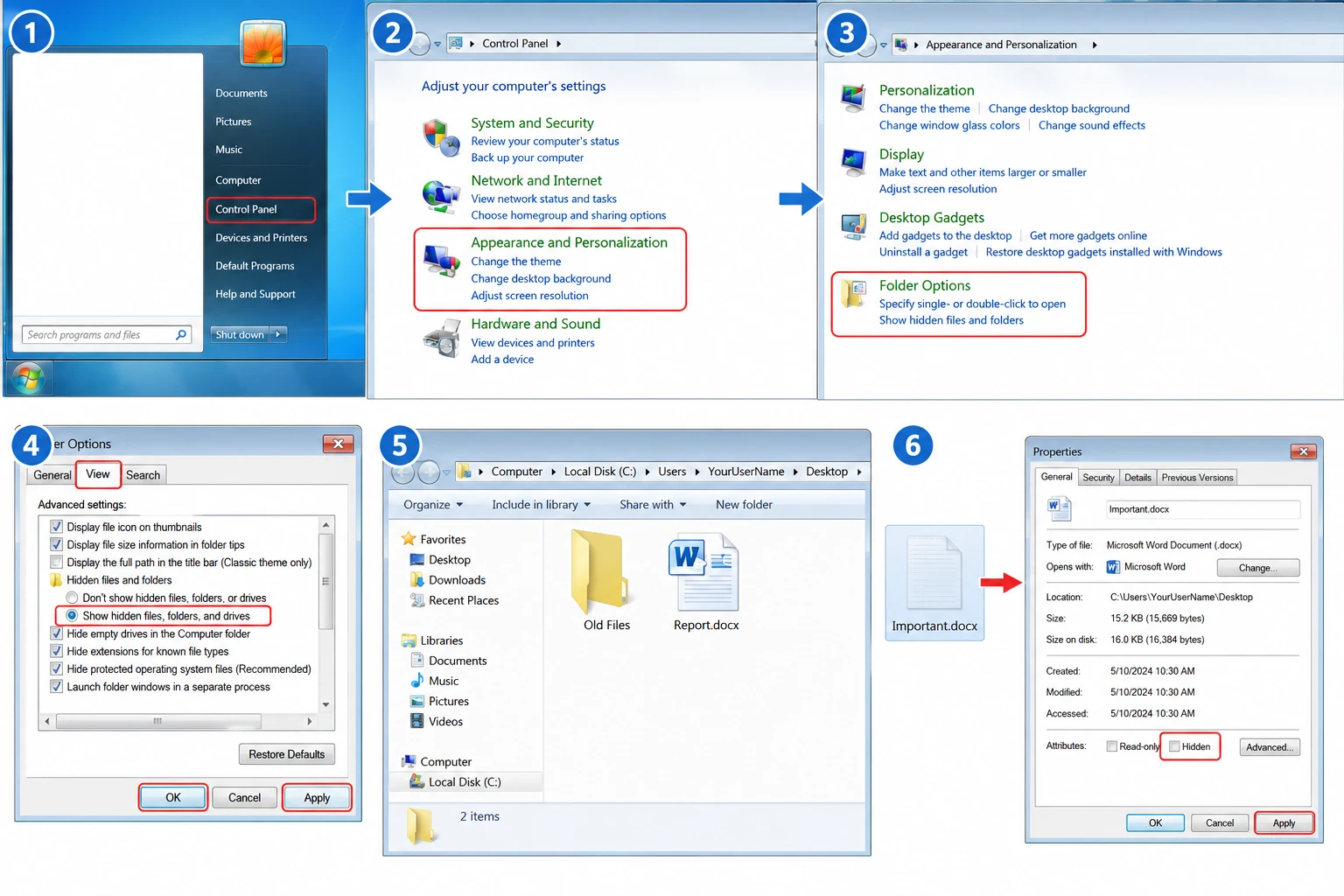
Windows 7 can hide individual files through the Hidden attribute. As a result, a file may still exist inside the Desktop folder even though you cannot see it normally.
To show hidden files in Windows 7:
- Click Start and open Control Panel.
- Choose Appearance and Personalization > Folder Options.
- Open the View tab.
- Select Show hidden files, folders, and drives.
- Click Apply and OK.
- Open
C:\Users\YourUserName\Desktop.
If a file appears faded, right-click it, choose Properties, clear Hidden, and apply the change.
This method often fixes files disappeared from desktop Windows 7 when file attributes changed but the actual data remained intact.
Method 3: Check a Different or Temporary User Profile
If files disappeared from desktop Windows 7 after a restart or sign-in, Windows may have loaded another profile. A temporary or different profile can show an empty desktop while your original data remains under your usual account.
First, open:
Computer > Local Disk (C:) > Users
Next, locate your normal account folder under:
C:\Users
Then open its Desktop folder and look for the missing files.
Also check for a changed wallpaper, missing personalization settings, or an unfamiliar desktop layout. These clues point more strongly to a profile problem than permanent deletion.
If you find the original files, copy important data to safe storage before changing the profile. In this situation, recovery software is unnecessary because the files still exist.
Method 4: Search for Missing Desktop Files in Windows 7
Sometimes Windows 7 desktop files are missing because someone moved them accidentally. Therefore, search the computer before you treat them as deleted.
Open the Start menu and type part of the file name. You can also search by extension:
*.docxfor Word documents*.xlsxfor Excel files*.jpgfor photos*.pdffor PDF documents
If Windows finds the file, open its location and copy or move it back to the desktop.
For example, an accidental drag can move several files into another folder without deleting them. Windows Search can often reveal their new location immediately.
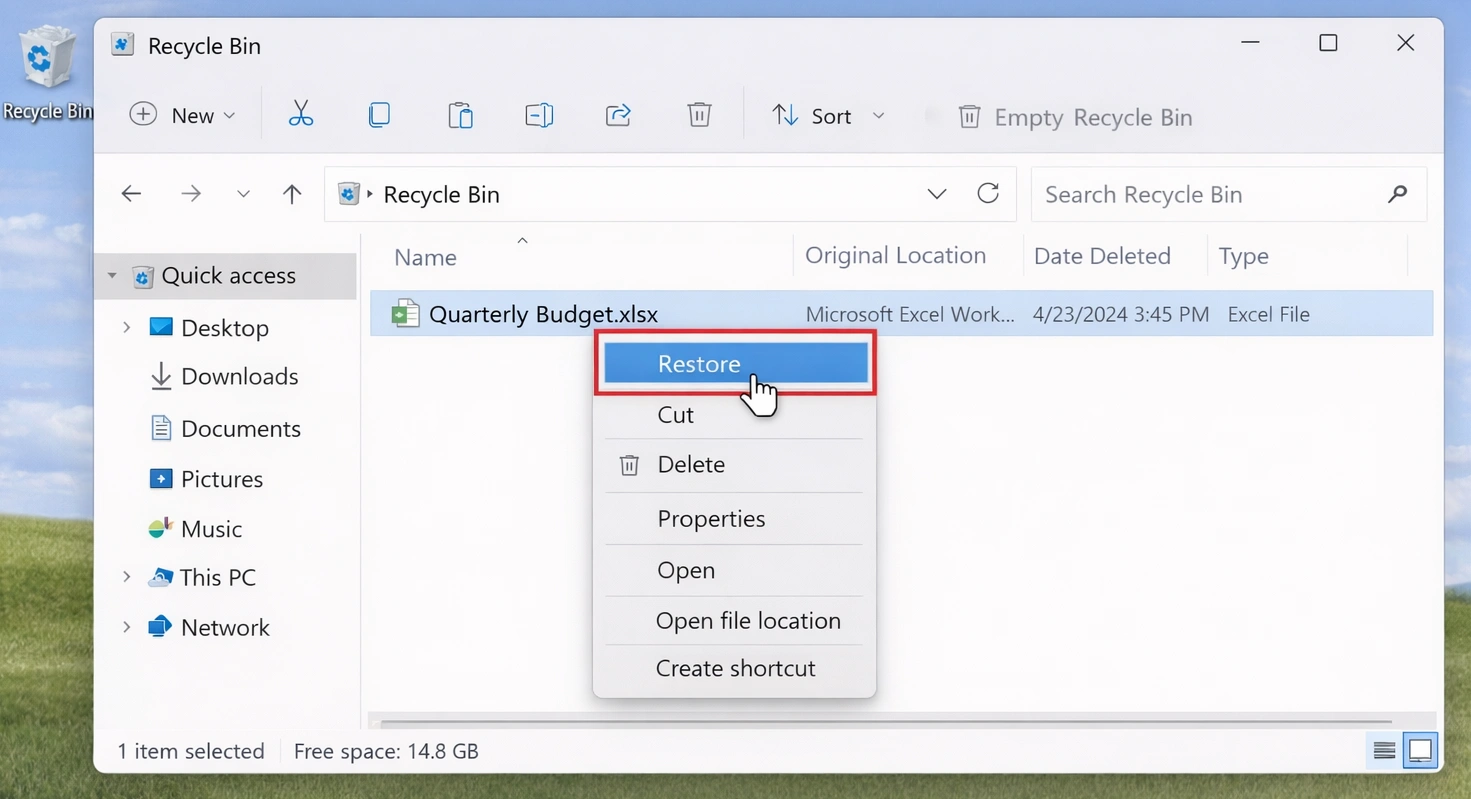
Method 5: Restore Desktop Files from the Recycle Bin
If files disappeared from desktop Windows 7 after normal deletion, check the Recycle Bin next.
- Open Recycle Bin.
- Find the missing file or folder.
- Right-click it.
- Select Restore.
Windows returns the item to its original location.
However, Shift + Delete bypasses the normal Recycle Bin process. Likewise, emptying the Recycle Bin removes its contents from normal access. If the missing data is not there, check Windows backup options before you start a recovery scan.
Method 6: Restore Previous Versions or Windows 7 Backups
If files disappeared from desktop Windows 7 and you created a backup earlier, Windows 7 may already hold a usable copy.
Restore a Previous Version
Open your user folder, right-click Desktop, and choose Restore previous versions.
If Windows lists an earlier version, open it first and confirm that it contains the files you need. This extra check helps you avoid restoring the wrong version.
Use Backup and Restore
Go to:
Control Panel > System and Security > Backup and Restore
Then use the restore option to locate missing files in an existing backup.
These built-in methods work well when recovery data already exists. However, they cannot help when Windows has no suitable previous version or backup.
Method 7: How to Recover Files Disappeared from Desktop Windows 7
If files disappeared from desktop Windows 7 and none of the checks above locate them, they may have been deleted from the drive. At this point, Magic Data Recovery provides a practical way to scan the affected storage for recoverable files.
Magic Data Recovery supports Windows 7 and can search for documents, photos, videos, archives, and many other file types. In addition, its preview and filtering tools help you check scan results before recovery.
Therefore, this approach fits situations where the Recycle Bin is empty, Windows cannot locate the files, and no usable backup exists.
Step 1: Download and Install Magic Data Recovery
First, download Magic Data Recovery. Whenever possible, install it on a drive that does not contain the missing files.
This precaution reduces unnecessary writes to the affected storage area. Consequently, it lowers the risk of overwriting data that may still be recoverable.
Supports Windows 7/8/10/11 and Windows Server
Step 2: Select the Drive Where the Desktop Files Were Lost
Next, launch Magic Data Recovery. On the main interface, choose the drive that previously stored your Windows 7 desktop files. In most Windows 7 installations, the Desktop folder sits on the system drive. Select the affected drive and start the scan.

Step 3: Scan for Missing or Deleted Desktop Files
The software then scans the selected drive for lost and deleted files. Meanwhile, it displays discovered items as the scan progresses.
You can review the results during the scan. However, allowing the process to finish can help the software locate additional recoverable data.

Step 4: Preview Files Before Recovery
After the scan finds potential matches, use Preview to check their contents.
In addition, you can narrow the results by file name, file type, or available filters. This step helps you select the correct documents, photos, videos, or other desktop files before recovery.

Step 5: Recover Files to a Safe Location
Finally, select the files you need and start the recovery. Save the recovered data to a different drive or storage device instead of the affected drive. This choice reduces the risk of overwriting other deleted files that may still be recoverable.

Afterward, open several recovered files and confirm that they work correctly before copying them back to the Windows 7 desktop.
Why Use Magic Data Recovery for Missing Windows 7 Desktop Files?
Magic Data Recovery addresses a problem that desktop settings, the Recycle Bin, and Windows backup tools cannot solve: deleted files when no usable backup exists.
For example, suppose you delete a project folder from your Windows 7 desktop and later empty the Recycle Bin. Showing hidden files cannot restore that deleted folder. Similarly, Backup and Restore cannot help if you never created a backup.
In that situation, scanning the affected storage directly addresses the problem.
Moreover, Magic Data Recovery provides a straightforward scan, preview, and recovery workflow. Its Windows 7 support also makes it relevant for users who need Windows 7 data recovery software rather than a solution limited to newer Windows versions.
Nevertheless, no recovery tool can guarantee success. Deleted data may become unrecoverable after new information overwrites it. Therefore, stop unnecessary activity on the affected drive as soon as you notice data loss.
Method 8: Check for Malware or File-System Problems
If files disappeared from desktop Windows 7 more than once, investigate the underlying system after you secure important data.
First, run a trusted security scan. Next, watch for warning signs such as:
- Repeated read errors
- Unexpected drive disconnects
- Severe slowdowns
- Unusual mechanical noises
- Recurring missing-file problems
If the drive appears unstable, avoid repeated repair attempts.
File-system repair tools can change disk structures. Therefore, recover valuable files first whenever possible. After that, troubleshoot Windows or the affected drive.
Which Fix Works Best for Files Disappeared from Desktop Windows 7?
For files disappeared from desktop Windows 7, follow this order:
- Show desktop icons.
- Show hidden files and folders.
- Check C:\Users for another user profile.
- Search Windows for moved files.
- Check the Recycle Bin.
- Try Previous Versions or Backup and Restore.
- Use Magic Data Recovery if the evidence points to deletion.
- Investigate malware or disk problems after protecting important data.
This order starts with quick, low-risk checks. Then it moves toward file recovery only when simpler explanations no longer fit.
As a result, you avoid wasting time on a recovery scan when Windows merely hid or moved the files.
How to Prevent Files Disappeared from Desktop Windows 7 Problems
After you solve files disappeared from desktop Windows 7, take a few steps to reduce the risk of another incident.
First, keep at least one backup on separate storage. In addition, avoid using the desktop as the only location for important documents, photos, or work files.
Also confirm which Windows account you are using before you move or delete large folders. If Windows suddenly loads an unfamiliar desktop, check your user profile before creating new files.
Finally, pay attention to disk errors, unusual sounds, and recurring profile problems. A simple backup routine often saves far more time than a recovery process.
Conclusion: Recover Files Disappeared from Desktop Windows 7
When files disappeared from desktop Windows 7, begin with the simplest explanations. Check desktop icon visibility, hidden-file settings, user profiles, Windows Search, the Recycle Bin, and available backups before you assume permanent data loss.
However, if the files were genuinely deleted and Windows cannot restore them, Magic Data Recovery becomes a sensible next step. It supports Windows 7 and provides a direct scan, preview, and recovery workflow. More importantly, it addresses the exact situation where built-in Windows methods fail because no usable copy remains.
Therefore, combine careful diagnosis with safe recovery. Reduce writes to the affected drive, choose the deleted file recovery method that matches the actual cause, and recover important files to a safe location. This process gives you a controlled way to solve files disappeared from desktop Windows 7 without relying on guesswork.
Supports Windows 7/8/10/11 and Windows Server
FAQ About Files Disappeared from Desktop
Why did all my desktop files disappear in Windows 7?
If files disappeared from desktop on Windows 7, first check whether Windows hid the desktop icons or loaded another user profile. Also inspect C:\Users\YourUserName\Desktop, show hidden files, and search for the missing names. If those checks fail, review the Recycle Bin and available backups before you consider a data recovery scan.
How do I restore missing desktop files in Windows 7?
Start with the safest options. Show desktop icons, reveal hidden files, check your normal user profile, and search Windows for moved items. Next, restore files from the Recycle Bin or an existing backup. If files disappeared from desktop on Windows 7 because of permanent deletion, use recovery software before new data overwrites them.
Why did my desktop files disappear after restarting Windows 7?
A restart can reveal a user-profile problem. For example, Windows may load a temporary or different profile, which creates an unfamiliar or nearly empty desktop. Check C:\Users for your normal account folder and open its Desktop directory. If the original files remain there, protect them first and then troubleshoot the profile issue.
Can a temporary profile make Windows 7 desktop files look missing?
Yes. A temporary profile can show a different desktop, settings, and personal folders, so your normal files may appear to vanish. However, the data may still remain under your original folder in C:\Users. Before using recovery software, inspect the original Desktop directory and copy important files to safe storage if you find them.
How do I show hidden desktop files in Windows 7?
Open Control Panel, choose Appearance and Personalization > Folder Options, and select the View tab. Then choose Show hidden files, folders, and drives. After that, inspect C:\Users\YourUserName\Desktop. If a file appears faded, open Properties and clear the Hidden option so Windows displays it normally again.
Where are desktop files stored in Windows 7?
Windows 7 normally stores a user's desktop files inside C:\Users\YourUserName\Desktop. Therefore, checking this folder helps you separate a display problem from genuine data loss. If the files exist there but not on the visible desktop, review icon visibility, hidden attributes, and profile settings before you attempt file recovery.
Can I recover permanently deleted desktop files in Windows 7?
Possibly, but recovery depends on whether new data has overwritten the deleted information. Stop unnecessary use of the affected drive and check backups first. If no usable backup exists, Magic Data Recovery can scan the drive for recoverable files. Save recovered data elsewhere to avoid overwriting additional deleted content.

Vasilii is a data recovery specialist with around 10 years of hands-on experience in the field. Throughout his career, he has successfully solved thousands of complex cases involving deleted files, formatted drives, lost partitions, and RAW file systems. His expertise covers both manual recovery methods using professional tools like hex editors and advanced automated solutions with recovery software. Vasilii's mission is to make reliable data recovery knowledge accessible to both IT professionals and everyday users, helping them safeguard their valuable digital assets.