
Data Recovery Software for Windows 7 Guide
Losing important files on an older system can be stressful, especially when you are still running Windows 7. Many users believe that once data is deleted or a system crashes, recovery is no longer possible. In reality, data recovery software for Windows 7 can still be effective when used correctly. The key is understanding your options, the limitations of free tools, and when a more reliable hard drive solution is required.
This guide explains how data recovery works on Windows 7, reviews free recovery options, and shows how professional tools solve common recovery problems. Throughout the article, you will see why Magic Data Recovery is often the most practical choice for users who value data integrity and recovery accuracy.
Supports Windows 7/8/10/11 and Windows Server
Wondering if your files can be recovered? Find out in seconds with our quick check below.
Data Recovery Assessment
Answer 3 quick questions to estimate your recovery chances
Table of Contents
Is Data Recovery Software for Windows 7 Still Effective?
Yes, it is still possible for data recovery on Windows 7, even though Microsoft no longer provides official support. File deletion, formatting, and system crashes usually do not erase data immediately. Instead, the system marks storage space as available for reuse.
As long as the lost data has not been overwritten, data recovery software for Windows 7 can scan the drive and reconstruct recoverable files. Success depends on several factors:
- How soon recovery is attempted after data loss
- The type of storage device (HDD, external drive, USB)
- Whether new data has been written to the same partition
Understanding these factors helps users avoid mistakes that reduce recovery success.
Common Windows 7 Data Loss Scenarios Explained
Windows 7 users often face predictable data loss situations. Recognizing them helps determine the best recovery approach.
Accidental Deletion
Files removed using Shift + Delete bypass the Recycle Bin. In these cases, free data recovery software for Windows 7 may still locate the file records.
Formatted or Repartitioned Drives
Quick formatting does not erase file content. Recovery software can scan the disk surface to rebuild files.
System Crash or Boot Failure
Blue screen errors and failed updates may prevent Windows 7 from loading. Data often remains intact on the drive.
Aging Hard Drive Issues
Older mechanical drives are more prone to bad sectors, making recovery more complex and error-prone.
Free Data Recovery Software for Windows 7: What You Should Know
Many users search for free data recovery software for Windows 7, expecting unlimited recovery. However, most free tools come with restrictions.
Typical limitations include:
- File size or recovery quotas
- Scan-only results without actual recovery
- Reduced file preview accuracy
Free solutions are suitable for minor data loss but may struggle with complex scenarios. Knowing these limits prevents unrealistic expectations.
Popular Free Data Recovery Software for Windows 7 Options
When users search for free data recovery software for Windows 7, they usually want fast results without complicated setup. Below are the most commonly used options, starting with the solution that offers the best balance between usability and recovery reliability.
Magic Data Recovery
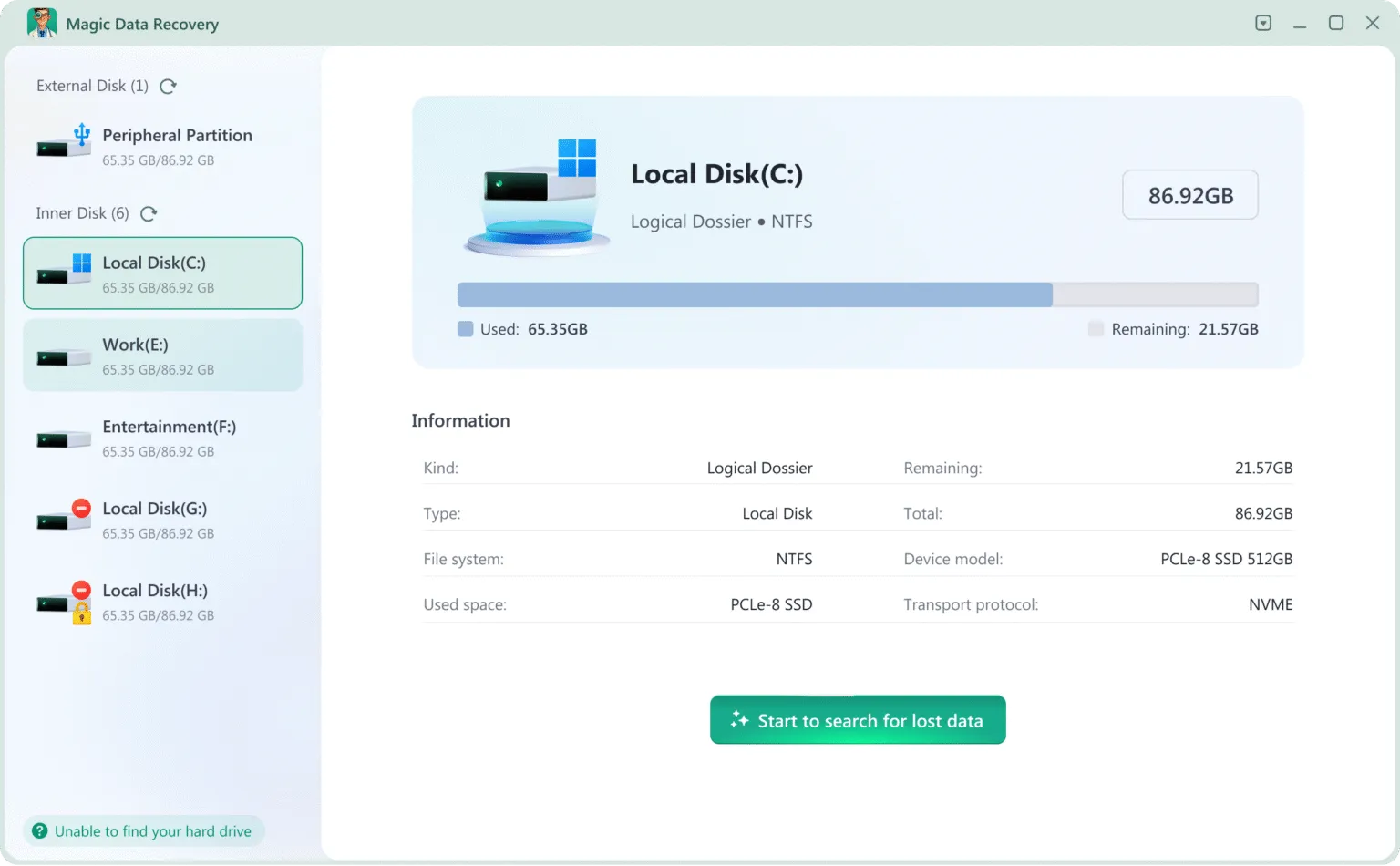
Magic Data Recovery is often chosen by Windows 7 users who want free scanning and preview capabilities before deciding whether full recovery is needed. Unlike many tools that limit functionality early, it allows users to clearly evaluate recoverable files first.
Key advantages include:
- Deep scan support for NTFS and FAT32 used by Windows 7
- Clear file preview to verify recovery results in advance
- Simple workflow suitable for non-technical users
For users who want to avoid repeated scans or unreliable results, Magic Data Recovery provides a safer starting point.
PhotoRec
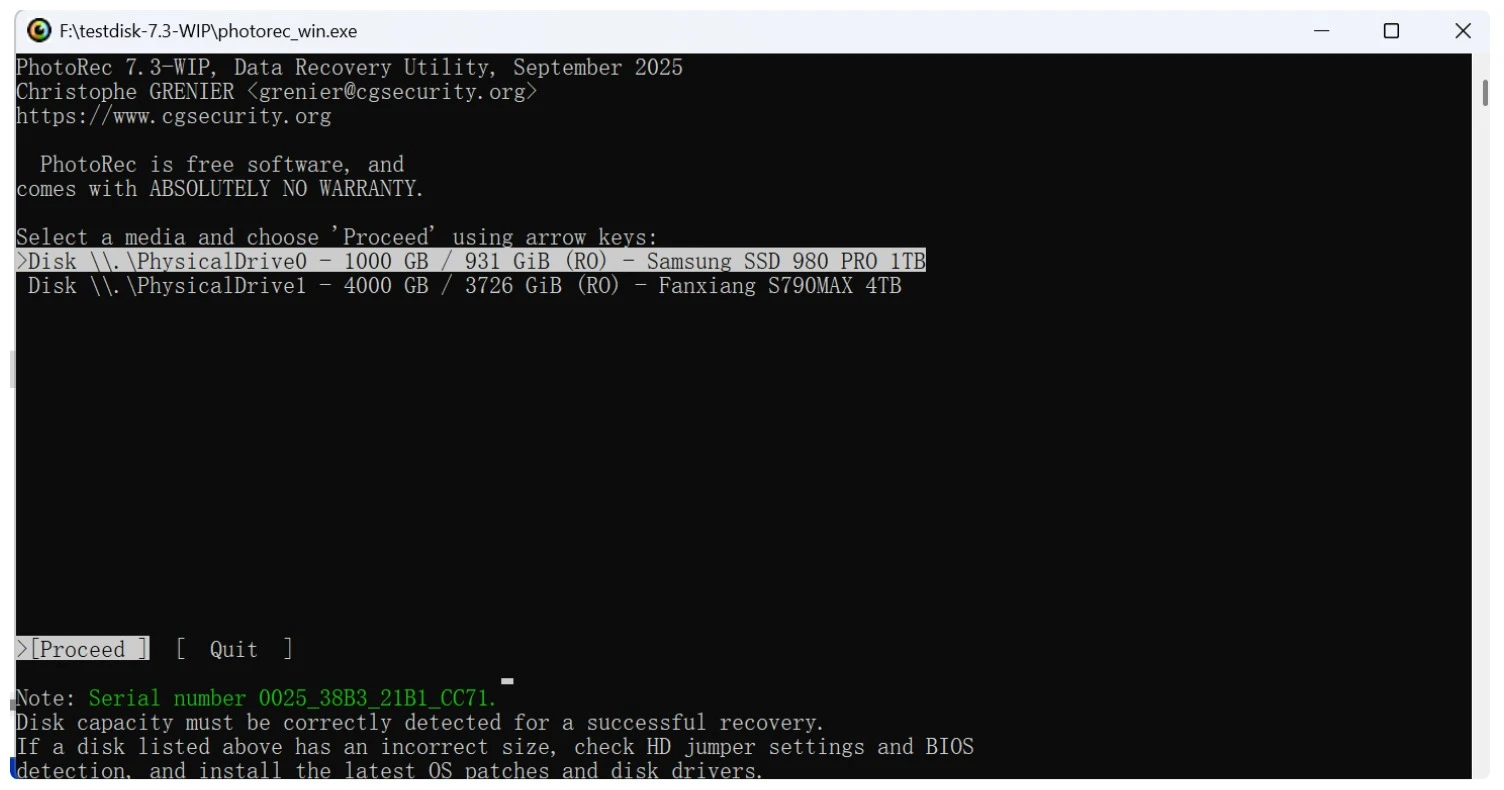
PhotoRec is an open-source recovery tool known for its strong raw scanning ability. However, it relies on a command-line interface and does not restore original file names or folder structures, which increases post-recovery effort.
EaseUS Free Data Recovery
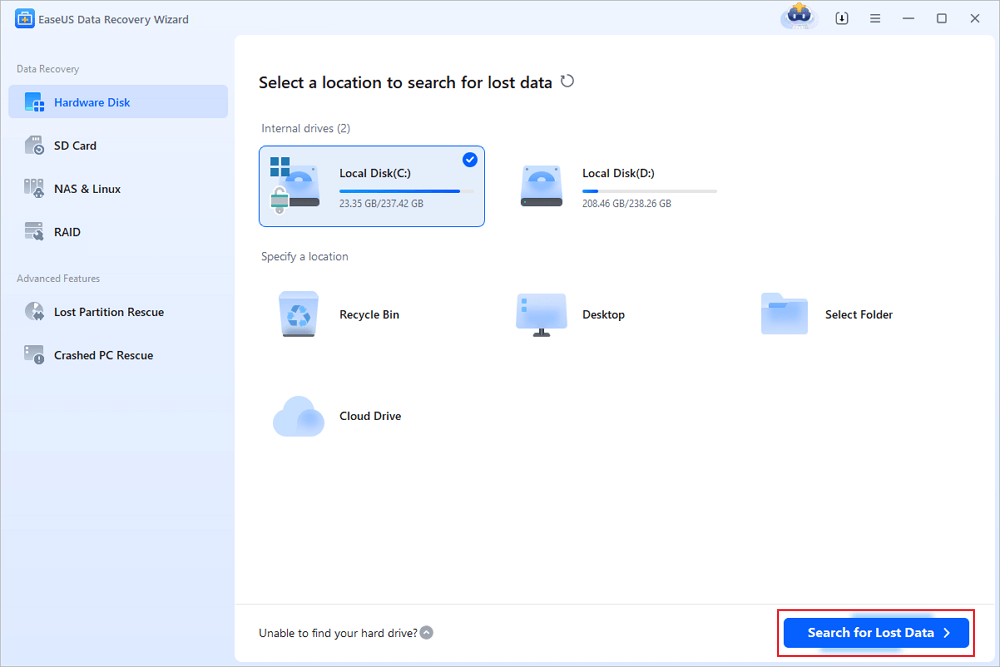
EaseUS offers a graphical interface and basic recovery features, but the free version applies strict data recovery limits, which may not be sufficient for larger files.
Recoverit Free
Recoverit Free provides comprehensive scanning but restricts actual file recovery unless upgraded, which can interrupt the recovery process.
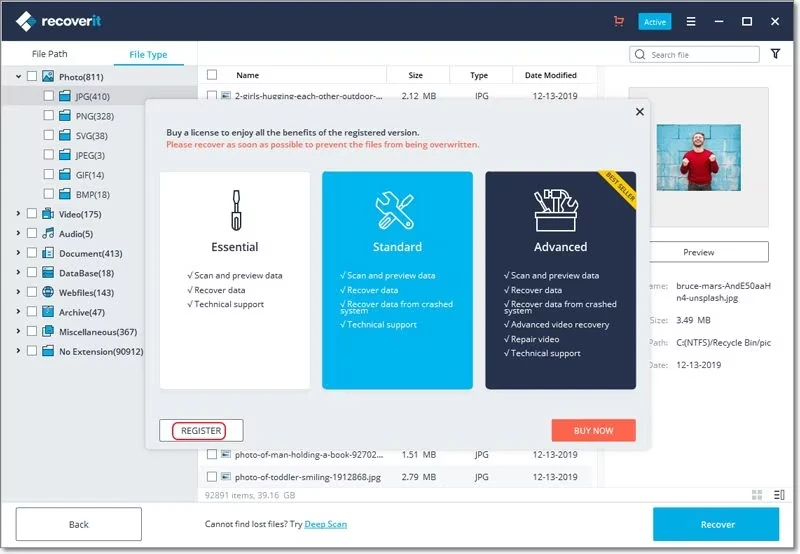
While these tools can work in specific situations, their limitations often become clear when recovering important or large volumes of data.
Why Dedicated Data Recovery Software for Windows 7 Works Better
Older systems require tools that understand legacy file systems and disk structures. Professional data recovery software for Windows 7 uses advanced scanning algorithms to handle:
- NTFS, exFAT and FAT32 file systems
- Partition table damage
- Logical errors caused by improper shutdowns
Dedicated solutions focus on accuracy, file integrity, and recovery depth rather than limited previews.
How to Recover Data with Data Recovery Software for Windows 7
Magic Data Recovery is helpful for users who need reliable results without complex operations. It supports Windows 7 environments and common data loss scenarios.
Step-by-Step Recovery Process
Step 1: Install the Recovery Software
Download Magic Data Recovery and install it on a drive that is separate from the affected drive containing your lost data. Installing on a different drive helps avoid accidentally overwriting any files you wish to recover.
Supports Windows 7/8/10/11 and Windows Server
Step 2: Choose the Drive to Analyze
Open the software after installation. From the main screen, select the drive where the data was lost, then begin the scanning process.

Step 3: Run the Scan to Find Lost Files
The program will automatically start an Advanced Scan of the selected drive. As the scan proceeds, all detectable files will be displayed in the interface.

Step 4: Preview and Confirm Your Files
Before recovering, you can preview the contents of listed files. This allows you to verify their integrity and select only the ones you truly need.

Step 5: Save the Recovered Files Securely
After selecting the desired files, restore them to a secure location, such as a different drive or another storage device. Do not save them back to the same drive to prevent potential data corruption.

Magic Data Recovery vs Other Windows 7 Data Recovery Software
Compared with free tools, Magic Data Recovery focuses on reliability rather than recovery limits. It offers:
- Deeper scanning for formatted or corrupted partitions
- Better file structure reconstruction
- Clear previews before recovery
These advantages make it a safer option for users dealing with important documents, photos, or work files.
Conclusion
Although Windows 7 is an older operating system, data recovery is still achievable with the right approach. Free tools can help in minor situations, but they often lack the depth and reliability needed for serious data loss. For users who want a dependable solution, Magic Data Recovery provides a balanced combination of usability, scanning accuracy, and recovery reliability.
If you are looking for a practical and trustworthy HDD recovery solution, Magic Data Recovery is a sensible option worth considering.
Supports Windows 7/8/10/11 and Windows Server
FAQs About Data Recovery Software for Windows 7
How to recover data from Windows 7?
Is there a free data recovery software that actually works?
Which is the best data recovery software for PC?
What is the difference between Windows File Recovery and Recuva?
Is there a free version of Disk Drill?
How to get files off a hard drive that won't turn on?

Vasilii is a data recovery specialist with around 10 years of hands-on experience in the field. Throughout his career, he has successfully solved thousands of complex cases involving deleted files, formatted drives, lost partitions, and RAW file systems. His expertise covers both manual recovery methods using professional tools like hex editors and advanced automated solutions with recovery software. Vasilii's mission is to make reliable data recovery knowledge accessible to both IT professionals and everyday users, helping them safeguard their valuable digital assets.