
How to Recover Unsaved Krita Files
.kra project may also have a backup, while a deleted project may still be in the Recycle Bin and require deleted file recovery if built-in restore options are no longer available. This guide explains how to recover unsaved Krita files safely and when Magic Data Recovery may help after built-in options fail.Supports Windows 7/8/10/11 and Windows Server
Table of Contents
Before You Recover a Krita File
How to recover unsaved Krita files depends on the scenario:
- Krita crashed: an autosave may exist.
- You closed without saving: Krita normally removes the autosave.
- You lost recent edits to a saved project: check named autosave and backup files.
- You deleted a saved
.krafile: check the Recycle Bin, File History, then recovery software. - You overwrote the project: a previous version may help, but overwritten data can be unrecoverable.
Before trying how to recover unsaved Krita files, stop writing new data to the affected drive. New writes can overwrite deleted data. In addition, SSD TRIM can reduce recovery chances by clearing blocks Windows no longer considers in use.
How to Recover Unsaved Krita Files After a Crash
A crash gives you a recovery path because Krita creates autosave data while you work. By default, Krita autosaves about every 15 minutes, although you can change the interval.
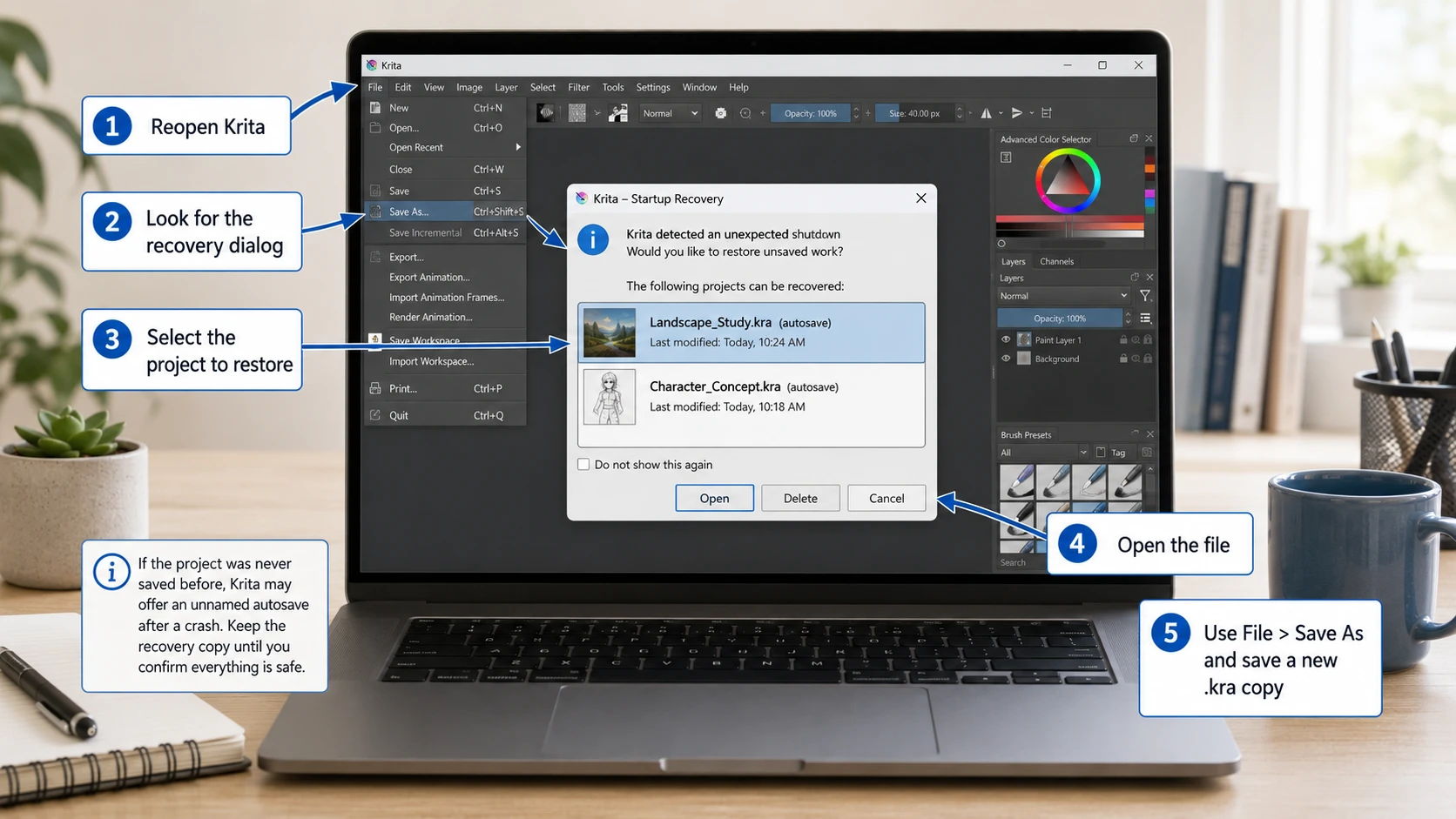
Method 1: Restart Krita and Use the Recovery Prompt
The first method for how to recover unsaved Krita files is simply to restart Krita.
- Reopen Krita.
- Look for the recovery dialog during startup.
- Select the project you want to restore.
- Open it.
- Use File > Save As and save a new
.kracopy.
If you had never saved the project, Krita can create an unnamed autosave and offer it after a crash. Therefore, do not discard the recovery copy unless you no longer need it.
Method 2: Find the Krita Autosave in Windows %TEMP%
If no recovery prompt appears, the next step in how to recover unsaved Krita files is to search for the autosave manually.
For a document you have never saved, Krita stores the Windows autosave in %TEMP%. A hidden filename may look like:
.krita-12549-document_1-autosave.kra
- Press Win + R.
- Enter
%TEMP%. - Enable hidden items in File Explorer if needed.
- Search for
autosave.kraor sort by Date modified. - Copy a promising file elsewhere.
- Open the copy in Krita and save it under a new name.
If you had already saved the project, Krita normally puts the named autosave beside the original file, such as .myimage.kra-autosave.kra.
For users searching krita recover files, this distinction matters because unnamed and named autosaves use different locations.
How to Recover Unsaved Krita Files After Closing Without Saving
This is the main limitation in how to recover unsaved Krita files. Krita’s official documentation says a normal close without saving removes the autosave. Therefore, Krita itself cannot restore that temporary copy.
However, if Krita had already written an autosave to disk and then deleted it, recovery software may find remaining file data. If Krita never created an autosave, there is no file to reconstruct. Autosave is temporary crash protection, not a permanent backup.
How to Recover Unsaved Krita Files from Backup Files
If you saved the project at least once, how to recover unsaved Krita files can also involve Krita’s backup system. Krita enables ordinary backups by default for saved files.
The backup usually appears in the project folder with a ~ suffix, for example:
character.kra~
To use it:
- Copy the backup to another folder.
- Rename the copy so it ends in
.kra, such ascharacter-backup.kra. - Open it in Krita.
- Save it as a new working file.
However, backup and autosave are different. An ordinary backup keeps an earlier saved version, so it may not include your newest unsaved edits.
How to Recover Deleted Krita Files
If you saved the project and then deleted it, this is a different problem from how to recover unsaved Krita files. For how to recover deleted Krita files, start with Windows options.
Method 1: Check the Recycle Bin
Open the Recycle Bin and search for the filename or .kra extension. If you find the project, right-click it and choose Restore.
However, files removed with Shift+Delete, some files deleted from removable storage, and files removed after the Recycle Bin was emptied may not be available there.
Method 2: Restore a Previous Version with File History
If you enabled File History before the loss:
- Open the folder that previously held the Krita project.
- Right-click the folder and choose Restore previous versions.
- Select a version from before the deletion.
- Open it to confirm the project is present.
- Restore the file, preferably to another location first.
File History only helps when Windows had already backed up that folder.
Use Magic Data Recovery When Built-In Options Fail
If Krita has no usable autosave or backup, the Recycle Bin is empty, and File History has no copy, file recovery software is a reasonable next step. Magic Data Recovery is a Windows tool that scans storage for deleted or lost files.
This differs from how to recover unsaved Krita files with autosave. Autosave preserves temporary editing state; backup preserves an earlier saved state. Recovery software instead searches storage for deleted or lost file data.
Use it when Krita or Windows wrote a .kra file, autosave, or backup to disk and you later deleted it. It cannot recreate work that Krita never saved or autosaved, fix physical drive damage, or reverse overwriting. SSD TRIM may also prevent recovery.
If the built-in recovery options no longer work, you can try Magic Data Recovery before new data overwrites the deleted files.
How to Use Magic Data Recovery for Lost Krita Files
Step 1: Download and Install Magic Data Recovery
Download Magic Data Recovery, but do not install it on the same drive or partition where the Krita file was lost. Installation writes may overwrite recoverable data.
Supports Windows 7/8/10/11 and Windows Server
Step 2: Select the Drive Where the Krita File Was Stored
Launch the software, select the drive or partition that originally contained the Krita project or autosave, and start the scan.

Step 3: Scan for Lost or Deleted Krita Files
Let the scan continue while results appear. Search by project name, folder, modification time, or file type. Meanwhile, avoid writing new data to the affected drive.

Step 4: Recover Files to a Safe Location
Recover the files to a different drive or safe location. Do not write them back to the original data-loss location until you confirm the recovery.

Prevent Unsaved Krita Work from Disappearing Again
After learning how to recover unsaved Krita files, reduce the chance of repeating the problem. First, save a new project as .kra early. Next, keep autosave enabled and choose a useful interval, but remember that autosave is not a permanent backup.
For important artwork, keep Krita backups enabled and consider incremental backups. In addition, use File History or another independent backup system. Finally, save major stages as concept-v01.kra, concept-v02.kra, and concept-v03.kra to protect against deletion and overwriting.
Conclusion
The safest answer to how to recover unsaved Krita files is to use Krita’s recovery features first. After a crash, check the recovery prompt, %TEMP%, the project folder, and .kra~ backups. For deleted saved files, start with the Recycle Bin and File History; if neither has a usable copy, deleted file recovery software may be the next option. If built-in methods fail, Magic Data Recovery can scan for files that were written to disk and later deleted, although overwriting and SSD TRIM can limit recovery.
Supports Windows 7/8/10/11 and Windows Server
FAQs
How do I recover an unsaved Krita file after a crash?
For how to recover unsaved Krita files after a crash, reopen Krita first and use its recovery prompt. If nothing appears, search %TEMP% on Windows for a hidden file ending in autosave.kra. If you saved the project before, also check its original folder for a named autosave file.
Where does Krita store autosave files on Windows?
For a document you have never saved, Krita normally places its autosave in the Windows %TEMP% folder. If the project already had a filename, Krita usually places the named autosave beside the original .kra file. Because autosaves are hidden by default, you may need to enable hidden items in File Explorer.
Can Krita recover files after I close without saving?
Usually, no. When Krita closes normally without saving, it removes the autosave file. However, if Krita had already written an autosave to disk and then deleted it, recovery software may sometimes find remaining data. If Krita never created an autosave, software cannot recreate artwork that Krita never wrote to storage.
How to recover deleted Krita files after emptying the Recycle Bin?
For how to recover deleted Krita files after the Recycle Bin is empty, check File History or another backup first. If no backup exists, stop using the affected drive and scan it with recovery software. Recover found files to another drive. SSD TRIM and later overwriting can reduce or eliminate the chance of successful recovery.
What is the difference between Krita autosave and backup files?
Autosave protects recent editing progress while Krita is running and mainly helps after a crash. A backup file preserves an earlier saved state and often uses a ~ suffix. Therefore, autosave and backup solve different problems. Neither should replace an independent backup system such as File History or versioned cloud storage.
Can Magic Data Recovery recover an unsaved Krita project?
Magic Data Recovery may help only when recoverable file data exists on storage. For example, it can be relevant if Krita wrote an autosave or saved project to disk and you later deleted it. It cannot recreate artwork that Krita never saved or autosaved. In addition, overwriting or SSD TRIM may make recovery impossible.
What should I do first when a Krita file disappears?
When deciding how to recover unsaved Krita files, first stop saving new data to the affected drive. Then reopen Krita, check its crash-recovery prompt, search the correct autosave location, and inspect the project folder for .kra~ backups. For deleted saved projects, check the Recycle Bin and File History before using recovery software.

Vasilii is a data recovery specialist with around 10 years of hands-on experience in the field. Throughout his career, he has successfully solved thousands of complex cases involving deleted files, formatted drives, lost partitions, and RAW file systems. His expertise covers both manual recovery methods using professional tools like hex editors and advanced automated solutions with recovery software. Vasilii's mission is to make reliable data recovery knowledge accessible to both IT professionals and everyday users, helping them safeguard their valuable digital assets.