
TurboTax Files Disappeared? 7 Ways to Recover
If your TurboTax files disappeared, do not assume your tax return was erased. TurboTax Desktop may stop showing a recent-file entry even though the .taxYYYY file still exists, or TurboTax Online may appear empty because you signed in with a different Intuit account.
Start by searching for the file, checking the correct account, reviewing the Recycle Bin, and looking for backups. Our guide to recovering files that disappeared on Windows explains why files can vanish without actually being permanently deleted.
If the saved Desktop return has genuinely been deleted and built-in options no longer work, Magic Data Recovery may help recover the local file before new data overwrites it. For a broader explanation of permanent deletion scenarios, see our deleted file recovery guide.
Supports Windows 7/8/10/11 and Windows Server
Table of Contents
First, Identify Why Your TurboTax Files Disappeared
The right recovery method depends on where the return was created and what happened before it vanished.
Situation | Likely cause | First action |
Return missing from TurboTax Desktop | Recent-file entry changed | Open the |
Local tax file missing | Moved, synced, or deleted | Search PC, Recycle Bin, and cloud folders |
Prior return missing online | Wrong Intuit account | Check your other Intuit accounts |
File exists but will not open | File corruption | Restore another copy |
Work vanished before a full save | Incomplete or unsaved data | Check backups and available working copies |
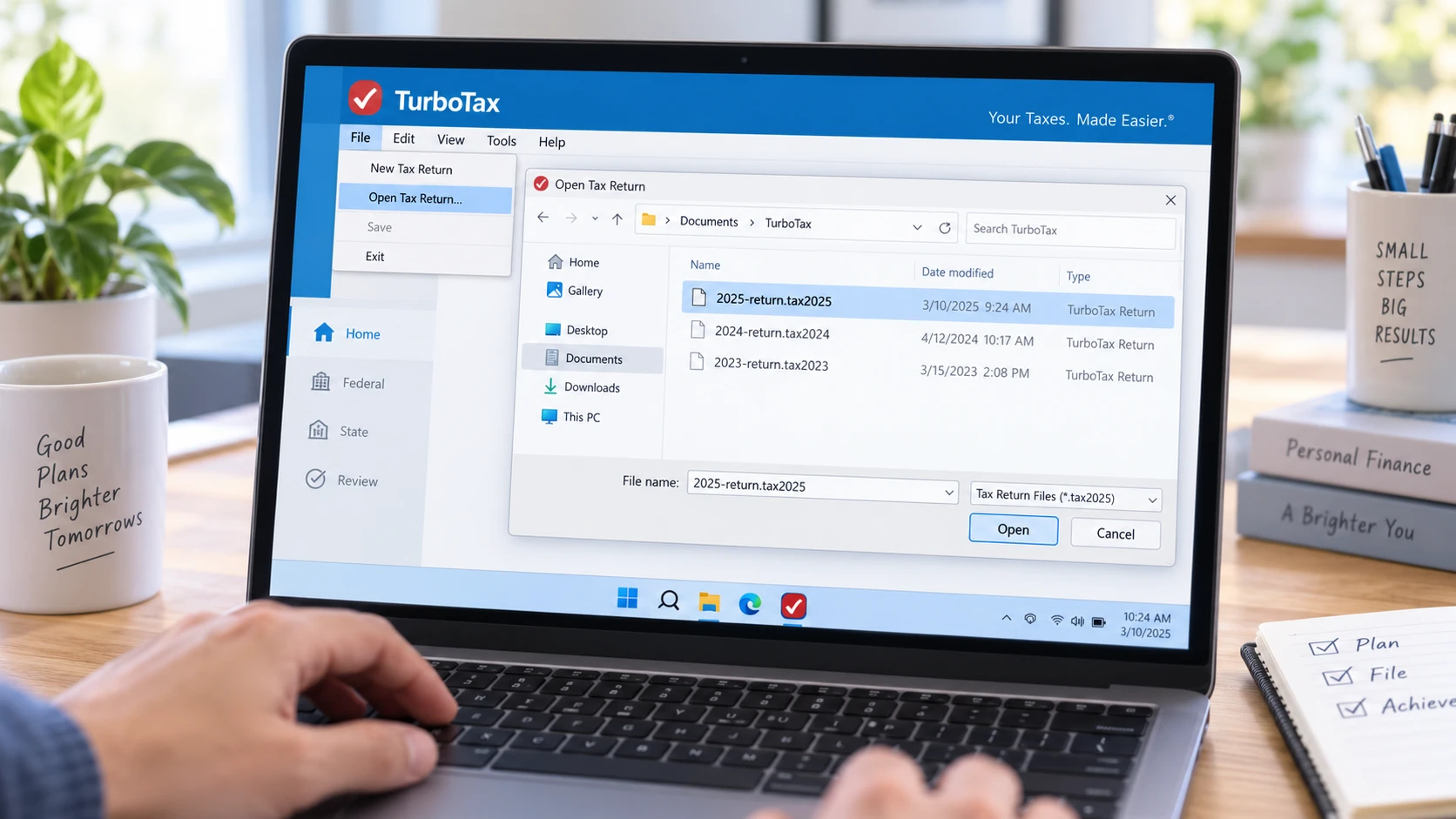
On Windows, TurboTax Desktop normally stores tax data in the Documents\TurboTax folder unless you selected another location.
The actual editable return uses a year-specific extension such as:
.tax2025.tax2024.tax2023
A PDF copy is useful for viewing or printing your return, but it is not the same as the editable TurboTax data file.
Therefore, when TurboTax files disappeared, search for both .taxYYYY files and exported PDF copies.
Method 1: Open the Missing TurboTax File Manually
Sometimes the file still exists, but TurboTax no longer displays it on the program’s recent-return screen.
Try opening it directly:
- Launch TurboTax Desktop for the correct tax year.
- Select File > Open Tax Return.
- Browse to
Documents\TurboTax. - Select the appropriate
.taxYYYYfile. - Open the return.
For example, a 2025 return usually has the .tax2025 extension.
If the file opens normally, your TurboTax files disappeared only from TurboTax’s recent-file list. No data recovery is necessary.
Method 2: Search the Whole Computer for .tax Files
If Documents\TurboTax is empty, search the entire computer rather than assuming the file was deleted.
Open File Explorer, select This PC, and search for:
*.tax2025for a 2025 return*.tax2024for a 2024 return*.tax*if you do not remember the year*.pdffor exported tax-return copies
Also inspect:
- Documents
- Desktop
- Downloads
- OneDrive
- External drives
- Other Windows user profiles
- Folders you previously used for tax documents
This step is especially important after moving files, changing Windows accounts, reinstalling TurboTax, or changing OneDrive settings.
Do not immediately run recovery software. First confirm that Windows truly cannot find the file.
Method 3: Check the Recycle Bin and Cloud Storage
If TurboTax files disappeared after you reorganized folders or deleted old tax documents, check the Windows Recycle Bin first.
- Open Recycle Bin.
- Search for
.tax2025,.tax2024, or the return filename. - Check the Original Location.
- Right-click the file.
- Select Restore.
Windows returns the file to its previous location.
For more detailed instructions, see how to recover files deleted from Recycle Bin.
Check OneDrive Too
The Windows Documents folder may be synchronized with OneDrive. As a result, your tax file may have moved to a path similar to:
C:\Users\YourName\OneDrive\Documents\TurboTax
Check both the local OneDrive folder and OneDrive’s online Recycle Bin.
If synchronization removed the file, our guide to recovering files deleted from OneDrive covers the available cloud and local recovery options.
If you suspect permanent deletion, avoid creating, downloading, or installing unnecessary files on the affected drive. New data can overwrite deleted file content.
Method 4: Verify TurboTax Online and Your Intuit Account
TurboTax Online and TurboTax Desktop handle tax-return storage differently.
If You Used TurboTax Online
Sign in to TurboTax and check Your tax returns & documents.
If an older return does not appear, verify that you signed in with the same Intuit account used to prepare that return.
Users sometimes have multiple accounts because they previously used:
- Another email address
- Another phone number
- A different username
- A family member’s account
Therefore, an apparently missing online return does not necessarily mean the tax data was deleted.
If You Used TurboTax Desktop
Desktop tax files are primarily local files stored on your computer or in locations you selected.
Do not assume that signing in to TurboTax Online will automatically reveal a missing Desktop .taxYYYY file.
Instead, search the computer and your backups.
This distinction is essential when TurboTax files disappeared because scanning a hard drive cannot recover a file that actually exists only inside another online account.
Method 5: Restore a TurboTax File from a Backup
A backup is safer than disk-level recovery, so check backup sources before scanning the drive.
Possible locations include:
- Windows File History
- Previous Versions
- OneDrive version history
- External backup drives
- NAS backups
- Manually copied TurboTax folders
- macOS Time Machine
- Another computer
Restore with Windows File History
If File History was enabled before the file disappeared:
- Open Control Panel.
- Select System and Security > File History.
- Click Restore personal files.
- Browse to the previous TurboTax folder.
- Locate the required
.taxYYYYfile. - Restore it.
For recently removed Windows files, you can also review our guide to recovering recently deleted files in Windows 11.
However, File History cannot recreate data if it was never included in a backup.
Autosave Is Not the Same as a Backup
An application may temporarily preserve working information, but autosave should not be treated as a permanent backup.
If TurboTax crashed before a complete return was ever written to disk, there may be no complete standalone .taxYYYY file for normal file-recovery software to restore.
What If the TurboTax File Exists but Will Not Open?
A file that exists but cannot be opened presents a different problem.
It may be:
- Corrupted
- Incomplete
- Created by a different TurboTax year
- Damaged during copying
- An incorrect file renamed with a
.taxYYYYextension
This is not the same as deletion.
First, verify that you are opening the return with the appropriate TurboTax version. Then look for another backup copy.
Recovery software does not repair the internal structure of an already corrupted tax file. However, it may sometimes locate an older deleted copy that was previously stored on the disk.
Method 6: Recover Deleted TurboTax Files with Magic Data Recovery
If a saved TurboTax Desktop file has been permanently deleted from a Windows drive, the Recycle Bin is empty, and no usable backup exists, Magic Data Recovery becomes a reasonable next step.
Unlike TurboTax backups or cloud account recovery, data recovery software scans the storage device where the local file originally existed.
This approach is appropriate when:
- The
.taxYYYYfile was permanently deleted - The Recycle Bin was emptied
- Shift + Delete was used
- A saved TurboTax folder disappeared
- No File History or backup copy exists
- Windows can still detect the affected drive
However, recovery is not guaranteed.
After deletion, the file system may mark the previous storage space as available for reuse. New files can then overwrite the original content.
SSD recovery can be even more difficult because TRIM may instruct the SSD to clear blocks that Windows no longer considers active.
Important: Stop writing new data to the affected drive whenever possible. Also, do not install recovery software onto the same partition that contained the missing TurboTax file.
If the built-in recovery options no longer work, you can try Magic Data Recovery before new data overwrites the deleted files.
How to Use Magic Data Recovery When TurboTax Files Disappeared
Step 1: Download and Install Magic Data Recovery
Download Magic Data Recovery and install it on a drive or partition different from the location where the missing tax file was stored. For example, if the missing .tax2025 file was on C:, avoid installing the recovery software on C: when another suitable drive is available. This reduces unnecessary writes to the data-loss location.
Supports Windows 7/8/10/11 and Windows Server
Step 2: Select the Drive Where the TurboTax File Was Stored
Launch Magic Data Recovery and select the drive that originally contained the missing TurboTax file. If TurboTax used its standard Windows location under Documents\TurboTax, this will often be the Windows system partition. Start the scan after selecting the correct drive.

Step 3: Scan for Lost or Deleted TurboTax Files
Allow the software to scan the selected storage device.
As results appear, look for:
.tax2025.tax2024- Other
.taxYYYYfiles - Original TurboTax folders
- Related PDF copies
Search by filename, extension, date, or original path whenever those details are available.

Step 4: Recover Files to a Safe Location
Select the files you need and recover them to another drive or safe storage location. Do not immediately restore them to the same location where the data loss occurred. Writing recovered files back to the affected drive could overwrite other data that has not yet been recovered. After recovery, try opening the .taxYYYY file using the matching TurboTax version.

Method 7: Use a PDF or Tax Transcript If Recovery Fails
If your TurboTax files disappeared permanently and the editable tax file cannot be recovered, look for another copy of the return.
Search for PDF files on:
- Your computer
- External backup drives
- OneDrive or another cloud service
- Email attachments
- Previous computers
A PDF will not restore the editable .taxYYYY project, but it can preserve the information contained in the filed return.
If you used TurboTax Online, check the appropriate Intuit account for downloadable copies of prior returns.
You may also request IRS transcripts or copies of previously filed tax returns when necessary. However, an IRS transcript does not recreate the original editable TurboTax Desktop file.
How to Prevent TurboTax Files from Disappearing Again
Once you recover your tax files, create multiple independent copies.
A practical setup is:
- Keep the working
.taxYYYYfile in a clearly named folder. - Create a separate backup after major changes.
- Export the completed return as a PDF.
- Store another copy on external or trusted cloud storage.
- Verify that the backup can actually be located before relying on it.
For example:
Tax Records\2025\TurboTax\
could contain:
2025-return.tax20252025-return.pdf2025-return-backup.tax2025
Avoid keeping the only copy on one laptop.
Tax returns also contain sensitive personal and financial information. Therefore, protect backup drives and cloud accounts with appropriate security controls.
Conclusion
If your TurboTax files disappeared, begin by finding out whether you used TurboTax Desktop or TurboTax Online. Then search for .taxYYYY files, inspect the Recycle Bin and OneDrive, verify the correct Intuit account, and restore File History or another backup before attempting disk-level recovery.
For more Windows deletion scenarios, Amagicsoft’s deleted file recovery guide explains what happens after files are removed and which recovery method fits different situations.
If a saved TurboTax Desktop file was permanently deleted and those built-in methods fail, Magic Data Recovery can scan the original Windows drive for recoverable data. Still, overwriting, SSD TRIM, physical drive damage, corruption, and never-saved data can all limit recovery.
The safest order is simple: locate first, restore from backup second, and scan the drive only when the easier options no longer work.
Supports Windows 7/8/10/11 and Windows Server
FAQs About TurboTax Files Disappeared
Why have my TurboTax files disappeared from TurboTax Desktop?
If TurboTax files disappeared from the Desktop start screen, the .taxYYYY file may still exist even though its recent-file entry is missing. Check Documents\TurboTax, use File > Open Tax Return, and search the entire computer for *.tax2025 or the appropriate year. Also inspect Recycle Bin, OneDrive, external drives, and other Windows user profiles.
Where does TurboTax save tax files on Windows?
TurboTax Desktop normally stores local tax files in the user's Documents area, commonly under Documents\TurboTax, unless another folder was selected. The editable return uses a year-specific extension such as .tax2025. If it is missing, search the entire computer using *.tax2025 or *.tax* and inspect cloud-synchronized Documents folders as well.
Can I recover a TurboTax file after emptying the Recycle Bin?
Possibly. If the TurboTax file was previously saved and its storage space has not been overwritten, recovery may still be possible. Stop unnecessary use of the affected drive first. File History or another backup should be checked before scanning. SSD TRIM and subsequent disk activity can significantly reduce the chance of restoring permanently deleted .taxYYYY data.
Can TurboTax restore a missing Desktop tax file from my online account?
Do not assume it can. TurboTax Desktop tax files are primarily stored on the computer or another location you selected, while TurboTax Online stores returns through the online account workflow. If your Desktop file is missing, search the local computer and backups first. Conversely, if an Online return is missing, verify that you signed in with the correct Intuit account.
What if my TurboTax file exists but is corrupted?
A corrupted TurboTax file requires a different approach from a deleted file. First, verify that you are using the correct TurboTax year. Then search for another .taxYYYY copy, File History version, cloud backup, or manually saved backup. Data recovery software does not reliably repair corrupted file contents, although it may locate an older deleted copy stored elsewhere on the drive.
Can I recover an unsaved TurboTax return after a crash?
It depends on whether a usable copy was written to disk before the crash. Autosave and temporary application data are not the same as a permanent backup. Search TurboTax's normal storage location and existing backups first. If no complete .taxYYYY file was ever created, conventional deleted-file recovery may have no complete standalone tax file available to restore.
How can I prevent TurboTax files from disappearing again?
Keep more than one independent copy of important tax records. Save the working .taxYYYY file, export a PDF, create another backup, and store at least one copy on separate external or trusted cloud storage. Update backups after major changes. Because tax returns contain sensitive personal and financial information, protect every stored copy and the accounts used to access it.

Vasilii is a data recovery specialist with around 10 years of hands-on experience in the field. Throughout his career, he has successfully solved thousands of complex cases involving deleted files, formatted drives, lost partitions, and RAW file systems. His expertise covers both manual recovery methods using professional tools like hex editors and advanced automated solutions with recovery software. Vasilii's mission is to make reliable data recovery knowledge accessible to both IT professionals and everyday users, helping them safeguard their valuable digital assets.